Actions
A flow is a visual representation of conditional branch logic that's applied to your contacts once they enter it. Once a contact has entered a flow, they interact directly with its nodes. Nodes are made up of actions and splits, and they determine the length of a flow, which can be as short as a single node or as long as you want.
Actions
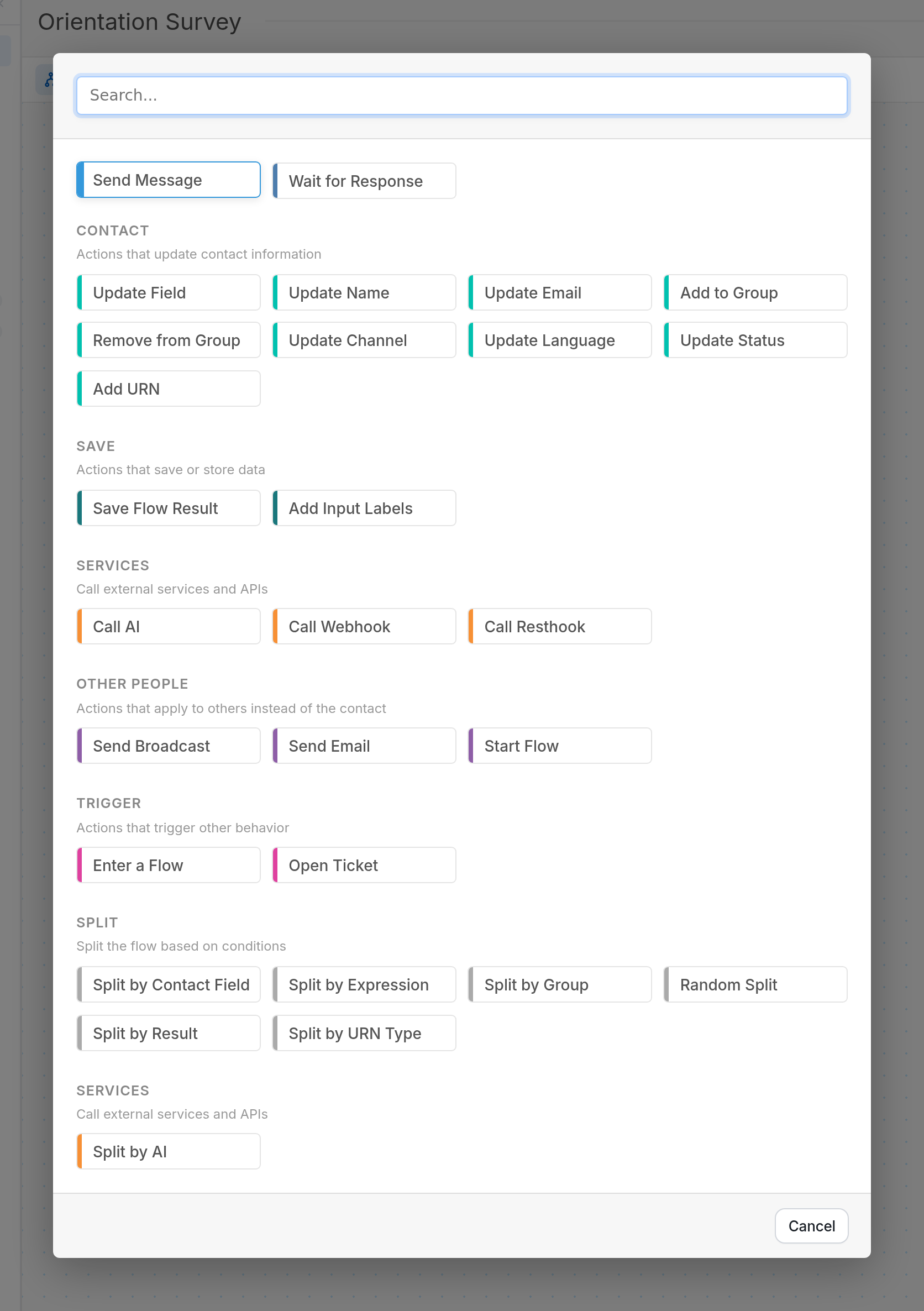
An action is a step your flow carries out for the contact. Actions let you:
-
Send a Message (sends a message and/or media attachment to active contacts who reach that node in your flow)
-
Start Flow (outside the interaction taking place)
-
Adding Labels to Responses (Add Input Labels)
-
Update the contact's default details (name, email, language, channel and status)
-
Adding and Updating Contact Custom Fields (with a value received in a response, for example Age, Gender or Profession)
-
Send Someone Else a Message (Send Broadcast)
There are many more actions to choose from.
The actions in a node are carried out immediately, in order from top to bottom:
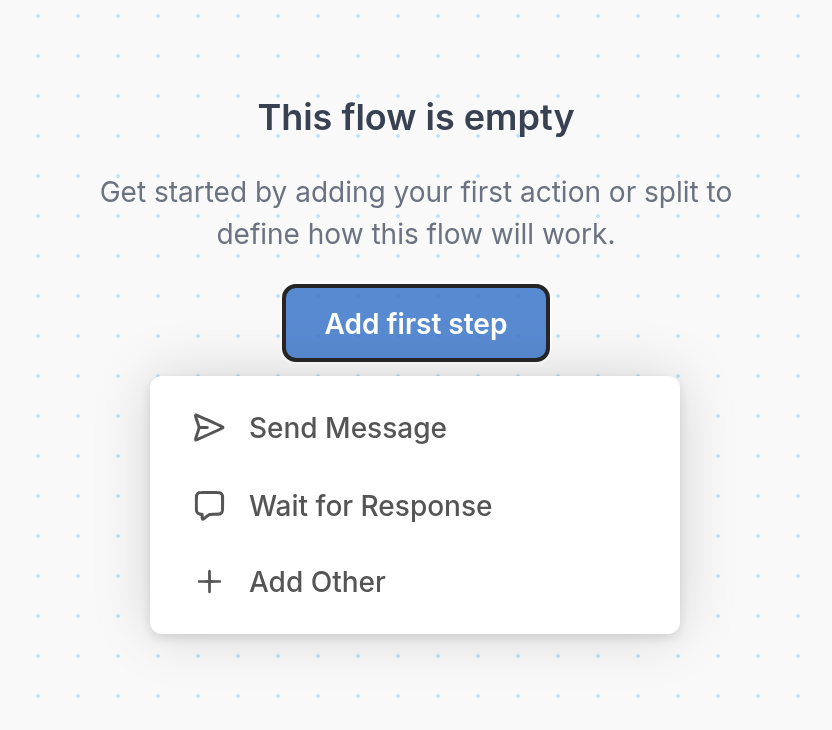
When you create a new flow and click Add first step, the editor suggests starting with Send Message or Wait for Response. Sending a message is an example of an action.
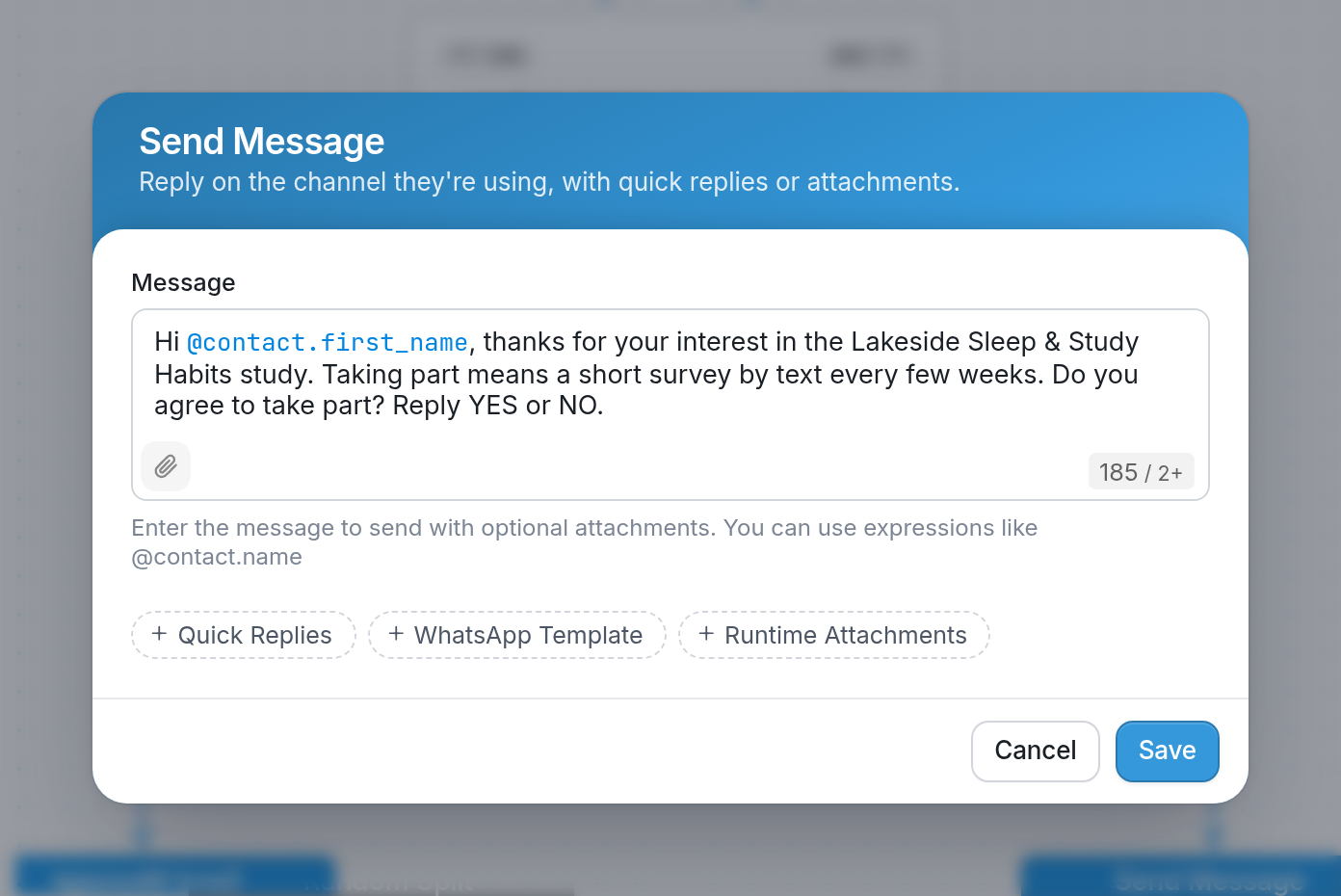
Creating an Action
Click Send Message to open the action's editor, shown below.
Adding an Action to an Existing Node
Actions can be attached to other nodes or exist on their own. Actions attached to the same node are carried out immediately, in order from top to bottom.
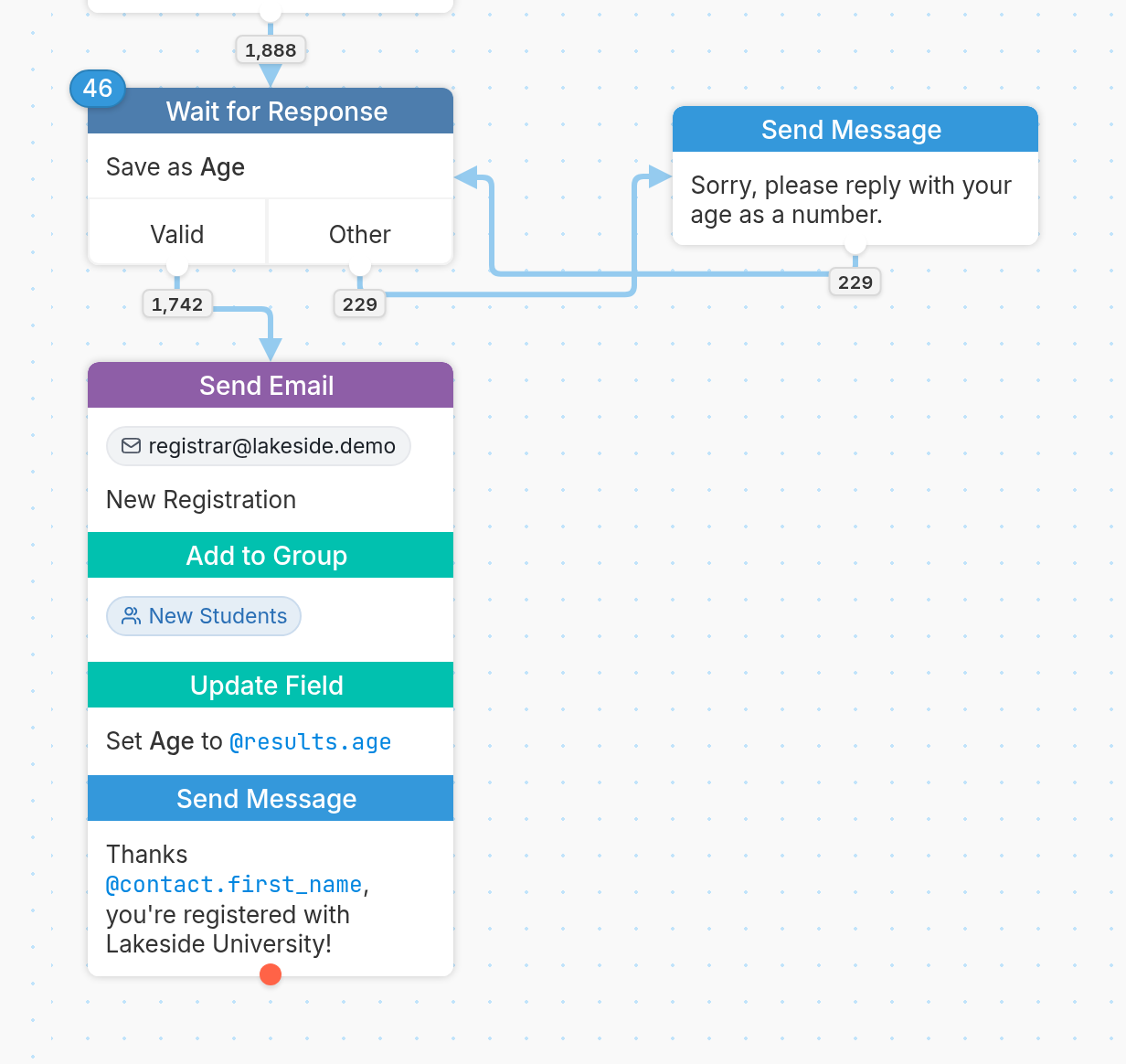
In the example below, four actions are grouped to register a new student. When a contact passes through this node, the actions occur in the order in which they're stacked:
-
An email with the subject "New Registration" is sent to registrar@lakeside.demo, alerting the registrar's office that a new student has registered.
-
The contact is added to the "New Students" group.
-
The contact's Age field is set to the age they replied with (
@results.age). -
The Send Message action sends the contact a message confirming that they're registered with Lakeside University.
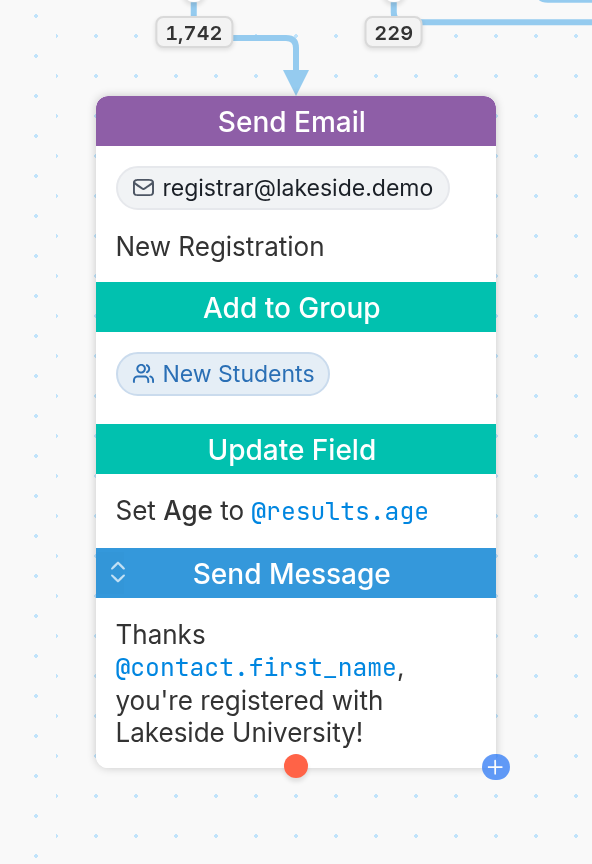
To add an action to an existing node, click the blue + symbol in the bottom right corner of the node and select an action from the dropdown menu in the new node.
Changing the Order of Actions within a Node
To change the order of actions within a node, move your cursor over the action you want to move, then click and drag the up-and-down arrows icon in the top left corner of its header to move the action where you want it.
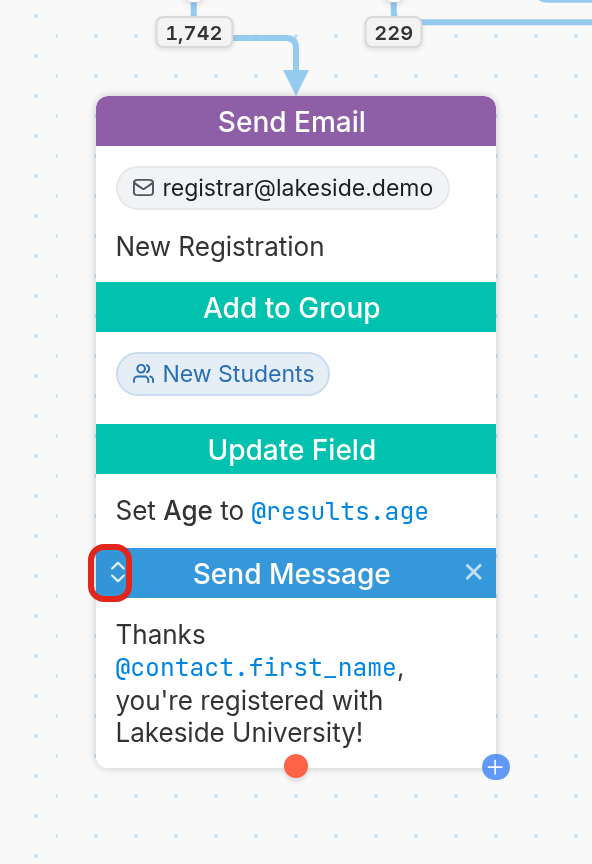
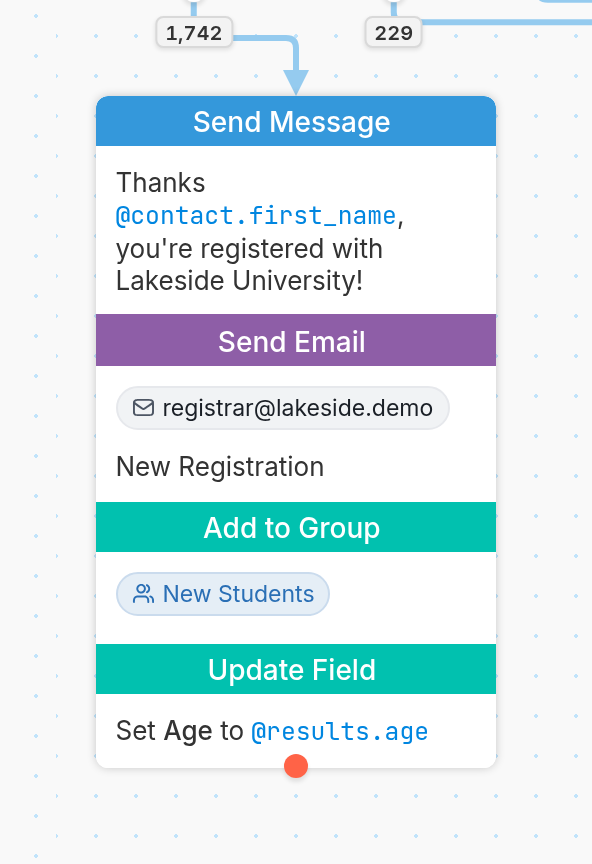
In this example, we moved Send Message to the top of the node, so the message is sent before the Send Email, Add to Group and Update Field actions run.
Deleting an Action
To delete an action, move your cursor over the action you want to delete and click the × icon in the top right corner of its header. The action will turn red and ask for confirmation. Click the × icon again to delete it.