Integrate Zapier with your Account
Zapier lets anyone integrate with over 1000 other apps like Google Sheets, Slack and Salesforce without writing any code.
It lets you create connections that pass information from one app to another. For example, you might use Zapier to:
-
Distribute and verify coupons and vouchers via Google Sheets.
-
Alert your Slack channel of a flow response.
-
Add contacts who complete a Typeform embedded in your website to a flow.
-
Add new Salesforce contacts to flows.
-
Use WordPress Integrations to trigger flows from actions taken on your WordPress site.
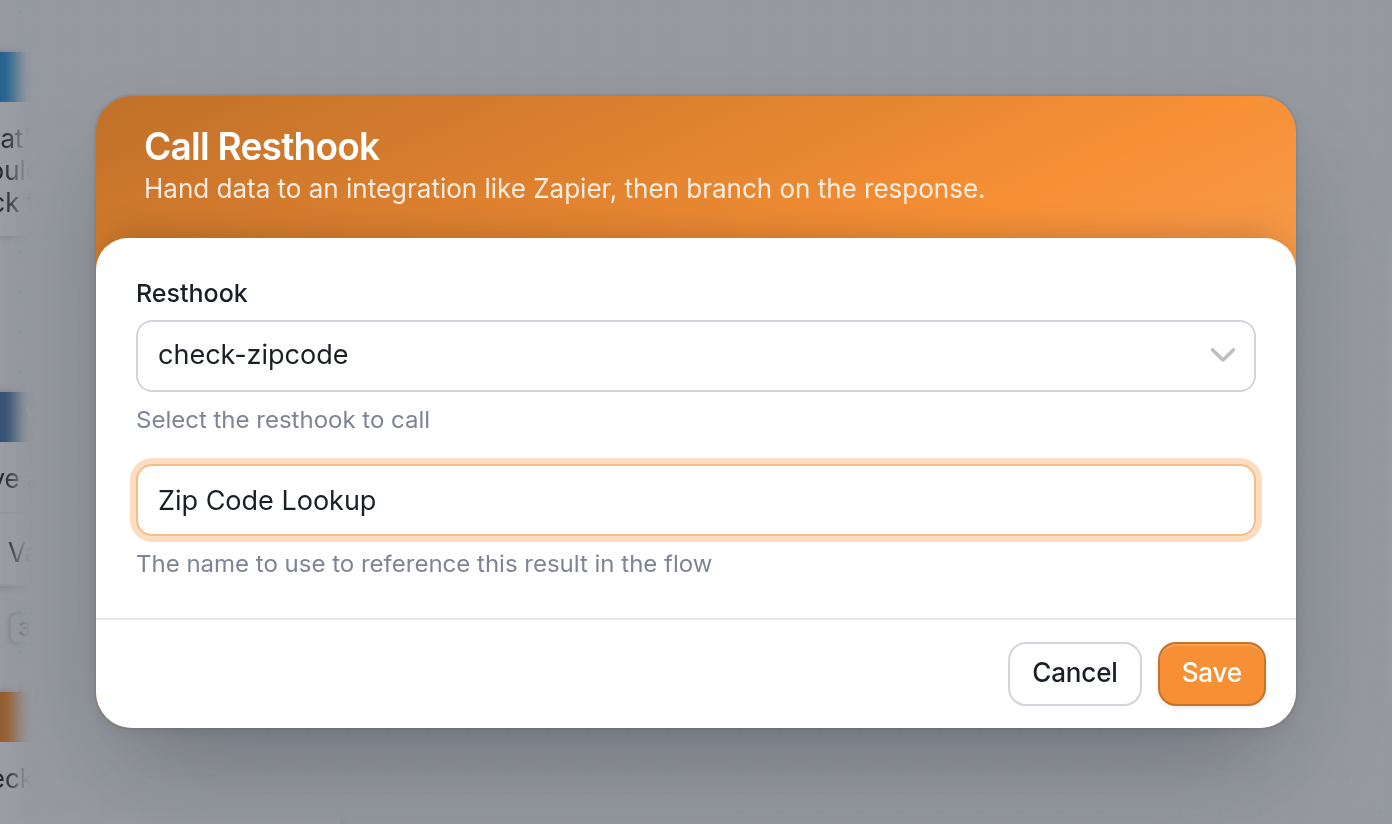
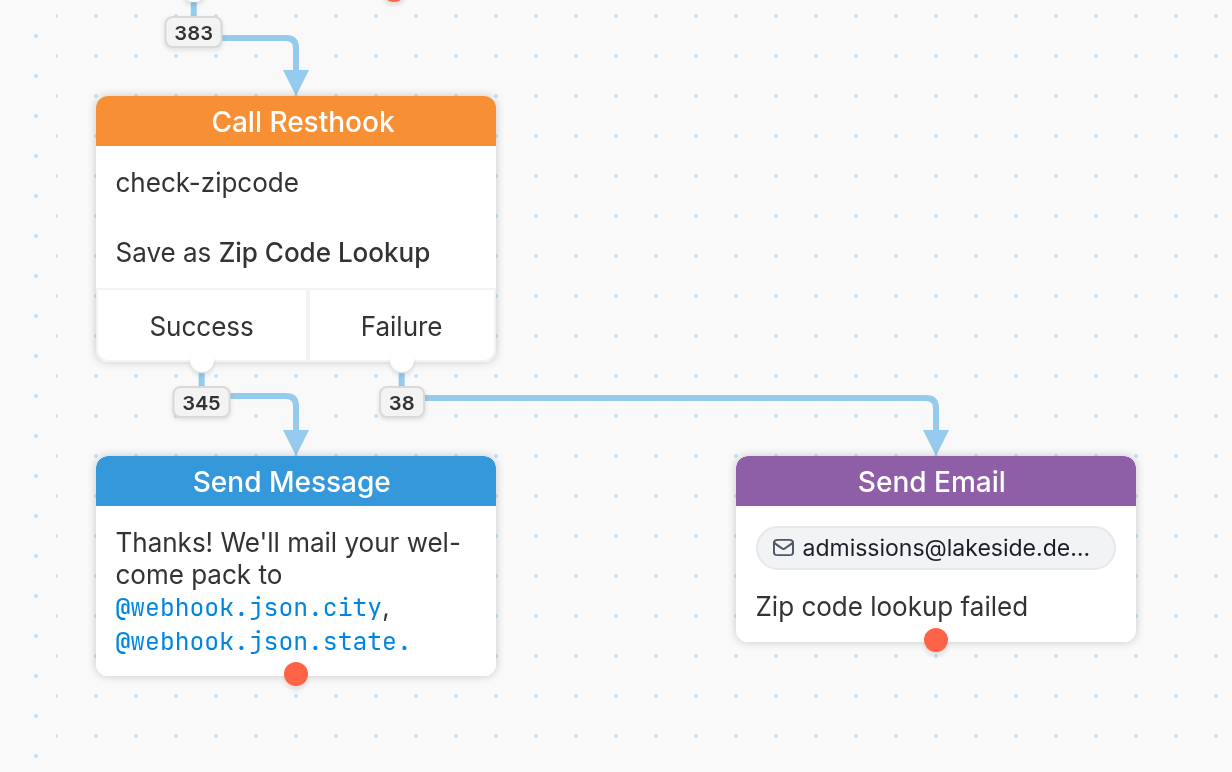
Here's an example of a flow that uses a Call Resthook action to call Zapier:
How it Works
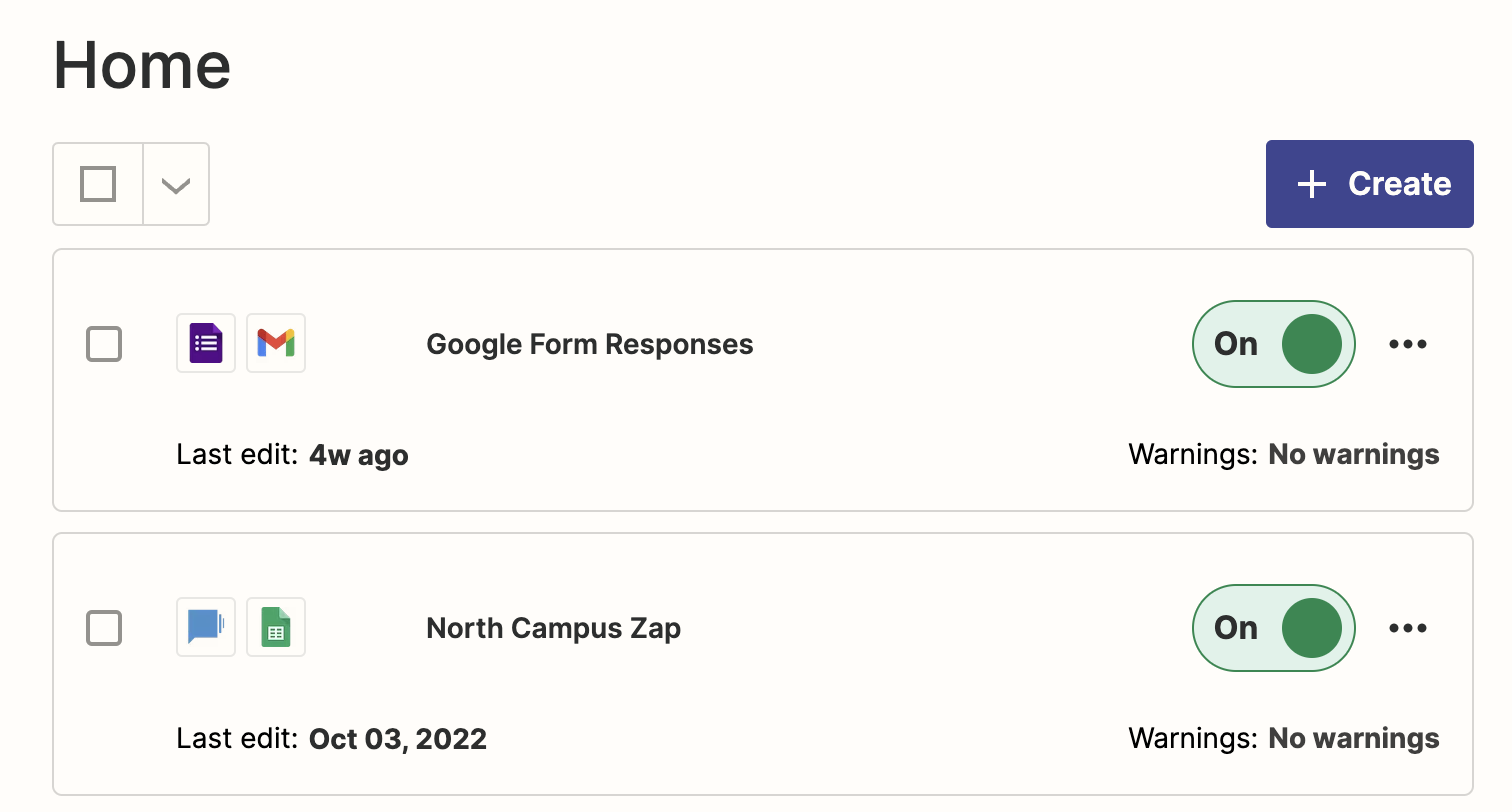
Zapier watches your apps for new data and runs actions based on the rules you set. Each pairing of a trigger and an action is called a Zap. Here are some examples:
Supported Zaps
The Zapier app currently has one action and one trigger for our platform, though we're happy to look at adding more based on your feedback.
The Start Flow action lets you start one or more contacts in a flow using data from another app.
The Flow Event trigger sends all of the responses a flow has collected up to the Call Resthook node to the app of your choice.
Try it Out
If you haven't already, head over to Zapier to find more use cases and sign up for a free account. You can use the templates below to get started:
Add new flow responses to new rows on Google Sheets
Post new flow responses to a Slack channel
Add new Mailchimp subscribers to a flow
Create HubSpot contacts from new flow events
Add Mailchimp subscribers from new flow events
Add new Typeform respondents to a flow
Create Zoho CRM leads from new flow events
Add Salesforce contacts from a new flow event
See more integrations powered by Zapier.
For step-by-step guides, see our articles on using the Call Resthook action in a flow to send data to an external app, and the Start Flow action in Zapier to push data from an external app to TextIt.
If you have a workflow you need to automate and aren't sure how, we're happy to help. Click the support widget at the bottom right of the screen to start a conversation.