Artificial Intelligence
You can add Large Language Models (LLMs) in your workspace settings to turn on AI-assisted features.
Besides LLM auto-translation for multi-language flows, you can use AI directly in your flows. Split by AI routes contacts by sorting their replies into categories you choose, and Call AI generates text from a prompt.
We'll be rolling out more AI-assisted features in the coming year. You can follow them on our blog.
What Can AI Do in My Flows?
Here are some ideas:
- Auto-translate your flows into multiple languages.
- Language learning: practice conversation, translate, or quiz vocabulary.
- Customer service: handle inquiries, complaints, or refund requests conversationally.
- Internal assistant: help employees find documents, policies, or HR info.
- Onboarding bot: guide new users or team members through a process step by step.
- Sales assistant: qualify leads, book calls, or suggest packages.
- Task automation: integrate with APIs to handle bookings, reminders, or daily reports.
- Support triage: classify messages into Billing, Tech Support, or Sales to route them to the right team.
- Survey classification: group open-ended answers into defined themes like Price, Features, or Usability.
Add your Model
First, go to your workspace settings page and open the AI section on the left. It lists the models you've already added. Here, that's Advising OpenAI (gpt-5.4-mini) and Lakeside Claude (claude-haiku-5-5).

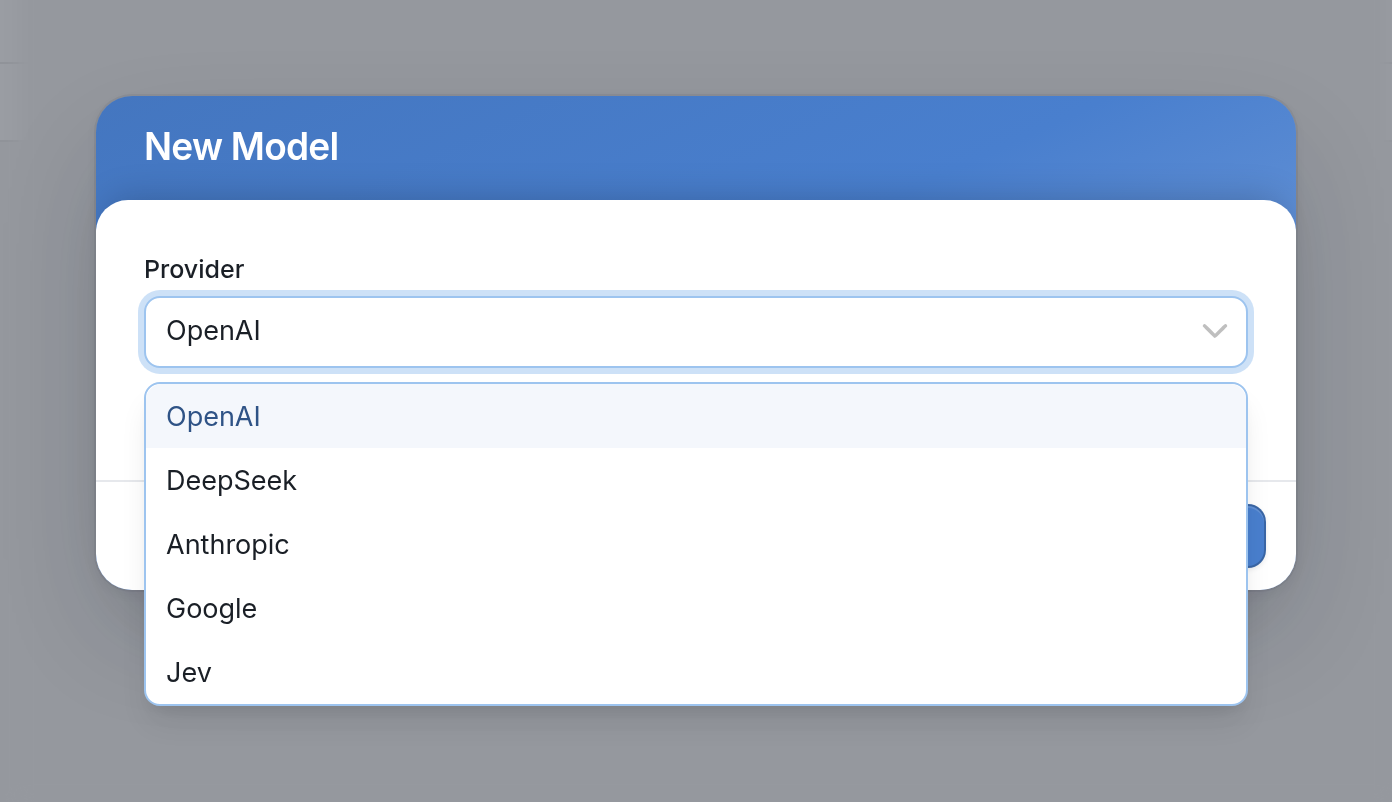
Click the Provider dropdown and choose OpenAI, DeepSeek, Anthropic, Google or Jev for your model.
| Note that Jev is a classification model. It reads a contact's reply and sorts it into one of your categories, but it can't write new text. That means you can use Jev only with the Split by AI action, not with Call AI or flow translation. For Split by AI, Jev is our recommended model. |
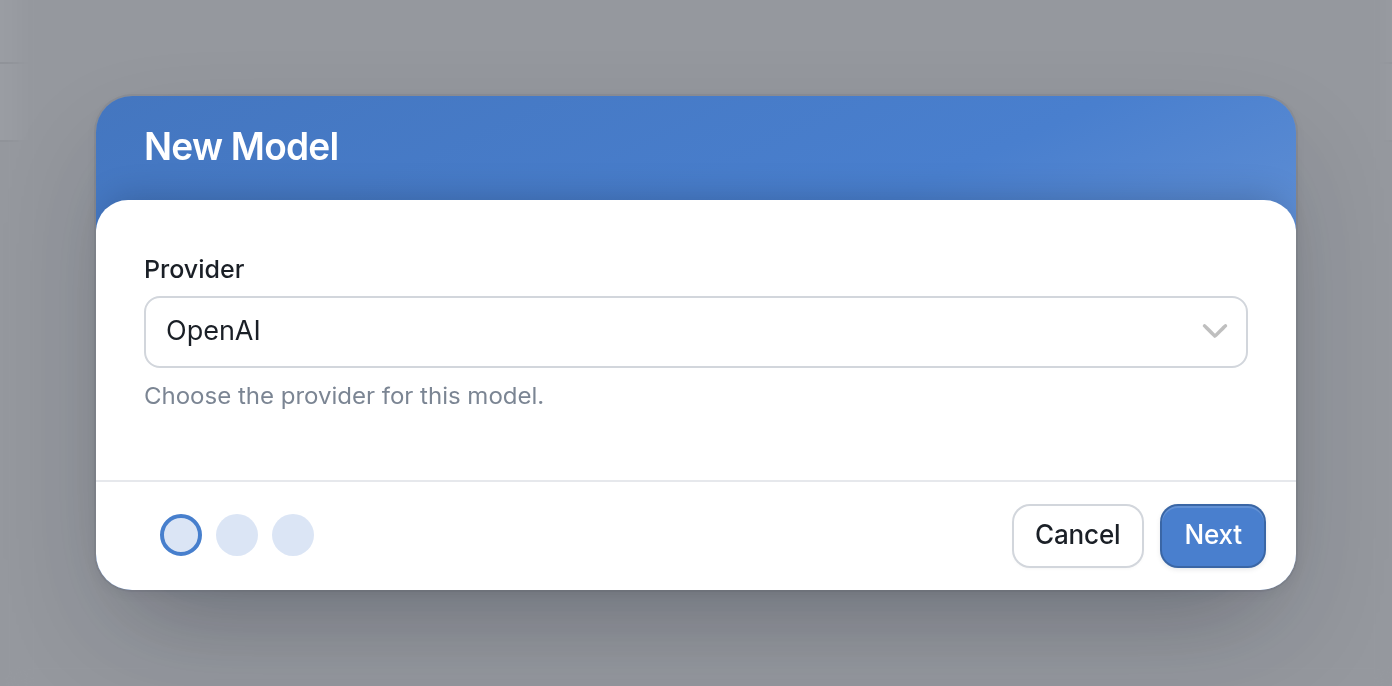
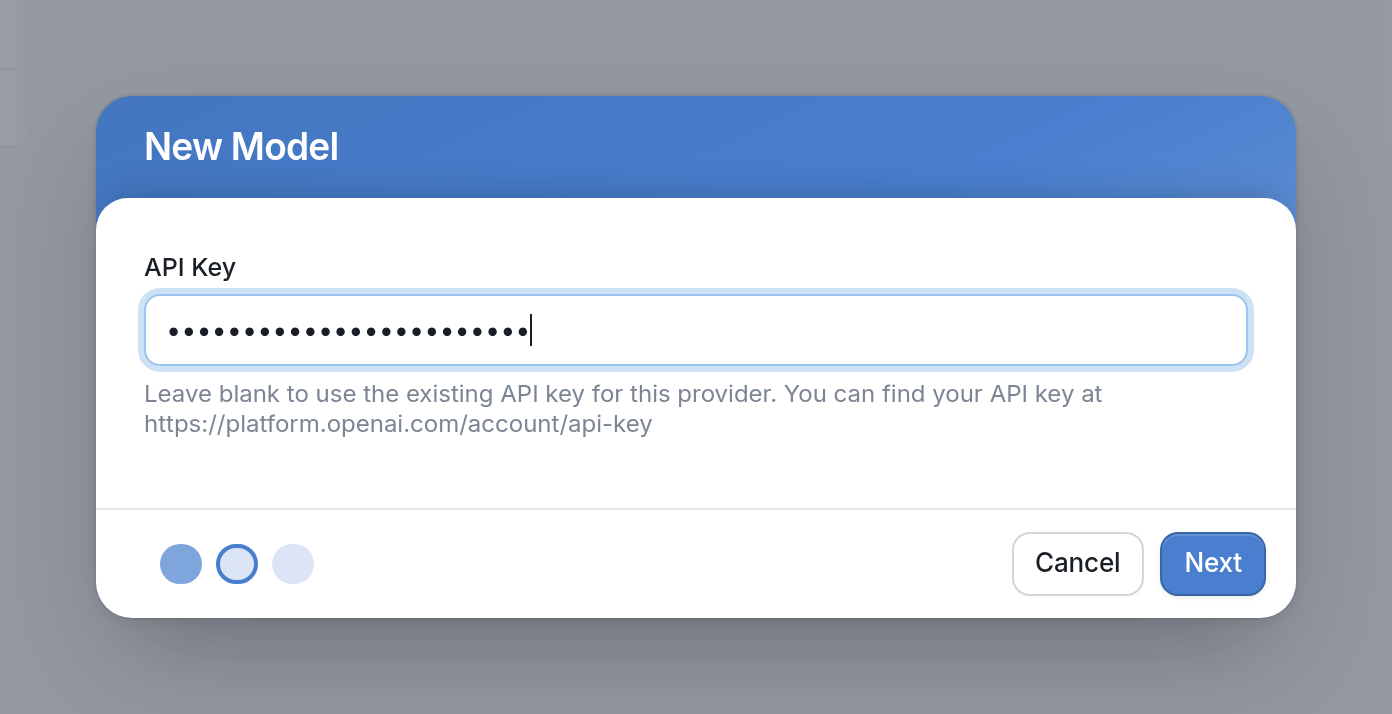
In this example, we're going with OpenAI. Click Next, then enter your API key, which you'll find in your provider's dashboard. If you've already added a key for this provider, you can leave the field blank to use the existing one.
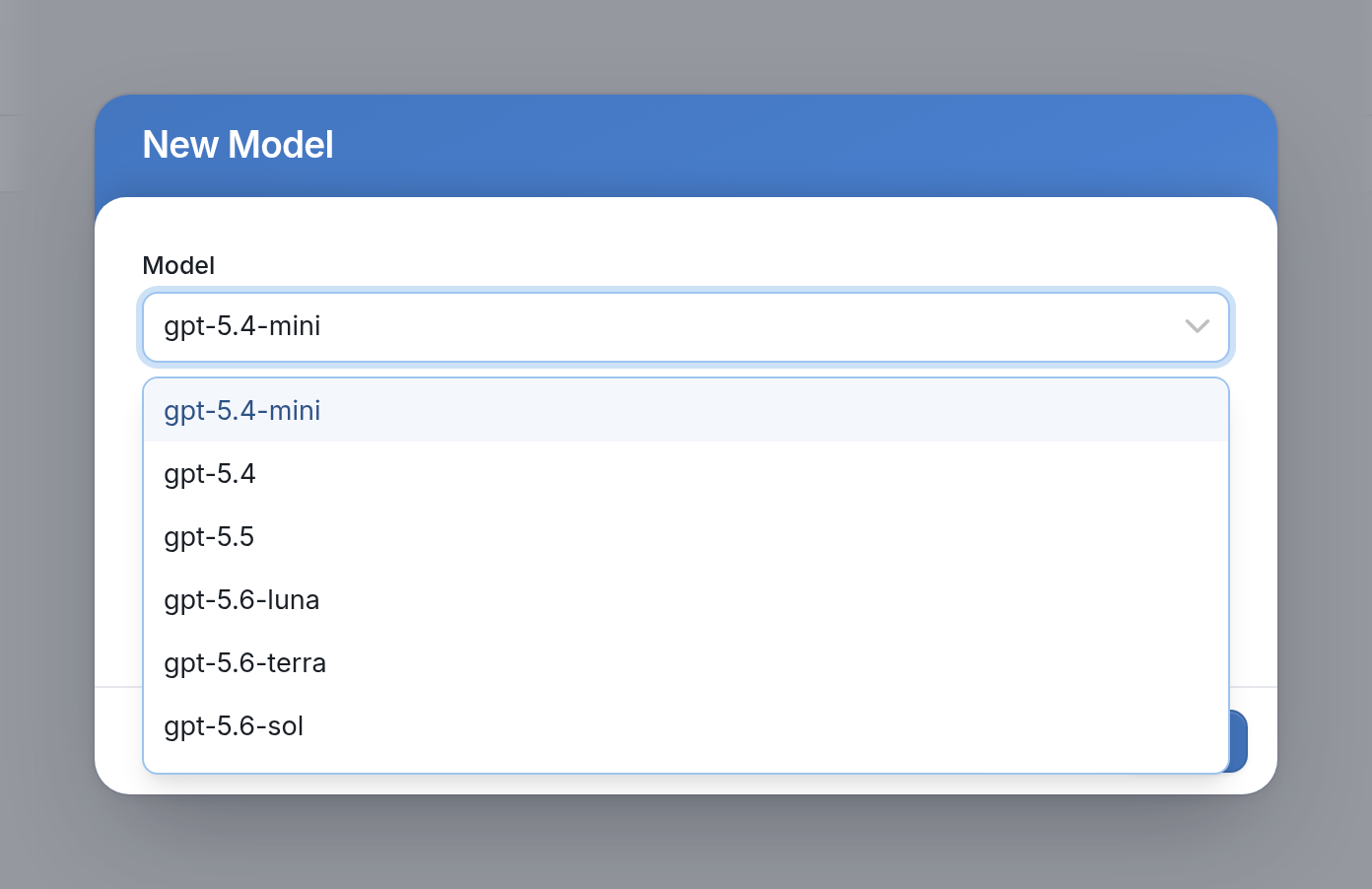
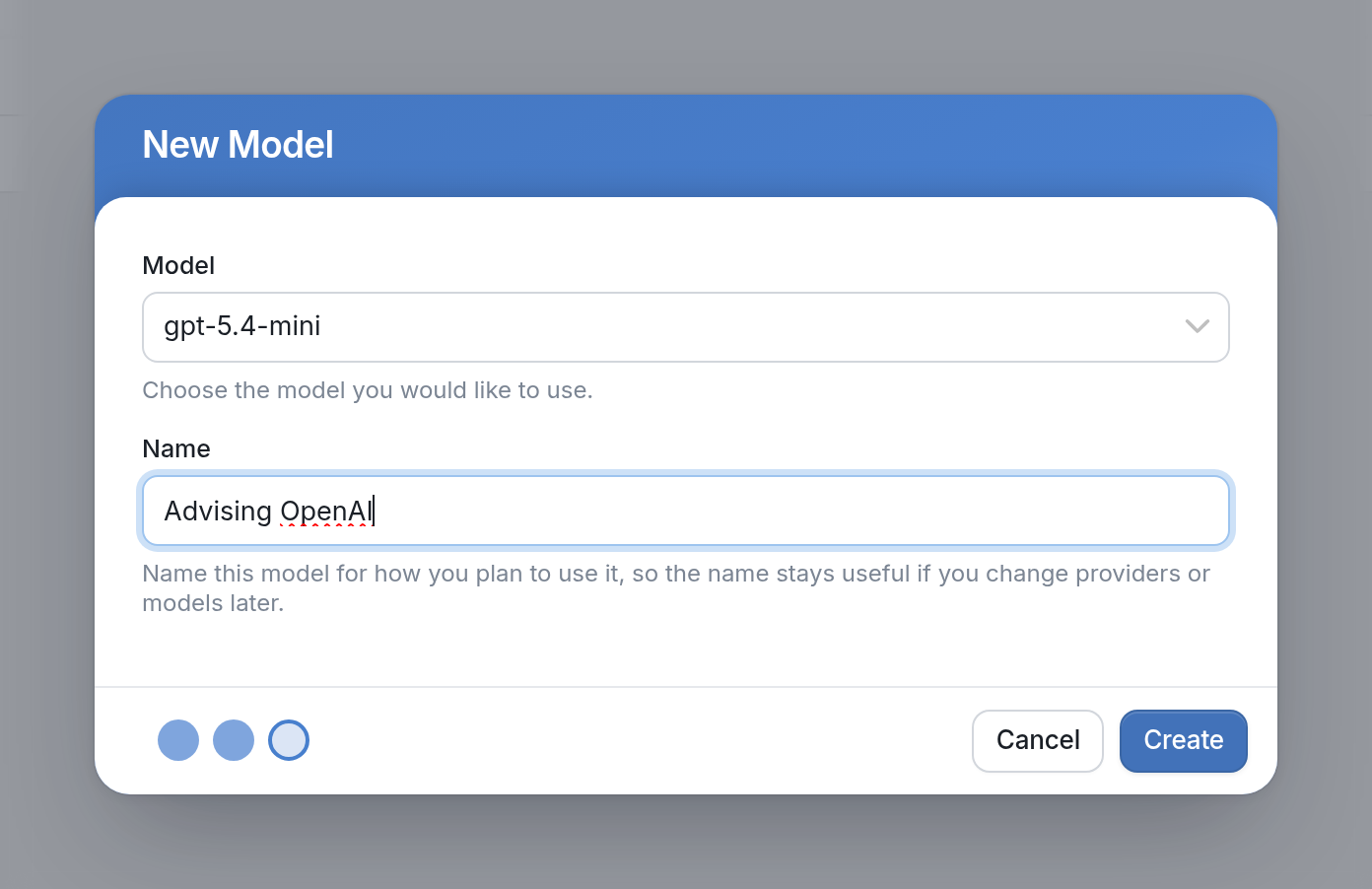
After you click Next, you'll be asked to choose one of the models available to your account. Here, we pick gpt-5.4-mini.
Give your model a name and click Create. Name it for how you plan to use it, so the name still makes sense if you change providers or models later. This example uses Advising OpenAI.
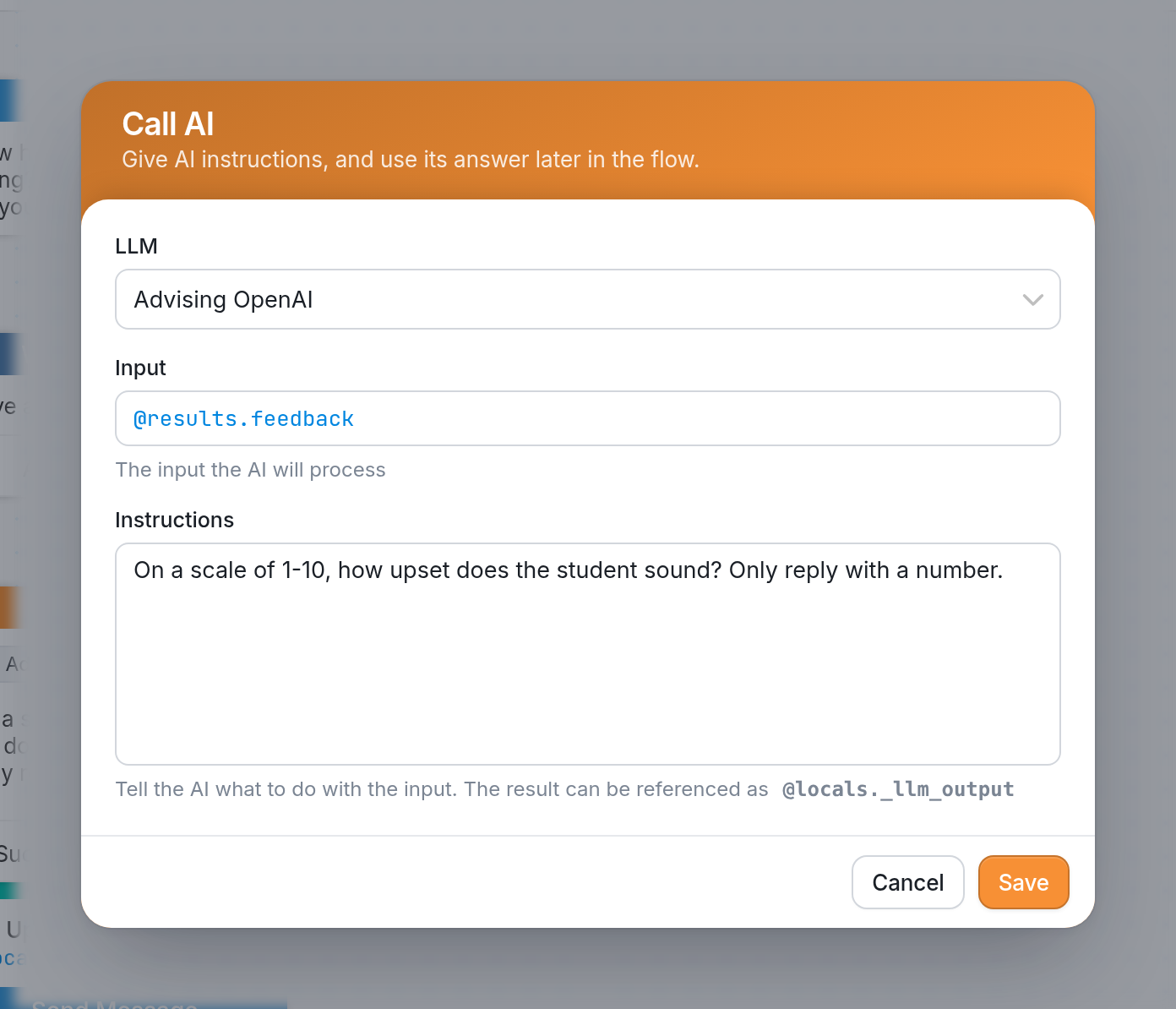
Your LLM is now connected to your TextIt workspace, and it will appear anywhere you use AI in your flows. Below, Advising OpenAI is selected in a Call AI action that rates how upset a student sounds in their feedback (@results.feedback).
Have a question? Click the help icon in the left-hand panel to send us a message.