What is a "Featured" Contact Field?
On a contact's page, the Fields panel lists the contact's fields. In this example, the first three are Cohort, Study Arm and Year:
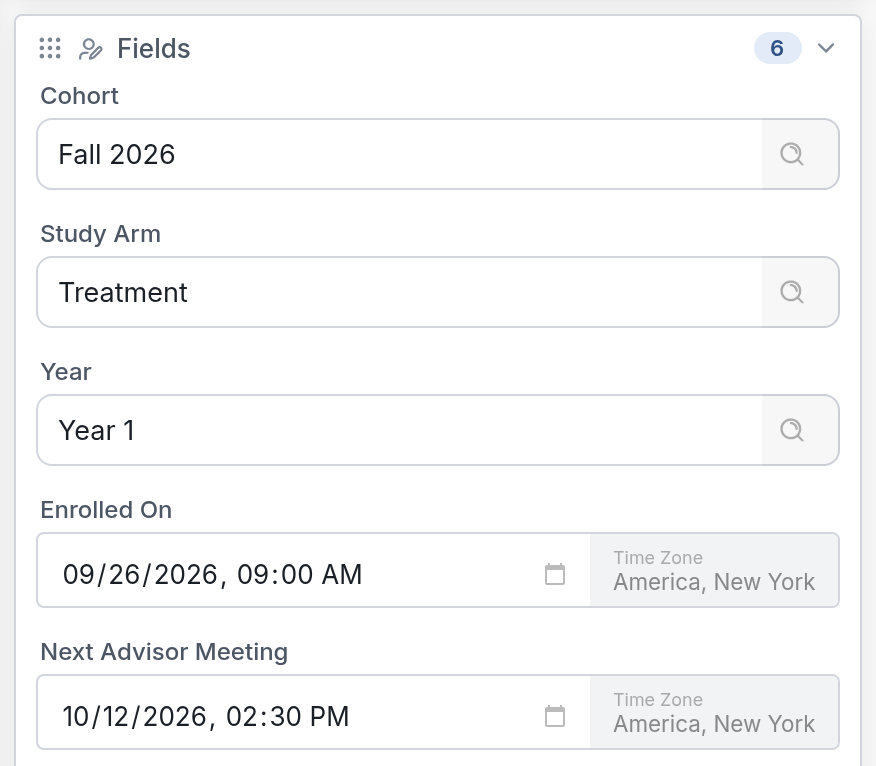
These are "featured" contact fields, which means they appear at the top of the contact's page. You can open that page from the Contacts tab.
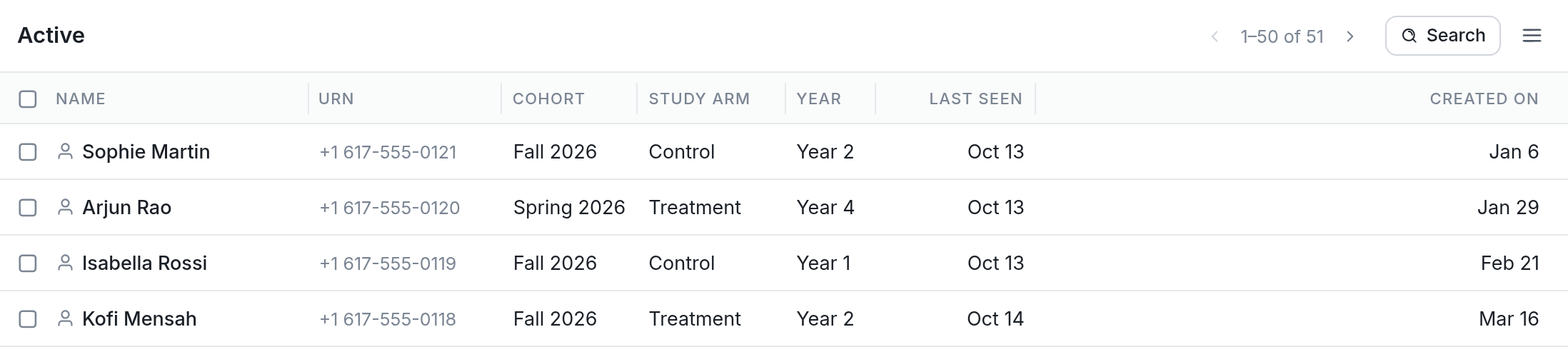
Featured contact fields also appear as columns on the main contact list:
Adding or Editing "Featured" Contact Fields
First, click the Contacts tab, then Fields in the column on the left:
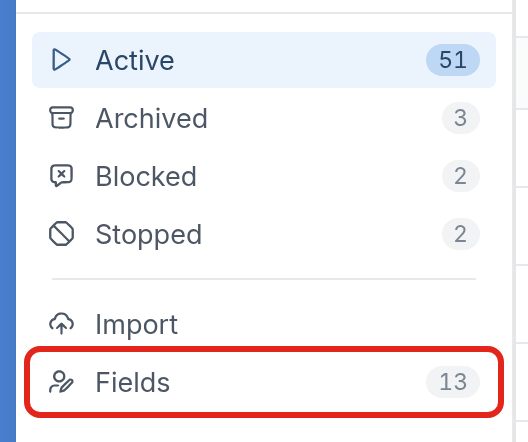
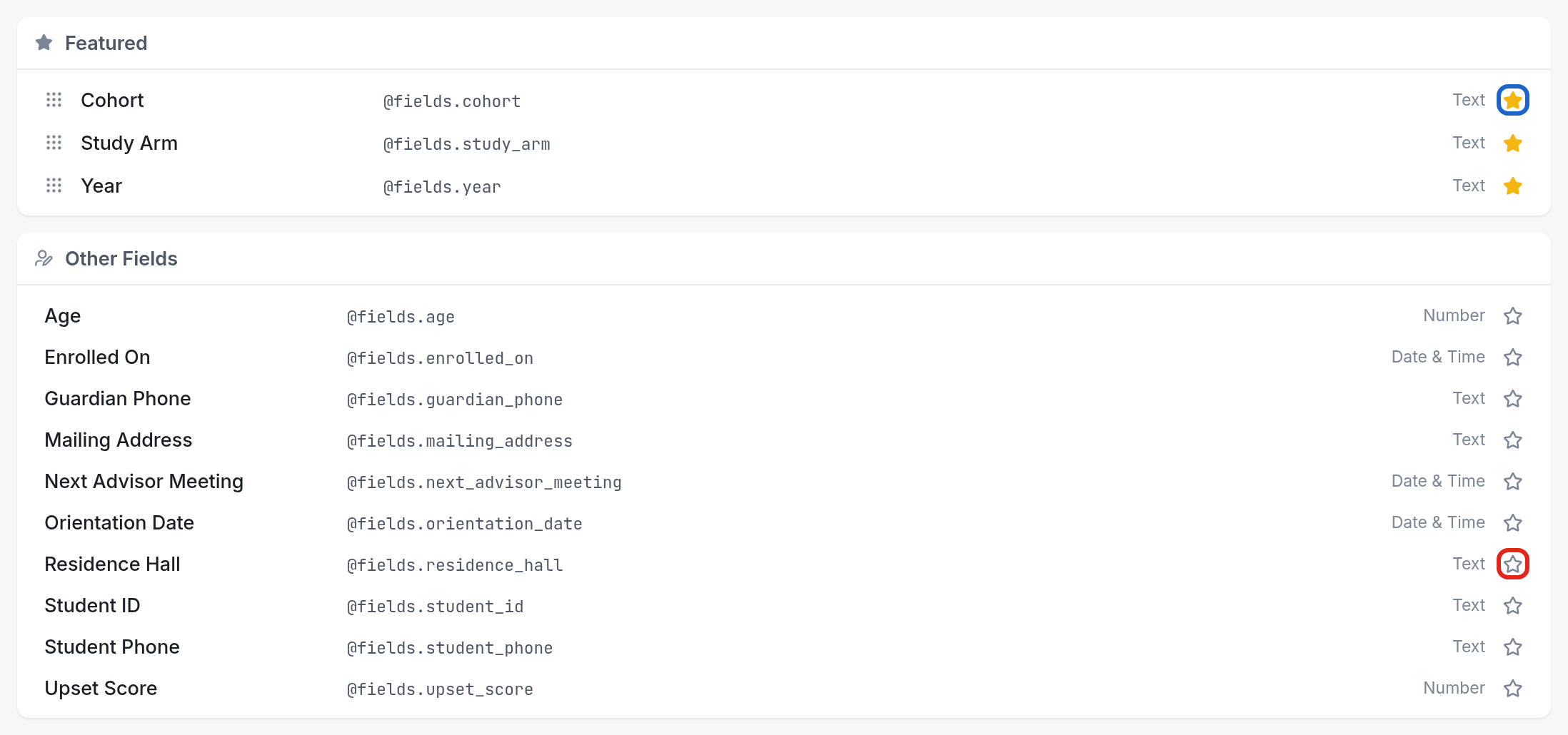
This opens the Fields page:

The page has two sections: Featured, for your featured contact fields, and Other Fields, for all the others.
To create a new field, click New at the top right.
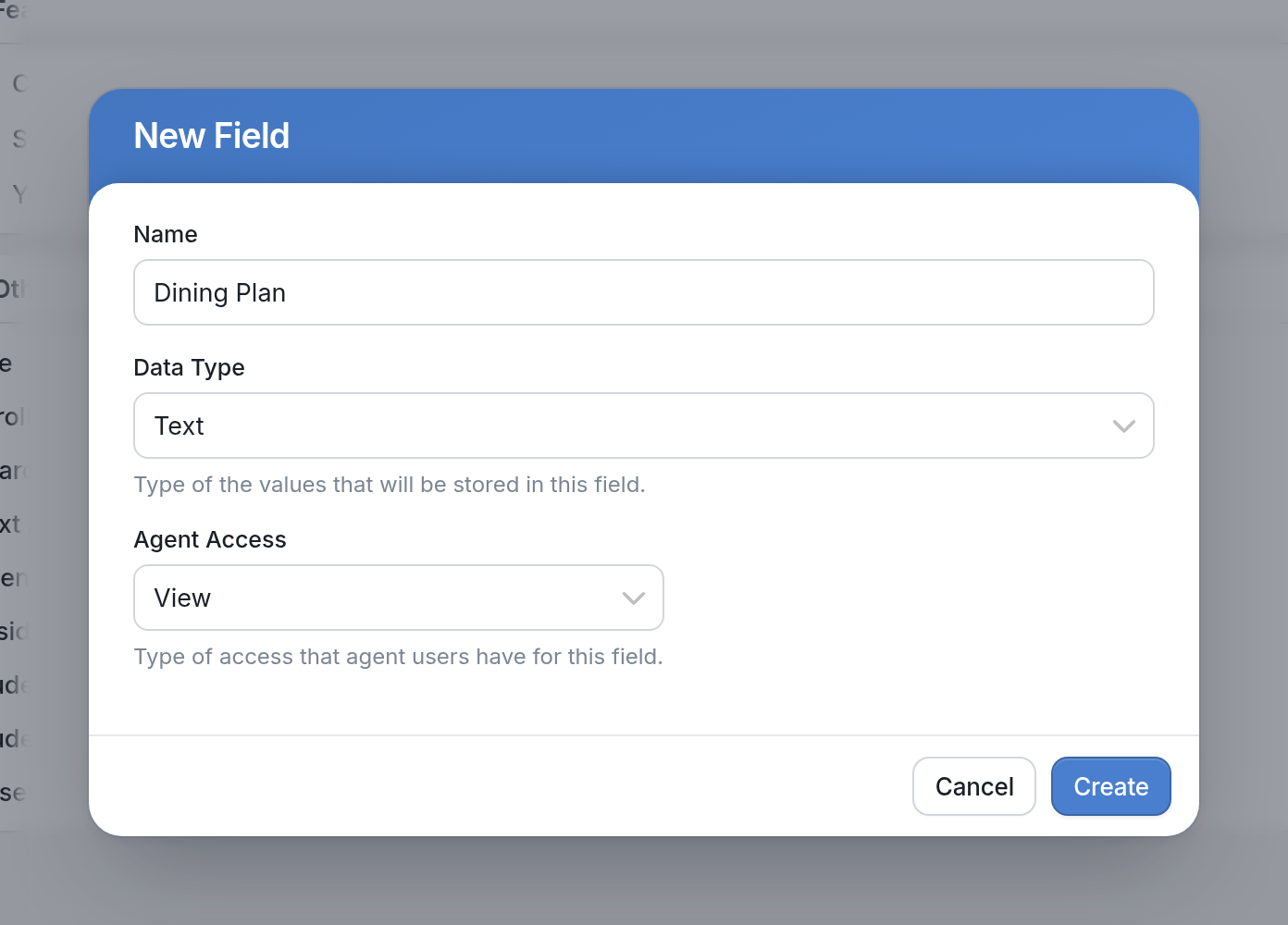
Give it a unique name, such as "Dining Plan", choose a Data Type for the values you'll store in it (Text, Number or Date & Time), and click Create.
To feature a field on the contact's page, click the star next to it, like the one for Residence Hall below.
To remove a field from the featured fields, click its star in the Featured section, like the one for Cohort. This also removes it from the top of the contact's page.
| Note: You can feature as many contact fields as you like, but a field only appears for a contact if it has a value. For example, if a contact's cohort hasn't been added, it won't appear, because that value is empty. |
To create a new custom contact field, follow these steps.