Smart Contact Groups
Groups created from contact searches are called Smart Groups. We used to call them "Dynamic" groups. Smart Groups keep adding contacts who match the query that created them.
Creating a Smart Group
When you enter a query, our platform returns the contacts who match it. In the example below, we've searched for contacts whose Year field is "Year 4":
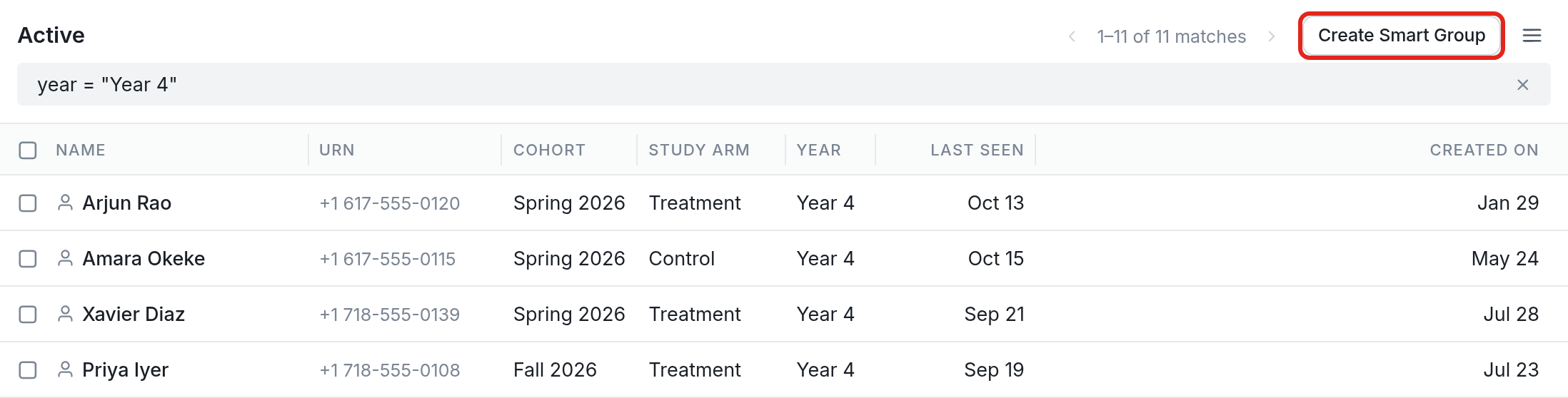
To save these results as a group, click Create Smart Group at the top right of the screen.
Once a Smart Group is saved, any new contacts that match the query are added to it automatically.
Queries
A query can use any of the contact fields in your account. Fields and values in a query are not case sensitive. See more about query syntax, including operators and statements.
[

](https://downloads.intercomcdn.com/i/o/59540095/131ad19491fa00aa85b79400/aws4_request%26amp%3BX-Amz-SignedHeaders%3Dhost%26amp%3BX-Amz-Signature%3Dd9da5bc48005d87e225d0ba4d867bb989f48b3eac72329bd9e229d904dc21668)
Operators
The query pictured above references two contact fields, Cohort and Year. It uses the equal to operator = on each and combines them with AND, so it returns contacts in the Fall 2026 cohort who are in Year 1. You can also use greater than or equal to >= and less than or equal to <=, and to search for not equal, use !=.
For contact fields with names of two or more words, replace the spaces with underscores, e.g. id_number = "409328" |
Statements
Use OR statements to match two or more values of a contact field, and AND statements to filter contacts by more than one contact field. For example:
(city="Oakland" or city="Berkeley")
returns only contacts whose "City" field contains "Oakland" or "Berkeley".
(city="Oakland" and gender="Male")
returns only contacts whose "City" field contains "Oakland" and whose "Gender" field contains "Male".
(tel has 123)
returns only contacts whose phone number contains "123".
(name has "Be")
returns only contacts whose "Name" field contains "Be".
Field Types
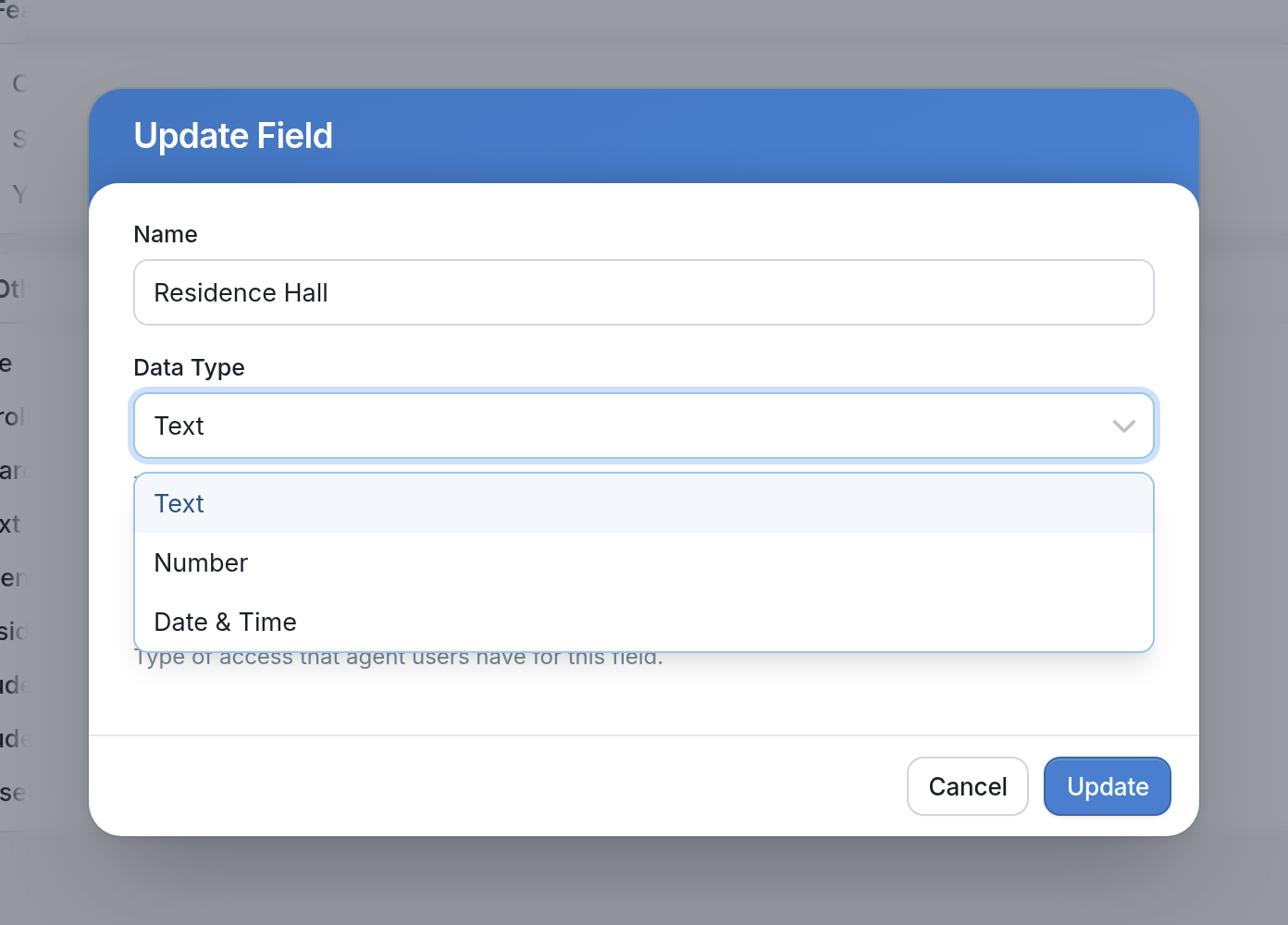
Text values with more than one word must be enclosed in quotation marks, e.g. city = "san francisco". Operators like >= only work with Number and Date & Time fields. A field's type is shown under Data Type when you update the field.