Auto Translate
You can already manually translate your multi-language flow, but using Artificial Intelligence to auto-translate can make things much easier!
By using our built-in Large Language Model (LLM), you can unlock a whole new level of smart automation. If you prefer, you can also add your own LLM, such as OpenAI ChatGPT or Anthropic.
Check out our full guide on using the Call AI action in your flow & the many, many ways you can use AI to reach your goals.
Build your Multi-Language Flow
Before you build a flow, make sure you've already added additional languages to your workspace. Without these, only your default language will appear in the flow editor!
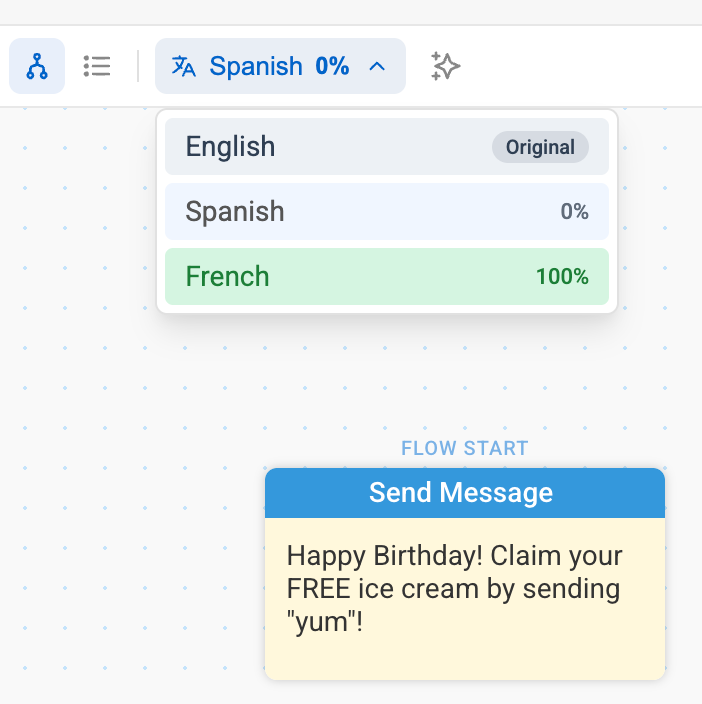
In our example flow below, we're translating a message from English to Spanish. After creating the Send Message node in English, we'll toggle to Spanish by using the language drop-down menu on the toolbar.
Here you will see all the languages you have added to your workspace. Click on the language you would like to translate to.
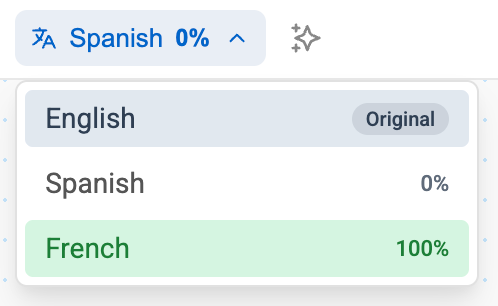
After toggling to Spanish, the Send Message node will turn yellow, and the auto-translate icon will appear.
Click on auto-translate, and choose which LLM you will use to translate your flow (Textit's built-in llm or your own integrated llm).

The LLM AI model will then immediately translate your flow. You'll see the completion percentage in the pop up so you know whether there are any additional nodes or categories on 'Wait for Response' nodes that still need translation. Note that the 'Make Default' button will optionally allow you to switch your default language to your secondary language, in this case Spanish.
Considerations
While LLMs are extremely powerful and accurate tools, they aren't perfect. Do not send your flow to contacts without reviewing the translations!
When using SMS and translating into languages with extended characters, mindful of message length. SMS messages by default are 160 characters, but only if they contain the standard GSM7 alphabet. If you use characters outside this (e.g., emojis or Chinese characters), the message gets sent as Unicode, which changes the limit to 70 characters.
Questions? Send us a message via the support widget in the bottom right corner!