Navigating the Flow Editor: Tool Bar
The TextIt Flow Editor toolbar is designed to help you build, navigate, and manage complex messaging logic efficiently. Whether you are translating content for a global audience or tracking changes in a collaborative workspace, these tools give you total control over your flow's design.
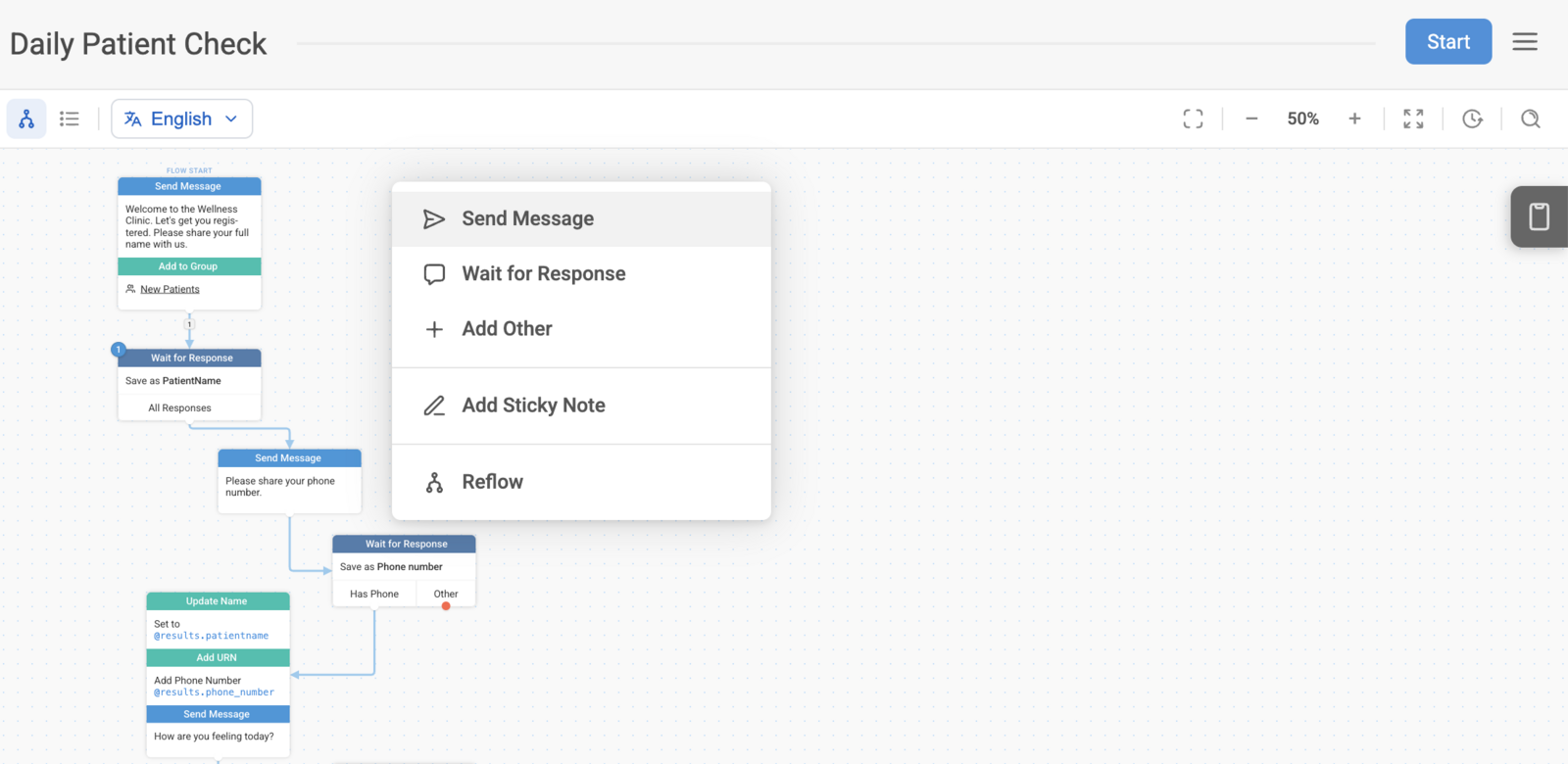
Navigation & View Modes
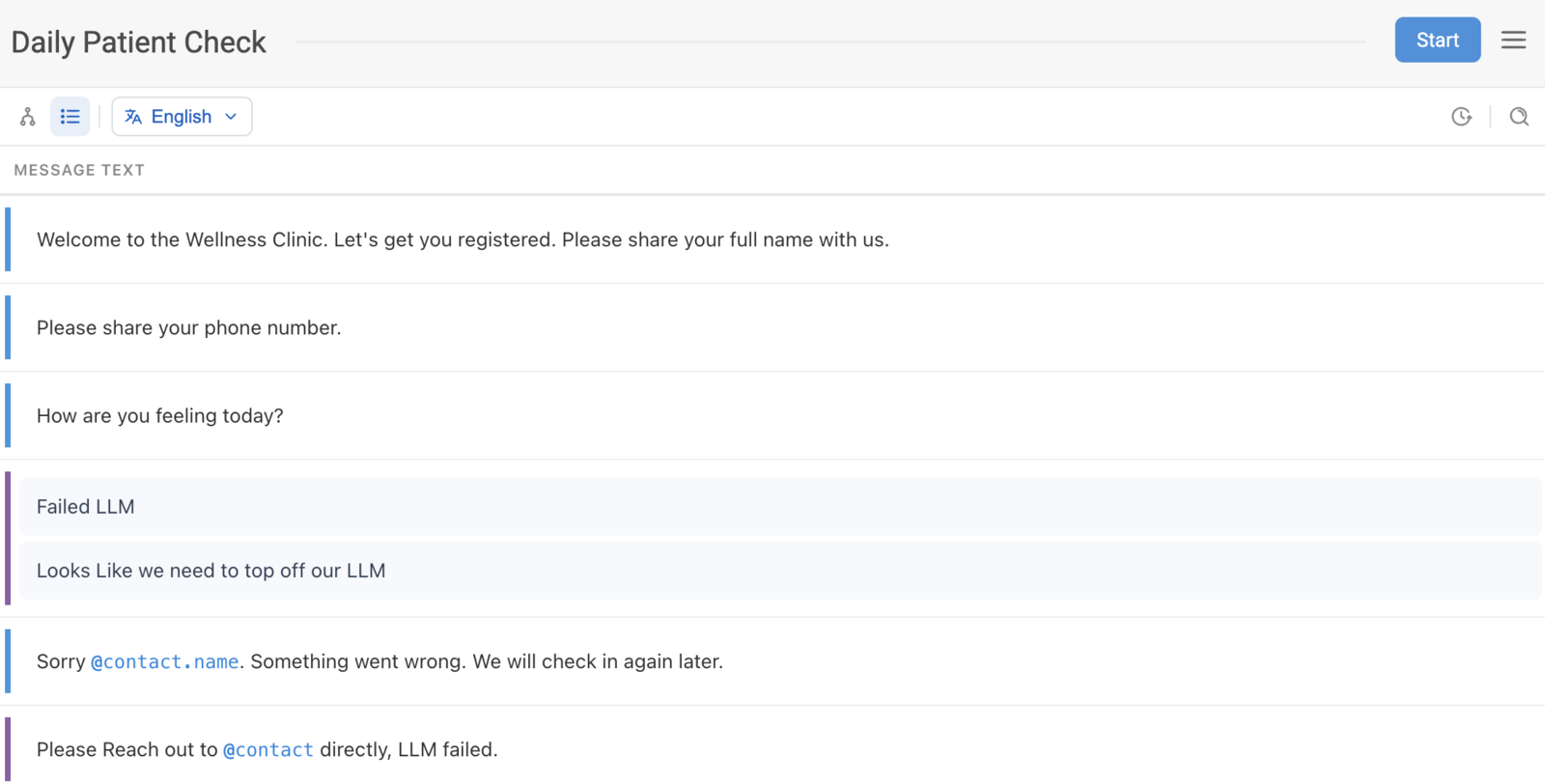
In the upper left of the toolbar, you can toggle between two primary ways to interact with your content:
- Flow View: The standard visual canvas that allows you to see the logic and connections between your nodes.
- Table View: A structured list that displays every message in its layout order without any visual reduction. This view allows you to make direct edits to your flow message content within a spreadsheet-style interface.
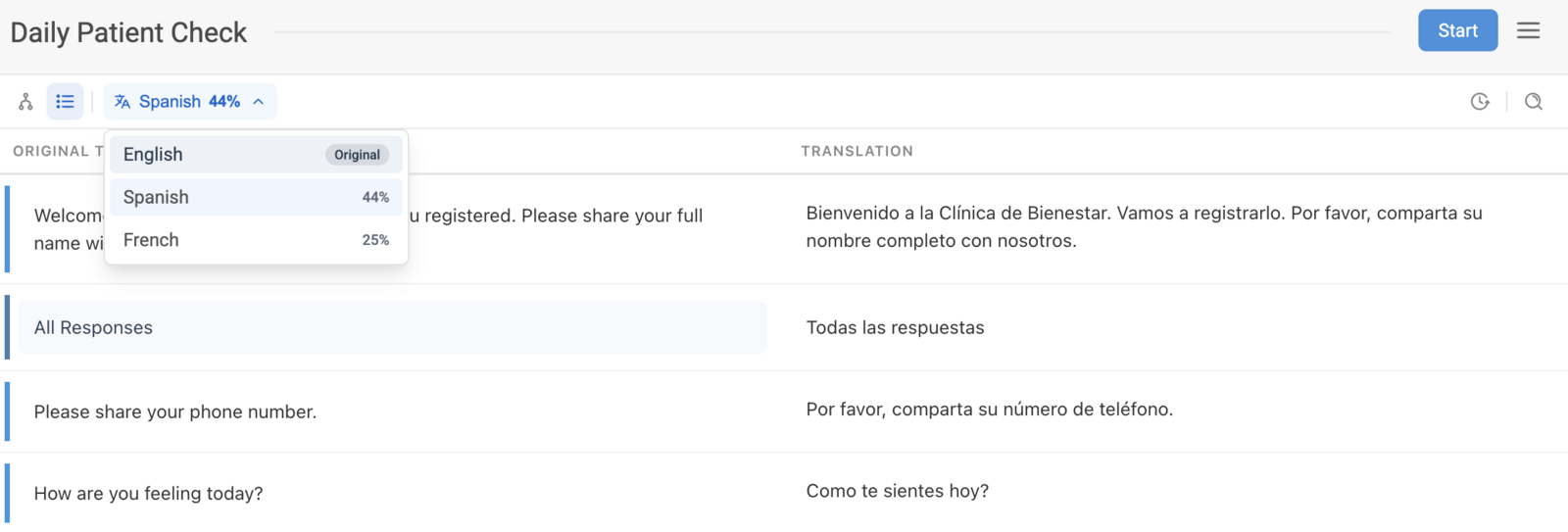
Language & Translation Management
The Language tab allows you to manage multi-language support seamlessly:
- Side-by-Side Comparison: Selecting a language while in Table View opens a side-by-side comparison of the original text and its translation. You can create or edit translations directly within this comparison table or continue to manage them within individual message blocks in the Flow View.
- Completion Tracking: The language selection dropdown shows the percentage of translations completed for each language.
On the right side of the toolbar, you will find tools to help you maintain perspective on your project:
Zoom Controls
- Zoom-to-Fit: View your entire flow at once to understand the overall structure.
- Zoom In/Out: Adjust your view between 30% and 100% using handy shortcuts.
- Full Zoom: Quickly snap back to a 100% view
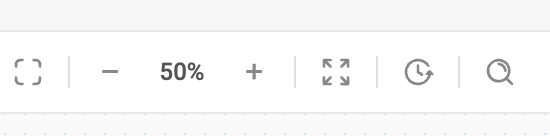
You can continue to edit blocks even while zoomed out or in "fit" mode.
Revisions History
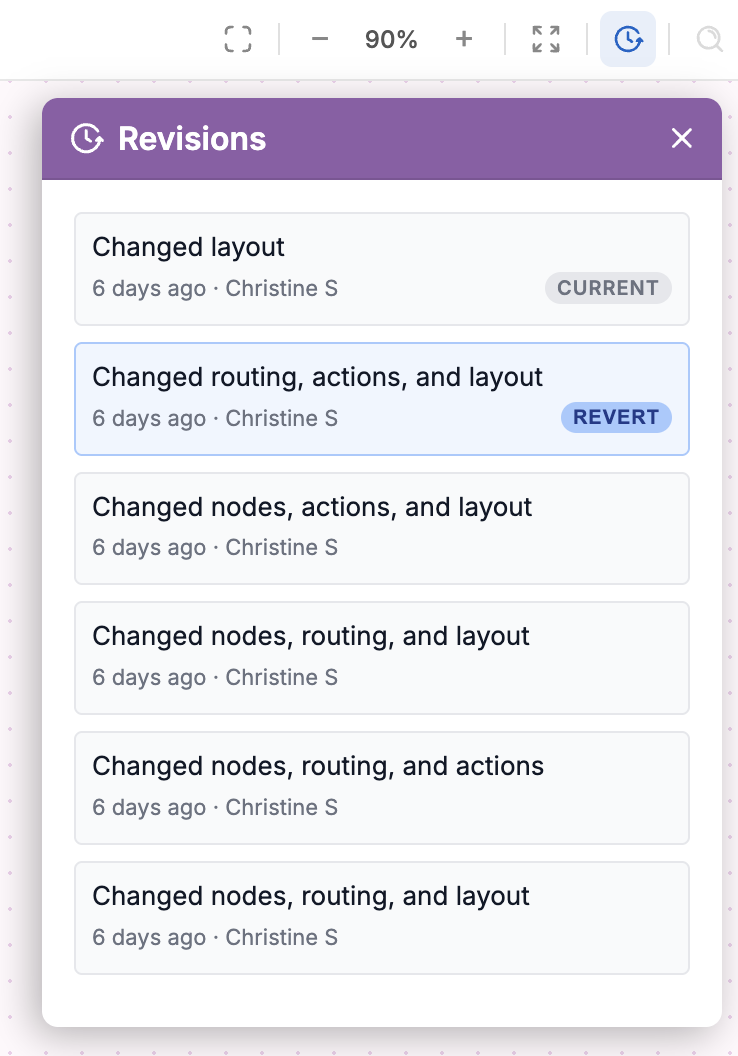
The Revisions tab (clock icon) serves as your project's history log and safety net:
- Undo Functionality: Quickly revert recent actions or return to an older version of your flow to correct mistakes.
- Version History: Review a chronological list of flow edits by date and time. If you share a workspace, this tab identifies exactly which user made specific changes.
Search Functionality
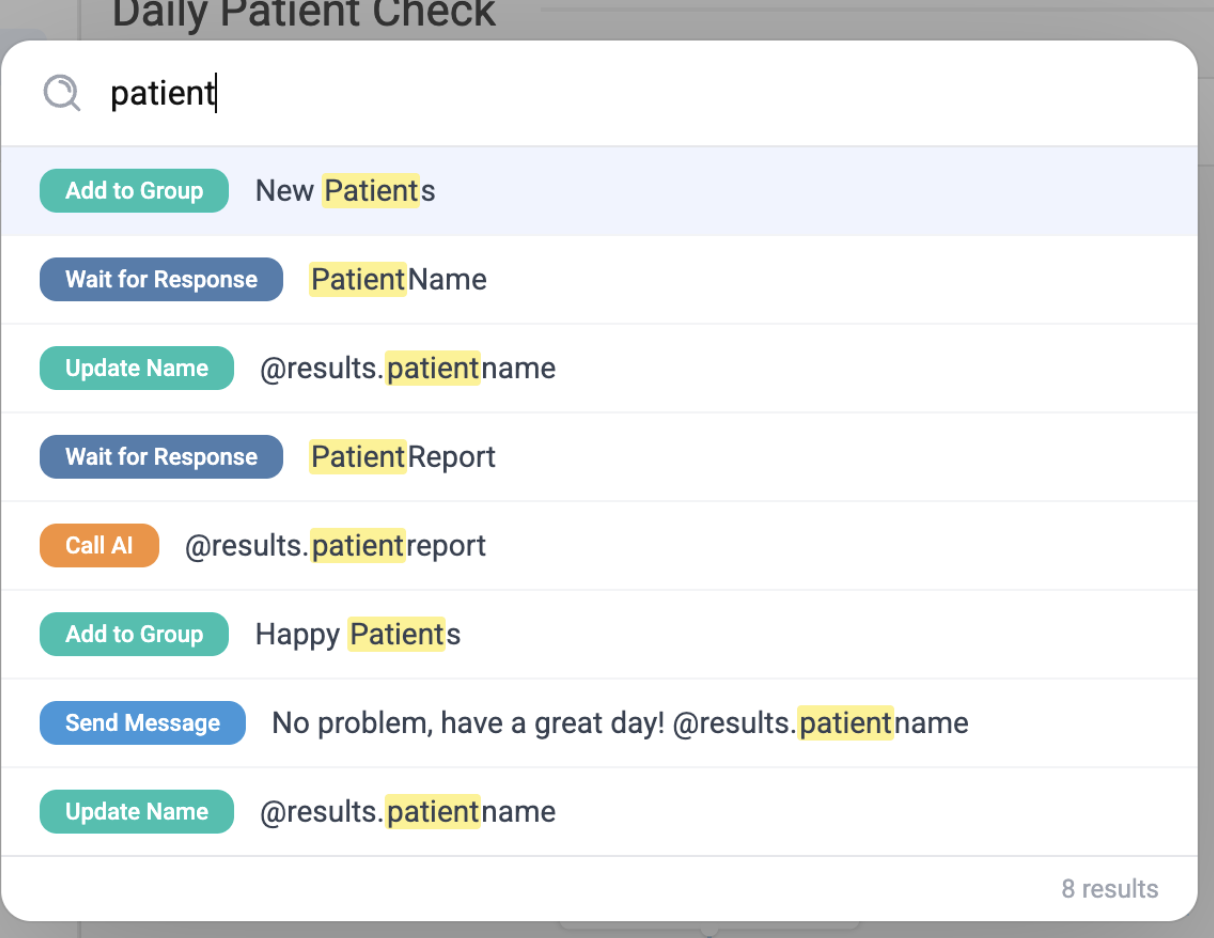
To quickly find specific content within your flow, use the search tool:
- Locate Text & Actions: Use the search icon or the CONTROL + F shortcut to find specific terms or actions—such as "Call Webhook"—or specific phrases across long, complex flows.
These tools ensure your messaging flows remain organized, accurate, and easy to maintain.