Split by Flow Result
Use this Split Action to evaluate a sequence of values separated by a space ( ), period (.) or plus sign (+).
As an example, you might let students sign up for a course by texting messages in the format "SIGNUP [course]+[section]+[year]", such as "SIGNUP BIO101+2+2026".
In this case, the word "SIGNUP" acts as a keyword trigger that starts the flow.
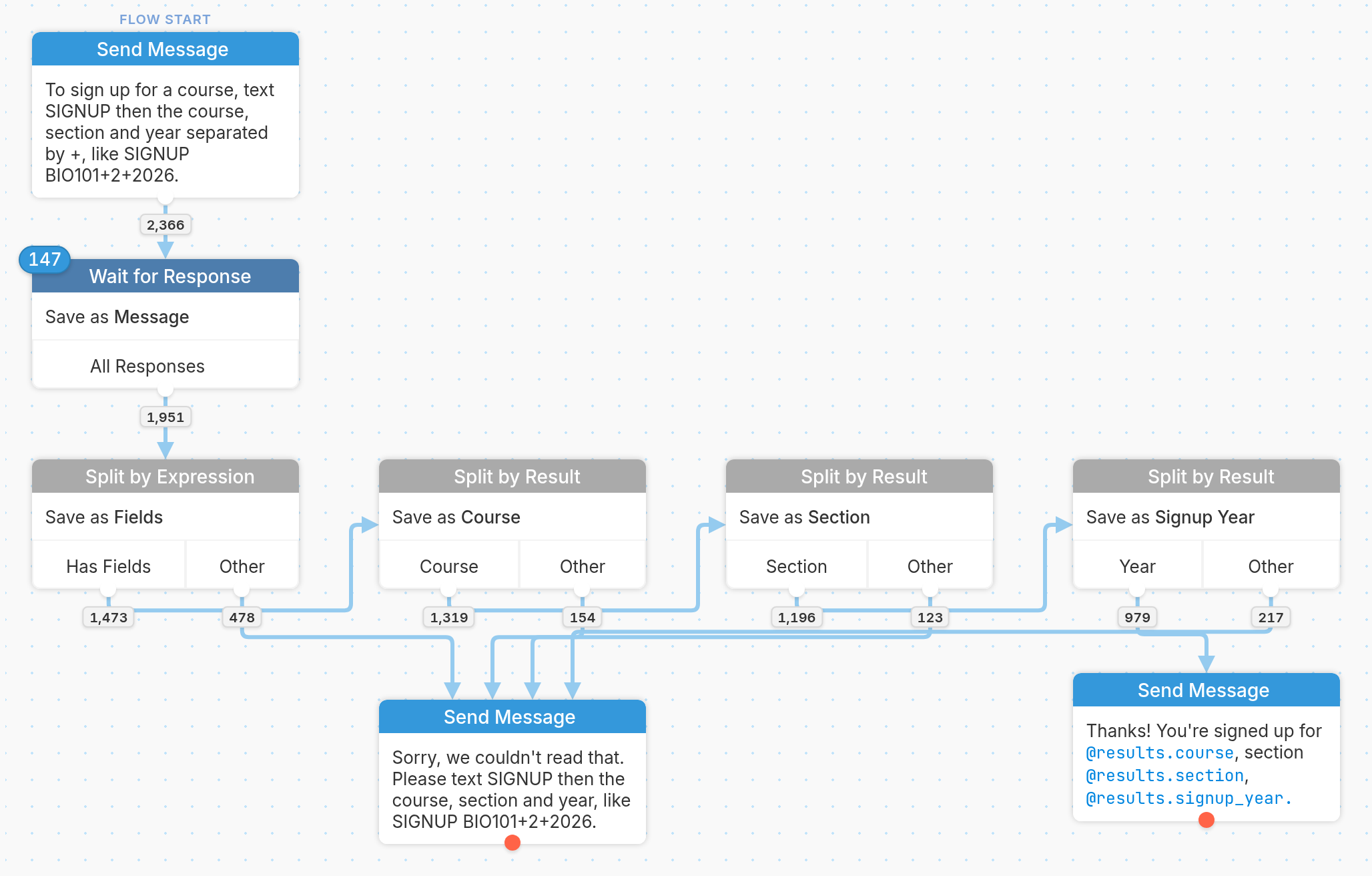
In the following example, we create a flow that collects and evaluates a sequence of values: Course, Section and Signup Year.
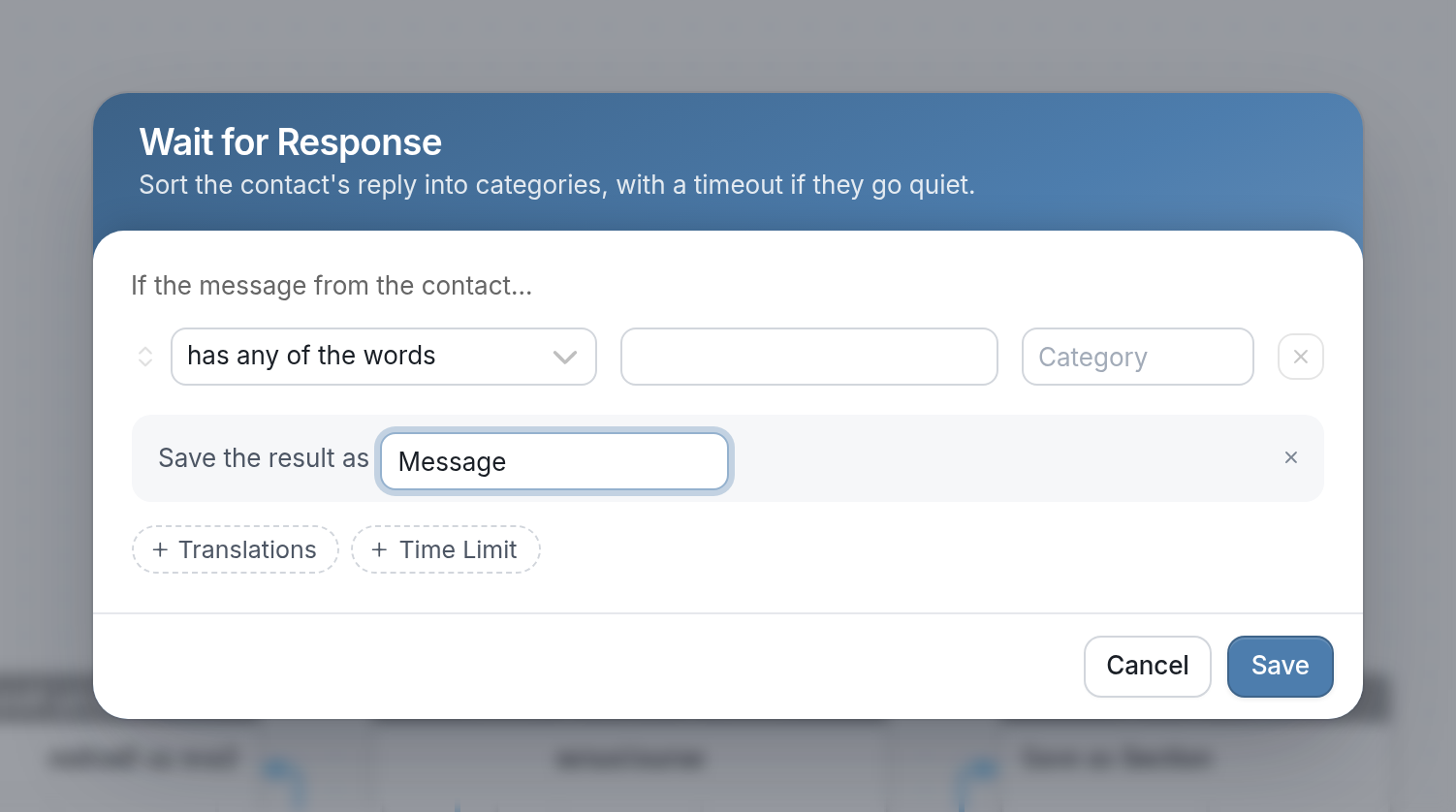
- After sending an initial message, create a Wait for Response action with an open-ended has any of the words response rule to collect the messages sent to this flow by the "SIGNUP" keyword trigger. Save the result as "Message".
| Note: This response rule must remain open-ended, because it collects every message that contains the keyword we've designated, "SIGNUP". Once we've stripped the keyword from the message, we can evaluate each field using a series of Split by Result actions. |
-
Remove the keyword from the submission, which is saved as the flow result
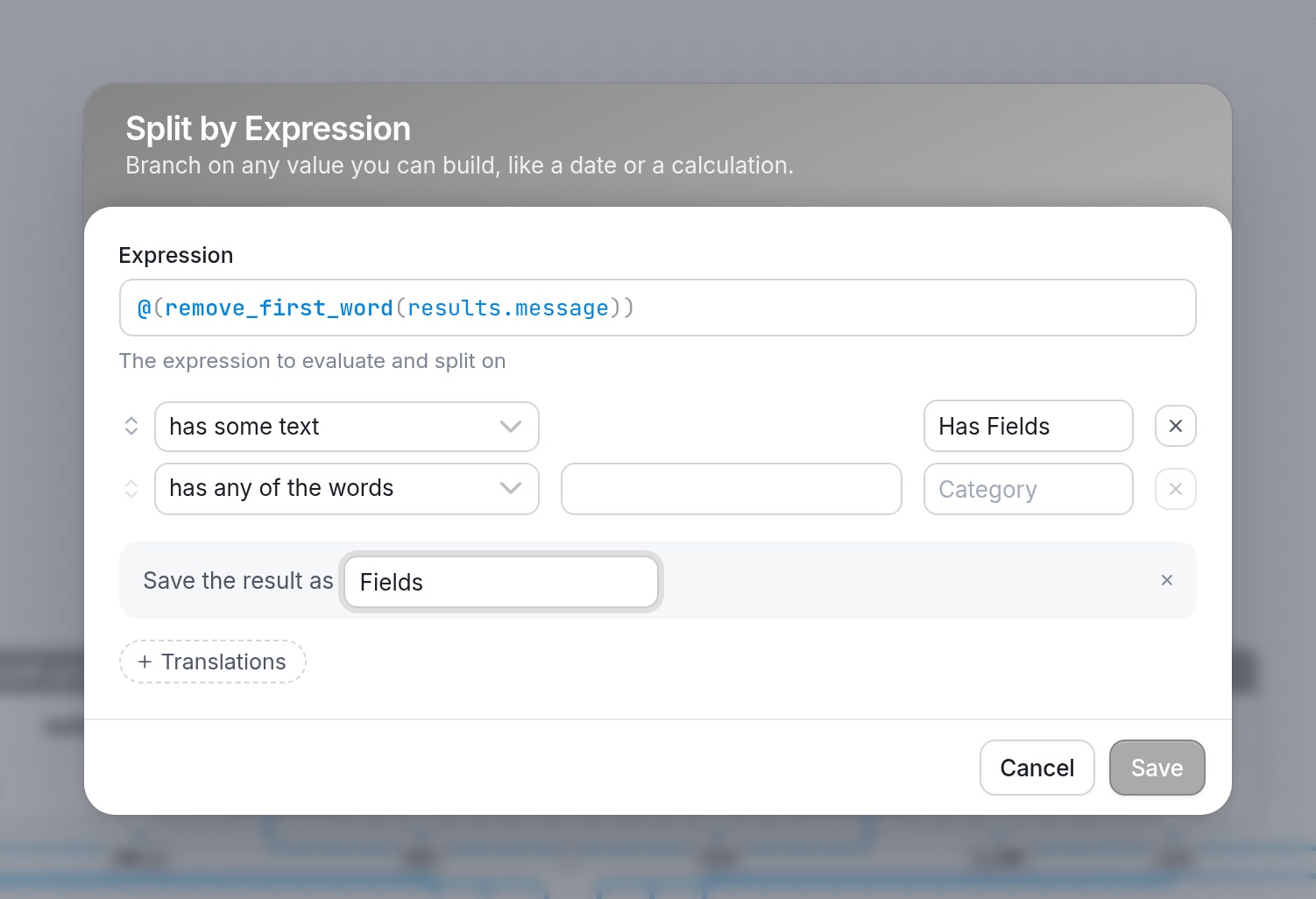
@results.message(Split by Result actions can only evaluate flow results). To do so, create a Split by Expression action and apply the@(remove_first_word())function to the saved message. The expression should read@(remove_first_word(results.message)). -
Add a has some text rule with the category "Has Fields", and save the result as "Fields". This result contains only the values separated by plus signs. To review, submissions follow the format [course]+[section]+[year], and each value in brackets is its own field: Course is the first field, Section the second and Signup Year the third.
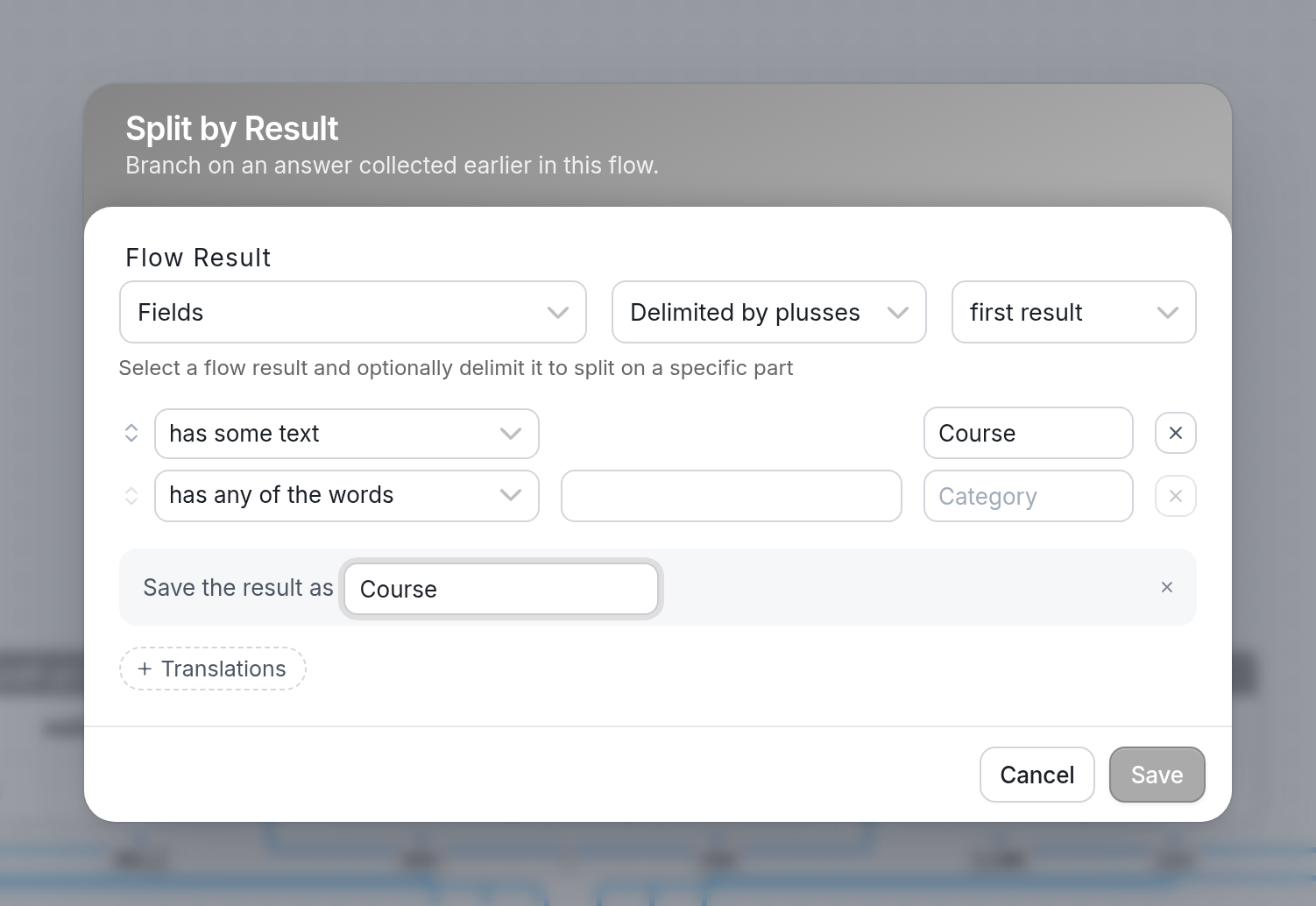
- Add a Split by Result action to evaluate Course, the first field. Under Flow Result, select "Fields", "Delimited by plusses" and "first result". Add a has some text rule with the category "Course", and save the result as "Course".
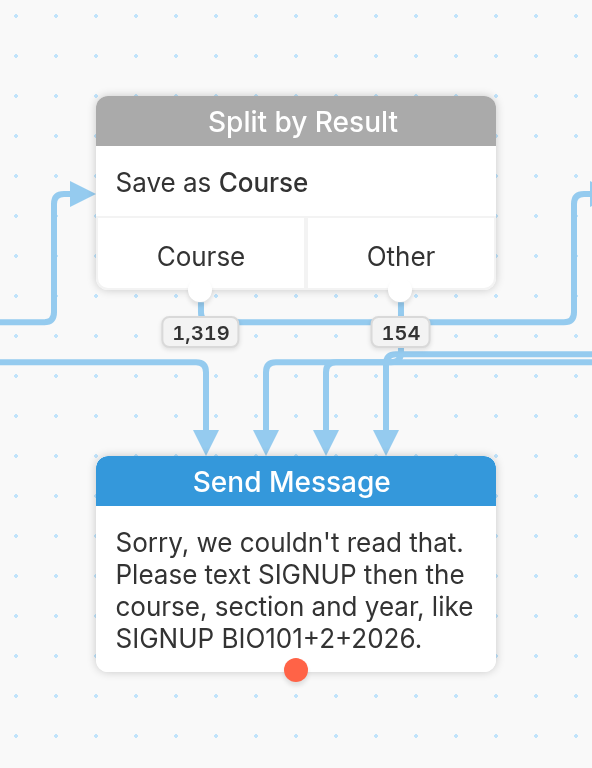
- Add a Send Message action that handles messages with a missing course and asks the contact to resubmit, and connect the Other category to it.
-
In the example above, the error message repeats the expected format with an example, "SIGNUP BIO101+2+2026", so the contact can compare it with what they sent and try again. The flow uses this one error message for every invalid field, so the Other category of the Split by Expression action connects to it as well.
-
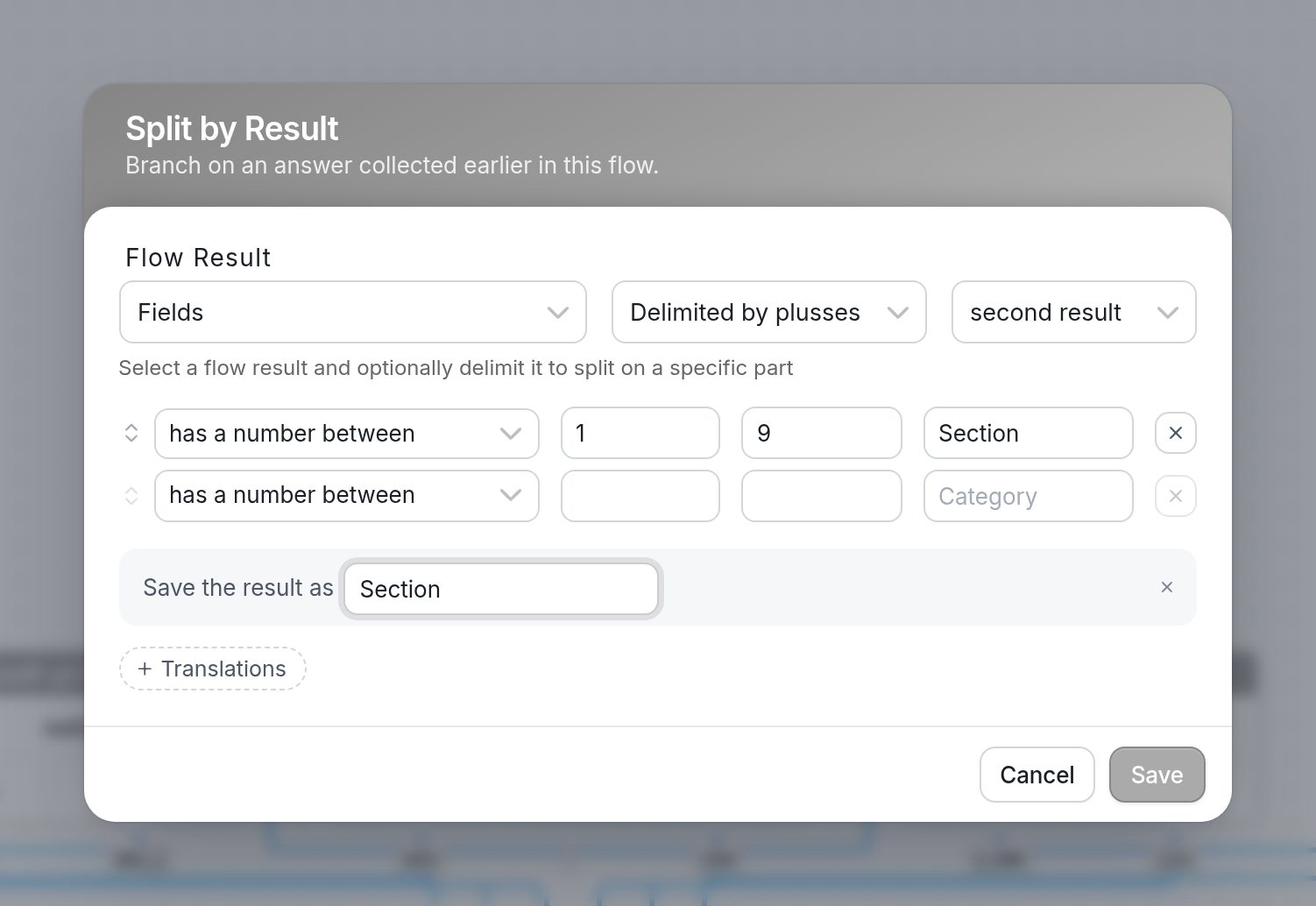
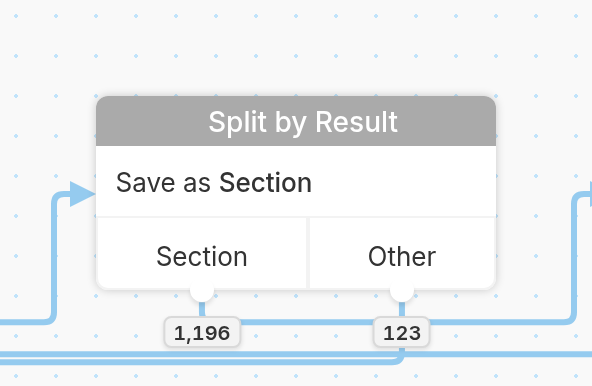
Add a second Split by Result action to evaluate Section, the second field. This time, select "second result" under Flow Result. Add a has a number between rule from 1 to 9 to make sure the second field holds a valid section number, categorize it as "Section" and save the result as "Section".
- Connect the Other category to the same error message so that contacts with an invalid section are asked to resubmit.
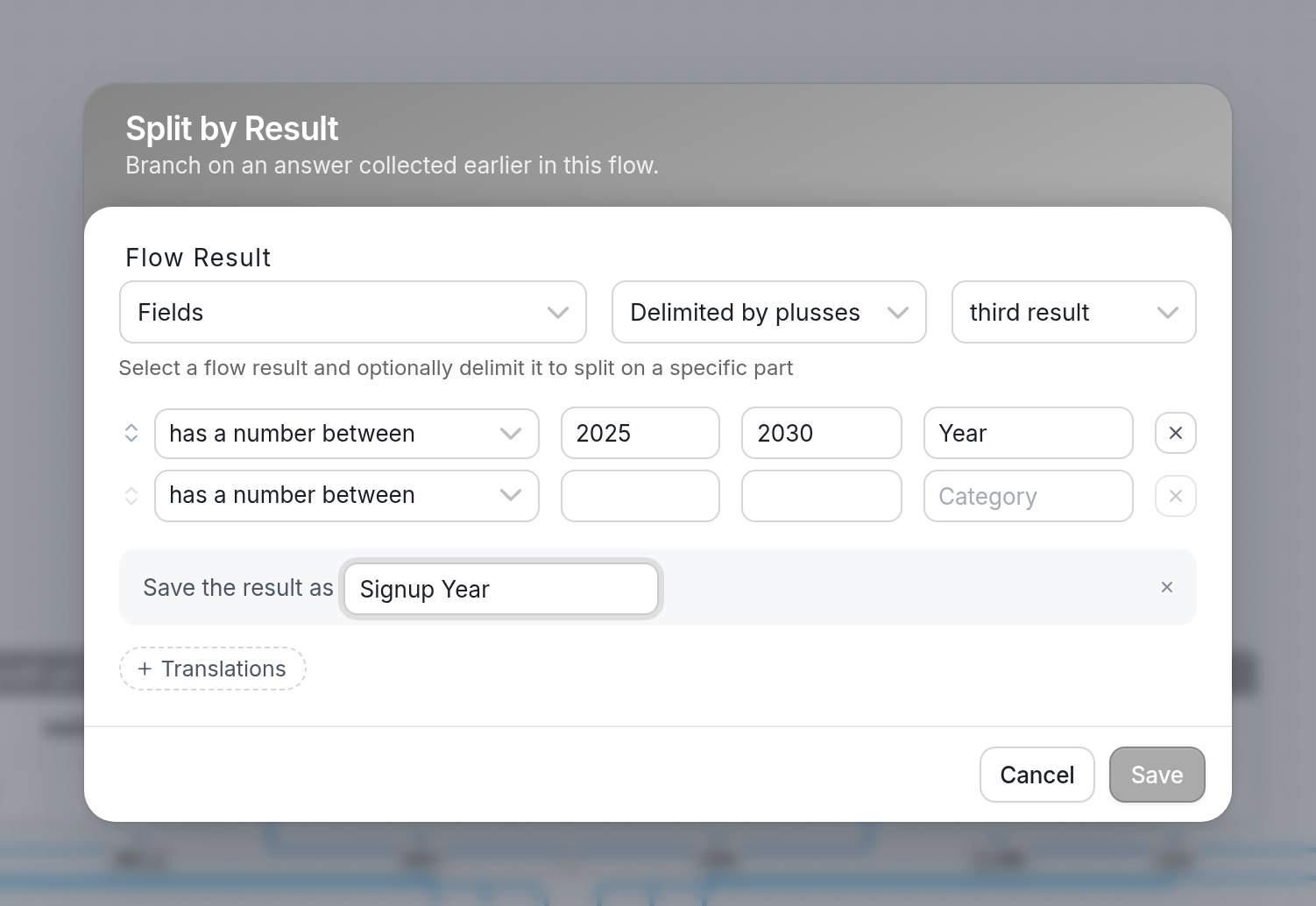
- Add a third Split by Result action to evaluate Signup Year, the third field. Select "third result" under Flow Result, add a has a number between rule from 2025 to 2030 to make sure the third field contains a valid year, categorize it as "Year" and save the result as "Signup Year".
- Connect the Other category to the error message so that contacts with an invalid year are asked to resubmit.
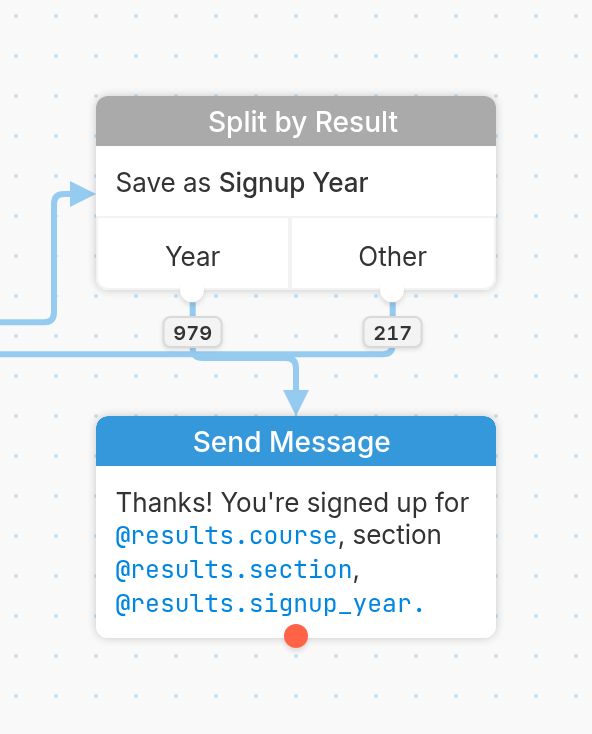
- Finish the flow by adding a Send Message action that confirms the signup using the values the contact submitted, for example: "Thanks! You're signed up for @results.course, section @results.section, @results.signup_year."
The finished flow should look similar to the example below.
Need more than nine fields? Use the Split by Expression action and the following function:
FIELD(text, index, [delimiter])
Reference a field in a string separated by a delimiter:
@(field(results.field, 1, "+"))