Sending a Flow to a Group
Sending a message to a group of contacts is as easy as creating a flow. Once you've created your flow, add an action containing the message you'd like to send, then select your target group from the contacts dropdown in the flow start dialog.
Let's walk through the steps.
-
First, click the Flows tab in the navigation bar.
-
From the Flows page, click New Flow. Name your flow, leave the other settings at their defaults and click Create.
-
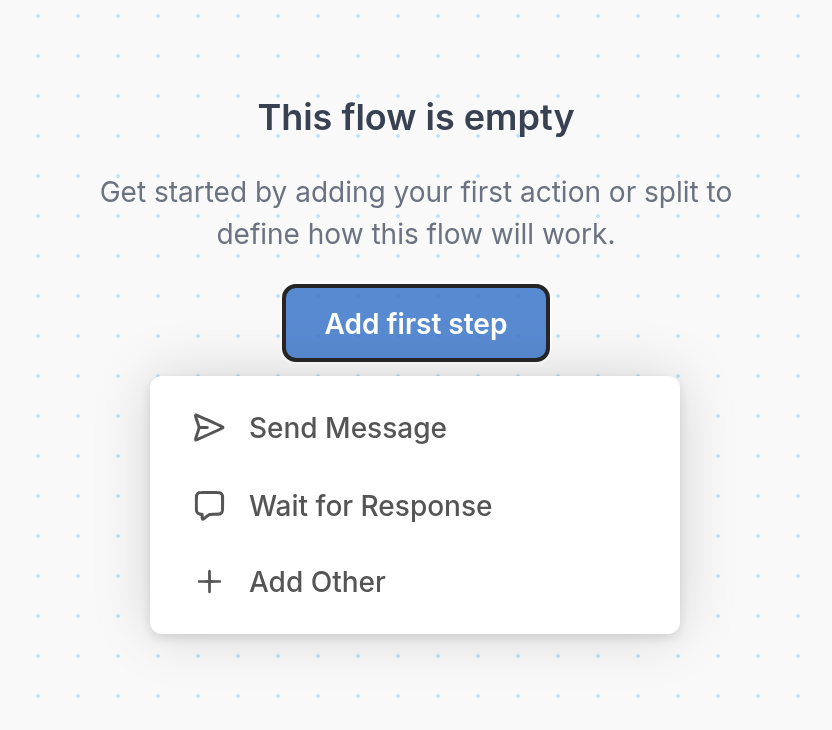
You'll be taken to the flow editor for your new flow. Click Add first step, then choose Send Message from the menu.
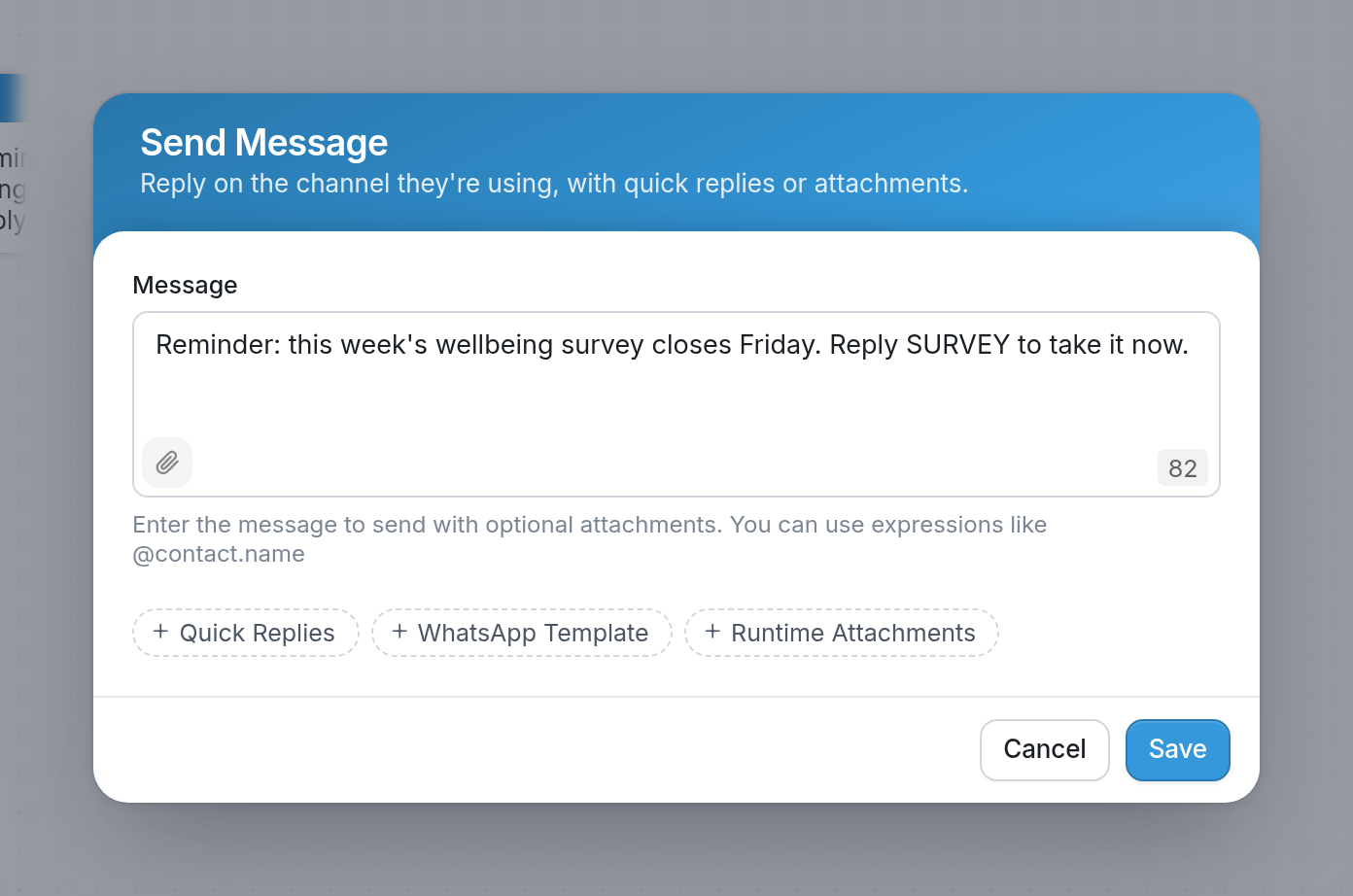
- In the dialog that appears, enter the text of the message you want to send. In this example, it's a reminder that the wellbeing survey closes Friday. Make sure you're using the Send Message action. When you're done, click Save.
- Now click the Start button. In the dialog that appears, select the groups you want to receive your message. Here, the Fall Cohort group is selected.
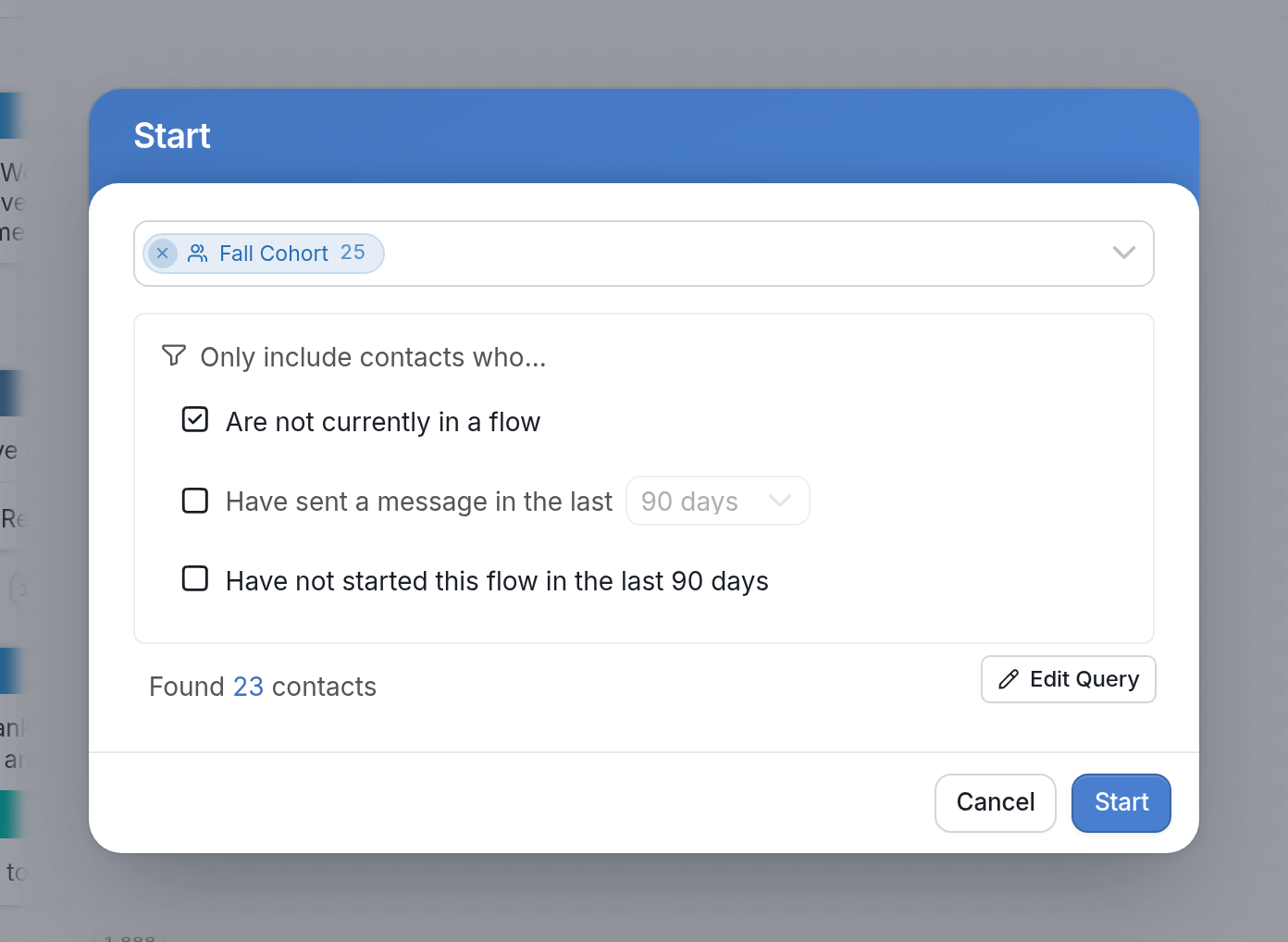
Once your group is selected, check the settings you'd like to apply and click Start to start the flow.
Have sent a message in the last 90 days skips inactive contacts by only including those who have sent a message in the last 90 days. You can choose a different period from the dropdown.
Are not currently in a flow avoids interrupting contacts who are already in a flow, as a contact can only be active in one Messaging flow at a time. To send a new flow without interrupting a current one, see Background flows.
Have not started this flow in the last 90 days avoids restarting contacts who have been in this flow in the last 90 days.
More on starting a flow here.