Routing Contacts with Splits
Split Actions are the pivot points in a flow, "splitting" it into new branches. They're conditional statements that let you direct your contacts after evaluating:
-
an incoming message or recording
-
a request to a webhook
-
the contact's activity in a subflow
-
an expression
-
random branch placement
-
their group membership
Anatomy of a Wait for Response Split Action
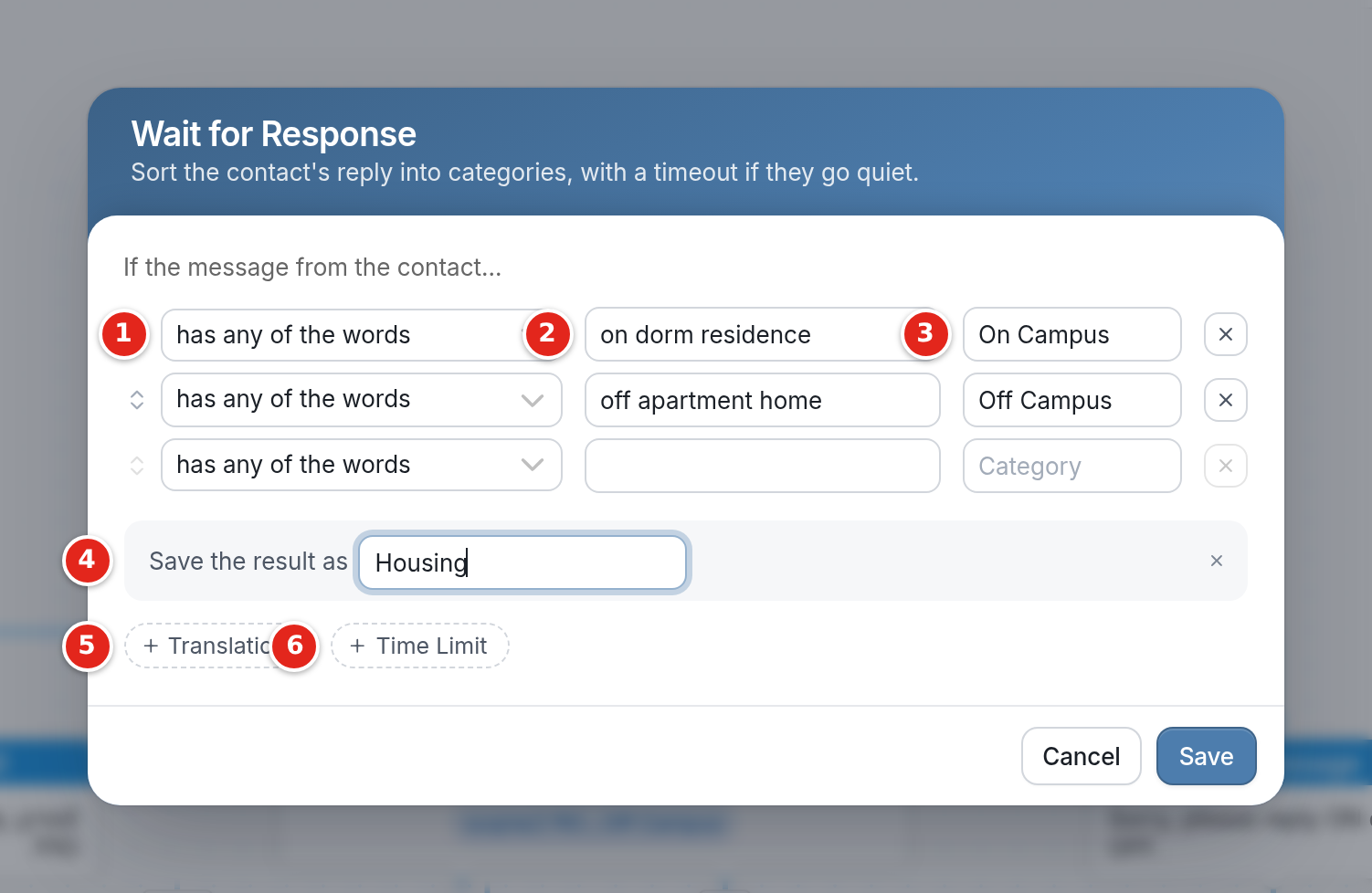
Split Actions are made up of inputs that let you build a conditional statement:
Wait for Response waits for an incoming message, then evaluates it against response rules. You can also add a timer to the Wait for Response action to send a reminder message to a flow participant after a period of inactivity, or to exit them from the flow.
1 - The response rule that evaluates the response. Response rules are evaluated in the order they're listed. The first rule that matches takes effect, and no other rules are evaluated after a match. You can add as many rules of different types as you like to a Wait for Response.
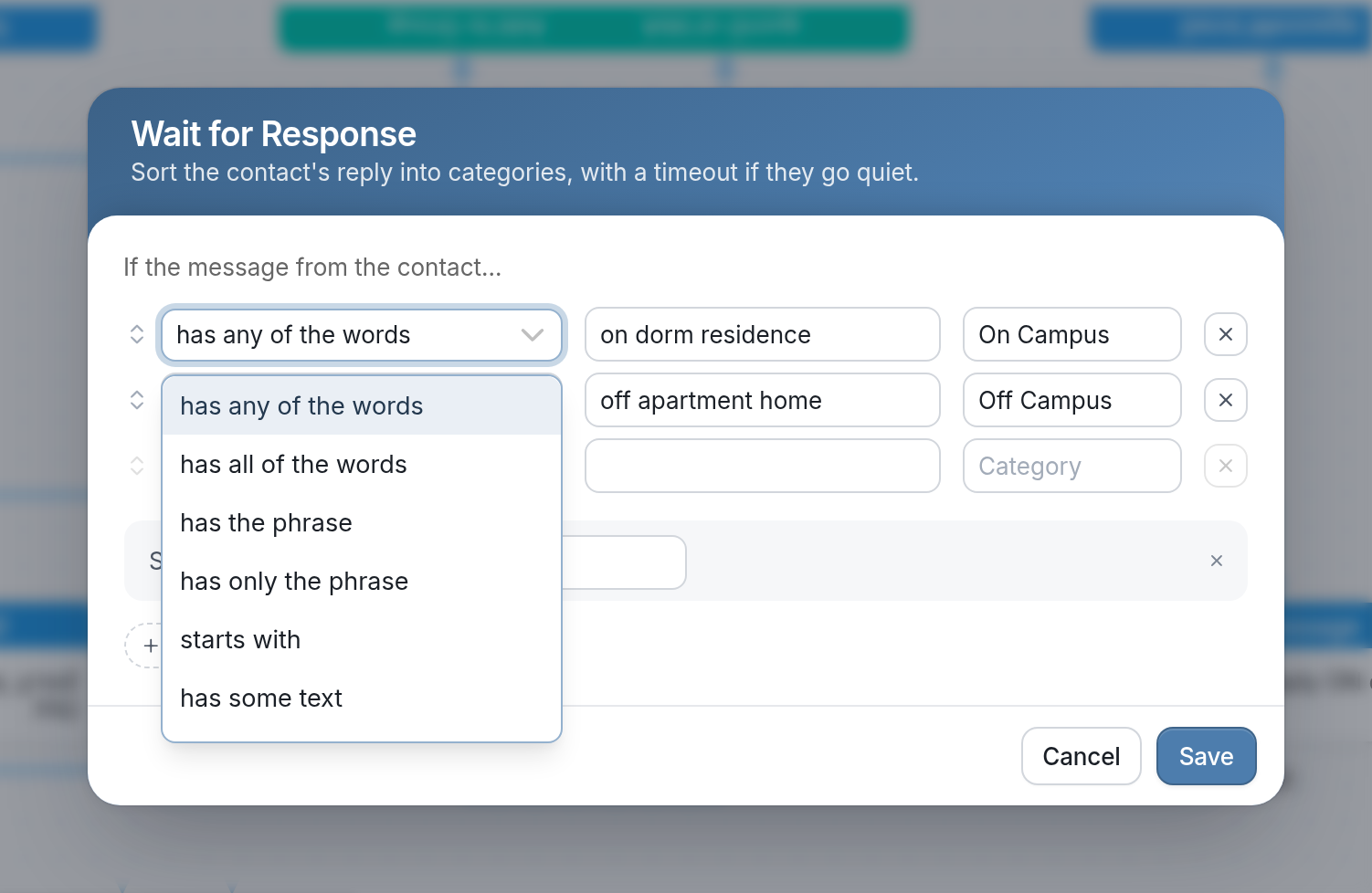
2 - The value(s) your response rule will try to match against the response. In the example above, the Wait for Response action uses the has any of the words rule. Incoming responses are placed in the "On Campus" or "Off Campus" category if they contain any of the words we've listed. This places the response "dorm" in the "On Campus" category, because "dorm" is one of its words.
There's always an Other category that catches any responses that don't match the rules you've set, so every response ends up in a category.
3 - The category contacts are placed in if the response matches the corresponding response rule. Categories are pathways from which connections can be drawn to new nodes, directing the contact onward. A contact's passage through a category is represented in the analytics tab as a response.
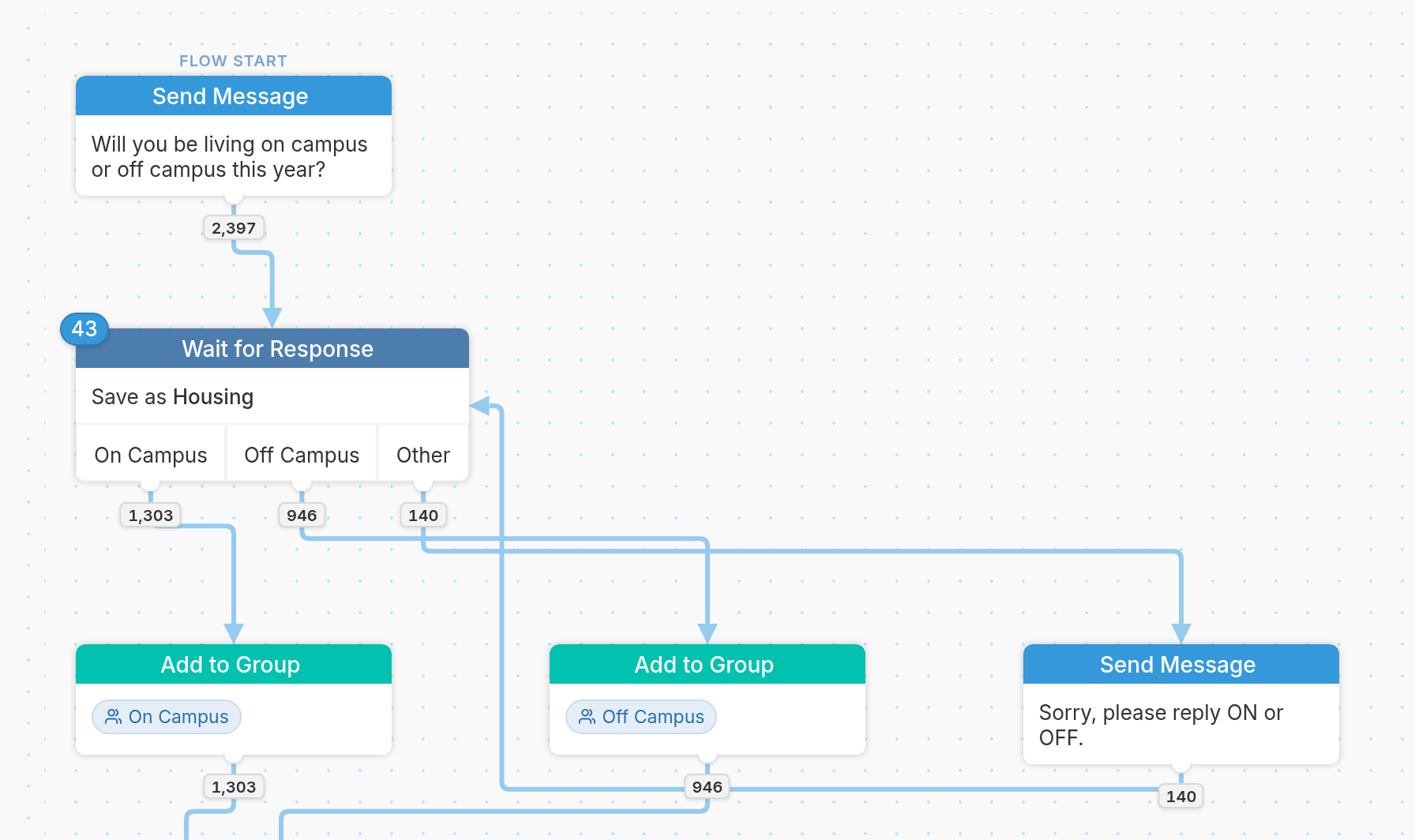
4 - Save the result as: the name given to the flow variable created and populated by the Wait for Response action. In the example above, the action saves the result of the evaluation to the flow variable @results.housing.
5 - Translations: use this to translate category names and reference those values.
6 - Time Limit: set an amount of time after which a contact will be routed if they don't respond. If the contact hasn't responded in the time you've chosen, they'll be routed through a No response category. You can connect this category to a Send Message action that encourages them to continue, or leave it unconnected so they exit the flow. See more about timeouts here.
To remove a rule, click the × at the end of it.
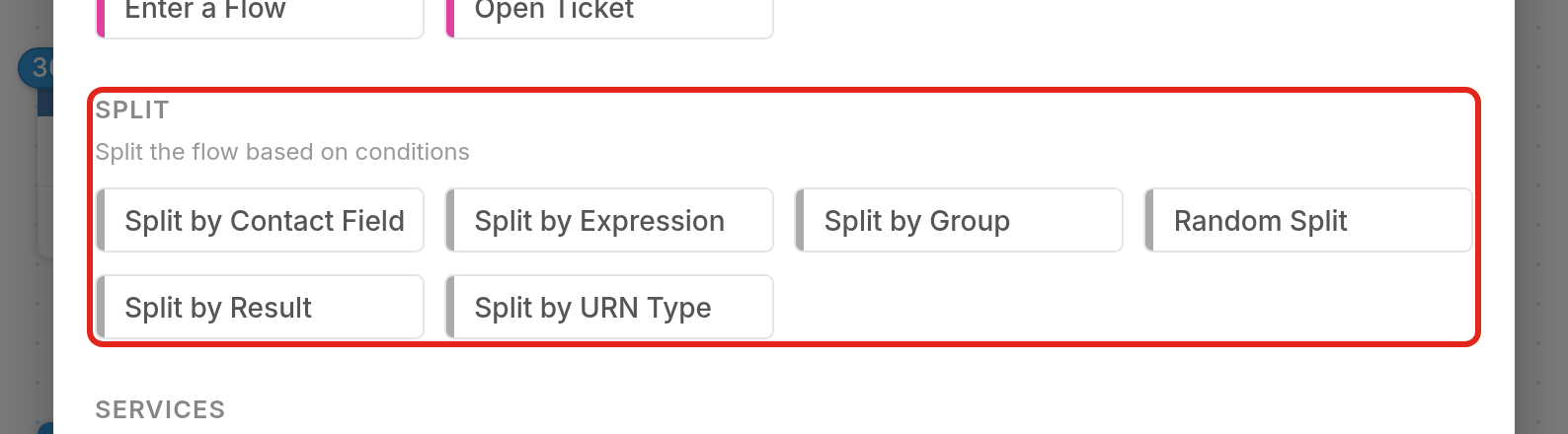
Other split actions
-
Split by Contact Field runs response rules against a value stored in a contact field (Name, Registration Date, etc.), referenced using the variable
@contact.[variable-name], e.g.@contact.state. Check out this guide for more. -
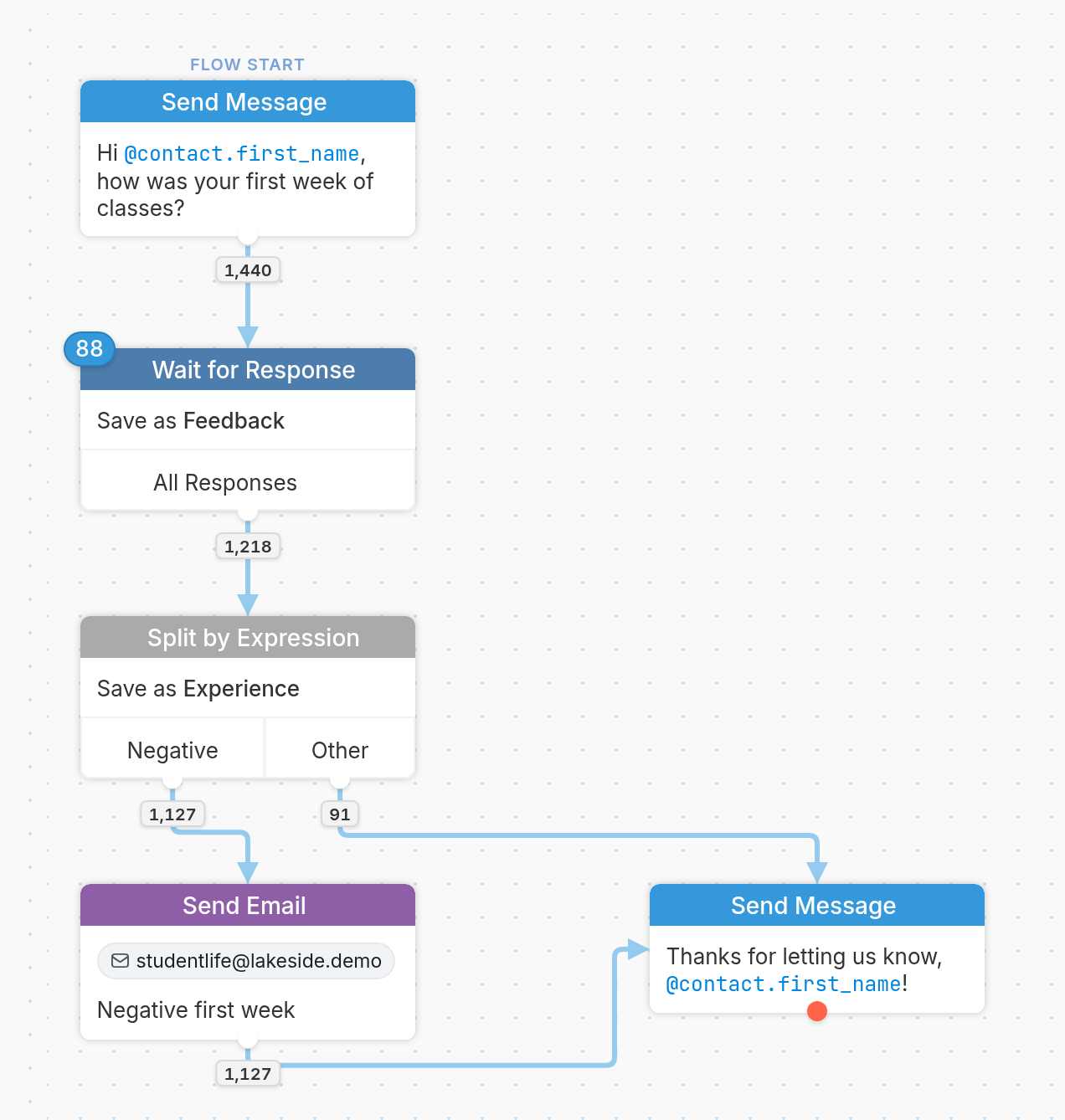
Split by Expression runs response rules against the result of an expression, such as
@(REMOVE_FIRST_WORD(input.text)), which uses a function to remove the first word from the last message received, represented by the@input.textvariable. Expressions can include a single variable, a single function, or a combination of variables and functions.
-
Split by Result runs response rules against a value separated by a delimiter (a space, plus sign or period), e.g. 1+2+3+4+5, where + is the delimiter, 1 is the first value, 2 is the second value, 3 is the third value, and so on. See this guide for more information.
-
Random Split lets you create as many evenly distributed buckets as you'd like, so you can branch contacts randomly for an A/B test or something similar. See this guide for more information on A/B testing.
-
Split by Group checks whether the contact belongs to a given group or groups. See an example here.
-
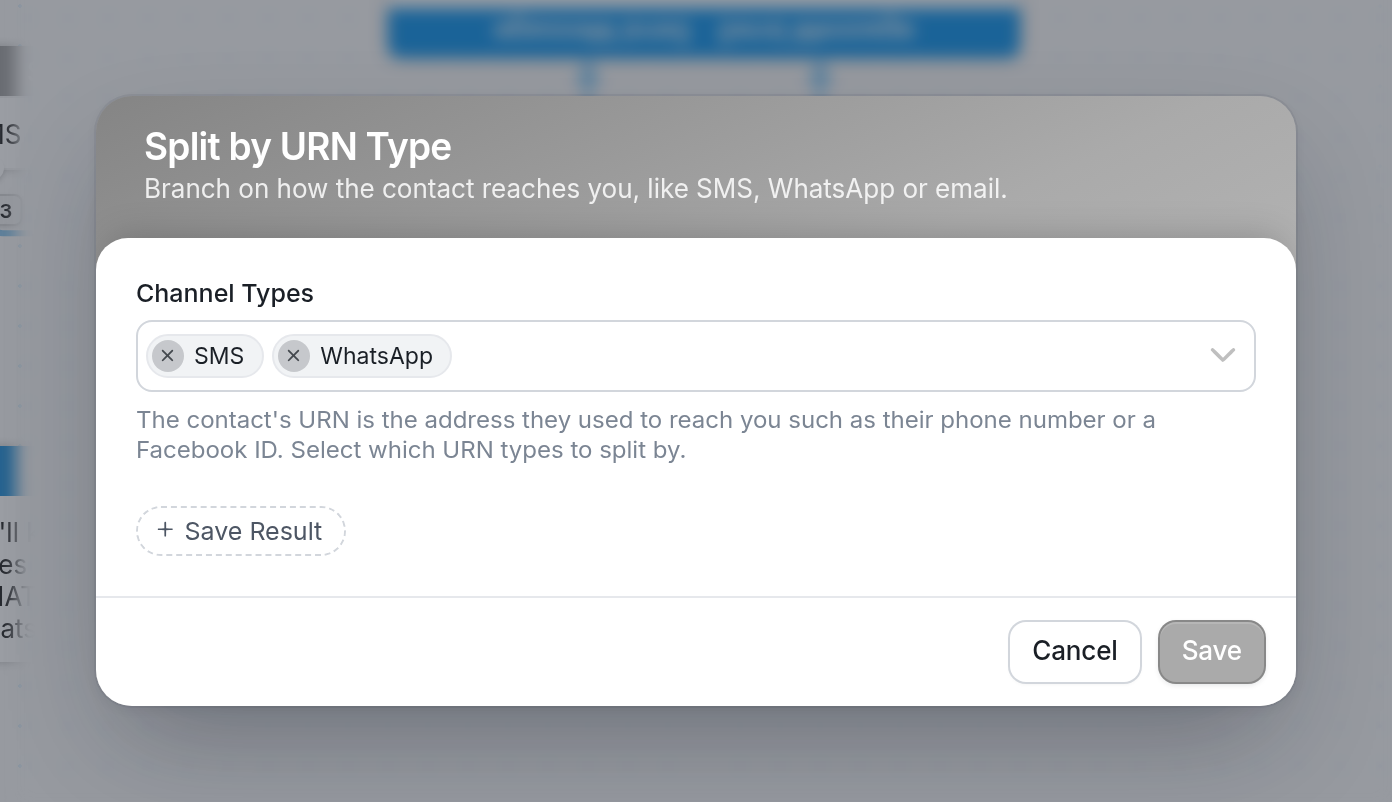
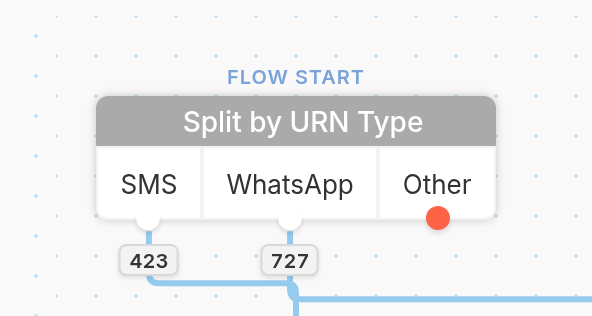
Split by URN Type - A contact's URN is the address they use to reach you, such as a phone number, and its type tells you which channel (SMS, WhatsApp, Telegram) they're using to message you. Since different channels have different rules around chatbots, you can build one flow for all channels and use this split to send contacts different messages or actions. In the example below, contacts are split into SMS and WhatsApp branches, and everyone else goes to Other.