Using 'Wait for Response' in a Flow
A Wait for Response split action analyzes your contact's response and gives you tools to plan your next step. You can set a response rule to evaluate the contact's input and, optionally, continue forward in your flow even when no response is given.
Setting a Response Rule
To evaluate a contact's response, you can set a response rule in your Wait for Response node. You might ask an open-ended question with no rule set, like for a name or free text, or you might need to collect something more specific, like an email address, a number or an exact phrase. Response rules let you check that a contact's input is valid.
In the example below, we ask our contact when they started the study.
First, we check that the contact is in the Study Participants group and send a message asking for the date. Then we create our Wait for Response node:
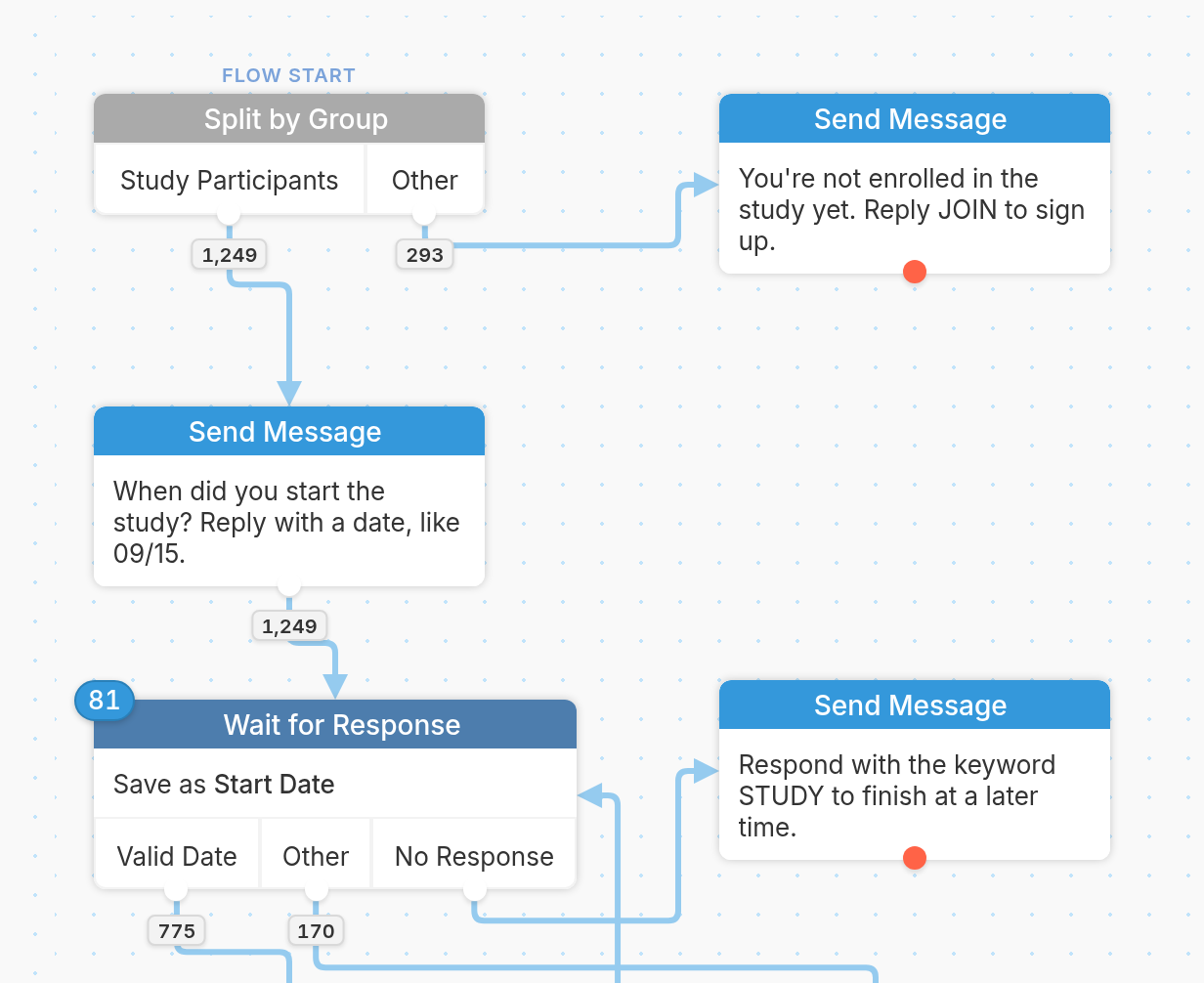
Here's how the Wait for Response node is set up:
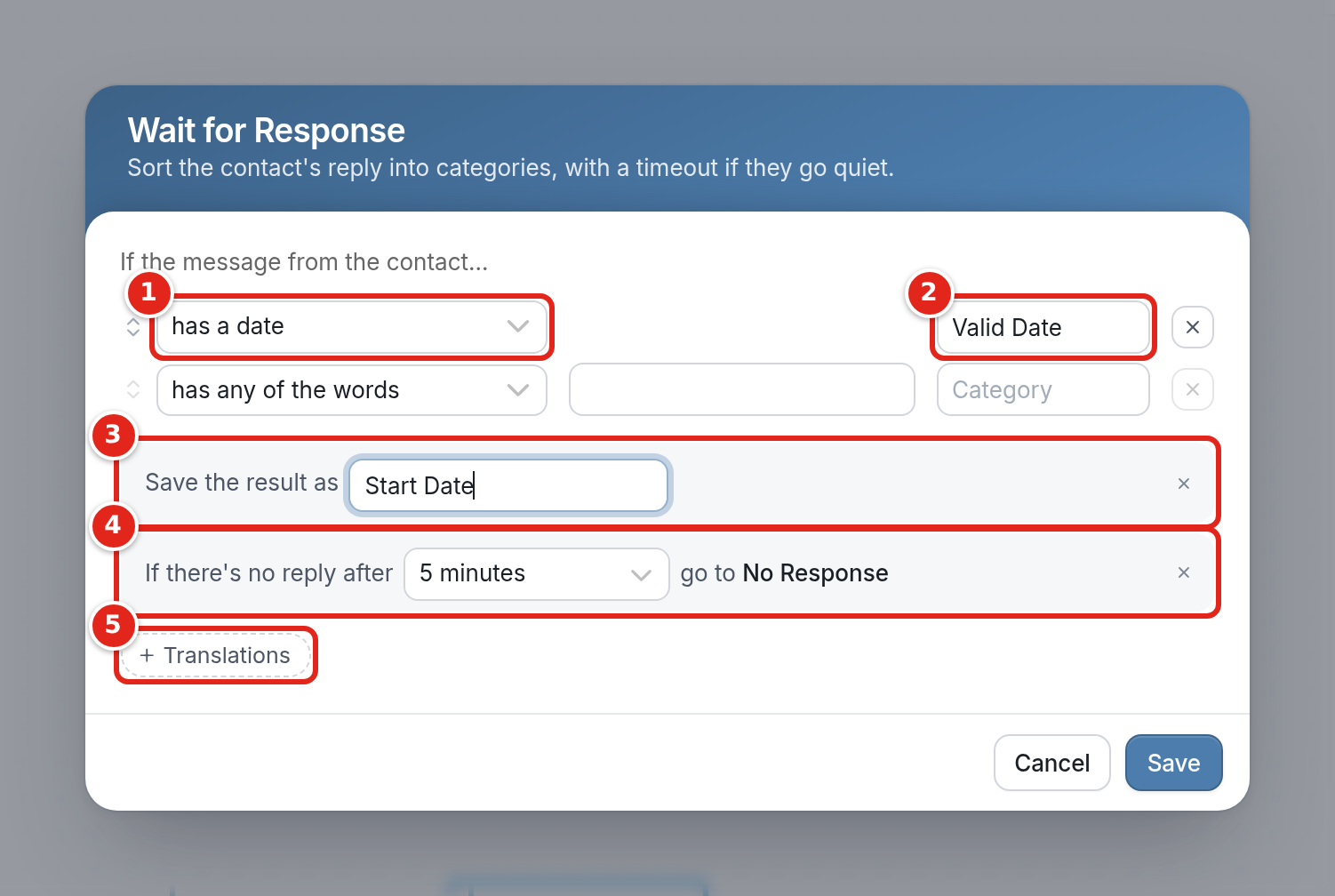
- We've set the response rule to has a date because we only want to collect valid dates. If the contact replies with something other than a date, they'll be routed through the Other category in the node and asked to send their response again.
- We've named the category. This can be anything you like. We've chosen Valid Date so the category is easy to read in our flow and results analytics.
- We've given the result a name in Save the result as: Start Date. If you don't name the result, it will be named Result 1, Result 2, Result 3 and so on in your flow. This won't affect how the flow works, but it can get confusing. Naming the result also lets you reference it later using variables, so we recommend always naming results. Naming the result here saves it to the flow. If you want the information saved to the contact instead, use the Update contact action, and you can then reference it anywhere in the workspace. Results can only store up to 640 characters.
- We've set If there's no reply after to 5 minutes, so contacts who don't reply in that time go to the No Response category. This is optional. More on this here!
- To translate categories and reference those values, use Translations.
In this example, if our contact doesn't respond within 5 minutes, they will receive a message reminding them of the keyword trigger to restart the flow.
Avoiding Endless Loops
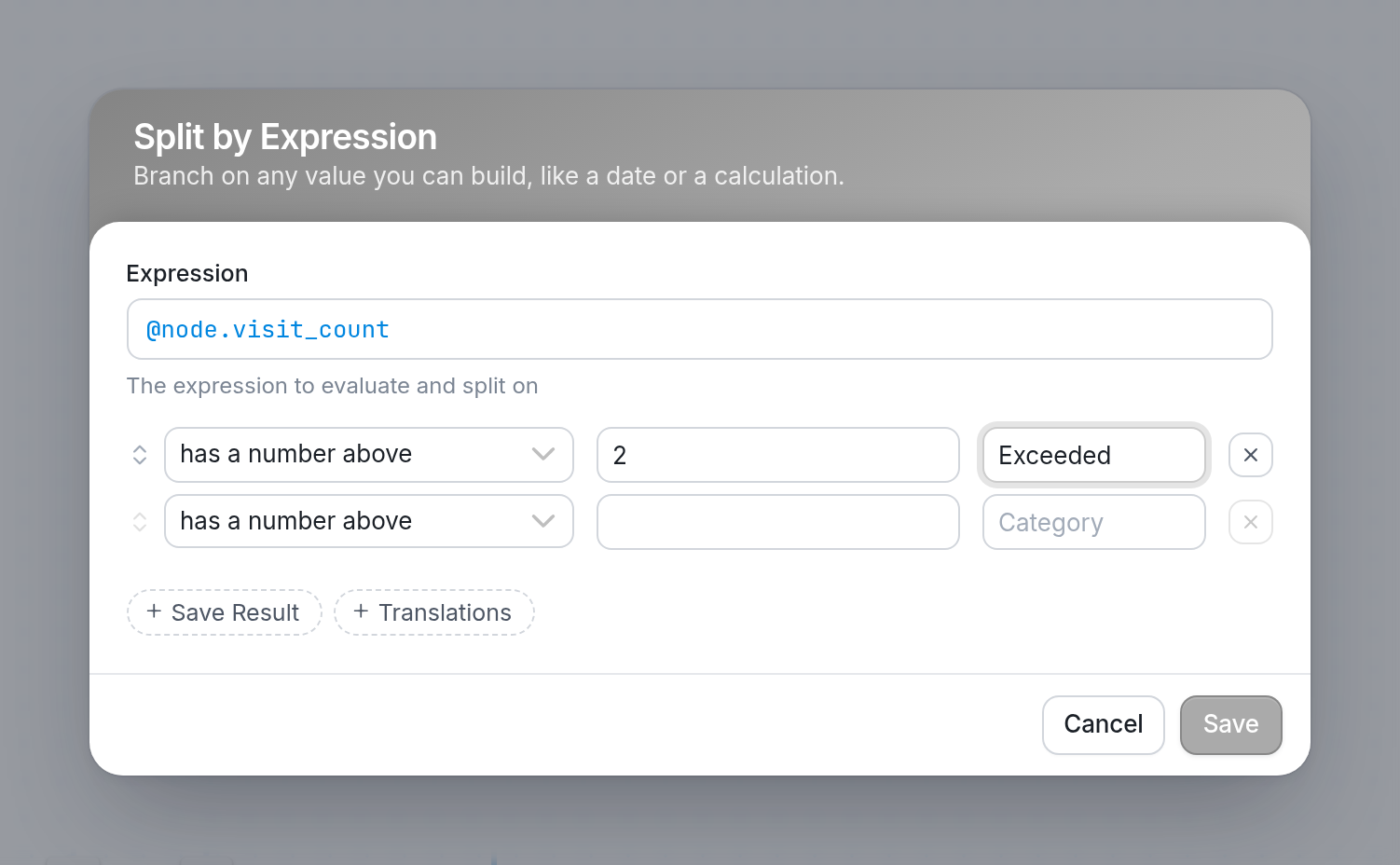
Using the no-reply time limit (#5 above) can leave your contacts in an endless loop, or keep sending messages to a contact who isn't interested.
You can use the expression @node.visit_count to limit the number of times contacts pass through a node. Use a Split by Expression action and set it up as follows, so that contacts who have passed through the node more than 2 times go to the Exceeded category:
Saving a Contact's Response
A Wait for Response node collects your contact's responses and saves the result inside your flow. To save a response as a field on the contact's information page in your account, use the Update the Contact action after each Wait for Response you want to save as a field.
This action saves the response as a contact field that can be referenced later on. For example, you can collect and then update the contact's name so you can address them personally in the future.
If you have questions, send us a message through the support widget in the bottom right corner.