Response Rules
Response rules evaluate the operand designated by the Split Action type. In the example below, a Wait for Response action evaluates the incoming message, which is the @input.text operand.
Response rules provide a series of tests that you can run against the selected operand.
For example, the "has any of the words" response rule tests the operand for any of the words you designate. Response rules are evaluated from top to bottom. The first rule that matches takes effect, and no other rules are evaluated after it.
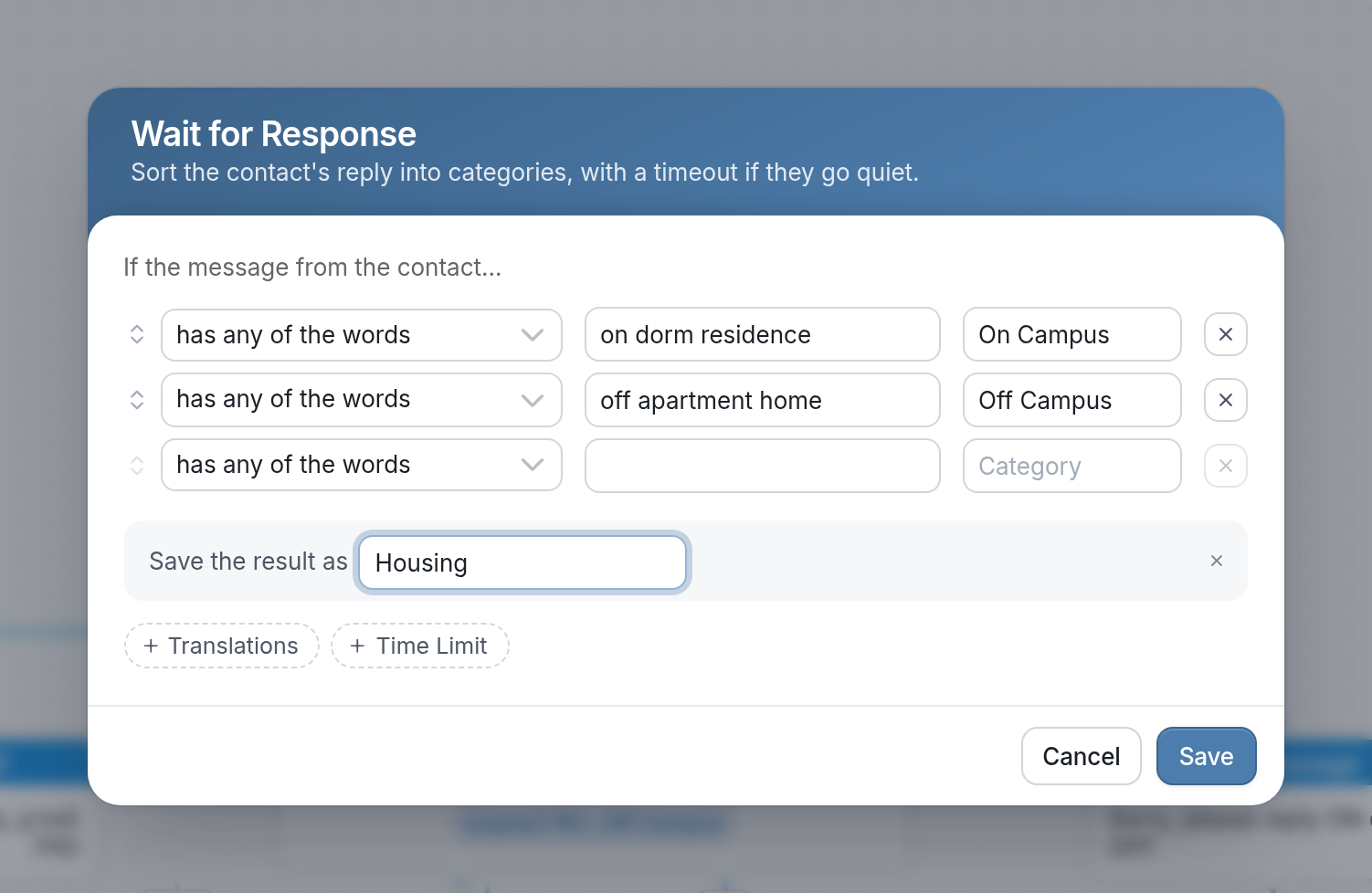
If the operand matches a response rule, the contact passes through the category assigned to that rule. In the example above, the Wait for Response action is waiting for an incoming message, which it will evaluate against the response rules for the On Campus, Off Campus and Other categories.
| Note that a flow will always match at least one response rule in a Split Action, because the last response rule is always a catch-all (the "Other" rule). |
| Passage through categories is shown in the analytics tab as well as in the flow editor. For example, the flow editor shows the number of times contacts passed through the On Campus, Off Campus and Other categories of the Split Action that sorts responses to a housing question. | 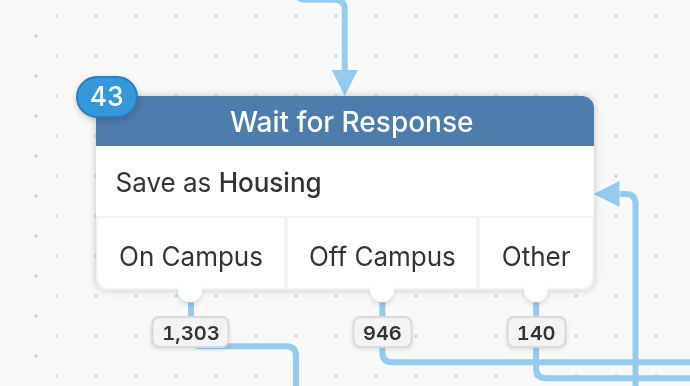 |
If multiple response rules share the same category name, the flow editor shows them as one category within the Split Action.
How to Use Response Rules
-
Has any of the words - To match this rule, a contact can send any one of several words. For example, if the contact may respond with
male,morman, use this rule to accept any of these words as a valid response. -
Has all of the words - A contact's response must contain all of the words in your response rule. If your rule is
stomach ache, fever, chills, then the contact must send all of these words. -
Has the phrase - If your response rule is a phrase like
Los Angeles County DMV, then the contact must send this exact phrase for the response to be valid. -
Has only the phrase - Similar to Has the phrase, but the response must contain only that phrase, not the phrase along with additional text.
-
Starts with - Use this rule if the contact's response must start with a specific word. For example, the response must start with
Alpha, notBeta. -
Has some text - Use this rule to accept any text response as valid.
-
Has a number - Use this rule when looking for any number in the response.
-
Has a number between - Use this rule to accept only a number within a range. For example, a number between 1 and 10.
-
Has a number below - Use this rule if the contact's response must be below a specific number. For example, a number below 10, but not 10 itself.
-
Has a number at or below - Similar to Has a number below, but the maximum is included. For example, a number below 10 and 10 itself.
-
Has a number equal to - Use this rule if the contact's response must exactly match a specific number. For example, only the number 123 is valid.
-
Has a number above - The contact's response must have a number above the specified minimum. For example, the response must be higher than 10, but not 10 itself.
-
Has a number at or above - Similar to Has a number above, but the minimum is included. For example, 10 or above, including 10.
-
Has a date - The contact's response must include a date in MM/DD/YYYY or DD/MM/YYYY format. You can set your workspace's date format. This setting affects features that use date and time values, such as campaigns, triggers that fire on a schedule and anything that uses date & time functions.
-
Has a date before - This rule accepts only dates before a specified date. Anything after it is not valid.
-
Has a date equal to - Use this rule if the response must match a single date exactly.
-
Has a date after - This rule accepts only dates after the specified date as valid.
-
Has a time - This rule accepts any time. Be sure to set your date & time formatting so that functions that work with dates and times operate properly.
-
Has an email - This rule accepts an email address. Responses that lack a domain, such as
@gmail.com, are not valid.
Examples
Response rules allow you to:
-
Categorize multiple responses into one category. For example, if you are asking contacts what their favorite type of soda is, you can create rules that categorize Coke and Pepsi as Cola.
-
Change numeric responses to narrative responses, or vice versa. For example, if you ask your contacts to rate their satisfaction with a service on a scale of 1 to 5, you can create a rule that categorizes the response 1 as Poor and 5 as Excellent.
-
Define an acceptable range for a numerical answer.
-
Direct unexpected responses to an Other category. For example, if you are asking your contacts for their gender and receive the response Cat, this answer is categorized as Other.
-
Translate responses so that affirmative answers such as Yego (Kinyarwanda) or Si (Spanish) are categorized as Yes.
Special Response Rules
Has a phone number
You can use the "has a phone number" response rule to check that the response includes something that looks like a valid phone number. The response is saved as a fully qualified number. For example, if someone responds with 0788123123, the number is saved as +250788123123. If a valid number isn't sent, you can follow up by asking the contact to respond again.
Matches Regex
In some cases, like validating an ID number or coupon code, you may need a more complex rule to decide whether a response is valid. Regular expressions (regex) are a standard way to describe an acceptable format. Regex101 is a useful tool for testing your regular expressions against the responses you expect.
For example, say we are asking students which year of study they are in:
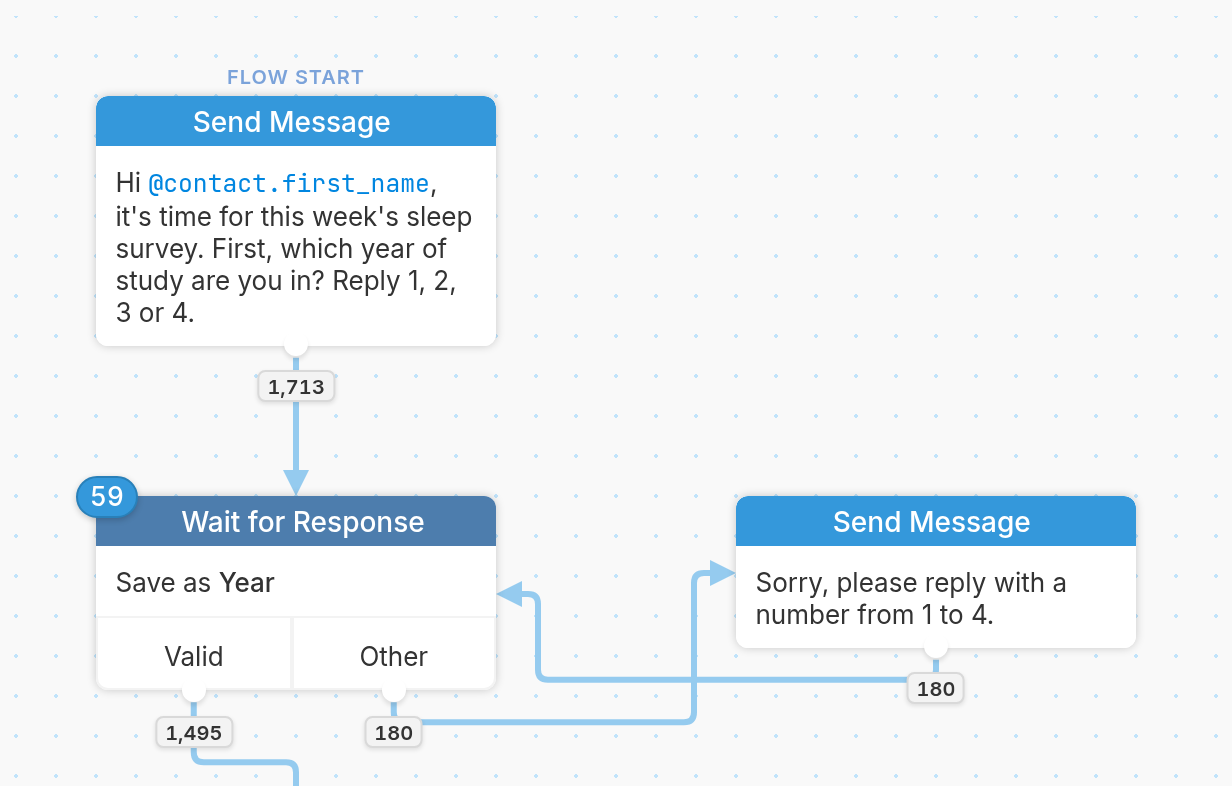
Valid answers are a single number from 1 to 4, so we can match them using a regular expression. Any other response goes to Other, which sends a message asking the student to reply with a number from 1 to 4 and then waits for their response again.
| Note that regular expressions are case insensitive, so you don't need to add different options for upper and lower case. |
Open-Ended Responses
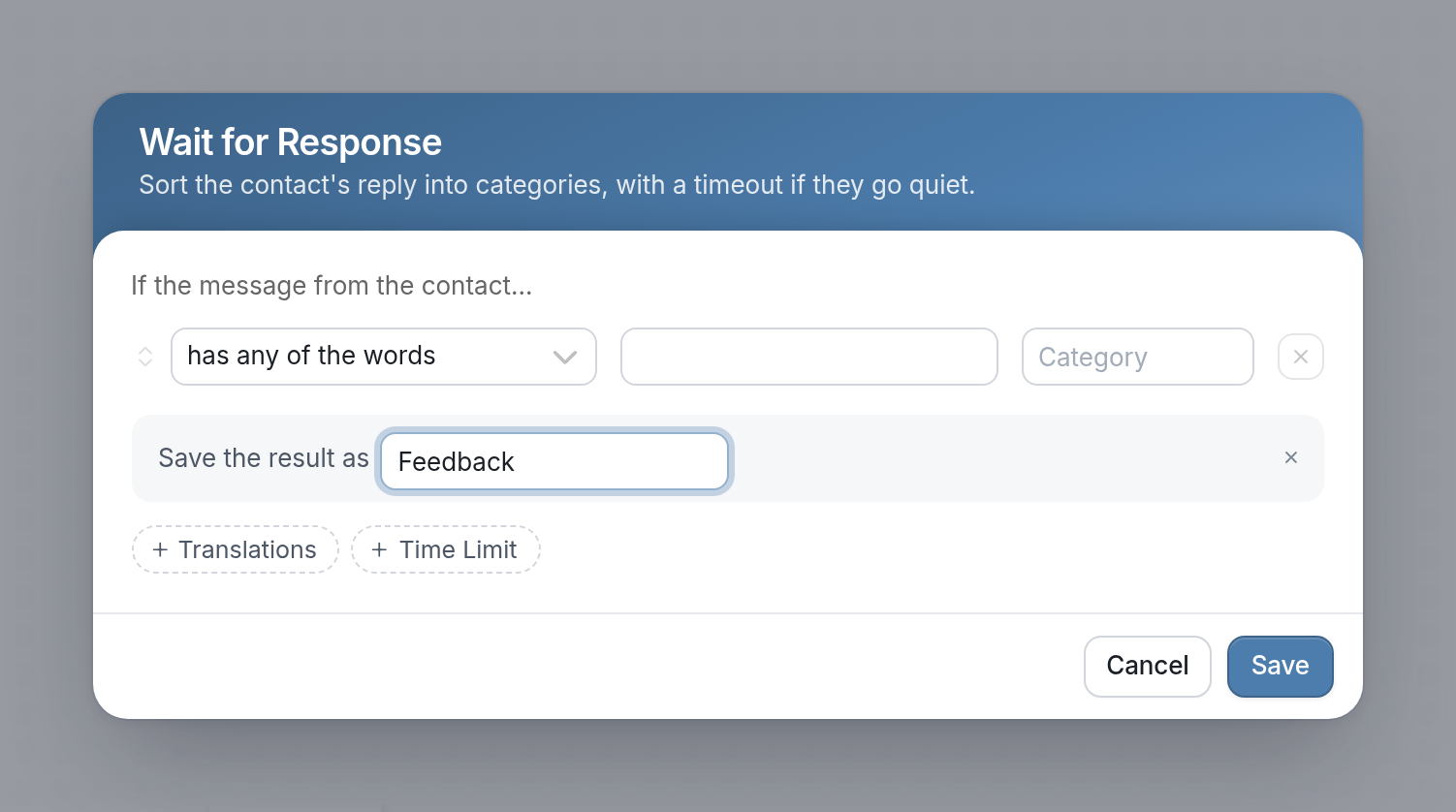
To collect any response the contact sends, don't set any rules. This creates an All Responses category, which is useful for collecting long-form or free-text responses that don't need to match anything. In the example below, we ask students how their first week of classes went.
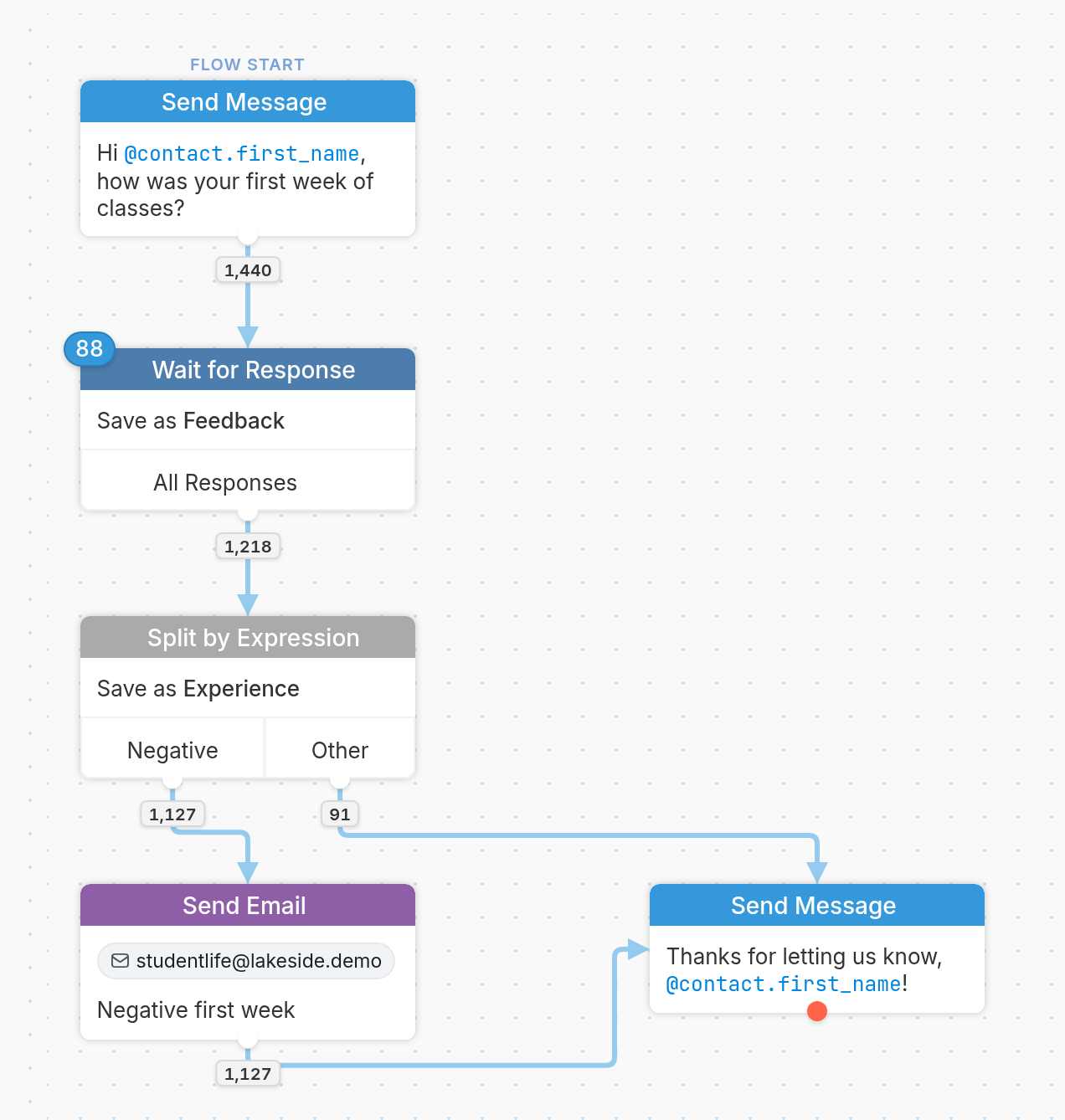
We haven't set any rules in the Wait for Response node, so any response from the contact is saved as Feedback.
Questions? Send us a message via the support widget in the bottom right corner.