Using the Context Explorer
The Context Explorer, found in the simulator in each flow's editor, lets you view and better understand all the variables available in your flow. It gives a detailed breakdown of values and their expressions, which you can copy for use elsewhere.
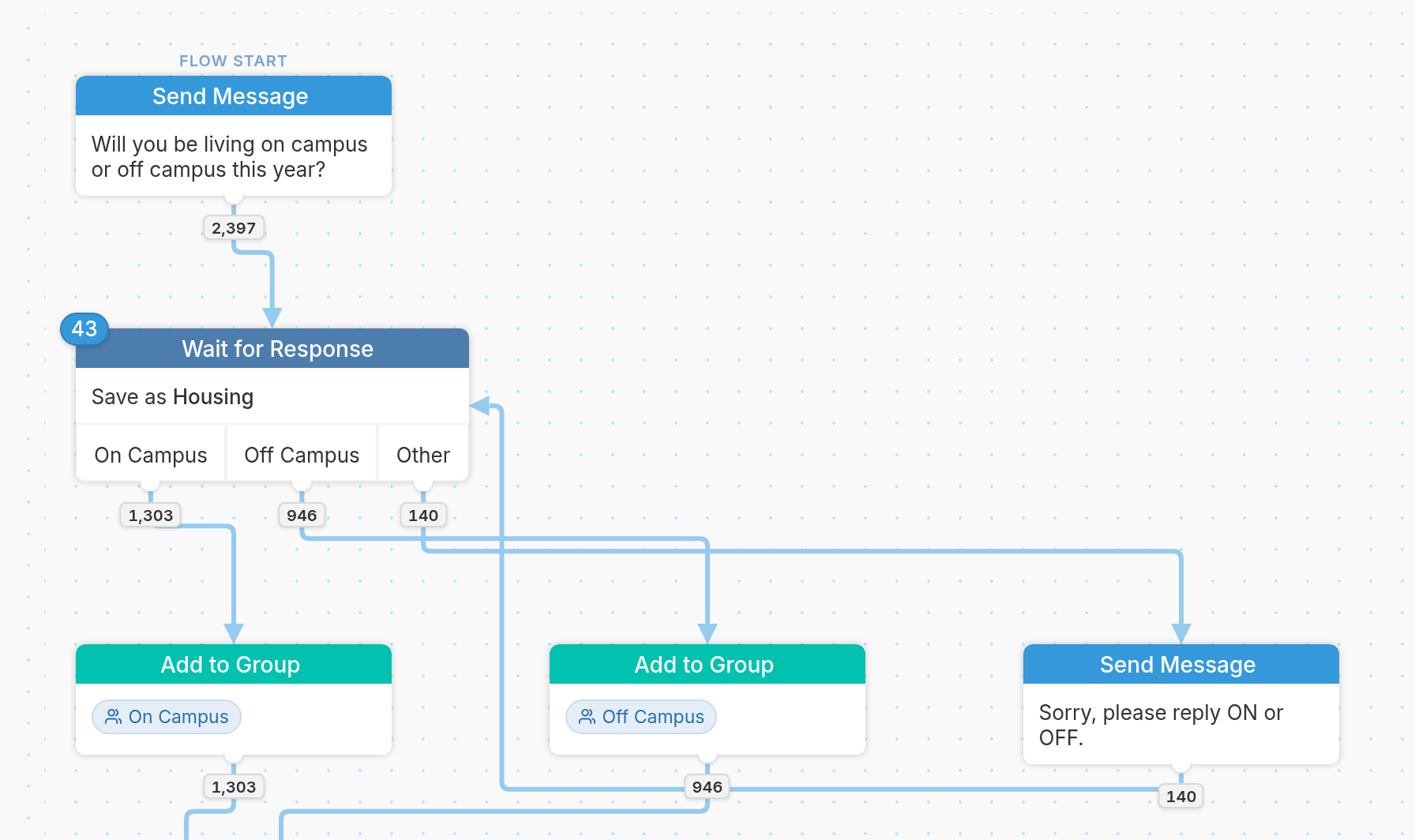
To use the Context Explorer, first go to the flow's editor. In our example, we want to see all the available variables for a flow that asks students whether they'll be living on or off campus this year and adds them to the matching group:
The Phone Simulator button is in the bottom right corner of the editor:

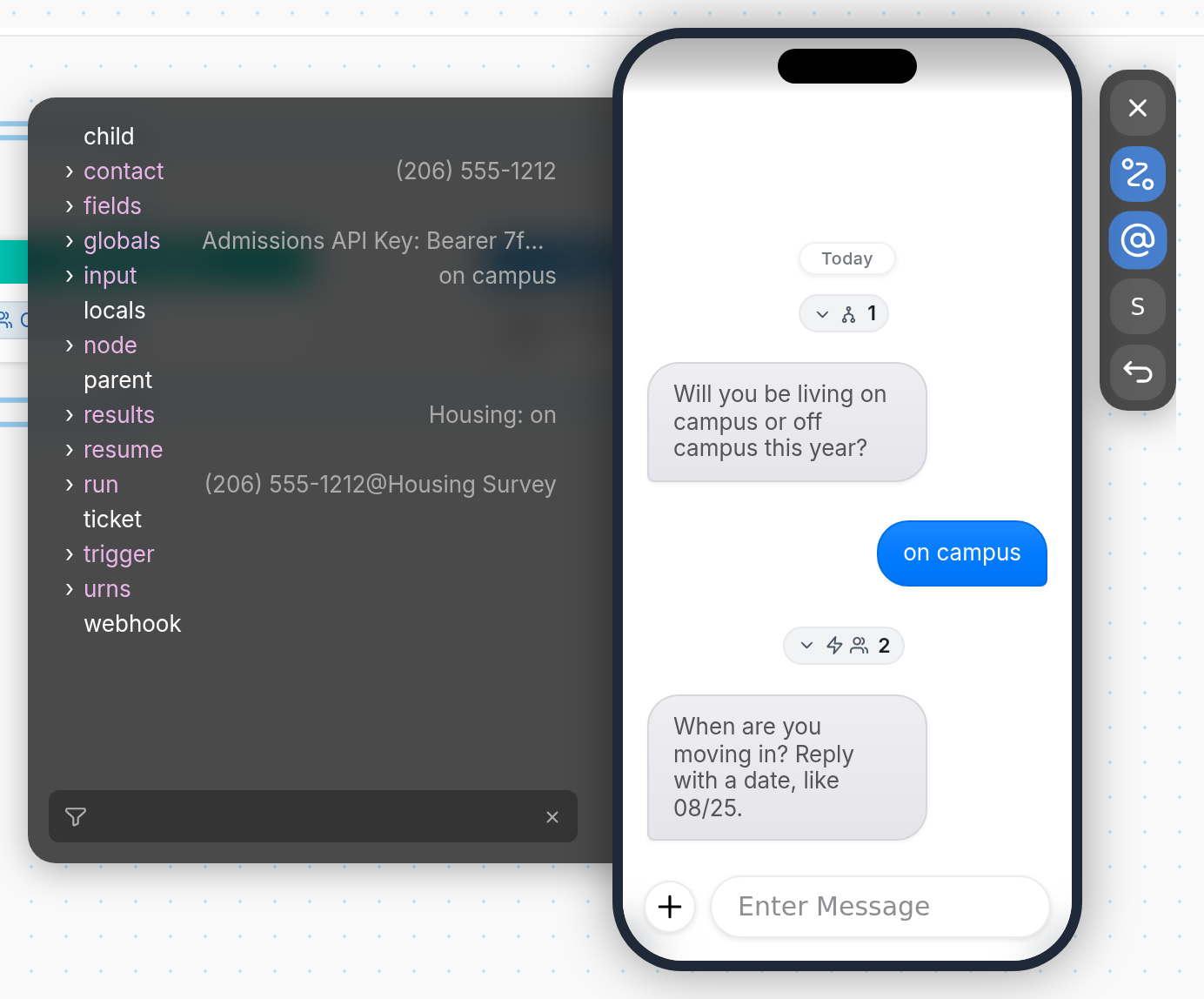
Click Phone Simulator to run a test contact through the flow up to whichever point you'd like to view, or all the way to the flow's exit. Here, the test contact has replied "on campus" to the first question, and the flow has moved on to ask when they're moving in.
Then click the @ button in the toolbar to the right of the simulator to open the Context Explorer. In our example, the explorer shows the test contact's phone number, the globals set in the workspace, the contact's latest input ("on campus"), the flow's results and the flow's run:
You can expand each value to see more detailed information, such as when the contact was created, the contact's language, their group membership and more:
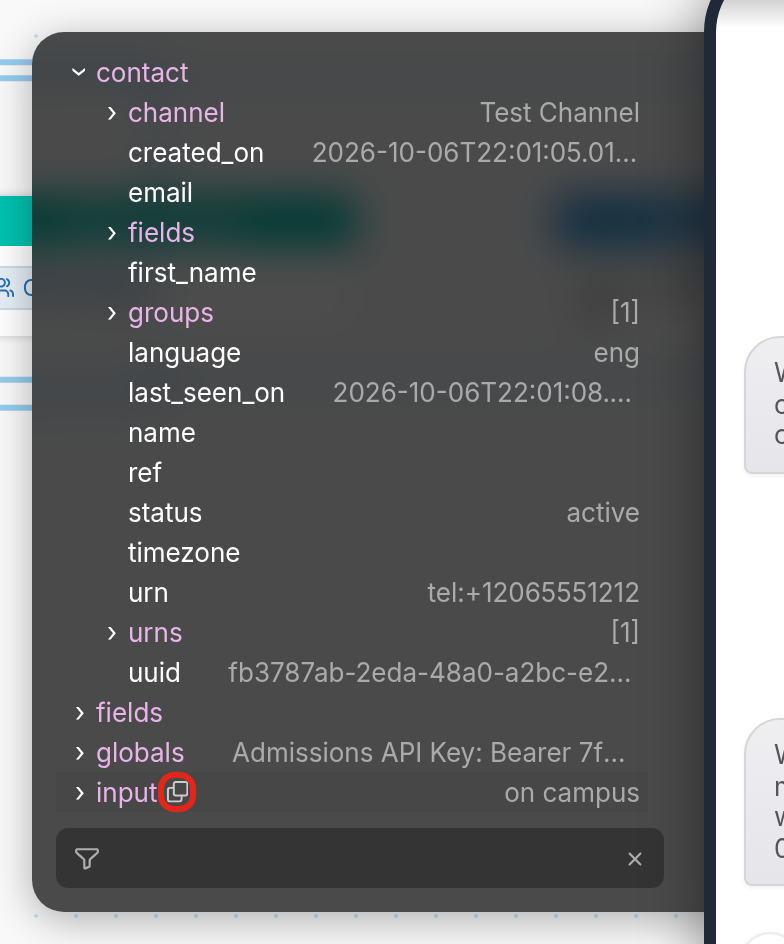
To copy a variable, click the Copy icon that appears next to its name, for example next to input.
If you have questions, send us a message via the support widget in the bottom right corner of your browser.