Assigning Keywords to a Flow
You can assign keywords to a flow so that your contacts can start it whenever they want. A keyword is the first word in an incoming message.
To assign a keyword to a flow from the flow editor:
(1) Go to the Flows tab and choose a flow.
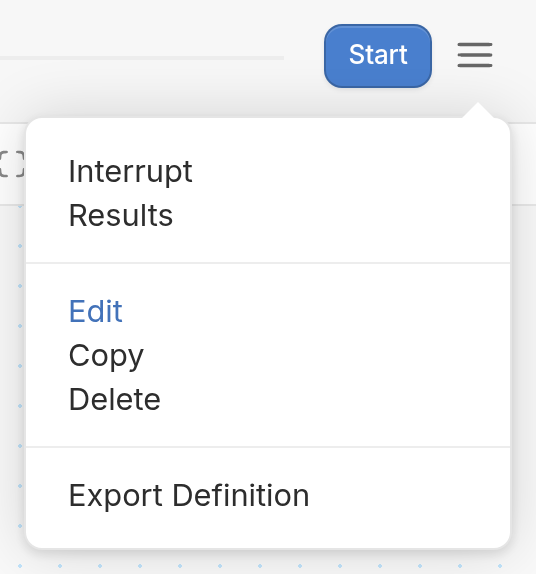
(2) Select Edit from the ☰ menu in the top right of the flow editor.
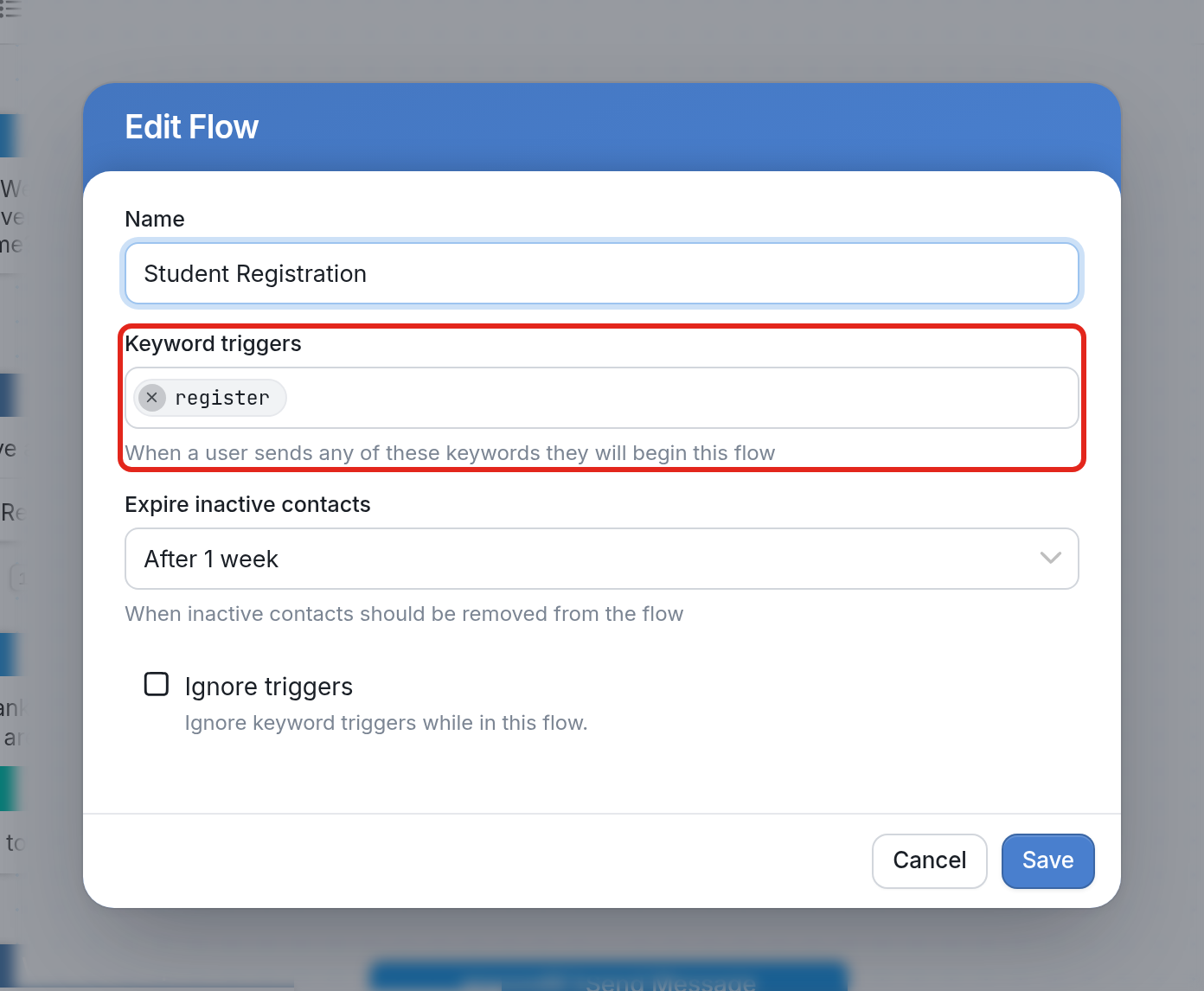
(3) Add your keyword(s) in the Keyword triggers field, then click Save. Keywords aren't case sensitive; for example, REGISTER, Register and register are treated the same.
Ignore Triggers
Check the Ignore triggers box to stop your contacts from triggering other flows while they're active in the flow you're editing. When this box is checked, a contact who sends a keyword assigned to a different flow won't enter that flow.
Creating Keywords from the Triggers tab
| Note: You can also create keywords for a flow from the Triggers tab. |