Using a Flow to Set a Contact's Language
You can use a flow to set a contact's preferred language.
Use the Update Language action to update your contacts' language preferences from within a flow. Contacts will then receive messages in their preferred language if the flow they're interacting with has been translated.
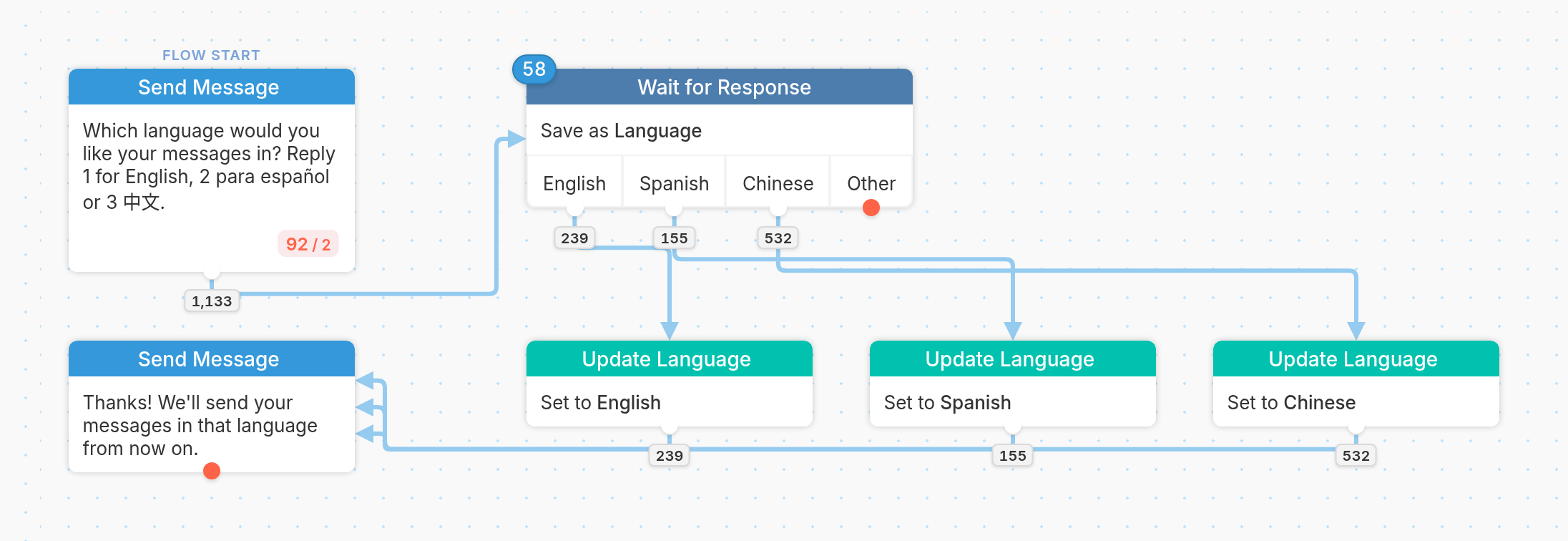
In the example below, we ask contacts which language they prefer: English, Spanish or Chinese. Once their reply is evaluated, they pass through one of three Update Language actions, which sets their language.
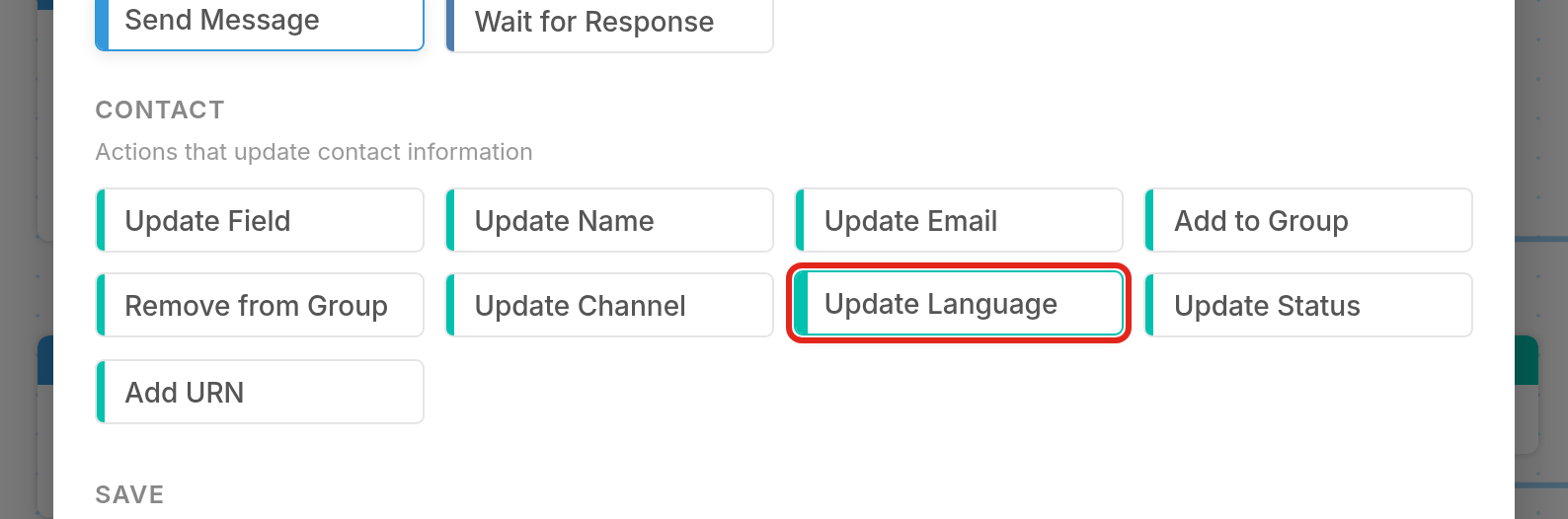
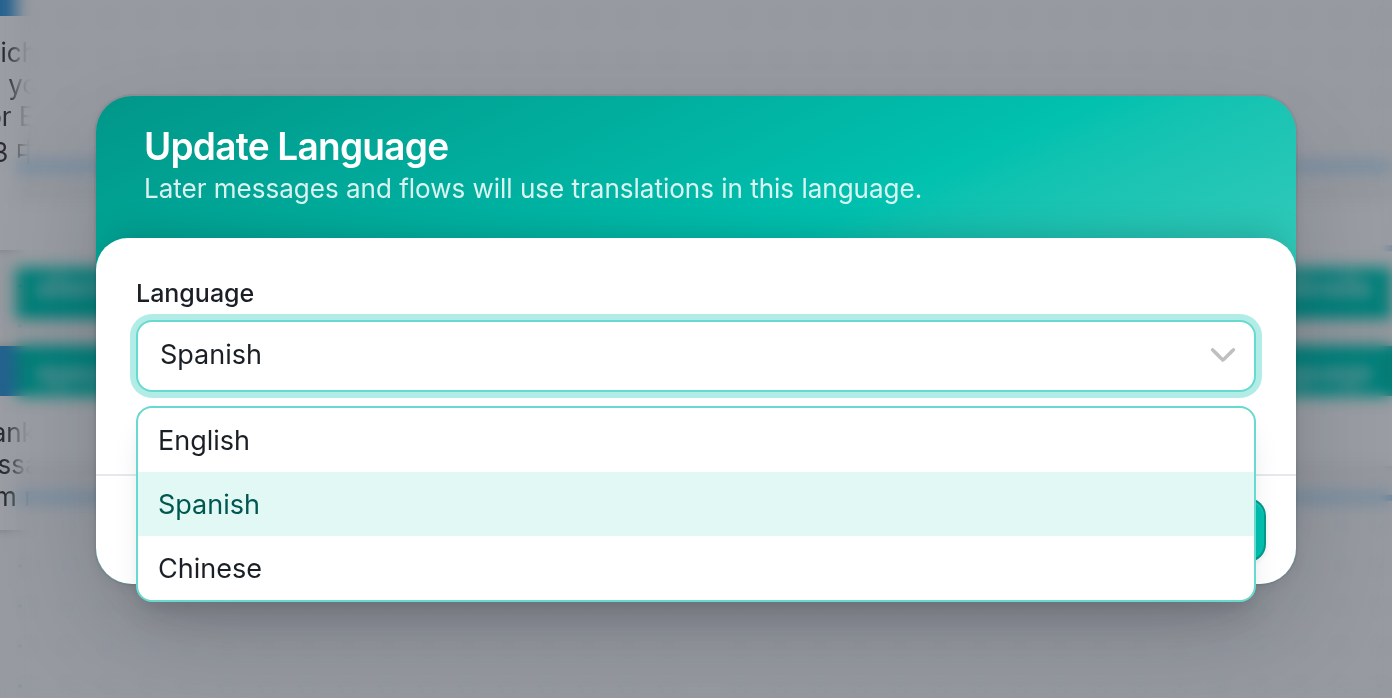
Select the Update Language action, then choose a language from the Language menu.
They'll then receive the final message in their preferred language.
From the Contacts Tab
To set a contact's language preference from the Contacts tab:
-
Go to the Contacts tab, then click the contact whose language you want to update.
-
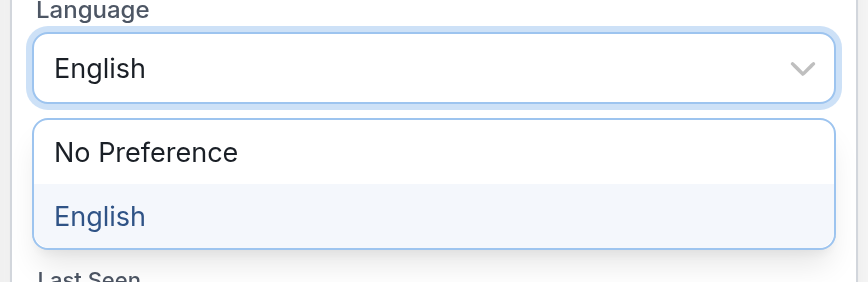
In the Details card on the contact's page, click the Language field.
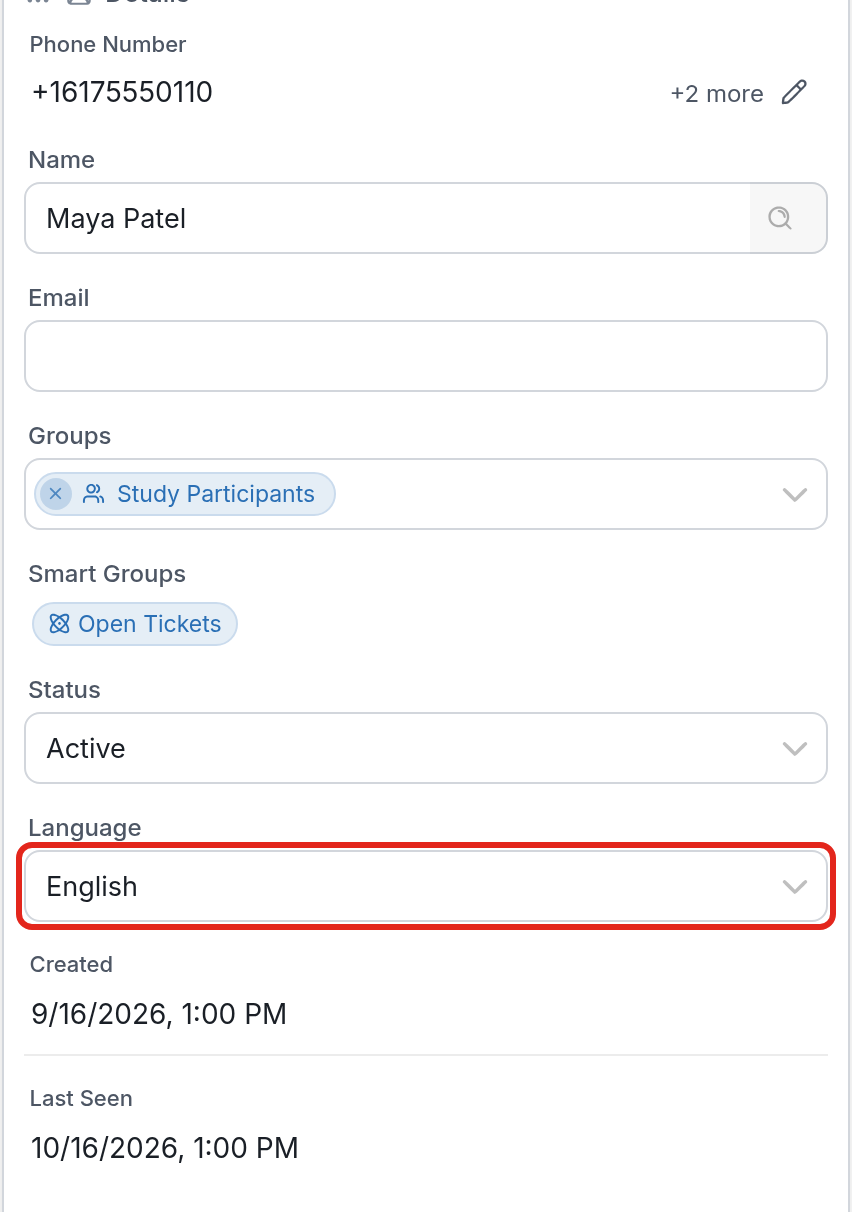
- Select a language from the primary and secondary languages you've added to your account.
| Please note: |
-
The default Language contact field, which holds the contact's preferred language, is shown in the Details card on the contact's page. You can reference a contact's language preference with the @contact.language variable, which returns its ISO 639-3 code (Spanish becomes 'spa').
-
You'll need to translate your flows into each of the secondary languages you've added to your account.
Using a Contact Import
To set your contacts' preferred languages, you can add a column titled 'Language' to a contact import. The column should contain the ISO 639-3 language code (e.g. 'spa' for Spanish). Note that all additional languages must first be added to your account via your account page.