Adding Labels to Responses
Use the Add Input Labels action to label incoming messages handled by your flow. Sorting contacts into groups lets you segment contacts based on their responses, while labeling incoming messages lets you isolate responses to a specific question. Message labels can be viewed and created in the Messages tab. To create a new label, click the menu icon (☰) at the top right of the inbox and select New Label:
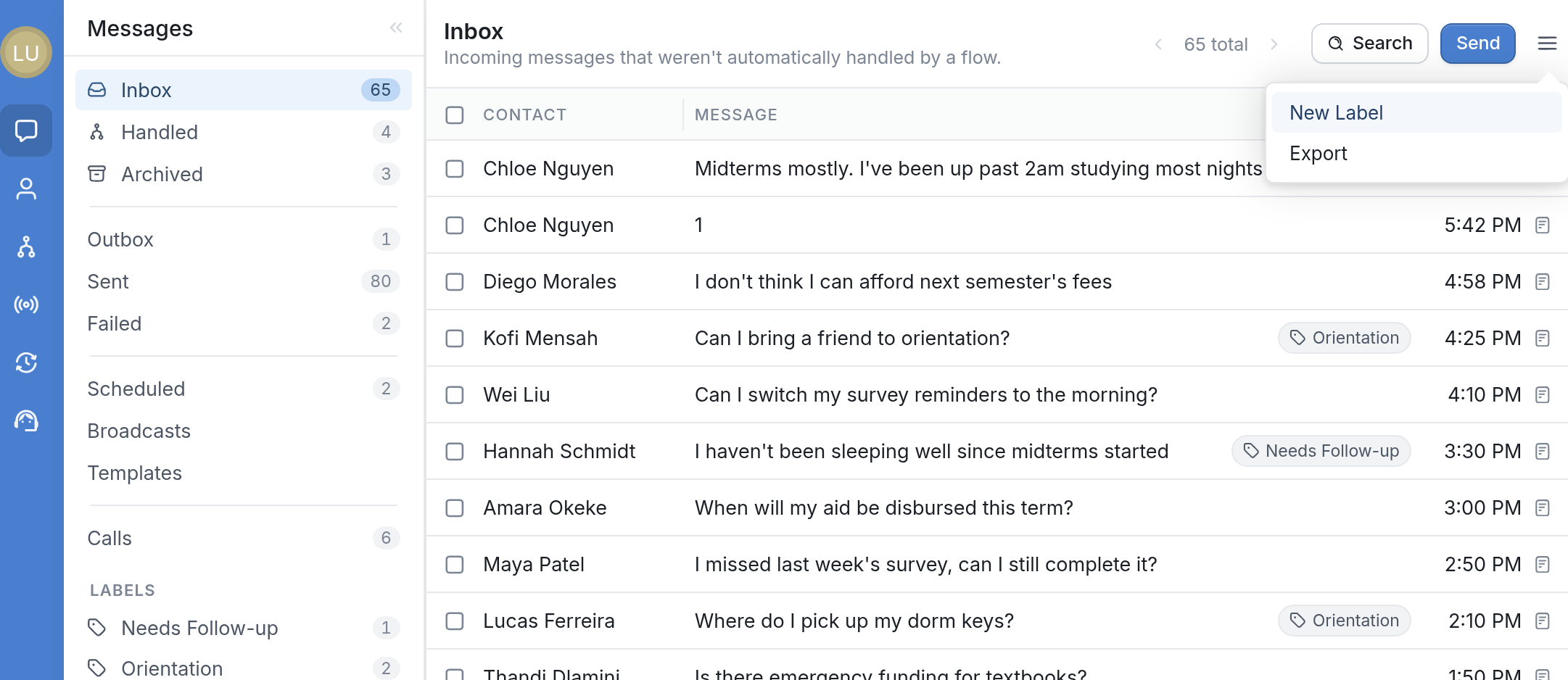
You can also find this option in the Flows tab by clicking its menu icon at the top right.
How it Works
Let's say you're running a therapy adherence study in which participants are asked to indicate how they're feeling each day - Good, Okay or Bad:
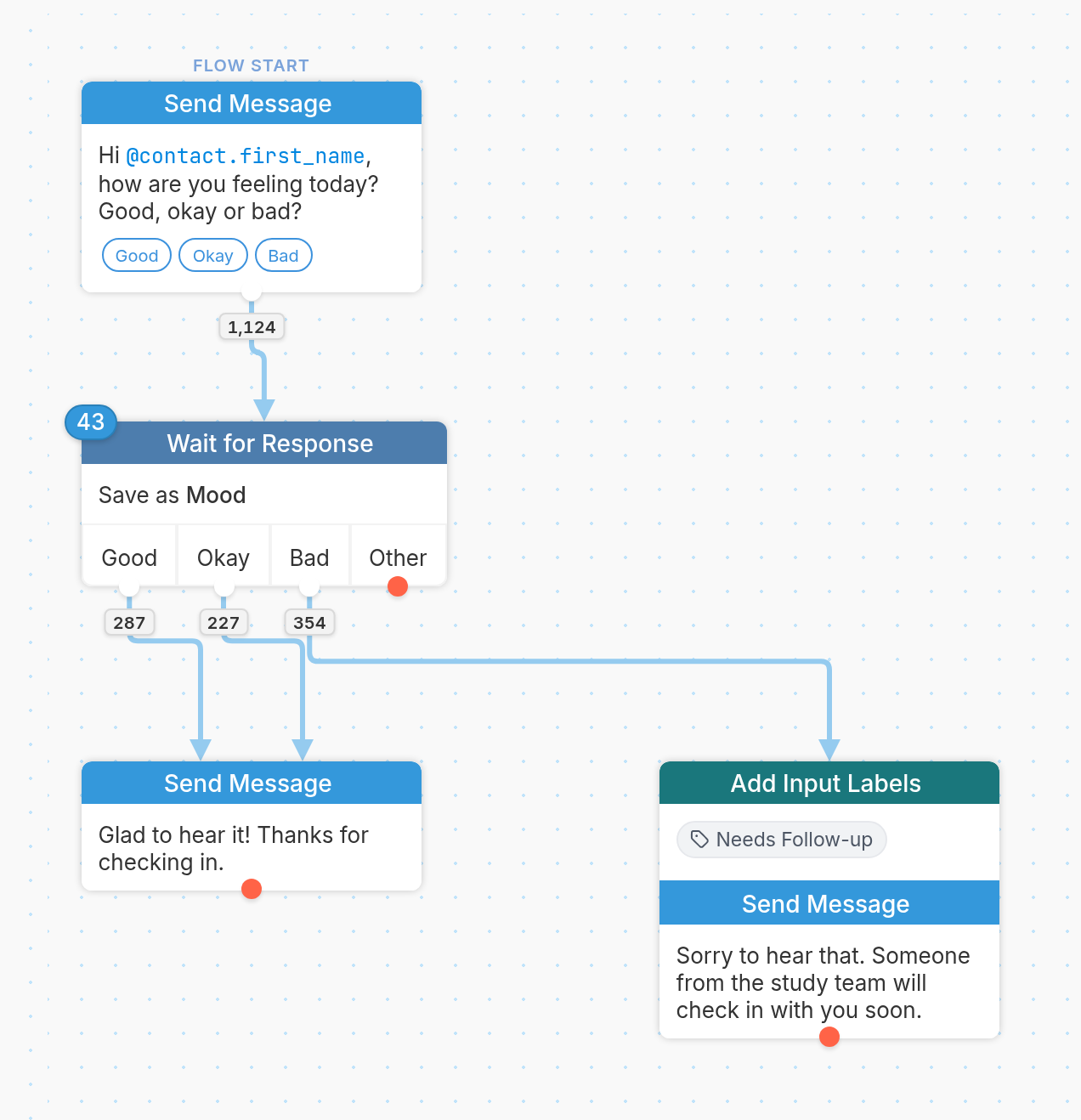
Placing an Add Input Labels action after the Wait for Response action pictured above lets you filter responses that pass through a particular category. In the example above, we've placed an Add Input Labels action on the branch that stems from the "Bad" category, so only responses registered as "Bad" are labeled. You can then view these messages by going to the Messages tab and clicking the "Needs Follow-up" label.
Adding a Label
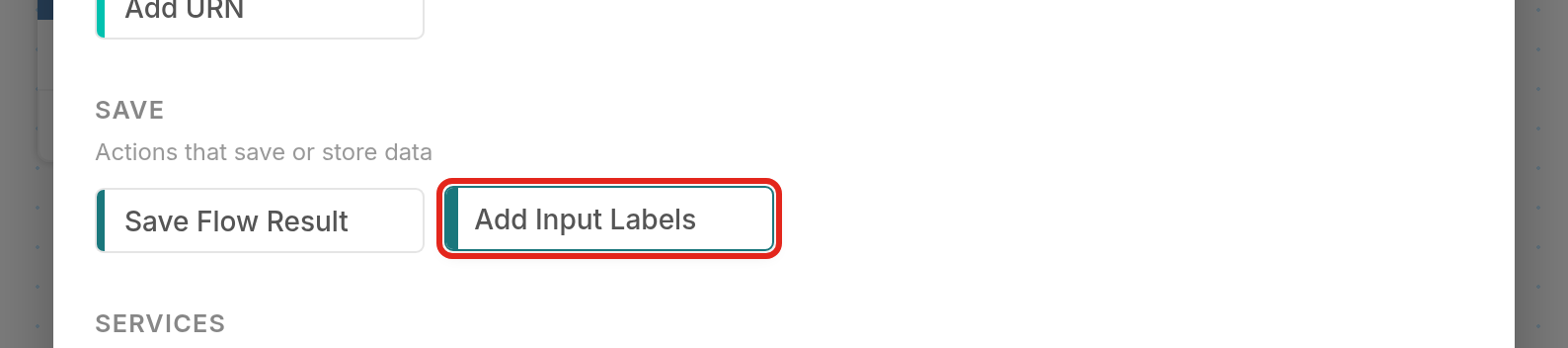
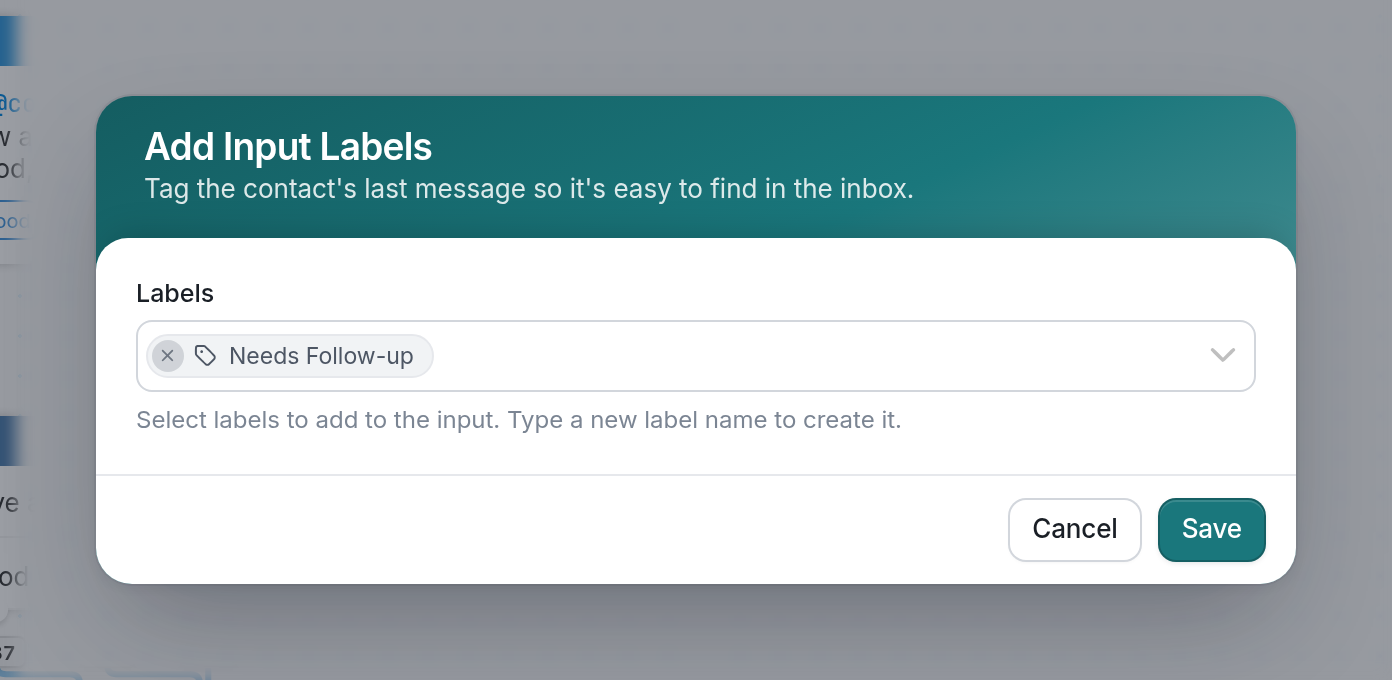
To add a label, add an Add Input Labels action to your flow. You'll find it under Save in the list of actions. In the Add Input Labels dialog, you can choose an existing label or type a new label name to create it: