Copying a Flow
Copying a flow is useful when you want an exact duplicate of a flow or want to build on an existing flow's structure.
Create a Copy
-
Go to the Flows tab.
-
Click the flow you'd like to copy.
-
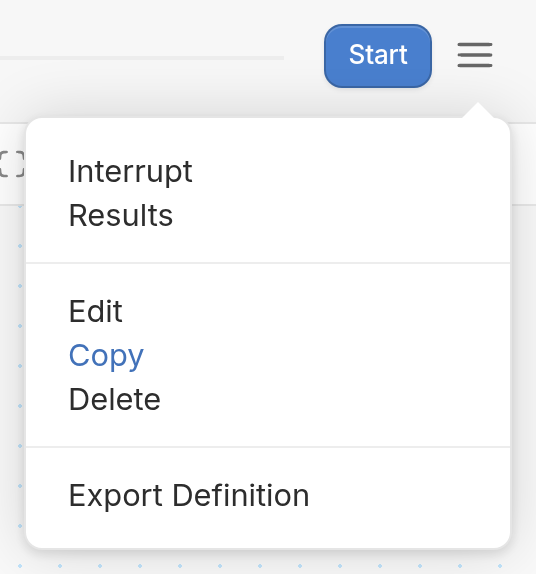
Click the ☰ menu icon in the top right-hand corner of the flow editor and choose Copy:
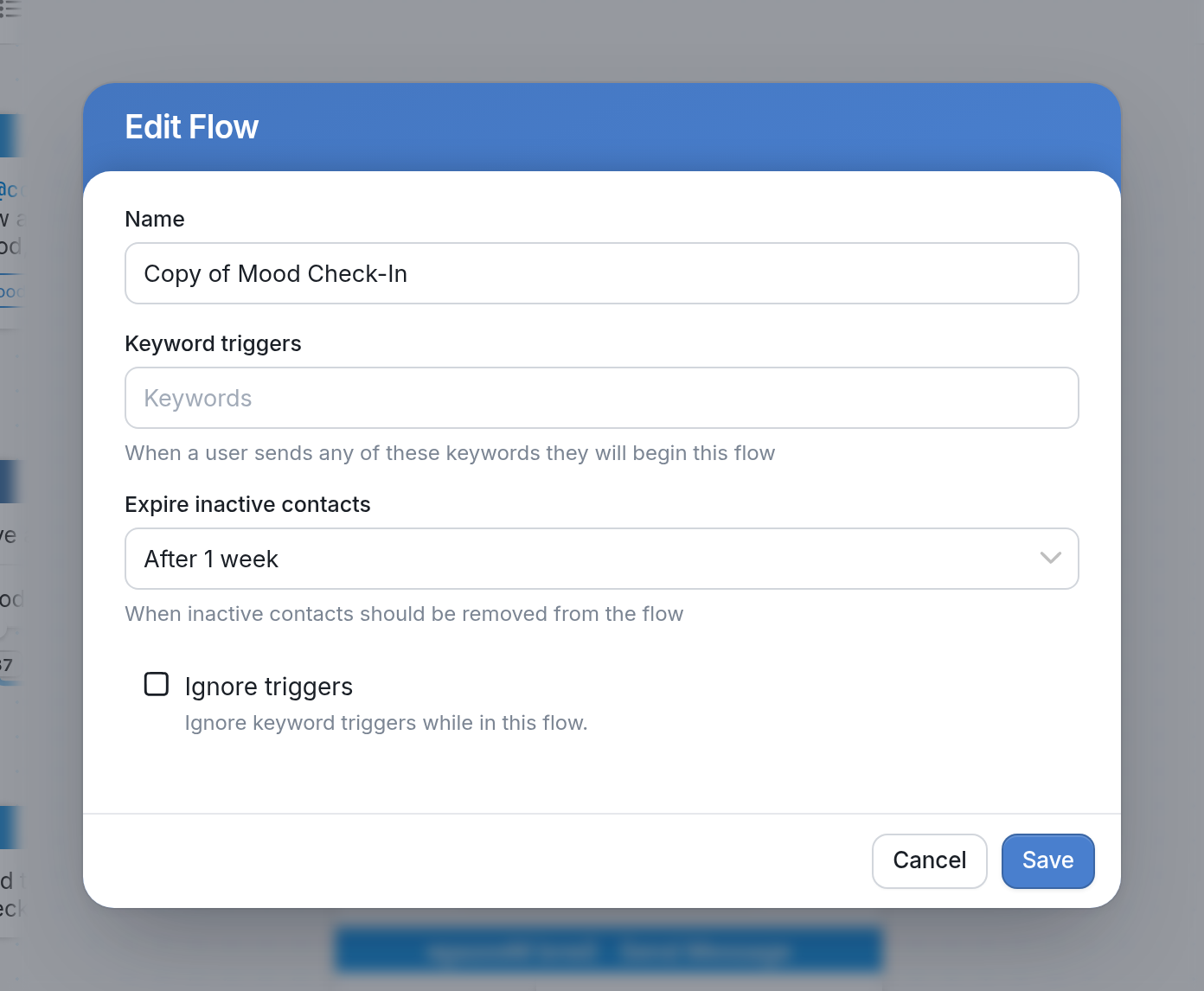
You'll be taken straight to the flow editor of the copy. By default, the copy is named "Copy of [flow name]" and appears at the top of your flow list as the newest flow. For example, copying Mood Check-In creates "Copy of Mood Check-In":

Edit Copy
To edit the copied flow, click the ☰ menu icon in the copy's flow editor and choose Edit. In the Edit Flow window, you can change the Name, the Keyword triggers and when to Expire inactive contacts, and choose whether to Ignore triggers while contacts are in the flow:
Learn more about navigating the flow editor here.