Setting your Contacts' Language Preferences
Using a Flow
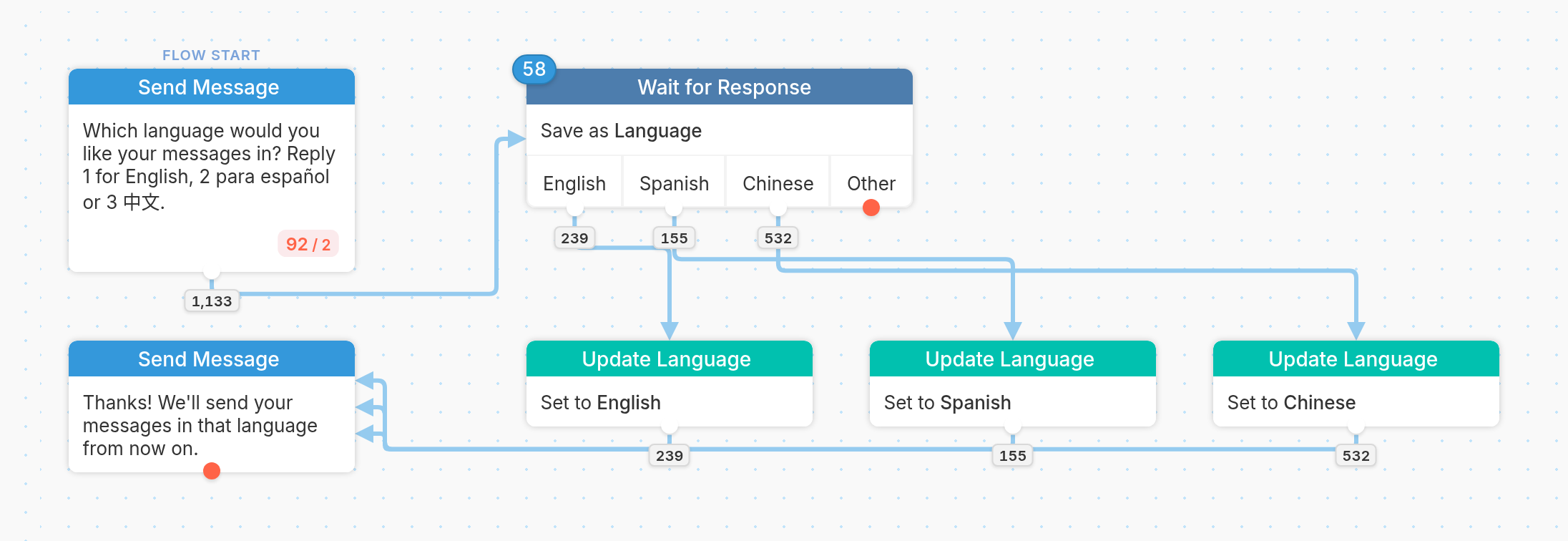
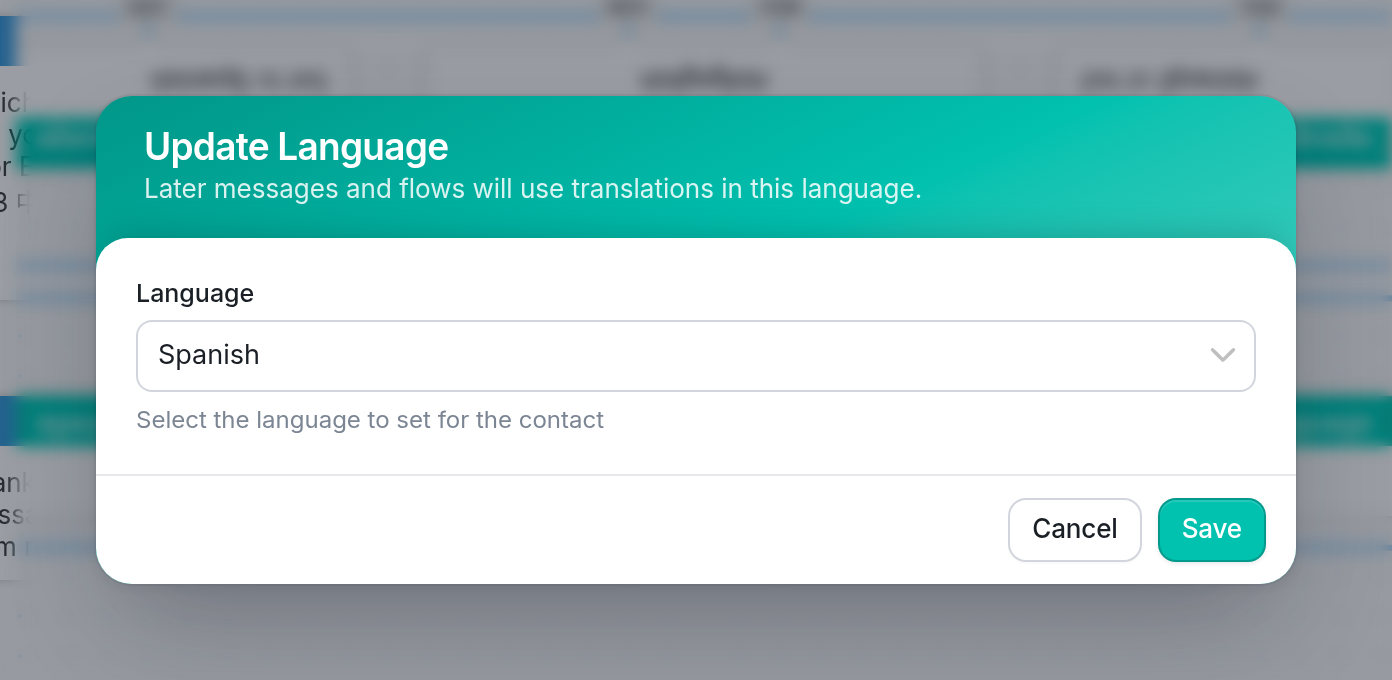
Use the Update the Contact action to update your contacts' language preferences from within a flow. Contacts will then receive messages in their preferred language if the flow they're interacting with has been translated.
In the example above, we ask contacts which language they'd like their messages in: English, Spanish or Chinese. Once the Wait for Response step sorts their replies, contacts pass through one of three Update Language actions, one for each language. They then receive the final message in their preferred language, if it has been translated.
Once the contact's language preference is updated, you can send them a translated message. In the example flow above, you can see the English version, but the flow also has a Spanish translation:
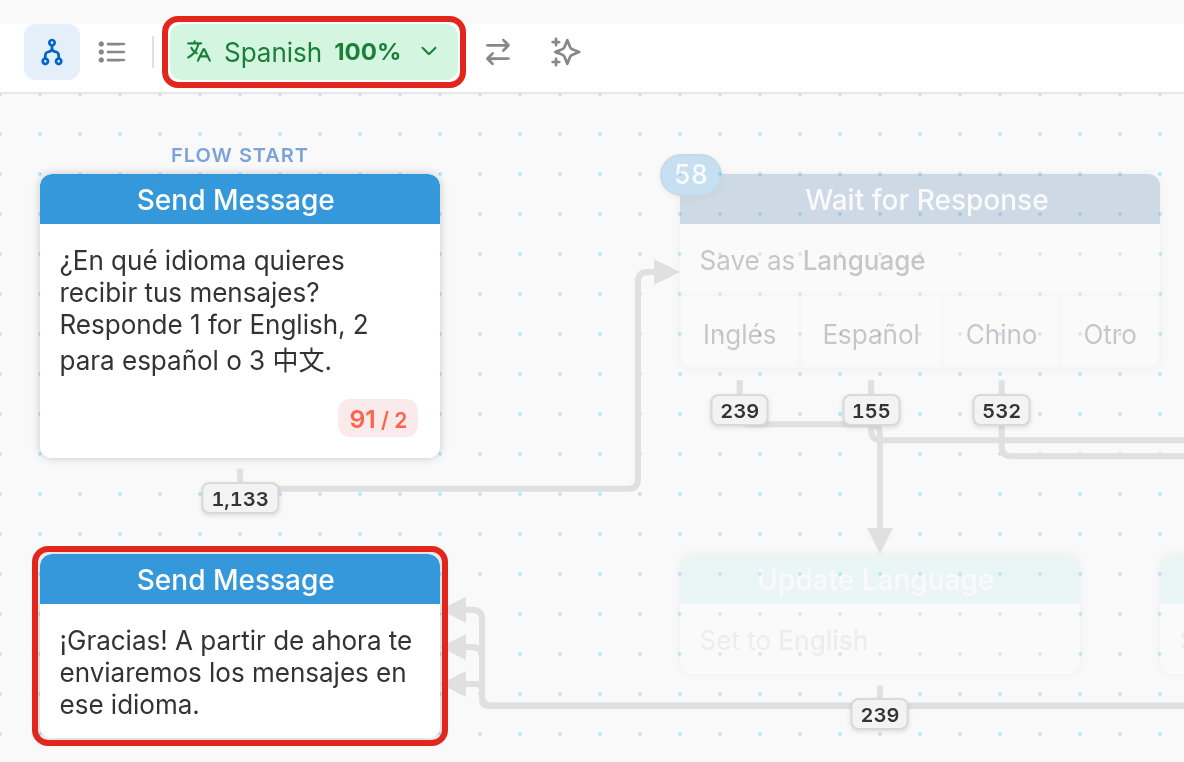
See our article on translating multi-language flows to learn how to translate your messages.
From the Contacts Tab
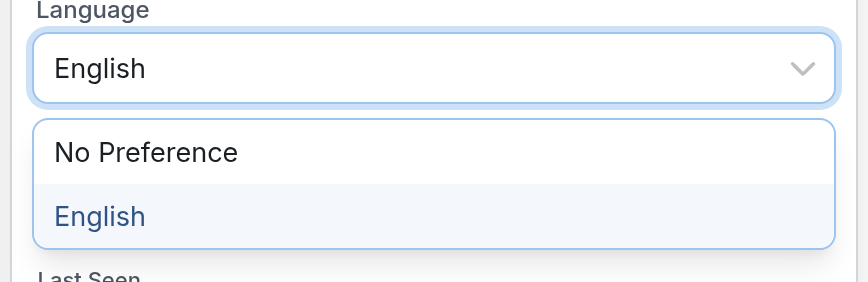
To set a contact's language preference from the Contacts tab:
-
Go to the Contacts tab, then click the contact whose language you want to update.
-
In the Details card on the contact's page, click the Language field and select a language from the primary and secondary languages you've added to your workspace.
| Please note: |
-
The default language contact field, which holds the preferred language, is shown in the Details card on the contact's page. You can reference a contact's language preference with the @contact.language variable, which returns its ISO 639-3 code (Spanish becomes 'spa').
-
You'll need to translate your flows into each of the secondary languages you've added to your workspace.
Using a Contact Import
To set your contacts' preferred languages in a contact import, add a column titled "Language" containing the ISO 639-3 language code (for example, 'spa' for Spanish). All additional languages must first be added to your workspace.
See our guide on importing and exporting contacts.