Using the Simulator
An important part of building something is testing it out. For this reason, we've included a simulator in the flow editor that allows you to test your flows from a contact's perspective - so you can quickly identify what works and what might need to be tweaked.
Accessing the Simulator
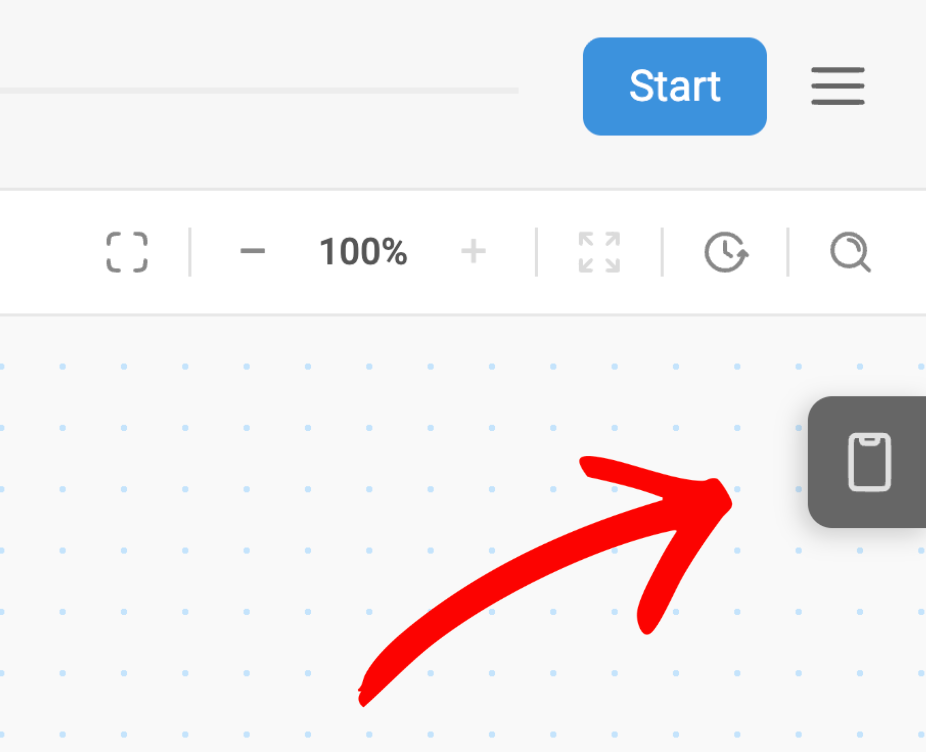
The simulator is accessed through the phone icon on the right side of the flow editor:
Using the Simulator
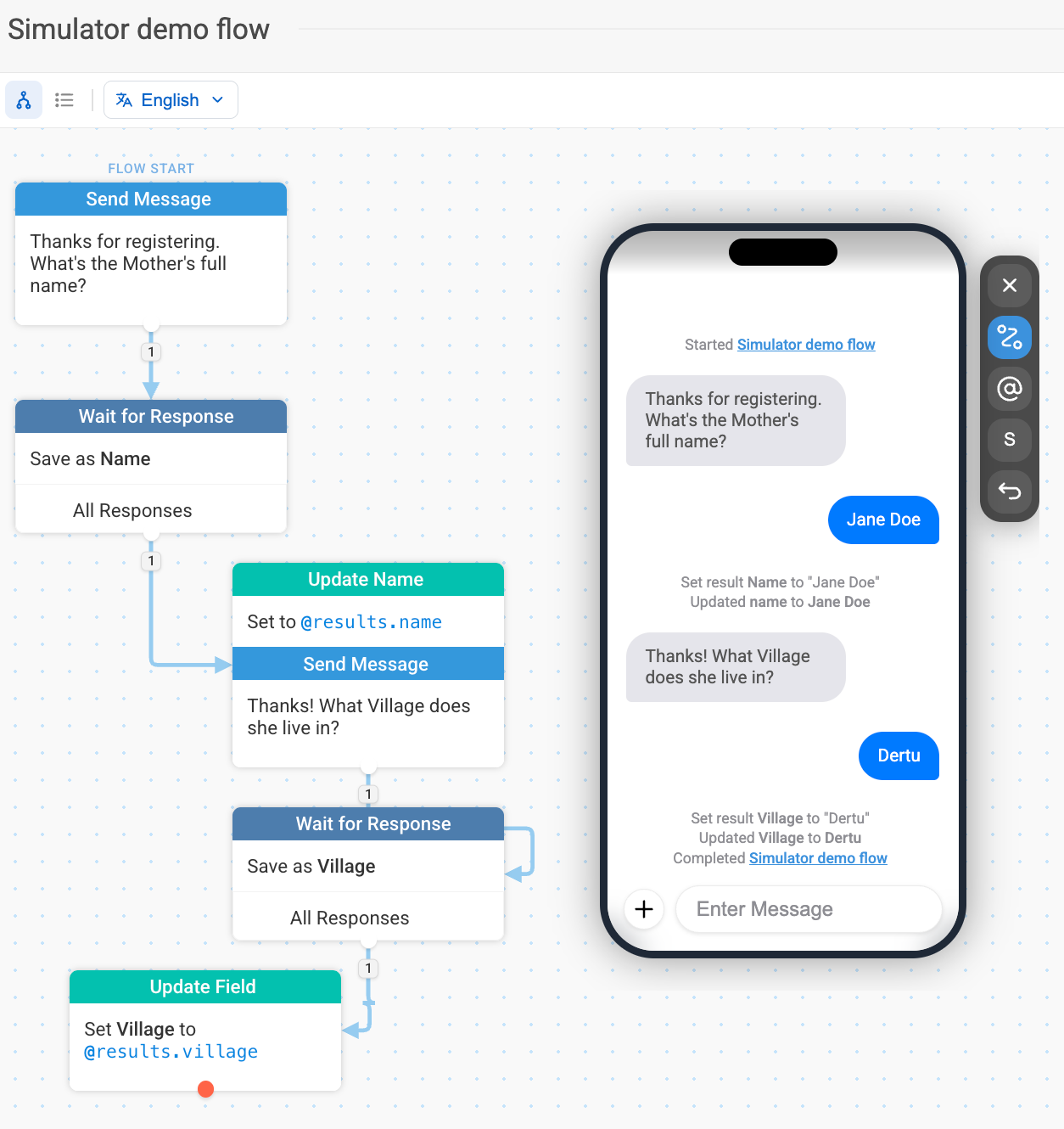
Once clicked, the simulator will initiate the first step in your flow. The text in the red boxes below represents the action log. The action log describes actions that occur within the platform that aren't visible to the contact when interacting with a flow. The action log in the flow simulated below indicates that the following:
-
the response "Jane Doe" has been assigned to the flow variable @results.name.
-
the contact's name attribute has been updated from its previous value to "Jane Doe" via an Update the Contact action.
-
the response "Dertu" has been assigned to the flow variable @results.village.
-
the contact's village attribute has been updated from its previous value to "Dertu" via an Update the Contact action.
-
The contact has exited the flow.
Simulator Features
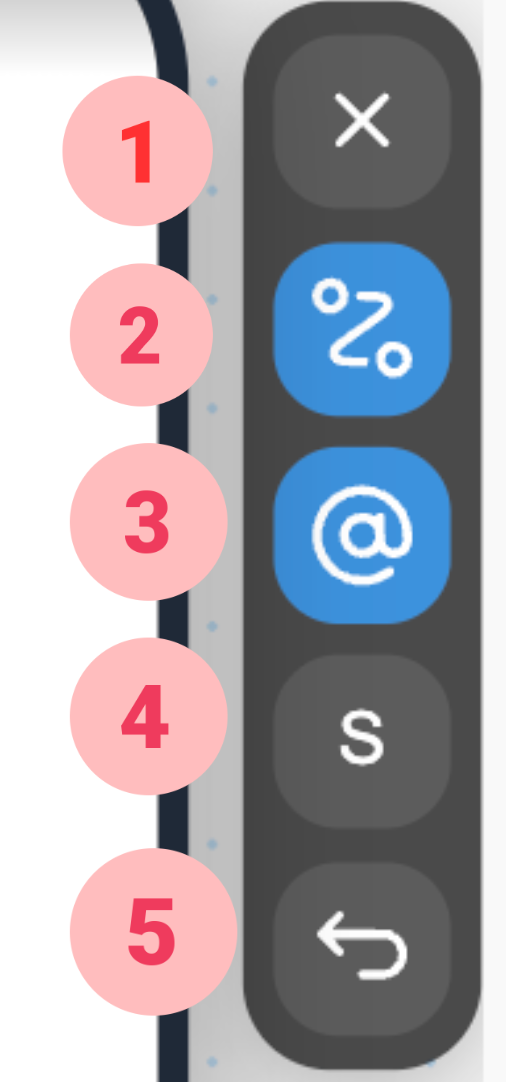
- X: Hides the simulator
- Following: Option to have the simulator automatically follow you through your flow, displaying each node and action as they are triggered during testing. Click on the 'Following' icon to turn on this feature.
- @ context explorer: The Content Explorer helps you view what data is currently stored in those variables at each step, so you can see what @ values are available and what they contain while testing your flow.
- Size: Change to small, medium, large simulator view. - You can also grab the top of the simulator to drag it around your canvas.
- -> Back arrow: Restart the flow.
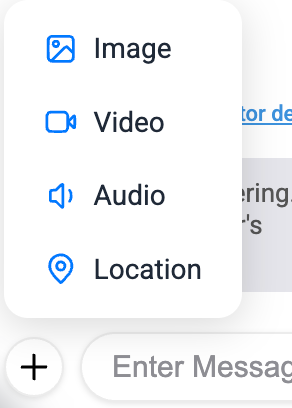
In order to enhance your testing experience, you have the option to add the following to your message content:
- Image
- Video
- Audio
- Location
Simply click on the + icon to the right of the message box.
| Note that we've updated the simulator to now use the currently selected language first. |