Enabling Two-Factor Authentication
You can make your login more secure by enabling two-factor authentication, also called 2FA. Here's how:
- Log in to your account, click the icon with your initials in the top left corner, and select Account.
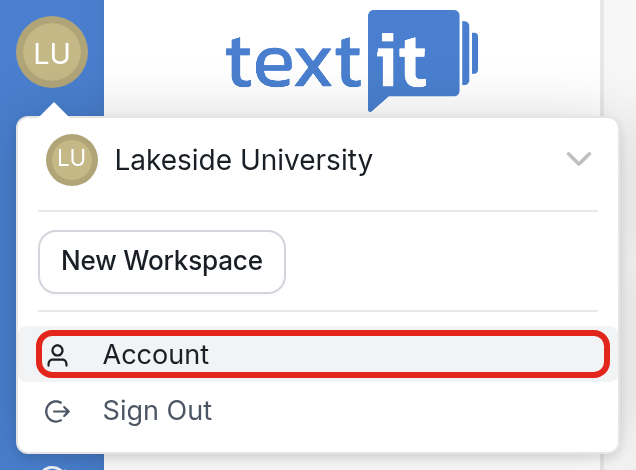
You will be taken to your profile. Here you can update your name, email and password, or secure your login by selecting Two-Factor Authentication.
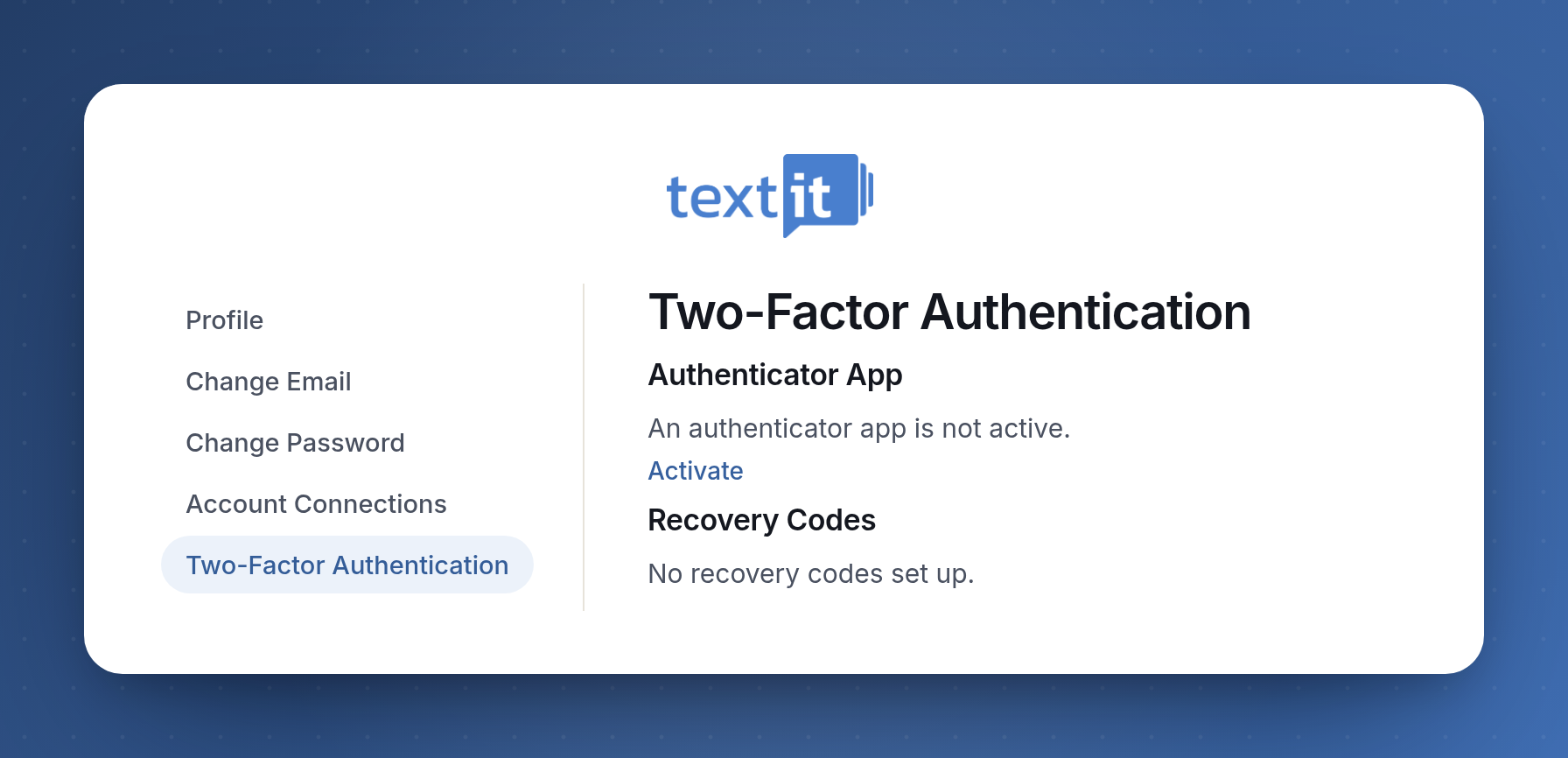
To use 2FA, you need a one-time password (OTP) app like Google Authenticator or Authy.
-
Once your OTP app is downloaded and set up, click Activate in TextIt, confirm your password, and scan the QR code on the page with the OTP app.
-
After you scan the QR code and set up the new account, the app will show a 6-digit code. Each code is only valid for a few seconds, so make sure you use the current one.
-
Enter the 6-digit code and your current password, then click Activate.
-
Once 2FA is enabled, you'll see your Recovery Codes. Keep a record of these codes in a secure place. You can view them, download them, or generate new ones if the current ones are used up or lost.
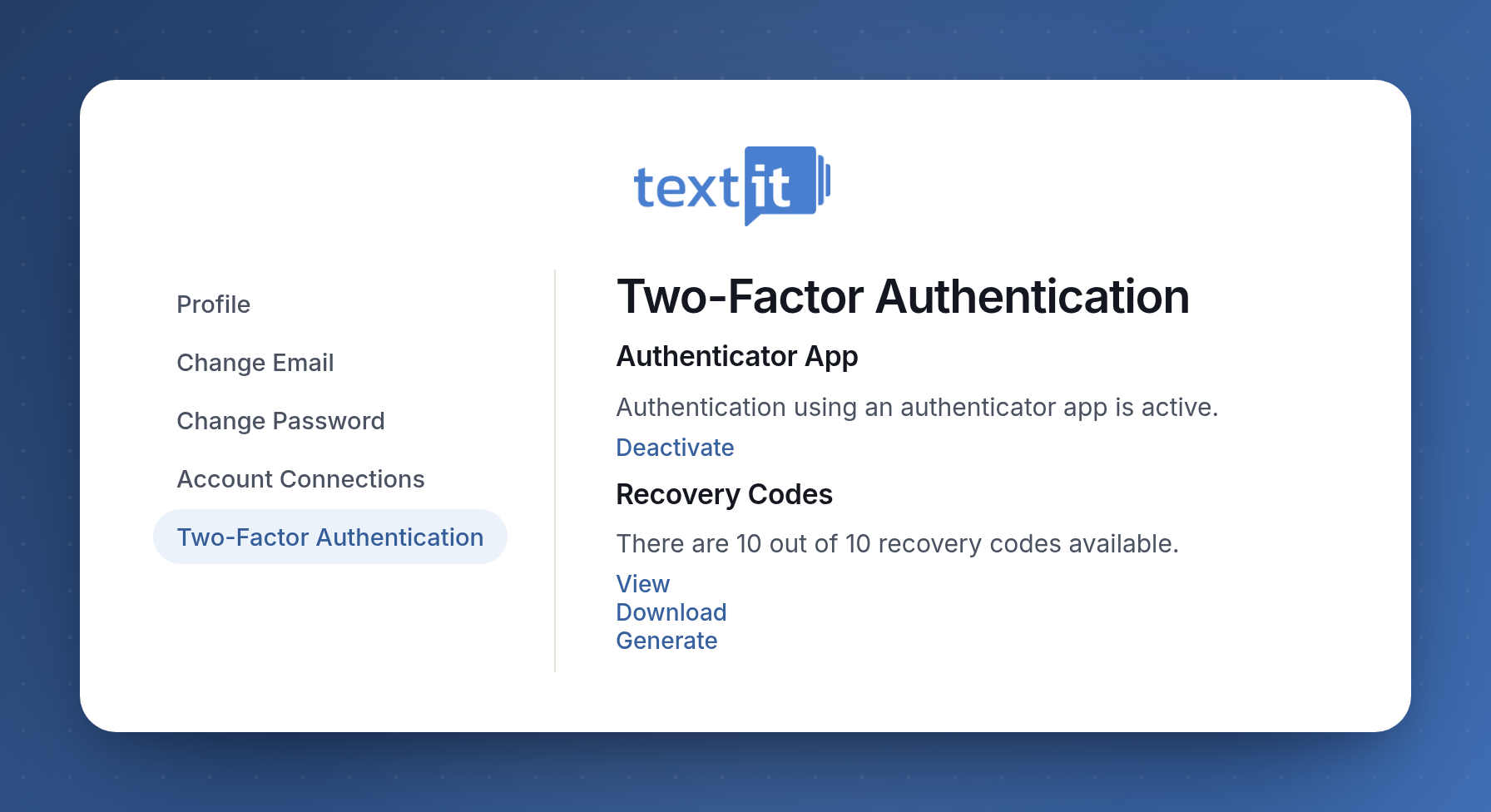
Two-factor authentication is now enabled for your account.
Questions? Send us a message via the support widget in the bottom right corner of your browser.