Tracking and Managing Opt-Outs
You may want to tell your contacts that they can opt out at any time. Here's how to track and manage the ones who do:
Using an SMS gateway
| Twilio automatically unsubscribes your contacts (so they stop receiving responses) when they send a message containing one of the following keywords: STOP, STOPALL, UNSUBSCRIBE, CANCEL, END or QUIT. START and YES opt contacts back in to your messages, but only if they've been unsubscribed. HELP and INFO return a stock message telling the contact that they can use these keywords to control the delivery of messages. When a contact unsubscribes, they'll receive the following stock message from Twilio: | 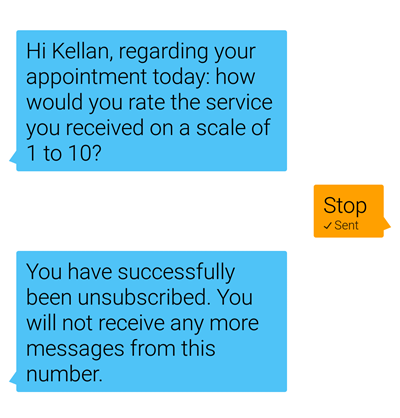 |
The opt-out keyword stops your contacts from receiving any more messages from your number unless they opt back in. They will, however, remain in your flow until they expire from it.
Tracking opt-outs from your account page
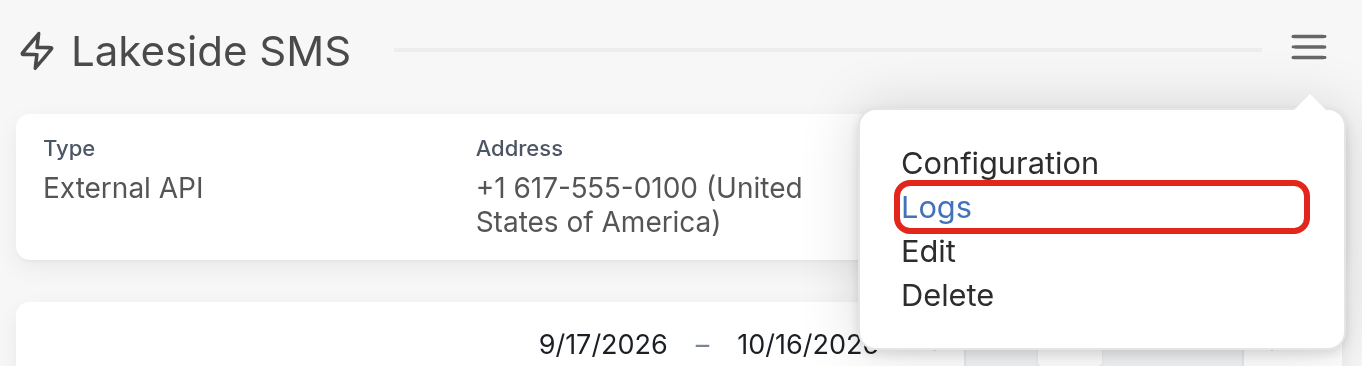
You can track opt-outs manually from your Settings page. Click your channel under Channels (Lakeside SMS in the example below), then open the menu (☰) and click Logs.
- Open the menu (☰) and click Logs.
- Errors are highlighted in red. Click one to see its details.
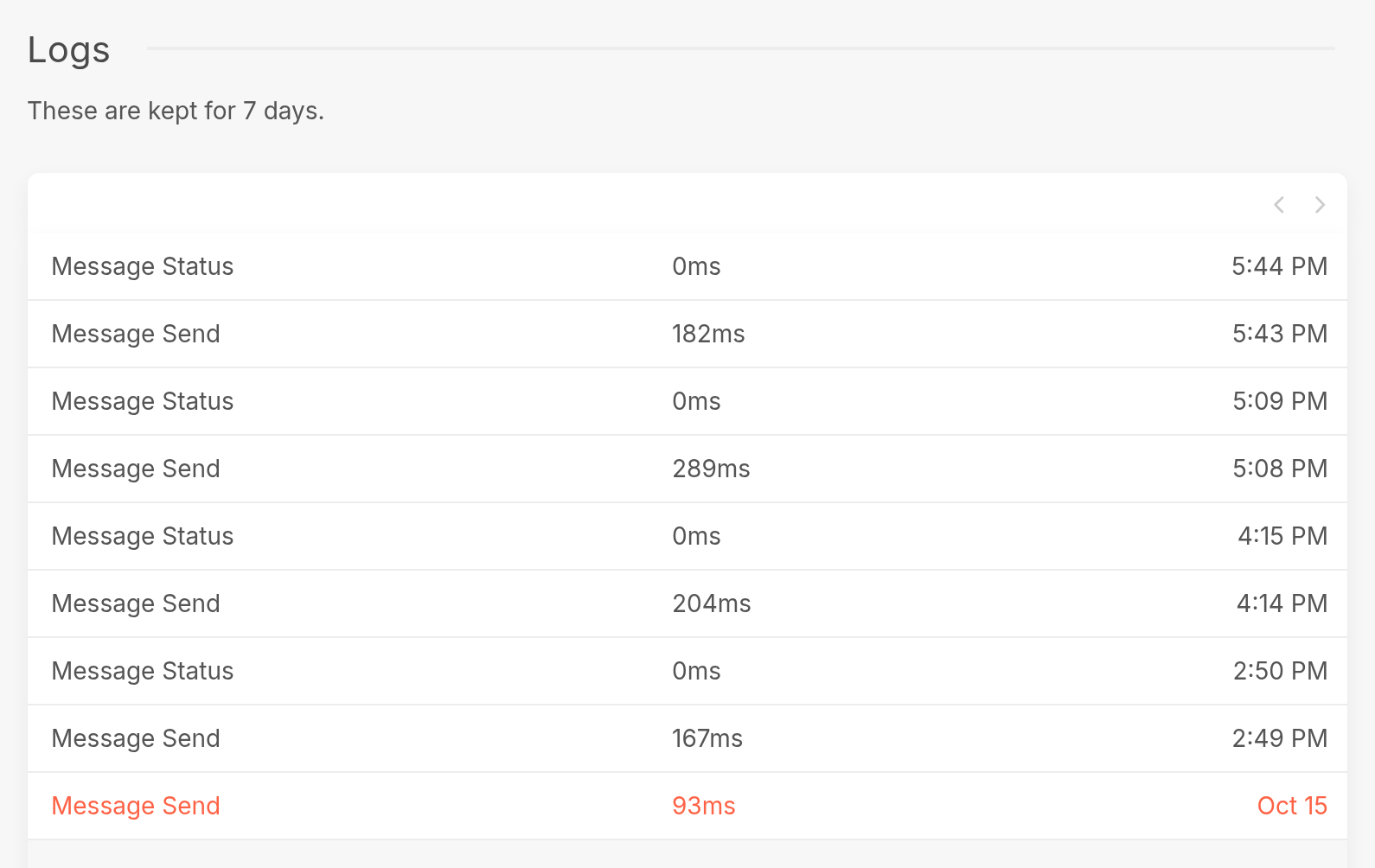
If you see the error description "HTTP 400 error: 21610: The message From/To pair violates a blacklist rule.", Twilio returned this error because you attempted to send an SMS to a recipient who has previously replied STOP, STOPALL, UNSUBSCRIBE, CANCEL, END or QUIT to you. You won't be charged for the message attempt. As mentioned above, before you can send messages to these recipients again, they must text START or YES to your Twilio number to opt back in.
Other ways to track opt-outs
To track opt-outs, you can:
Create a group that represents your unsubscribed contacts.
Create a flow that adds contacts to your "unsubscribed" group, and assign it keywords. If you're using a Twilio phone number, create keyword triggers that mimic the keywords STOP, STOPALL, UNSUBSCRIBE, CANCEL, END and QUIT.
Add an Update the contact action that records whether a contact has unsubscribed. We've created a contact field called "Unsubscribed" that lets us see whether a contact has opted out by checking their contact profile. Each time a contact sends one of the keywords that trigger the "Unsubscribe" flow, the "Unsubscribed" contact field is updated to contain the word "Yes."
You can also use the Send a message to somebody else and Send an email actions to notify yourself or others when a contact unsubscribes.
Once you've completed these steps, you'll have 4 ways to track opt-outs:
-
Viewing the contents of your "unsubscribed" group.
-
Viewing each contact's "Unsubscribed" contact field value.
-
Sending a text to yourself and/or others when a contact unsubscribes.
-
Sending an email to yourself and/or others when a contact unsubscribes.
You can also update a contact's status within a flow. There are three options: active, stopped or blocked. Read more in Updating a Contact's Status in a Flow.
Educating your contacts
Unless you've told them, your contacts probably won't know that they can use keywords like "start" or "yes" to re-subscribe to your service. With this in mind, it may help to include opt-out and opt-in information in your service during registration. If you've collected your contacts' email addresses, you can also use the Send an email action to follow up with a contact after they've unsubscribed, ask why they unsubscribed and let them know that they can opt back in using certain keywords.