IVR Flow Split Actions
The Split Actions available in a voice flow differ slightly from the standard messaging Split Actions because callers respond using their keypad.
Menu Selection
The Wait for Menu action lets you offer your contacts up to 10 menu options.
For example: "To register for a class press 1, to drop a class press 2, to hear your class schedule press 3, to speak with an advisor press 4, to replay this message press 5."
Type the name of each menu option in the box next to its key, as in the example below:
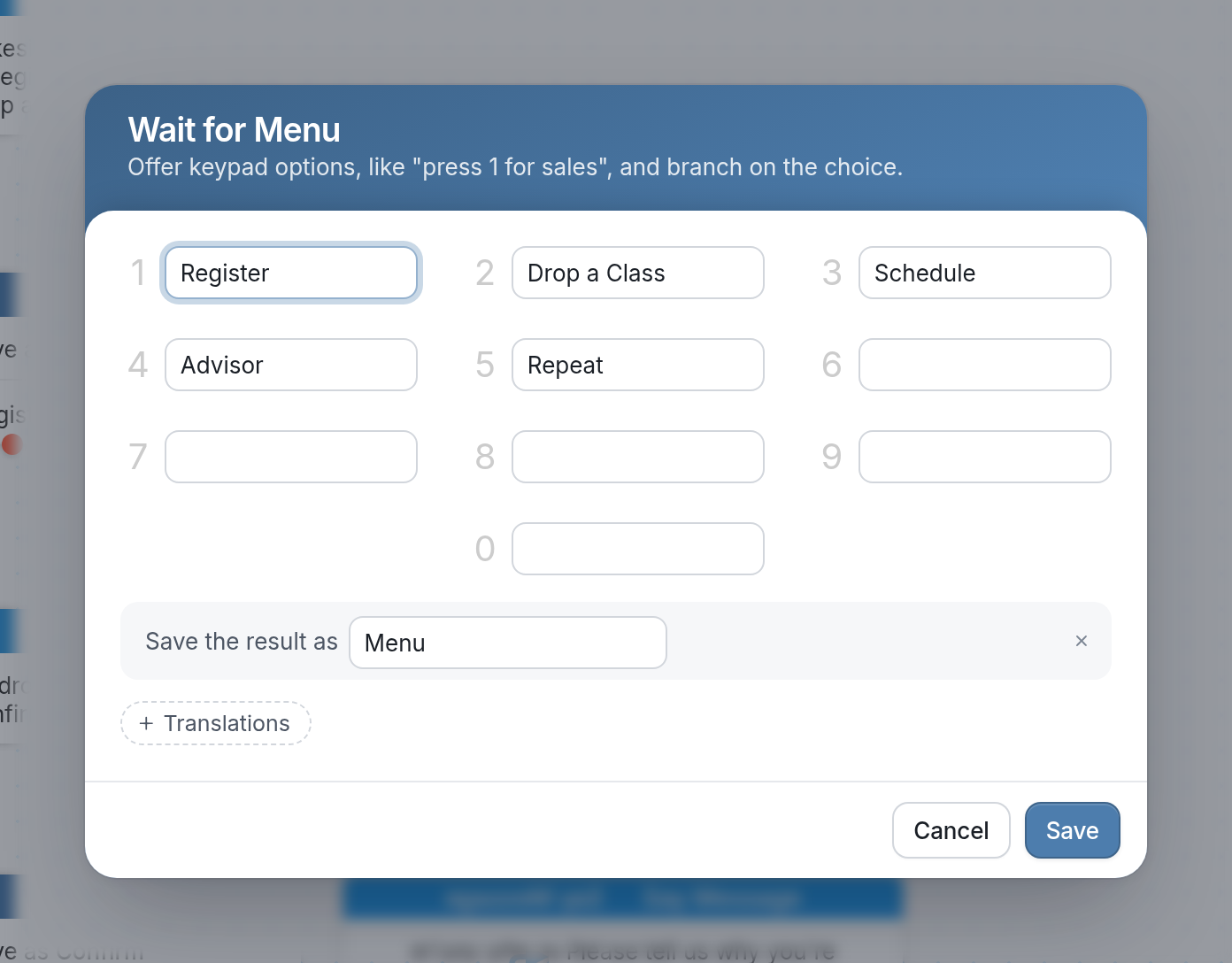
| If you want to reference the result later, give it a name in the Save the result as field. You can then reference it with @results.[result name]. In the example above, that's @results.menu. |
Wait for Digits
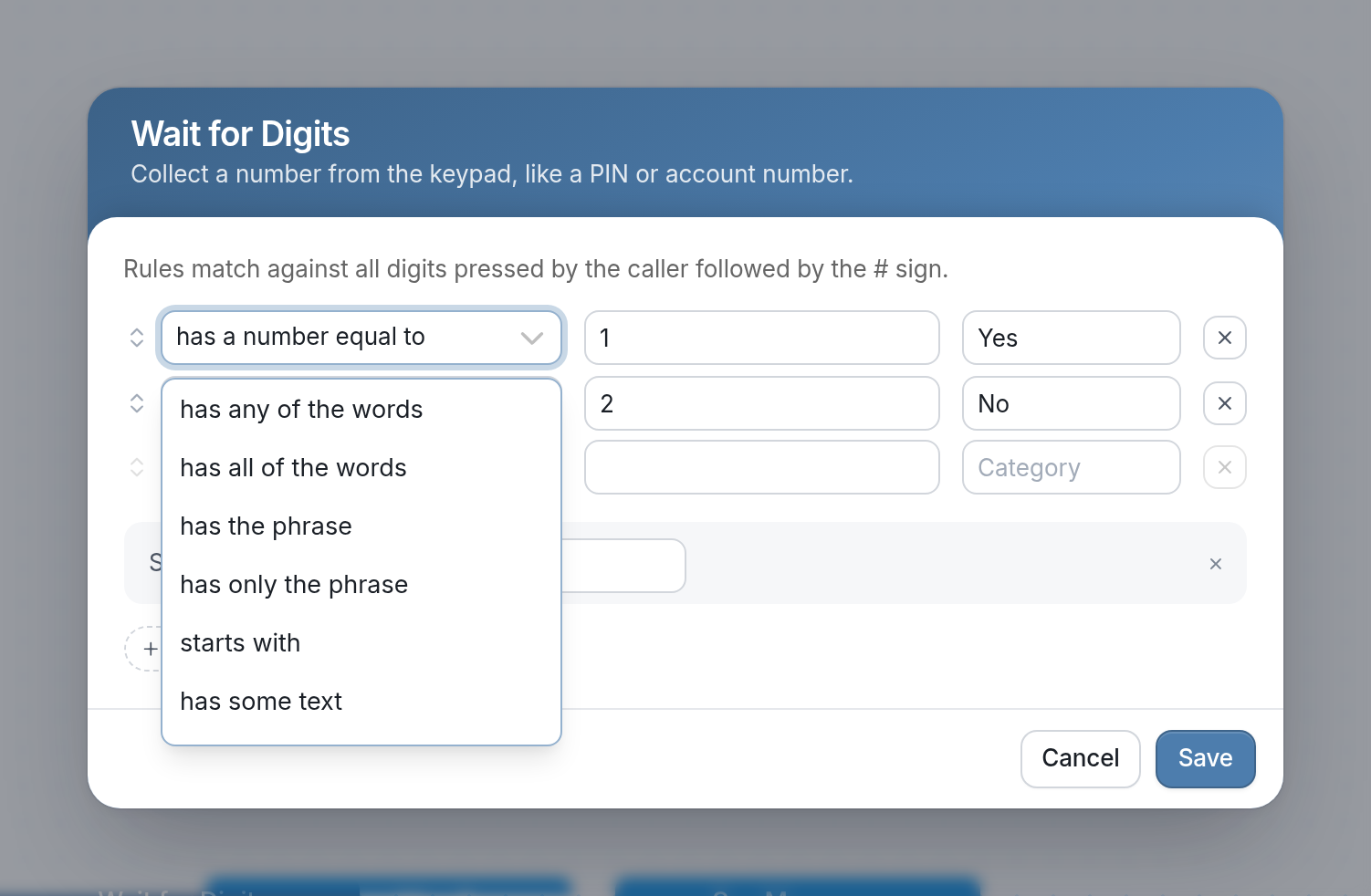
The Wait for Digits action lets you collect a number from a contact, such as an ID number, serial number or phone number. The contact presses the # key to mark the end of their input.
For example: "Please enter your student ID number followed by the # key."
Select the rule that matches the format of the information you want to collect. If the number you're collecting must start with a particular digit, you can use the starts with rule to match it.
Make Recording
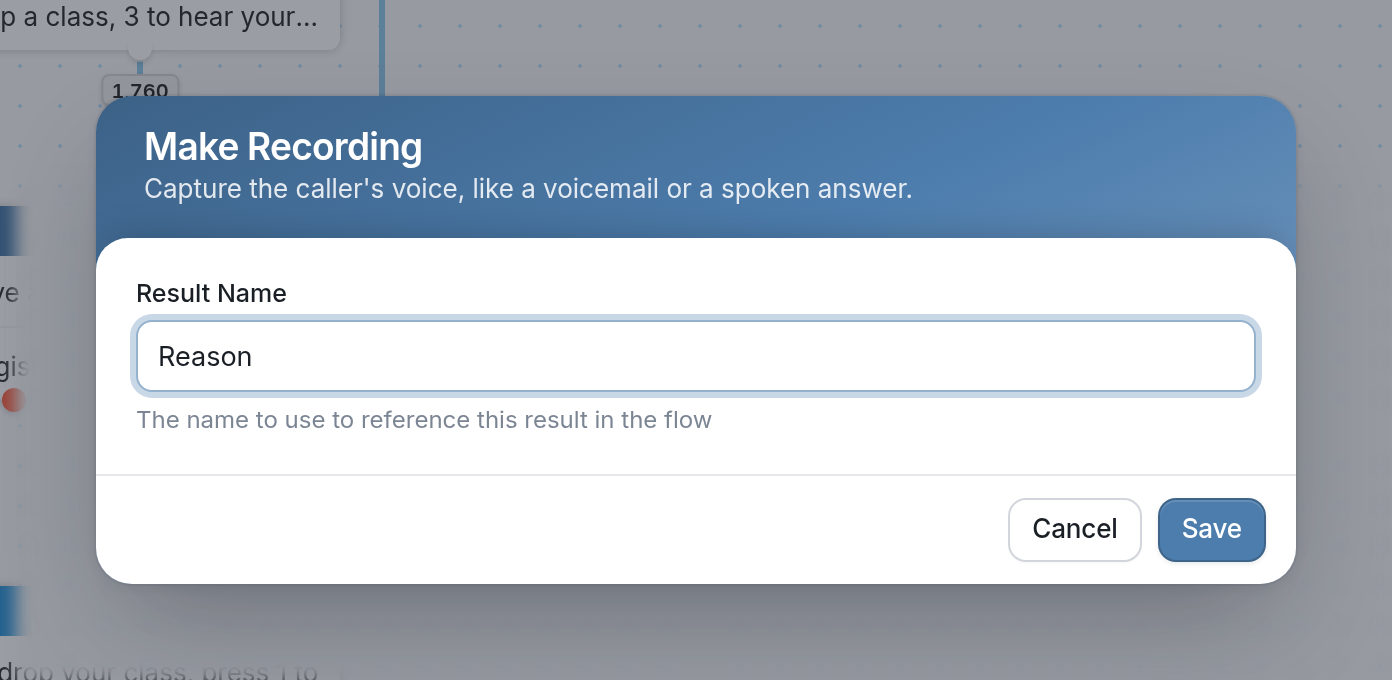
The Make Recording action records a message from a contact. The contact hears a short beep, which means they can start speaking.
You can play voice responses:
-
From the results page, which you open from the ☰ menu in the flow editor.
-
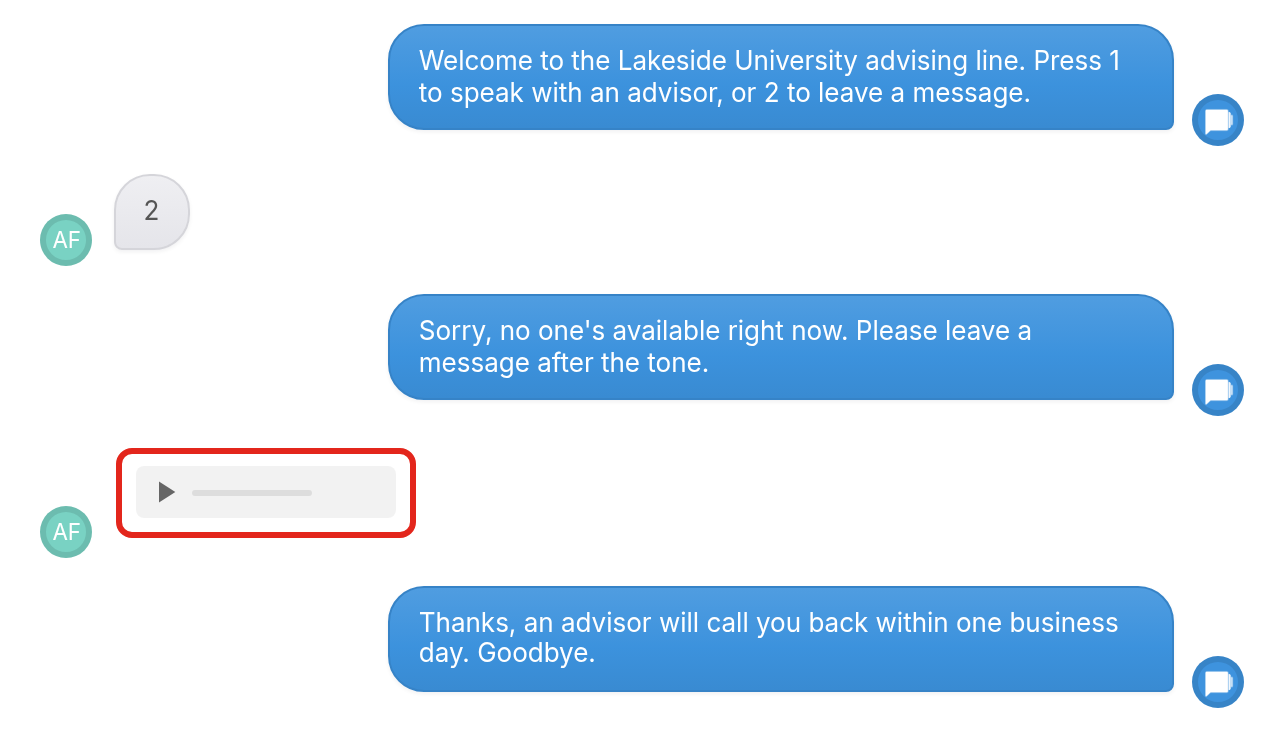
From the contact's history, where each recording appears as an audio player beneath what the flow said. Click the play button to listen. In the example below, Aiden Foster pressed 2 and left a message:
| Your contacts' voice recordings appear in your flow results exports as links. To listen to one, paste the link into your web browser's address bar and press Enter. |