Group Inclusion & Exclusion on Triggers
Triggers let you control how or when a flow begins. A flow can be triggered by a keyword or an incoming call, or scheduled for a future date.
You can also set a trigger to act only on members of certain groups, or to exclude certain groups.
First, go to the Triggers tab and click the New Trigger button.
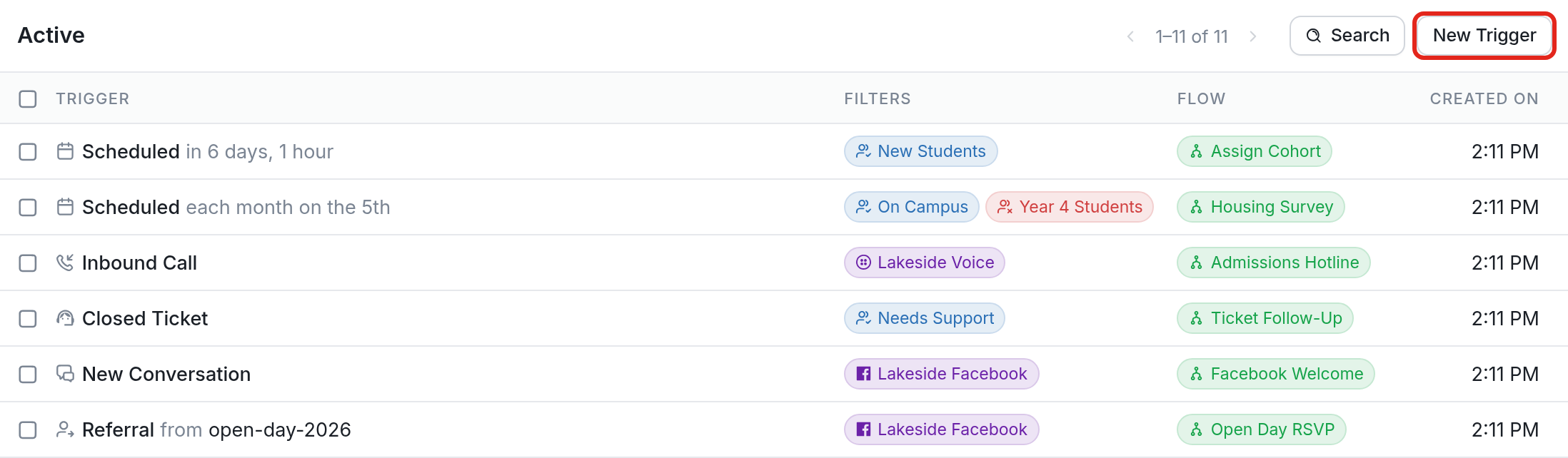
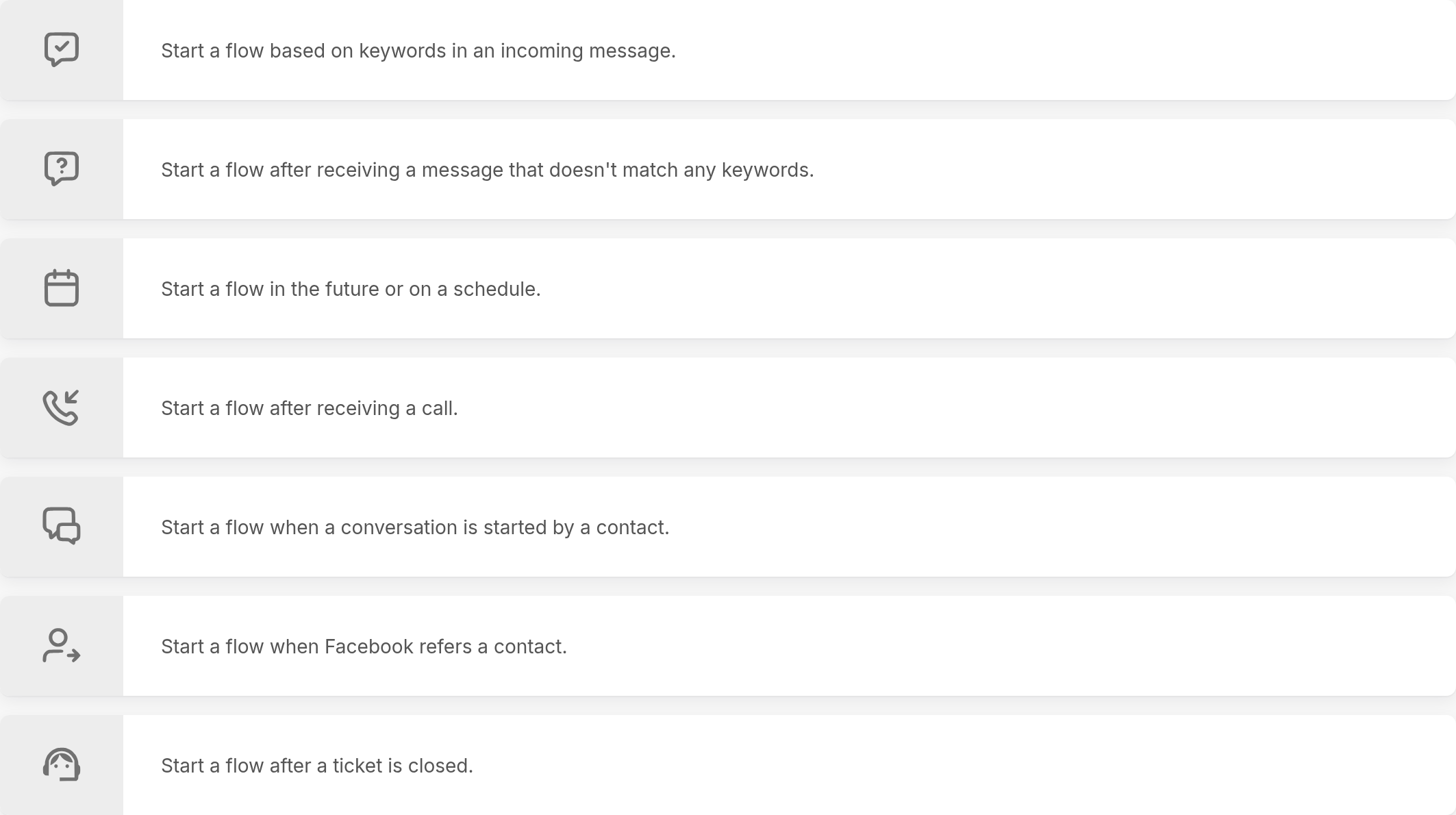
You'll see the list of trigger types.
For our example, we'll choose to start a flow based on keywords in an incoming message:
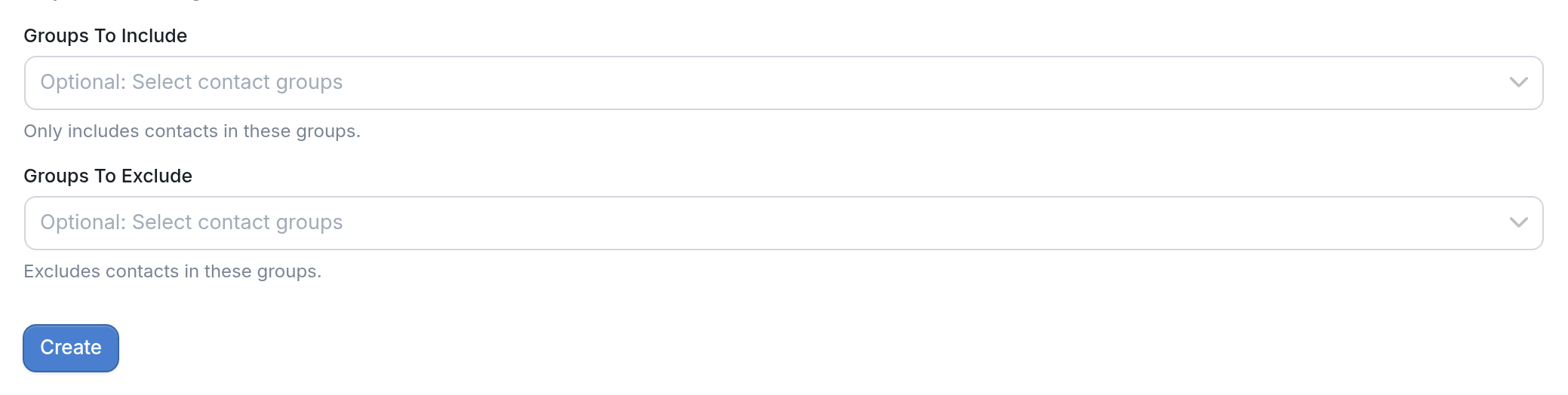
At the bottom of the trigger's settings, you can choose to include only certain contact groups or to exclude contact groups. Both fields are optional.
In our example, contacts who send a message containing only the keyword feedback are started in the Course Feedback flow. We don't want contacts in the New Students group to start this flow, so we've excluded that group. Click Create to save the trigger.
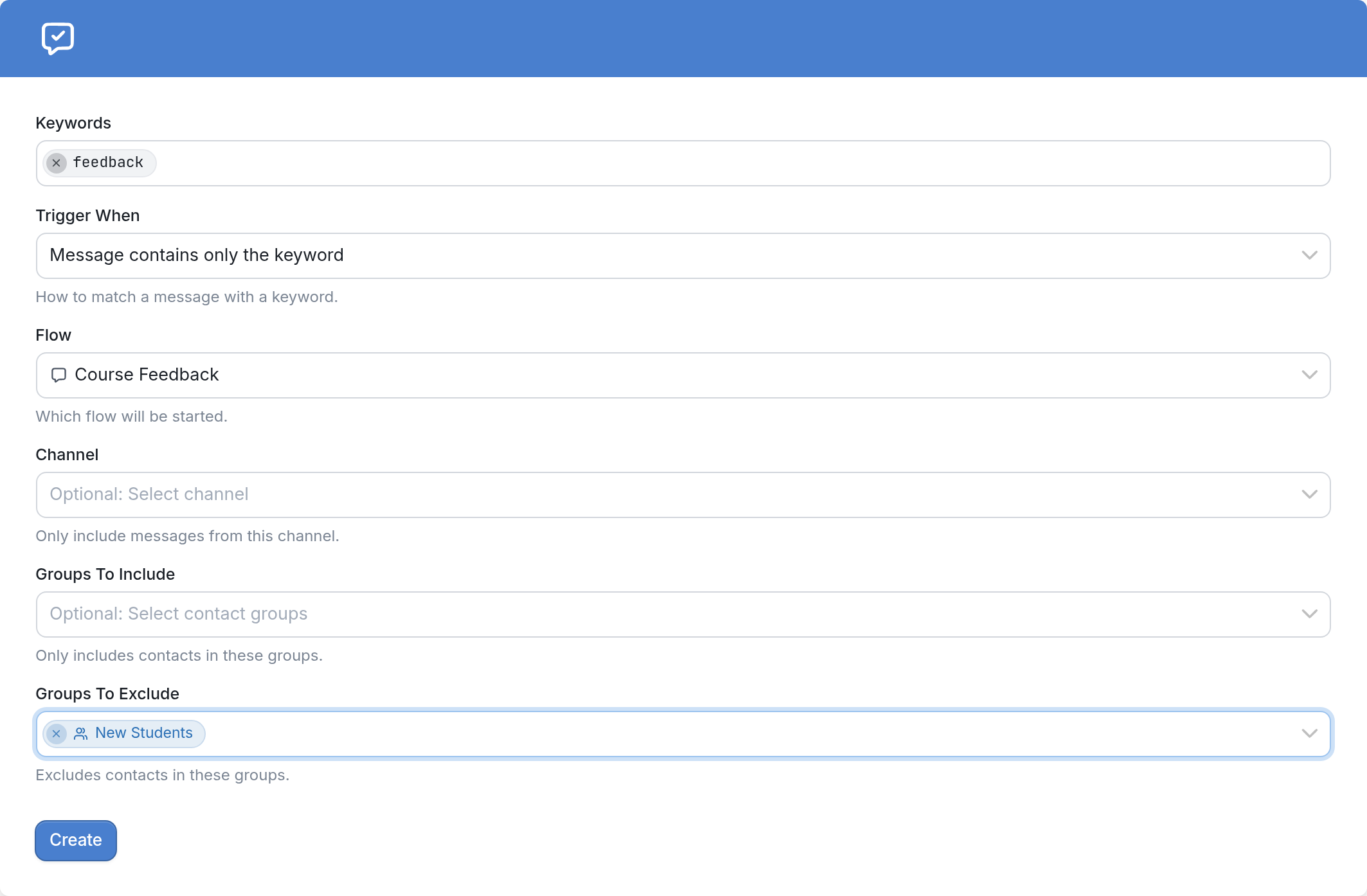
Only members of the New Students group are excluded from starting the Course Feedback flow. All other contacts who send the keyword are started in the flow.
Exclude the Open Tickets Group
When using the ticketing system, make sure to exclude the Open Tickets smart group from your other triggers.
While a ticket is open, incoming messages from your contacts may be interpreted as a keyword trigger or as a message that does not match any keywords, which could unintentionally start the contact in a flow.
Contacts are added to the Open Tickets smart group automatically when a ticket is opened. If the group is excluded, these other triggers ignore the contact while they're talking with an agent through the ticket. Once the ticket is closed, the contact is removed from the group automatically, and their future messages trigger flows normally again, including keyword and unmatched-message triggers.
Questions? Send us a message via the support widget in the bottom right corner of your browser.