Editing Campaign Events
To change when a campaign event sends its message or starts its flow, change the flow it starts, or switch it from sending a message to starting a flow:
- Click the Campaigns icon in the left sidebar, then click the campaign that contains the event you want to edit, such as Orientation Week.
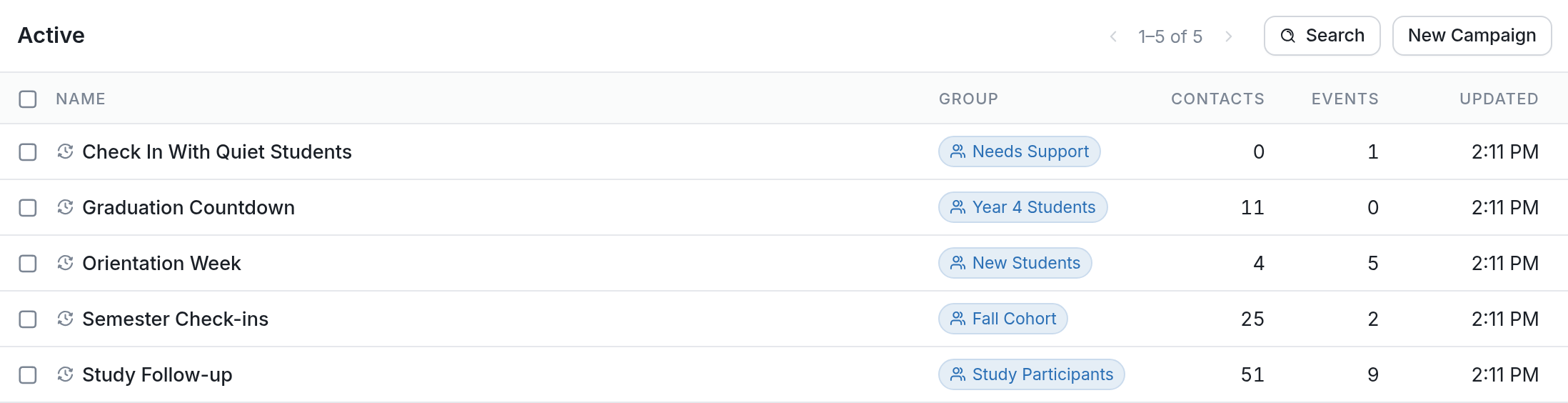
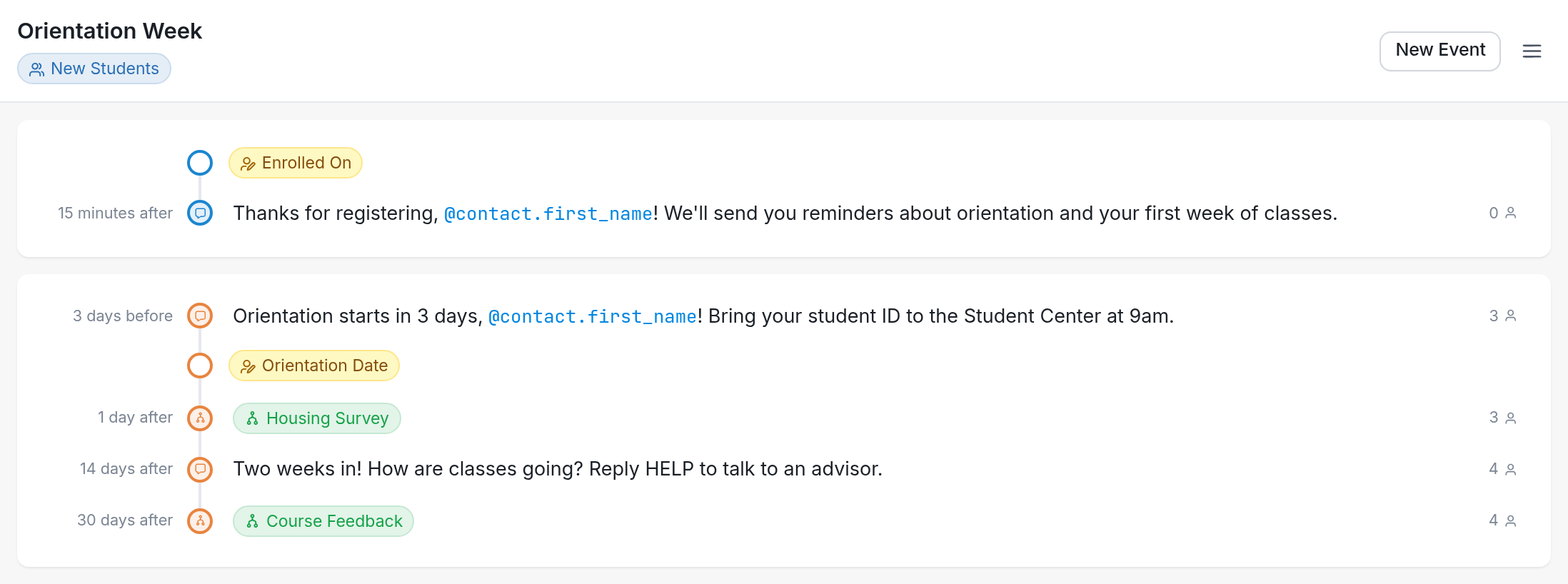
- Click the event you want to edit, such as the "Two weeks in! How are classes going?" message sent 14 days after Orientation Date. You can also open the event's contact group (here, New Students) and any flows it starts (such as Housing Survey and Course Feedback) from this page.
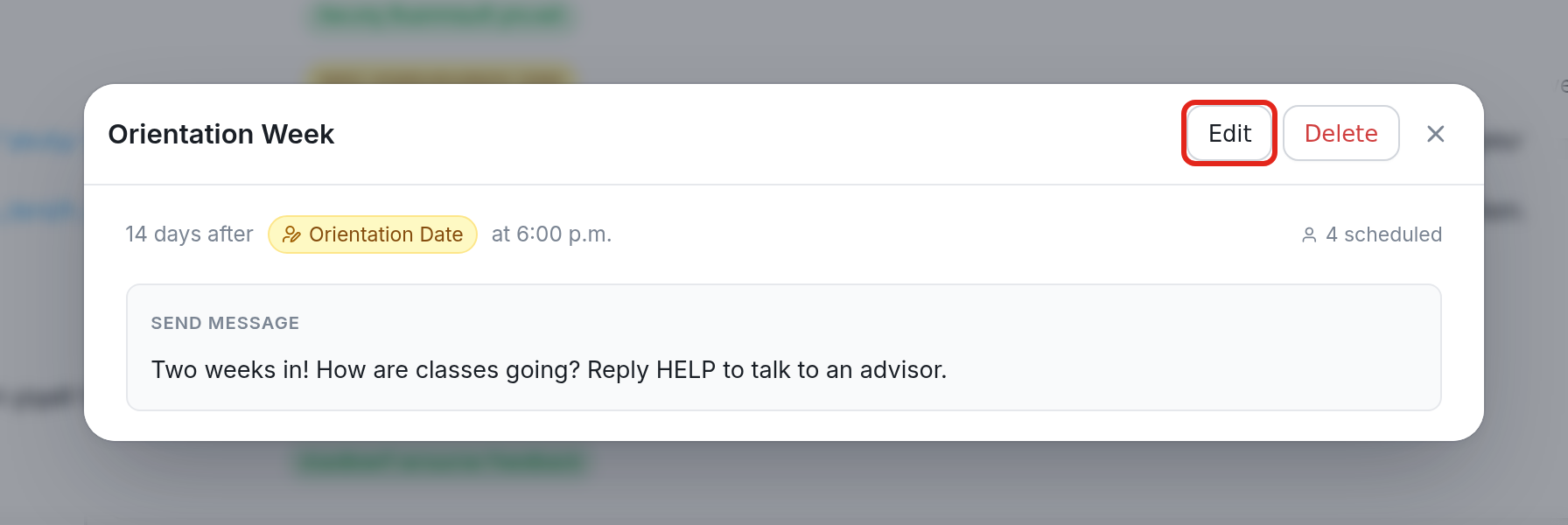
- Click Edit in the upper right of the event dialog.
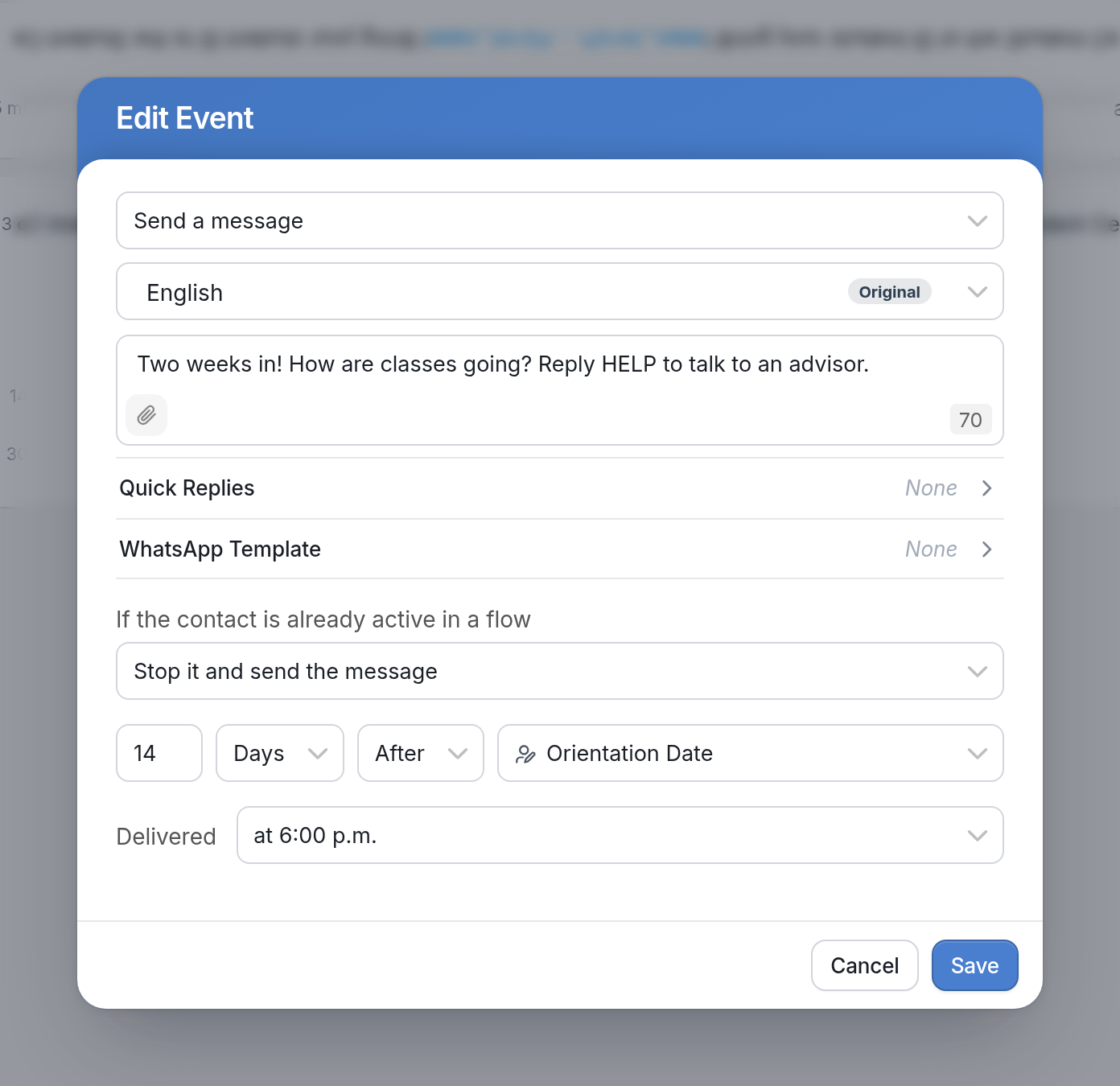
- In the Edit Event dialog, you can change:
-
The event type (sending a message or starting a flow)
-
The message content and language
-
The flow that is started
-
When the message is sent or the flow starts
-
The date field the event is timed around (for example, Orientation Date)
-
Whether to stop a flow the contact is already active in, or skip the event for that contact
- Click Save.