Creating Custom Contact Fields for Campaign Events
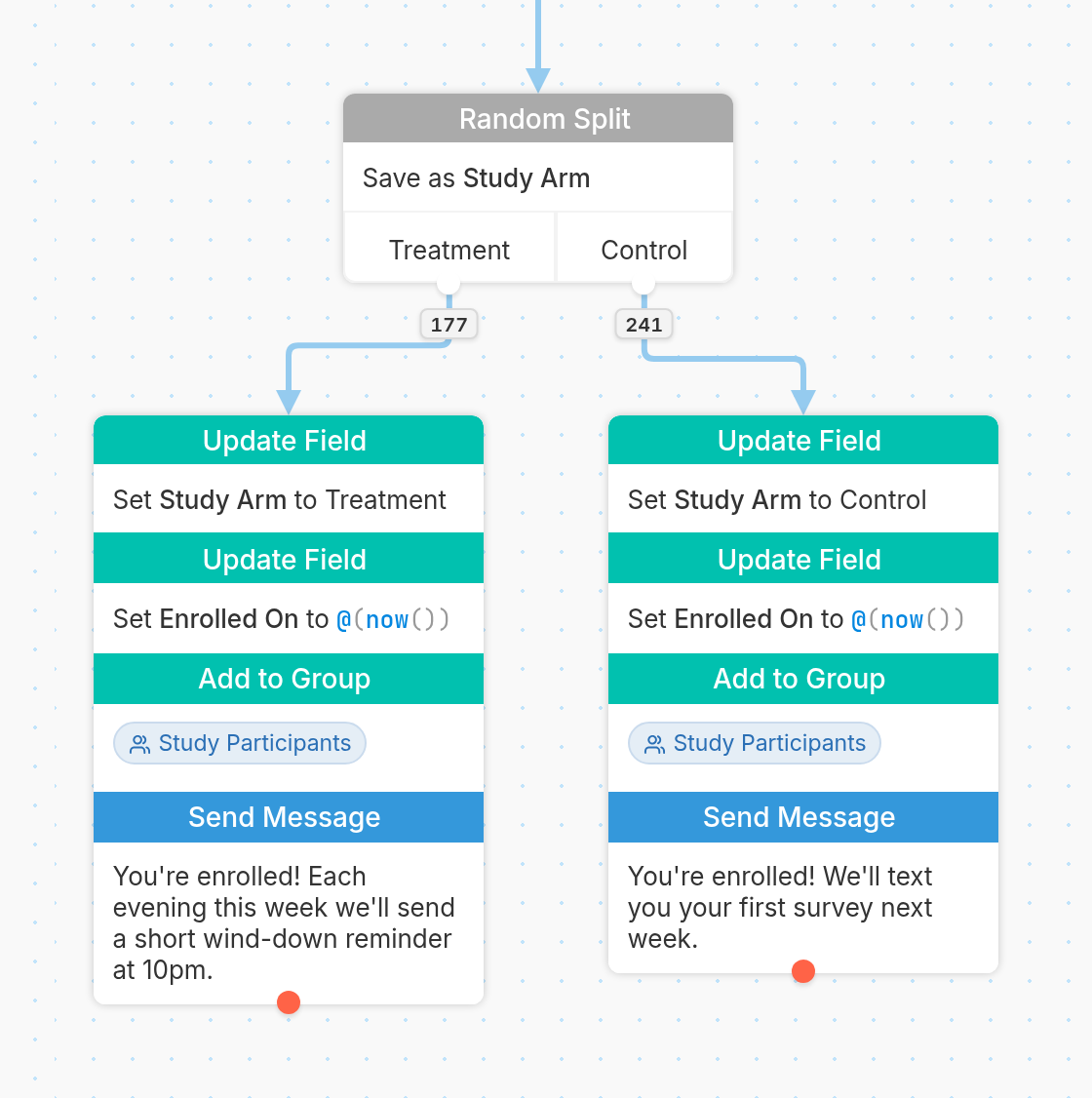
Each contact is assigned attributes, called contact fields, that hold values such as their name, phone number and any other individual information you want.
In this example, we create a custom contact field, Enrolled On, that records when a contact enrolled. We'll use this date & time contact field as the reference point for sending a campaign event.
Creating a Date & Time Custom Contact Field
To use a date & time contact field in a campaign event, first create the contact field with an Update Field action in a flow.
For our example, we want to create a new contact field called Enrolled On. Type the name of your new field in the Field box. This creates a new custom contact field.
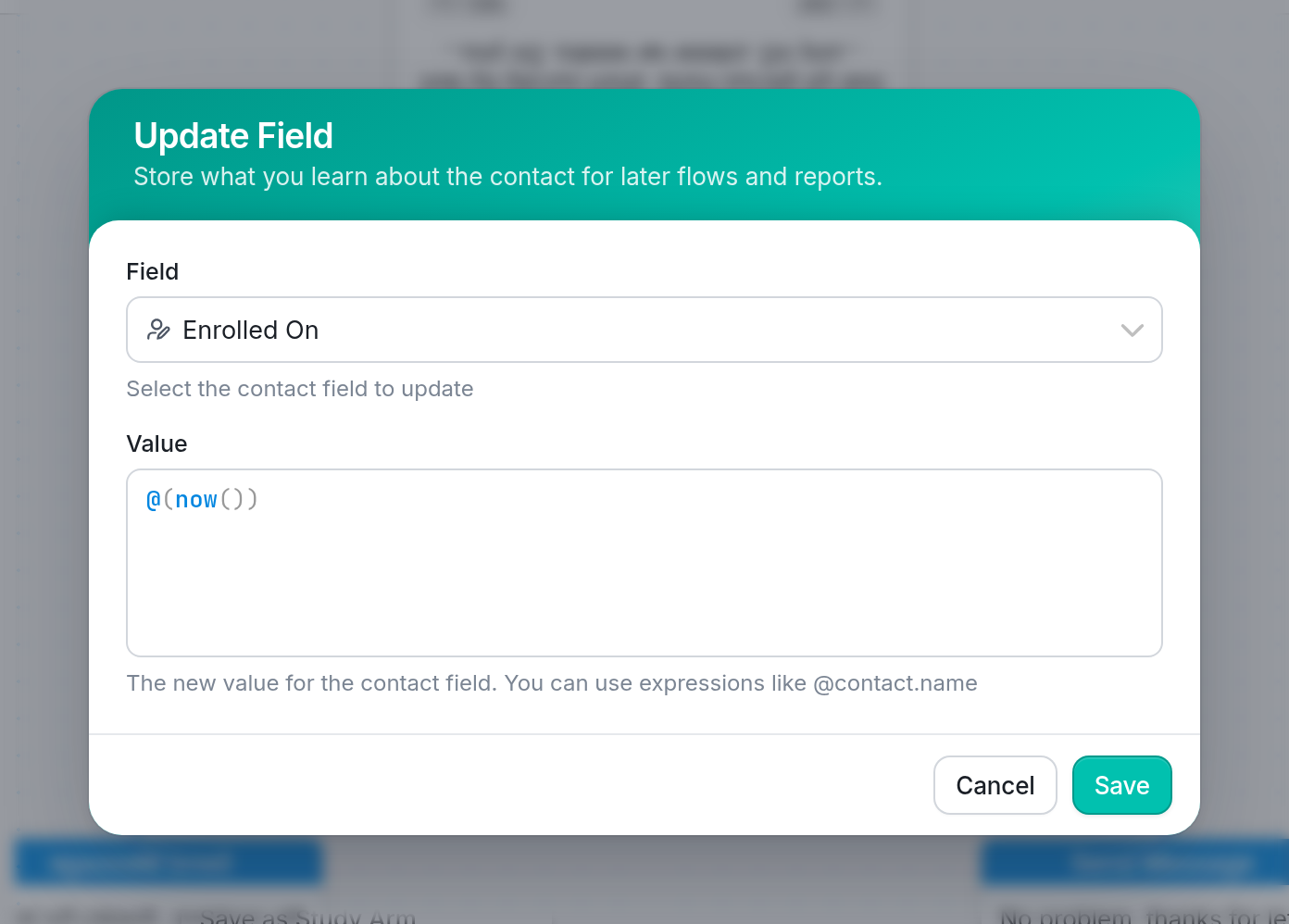
We want the field to hold the exact moment a contact passes through the Update Field action, so we set the Value to the date & time function @(now()).
Updating the Contact Field Type
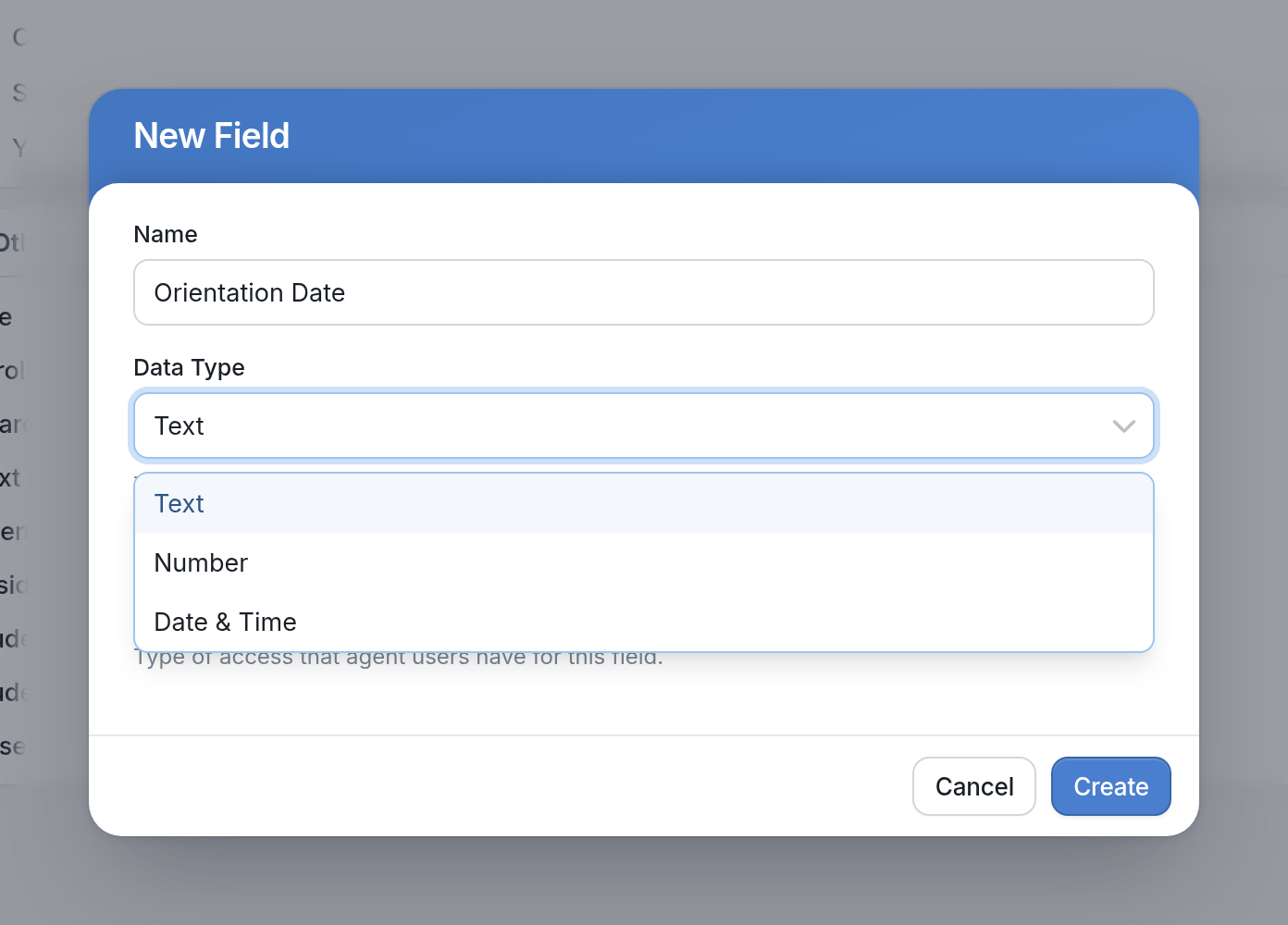
Before we can use our new custom contact field in a campaign event, we'll need to update the field type. New contact fields are automatically given the default Text data type, but only Date & Time fields can be used in campaign events. Here's how to change the type:
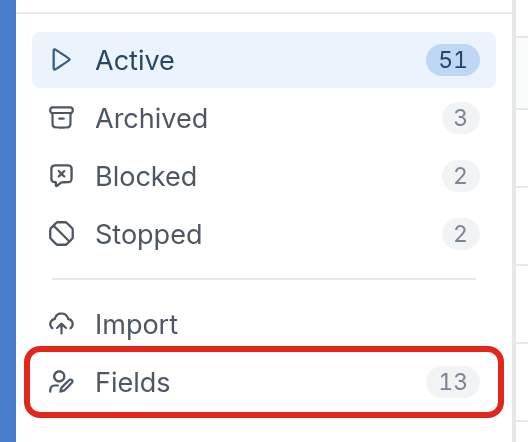
- Go to Contacts and click Fields:
- Scroll down to find your newly created contact field (you may need to refresh the page if it was recently created). Click it and choose Date & Time from the Data Type dropdown menu:
Your custom contact field can now be used in a campaign event.
Configuring your Campaign Event
A campaign event is an action that is performed at a time relative to a Date & Time contact field, such as Created On, which is the date a contact was created, or in this case, a custom contact field called Enrolled On.
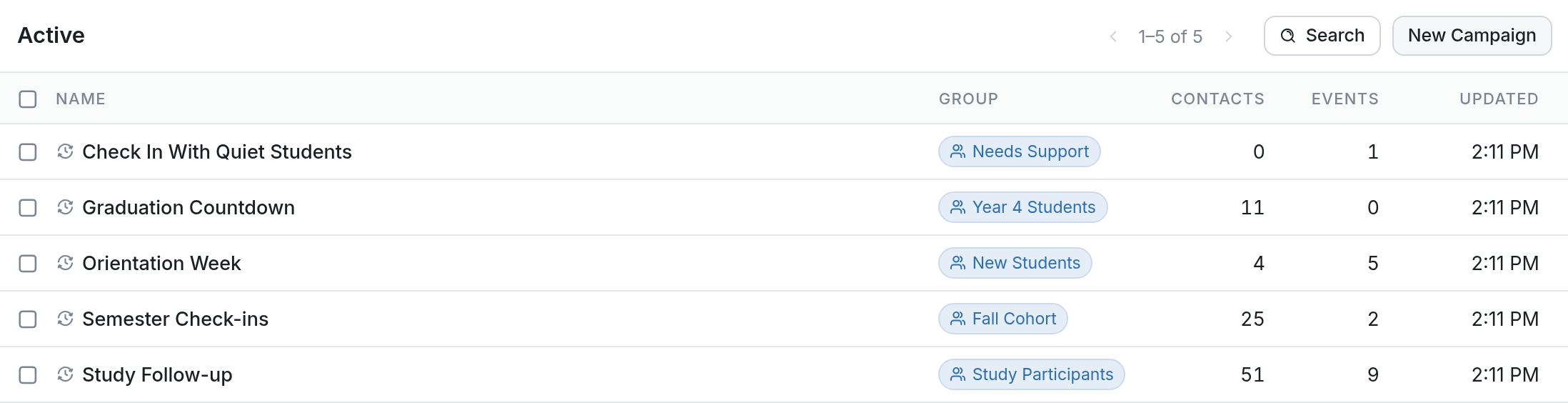
To add an event, first create a campaign. Go to Campaigns in your account and click New Campaign:
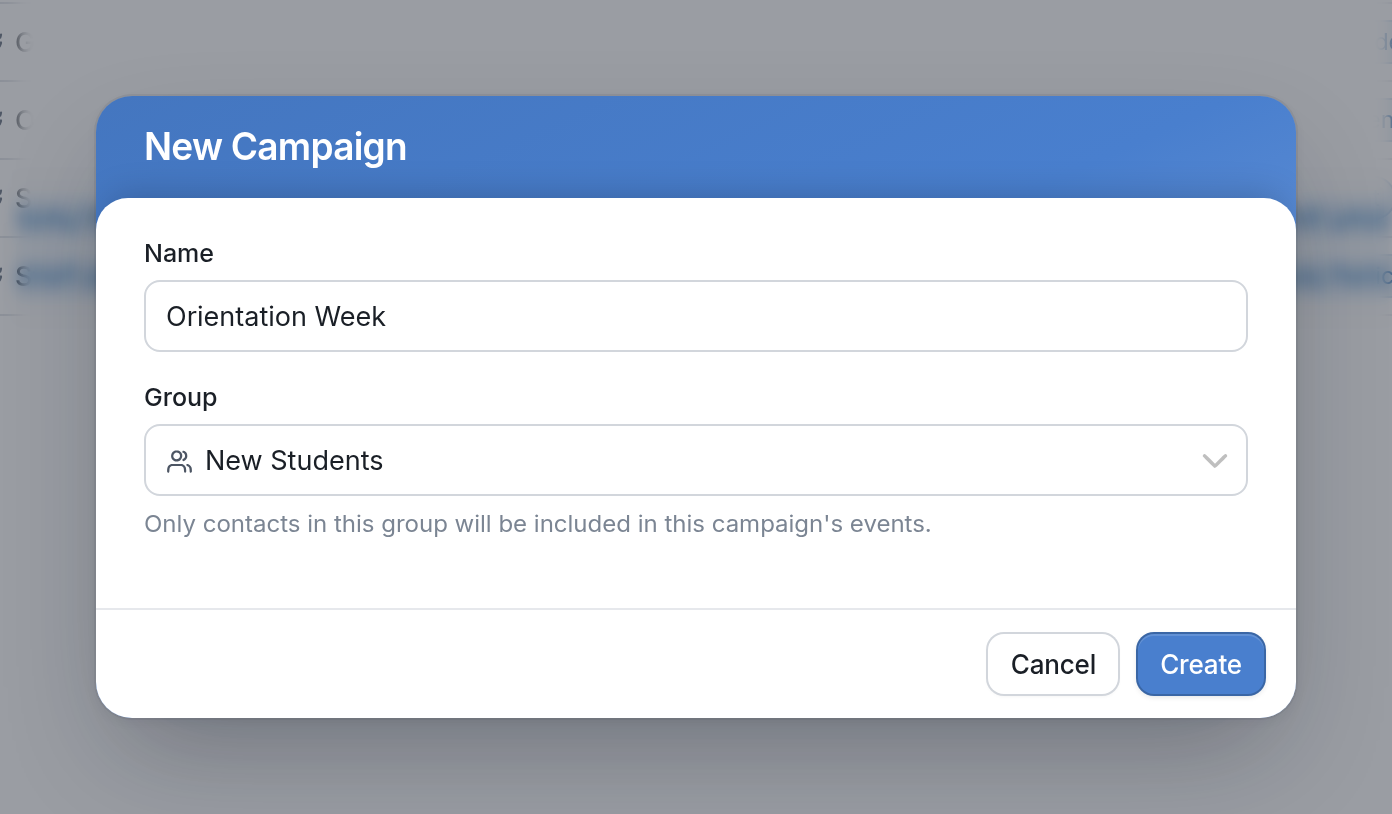
Give your campaign a name and select the group its events will act on. We've named ours Orientation Week and selected the New Students group:
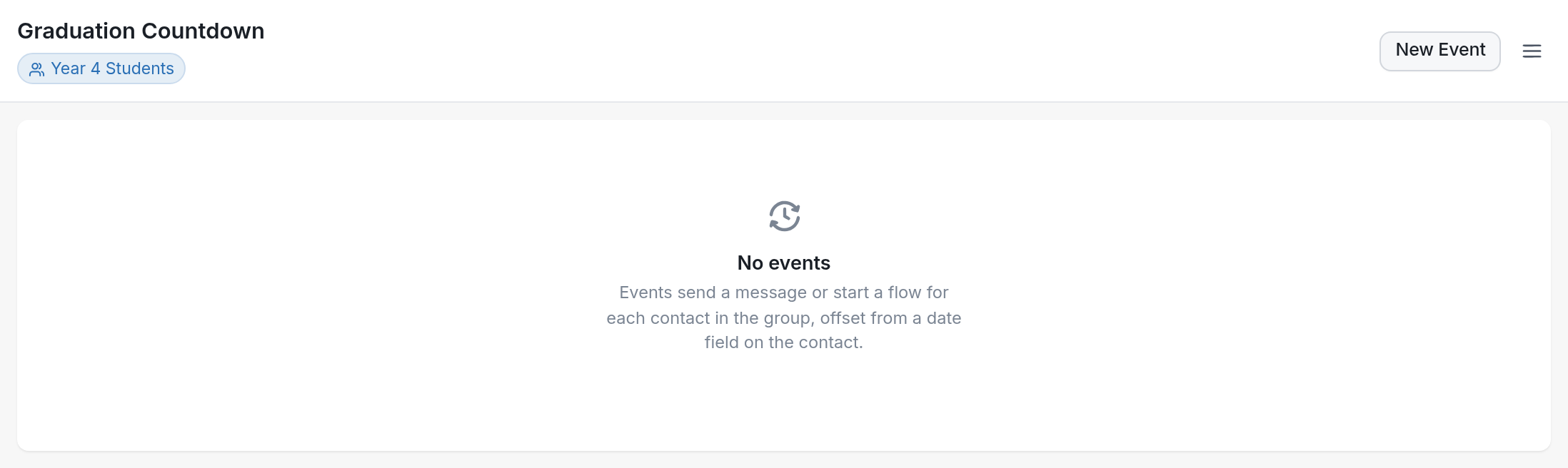
Next, click New Event:
Then create your first event. Our first message thanks contacts for registering and lets them know we'll send reminders about orientation and their first week of classes. It's sent 15 minutes after Enrolled On, the field set by the Update Field action in the flow above:
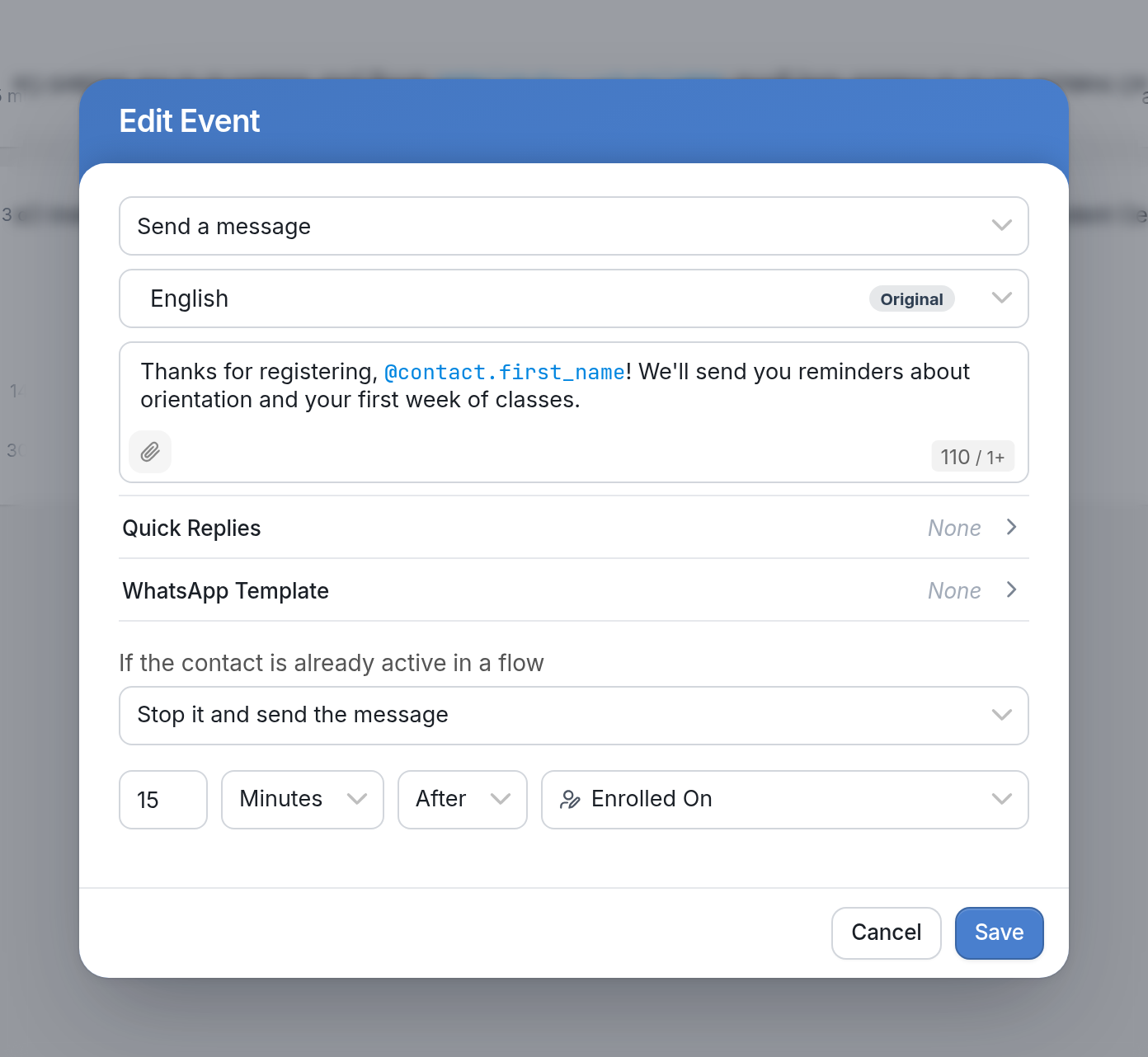
Because we've already changed the field type to Date & Time, the field appears in the contact field dropdown menu. If you don't see your new contact field in the list, you still need to change its field type.
After adding events, you'll see a list of the messages or flows that will be sent to your group:

See our guide on Campaign Event sending options for the difference between Stop it and send the message and Skip this message.
If you need help creating a custom contact field to use in a Campaign Event, send us a message via the support widget in the bottom right corner of your browser.