Updating a Custom Contact Field Type
New custom contact fields created in a flow are automatically set to the default Text data type. You can update the data type from Text to Number, Date & Time, State, District, or Ward.
Only fields with the Date & Time data type can be used in campaign events.
In the example below, we're updating the Residence Hall field to Date & Time so it can be used in a campaign event.
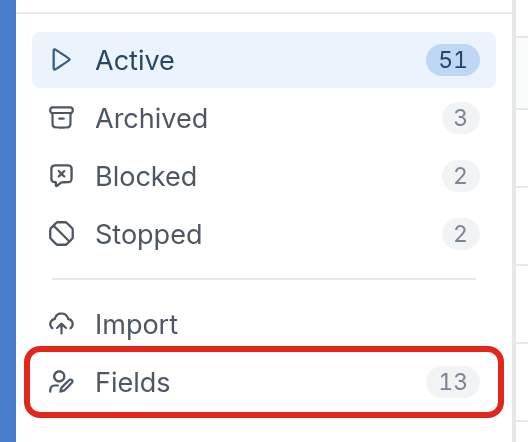
First, we'll click Fields on the Contacts page:
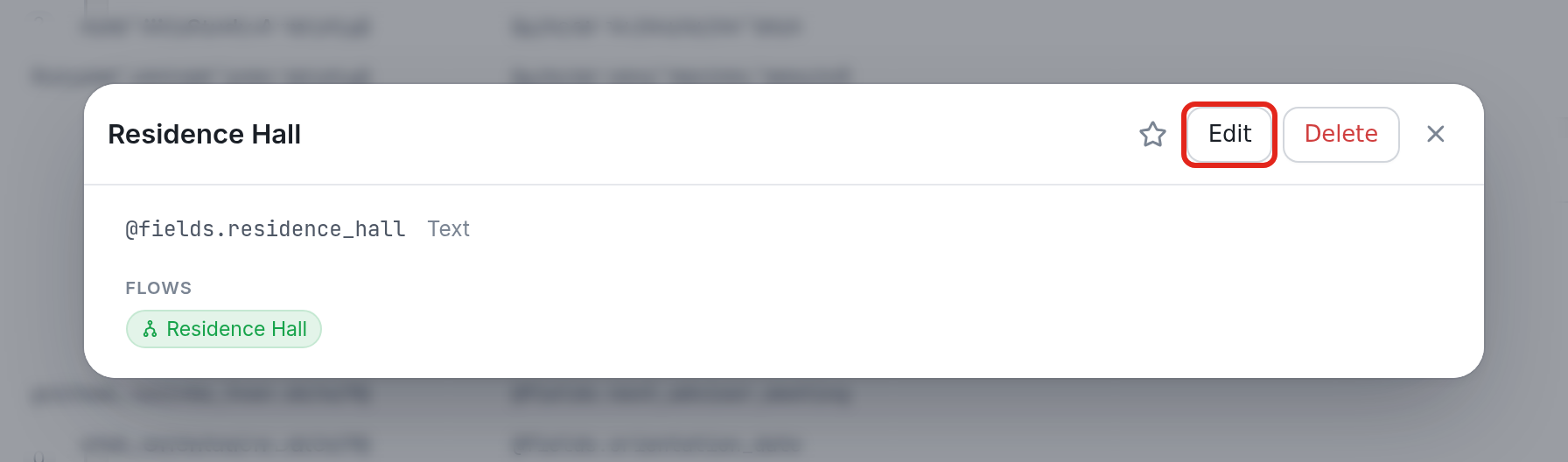
Next, we'll click the contact field to update and click Edit:
Then we'll select Date & Time from the Data Type dropdown and click Update:
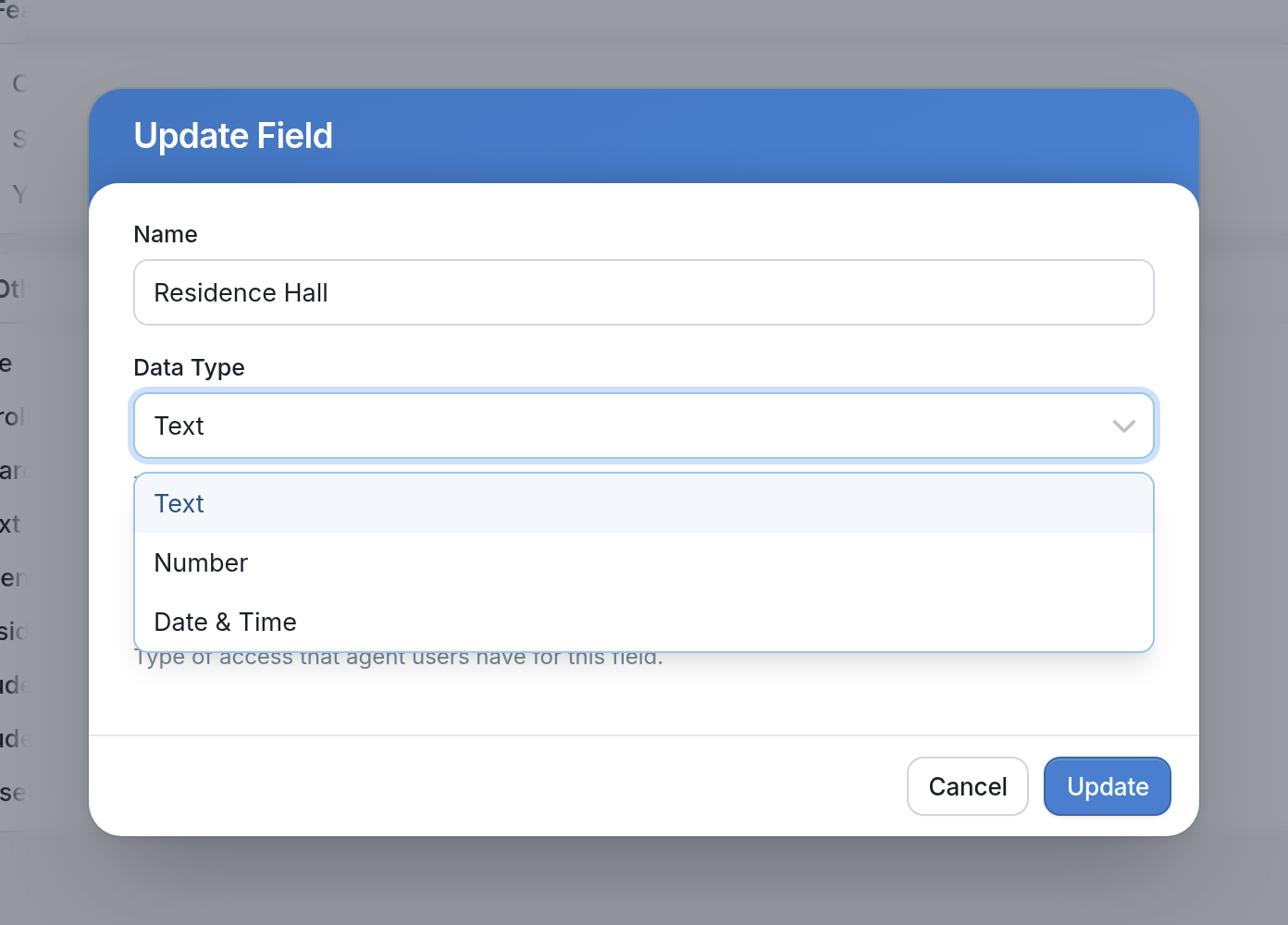
This updates the custom contact field to a Date & Time field that can be used in a campaign event.
See more about creating campaigns and campaign events in our Help Docs.
Questions? Send us a message via the support widget in the bottom right corner of your browser.