Blocking Contacts
In rare instances, contacts may abuse your service or send offensive messages. You can block contacts manually, or set a contact's status to Blocked in a flow.
Manually Block Contacts
To block contacts, go to the Contacts section, select each contact by checking the box to the left of their name, and click Block in the bar above the list. All incoming messages from blocked contacts are archived, and blocked contacts are removed from their groups.
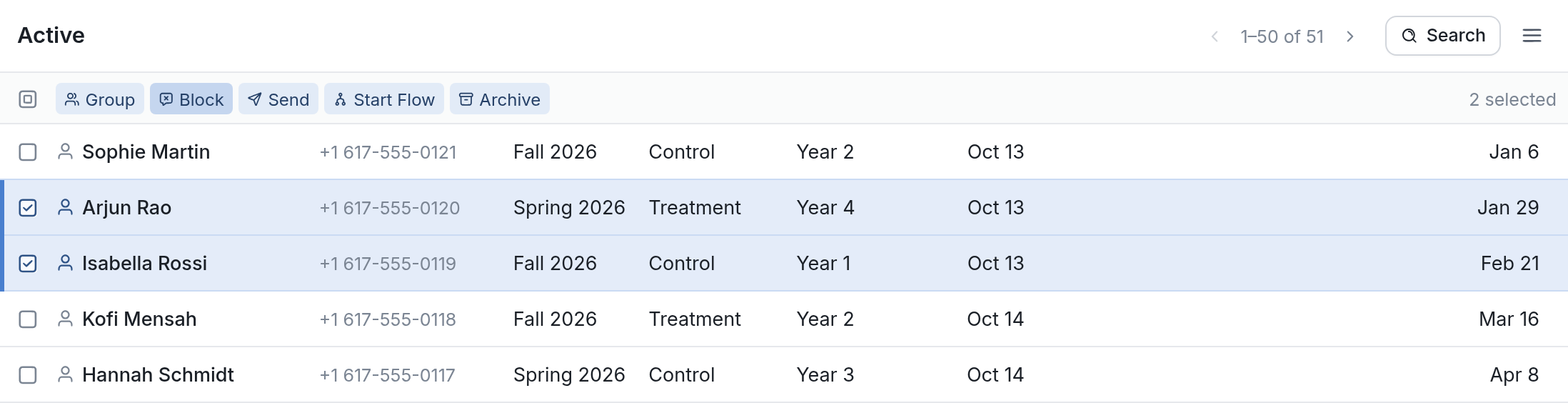
Flows also won't send to blocked contacts, which is useful for restricting sending to contacts who've opted out of messages.
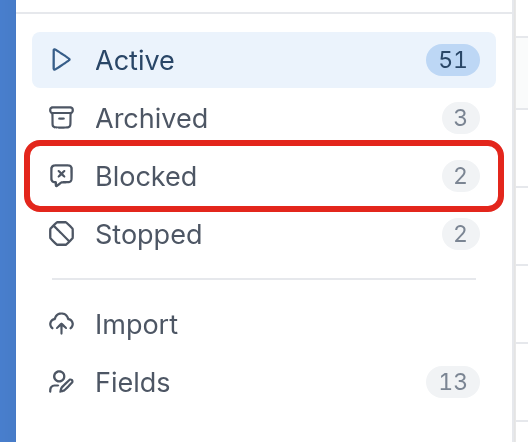
You can unblock a contact at any time. Click Blocked in the Contacts menu, check the box to the left of the contact's name, and click Unblock.
Blocking Contacts in a Flow
To block contacts who respond with a certain word, such as an opt-out keyword or offensive language, you can have your flow do it automatically.
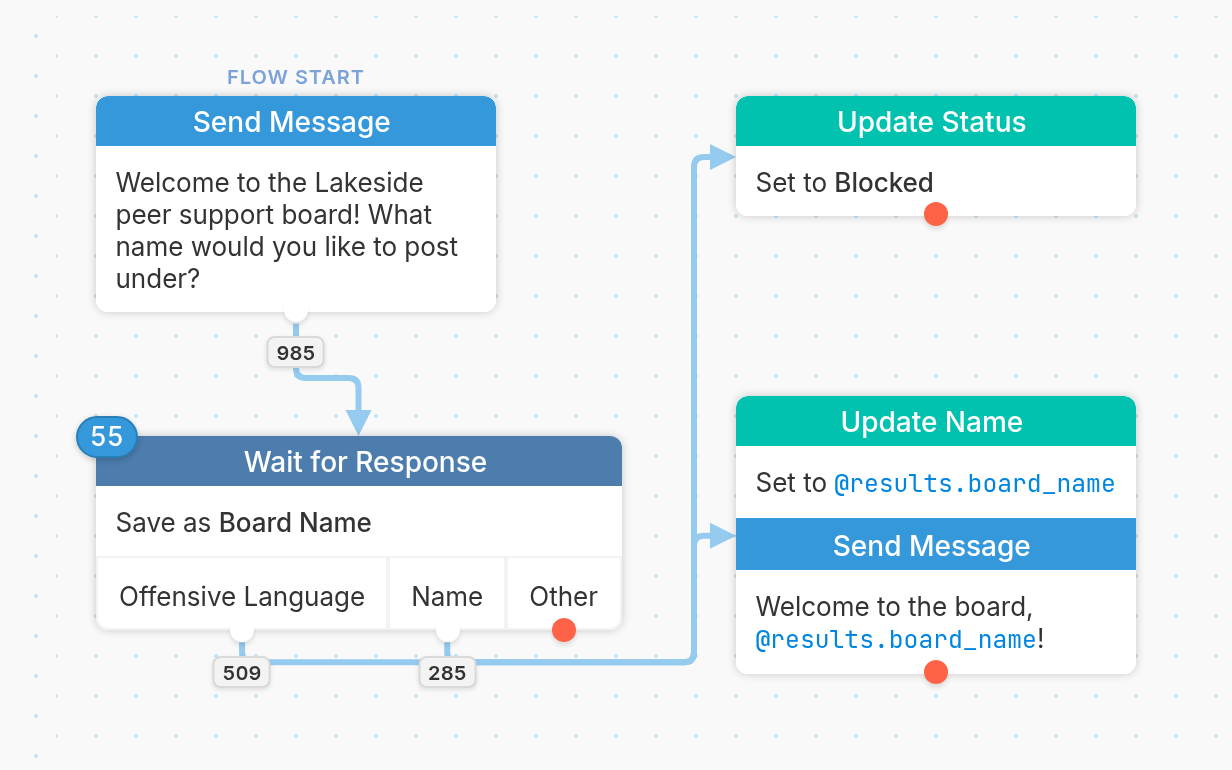
In the example below, the Peer Board flow asks contacts what name they'd like to post under. If the reply contains offensive language, the flow changes the contact's status from Active to Blocked. Any other name is saved, and the contact is welcomed to the board.
Here's the Update Status action, where you choose the new status from the Status list:
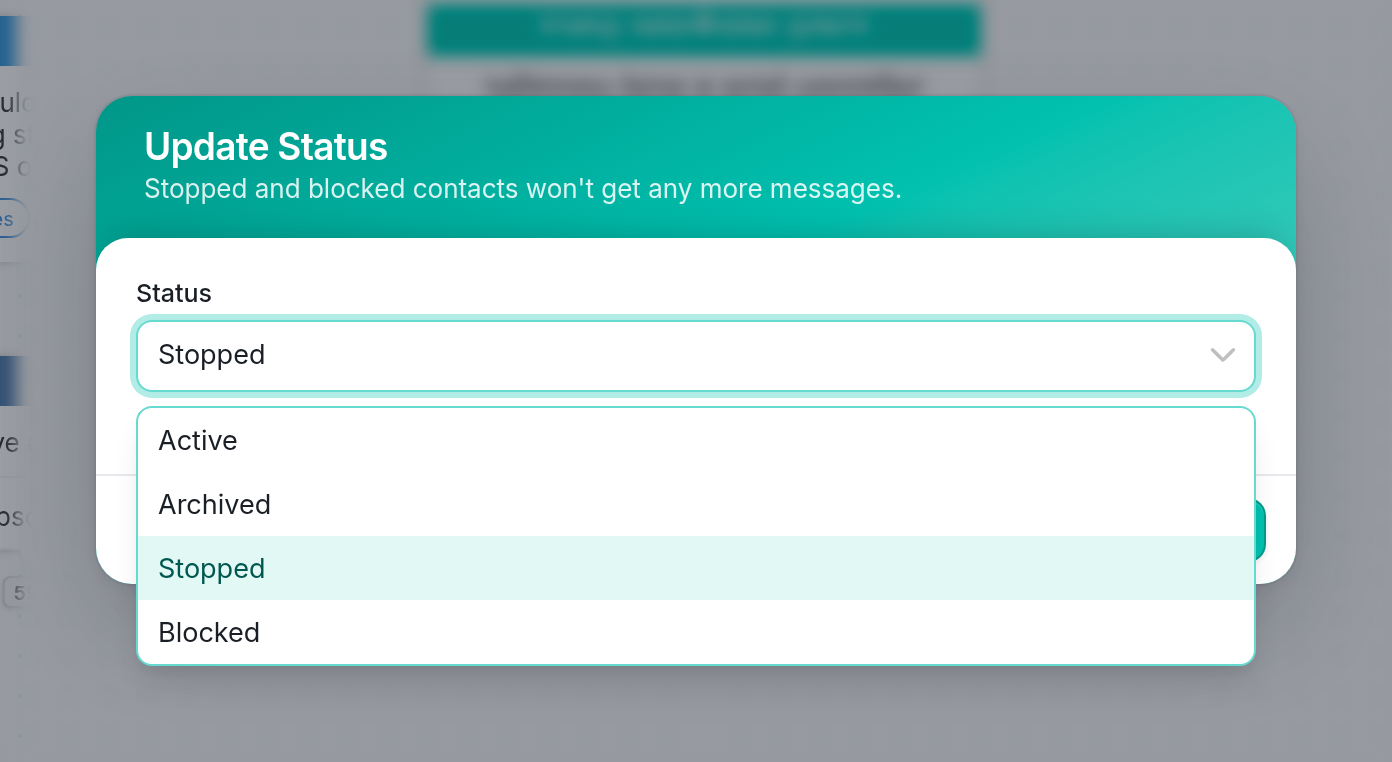
Blocking a contact means that all of the contact's incoming messages are automatically archived. Stopped contacts are ignored and don't receive outgoing messages, but if they send a message, their status changes from Stopped back to Active.