Changing the Order of Featured Fields on the Contacts Page
On the Contacts page, your featured fields appear as columns from left to right after the default fields (Name and URN), starting with the one created first. In the example below, the contact field Cohort was created before Study Arm.
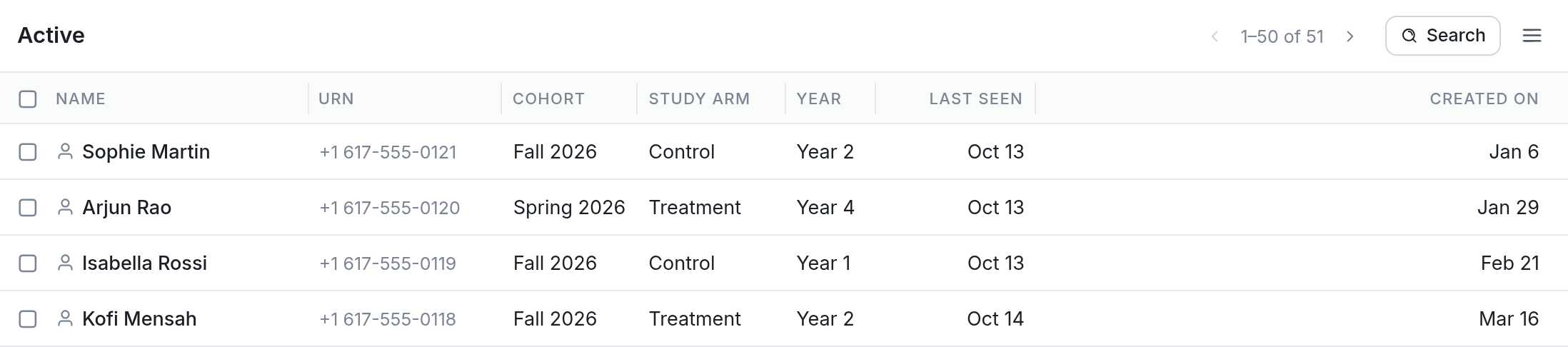
To change the order of the contact field columns, first click the Fields button in the Contacts section on the left-hand side.
You'll see a list of all Featured fields and everything else. Under Featured, hover in front of a field name and use the drag icon to drag the field to the position you want. In this example, Year is dragged to the top of the list.

You can also reorder fields from the contacts list by hovering over the field's name in the column header and dragging it.
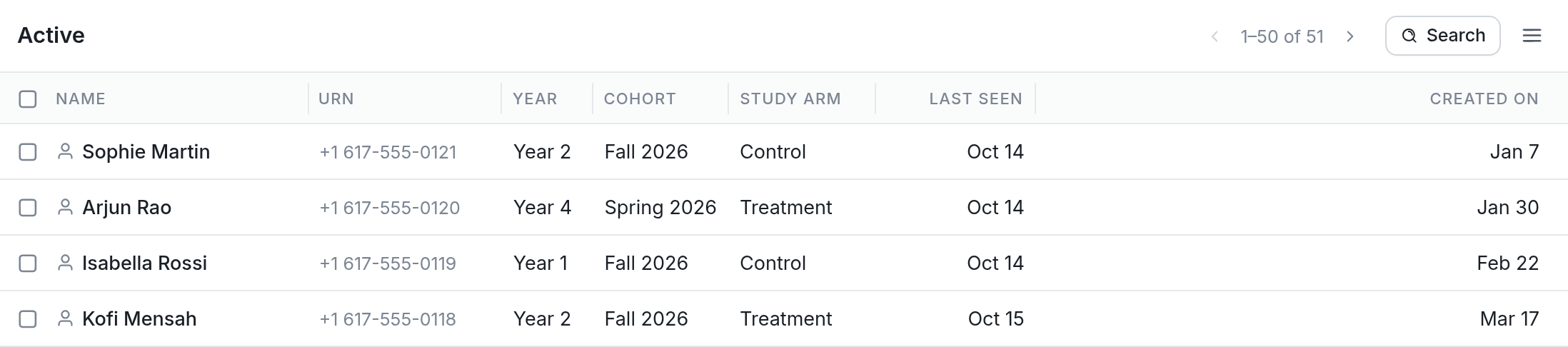
Go back to the Contacts page to see the columns in their new order. Here, Year now comes first, followed by Cohort and Study Arm.
Don't see a contact field in the list? First, make sure it's featured.
Questions? Send us a message via the support widget in the bottom right-hand corner of your browser.