Delete Contacts
Deleted contacts cannot be recovered.
To delete a contact, it must first be placed in the Archived folder. You can manually delete individual contacts, or send an entire group through a flow to update their status to 'Archived' for bulk deletion.
Manually Delete Contacts
To permanently delete an individual contact, first go to Contacts in your account:
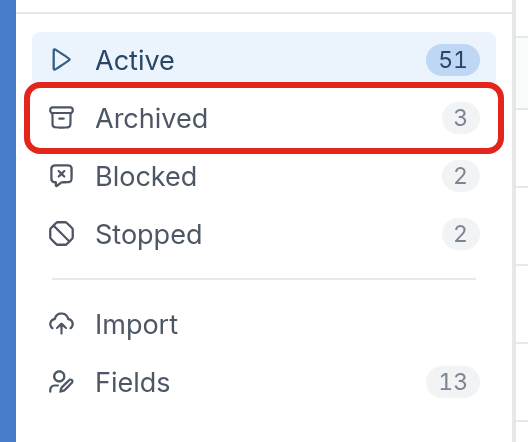
This page lists all your contacts. To delete a contact, check the box to the left of their name, then click Archive. This places the contact in the Archived folder:
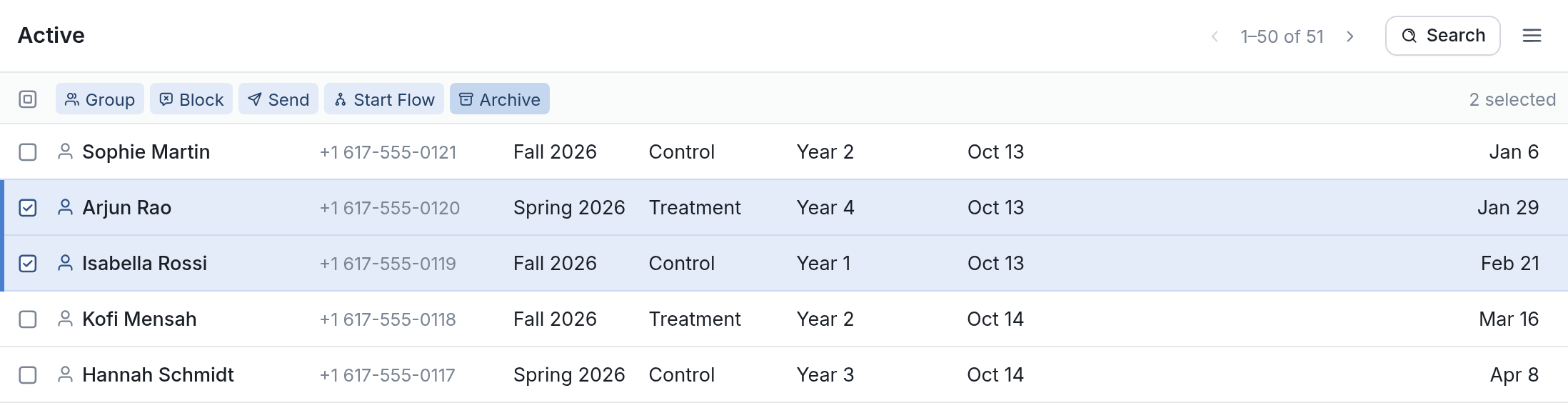
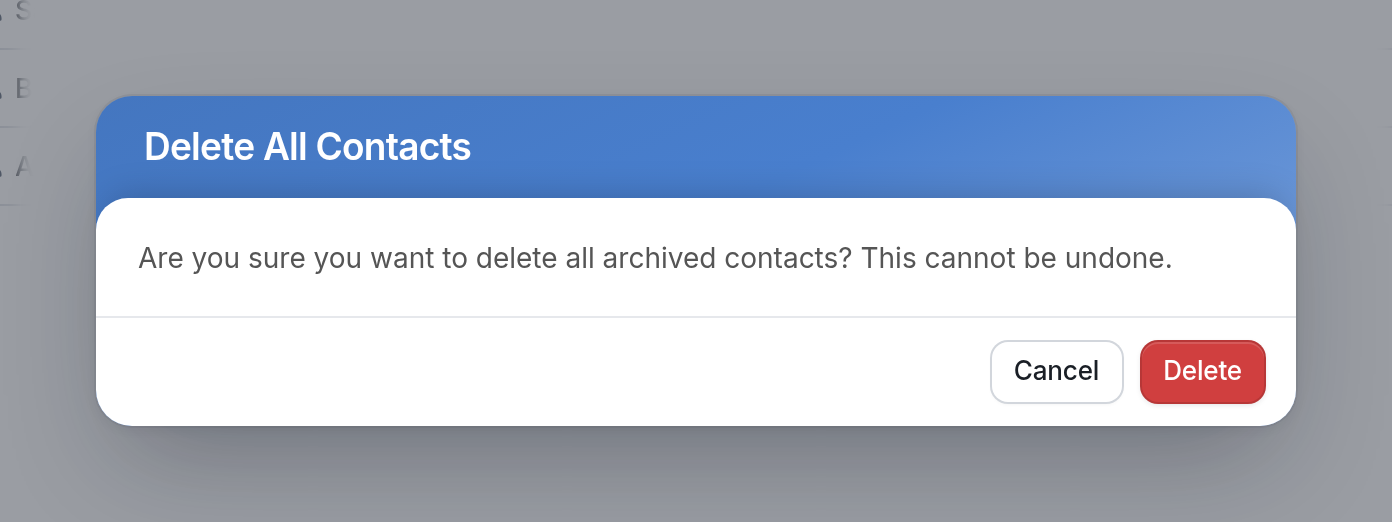
Next, go to the Archived folder and check the box to the left of the contact's name again. You can then delete individual contacts. To delete every contact in the folder, open the ☰ menu and click Delete All.

You'll be asked to confirm that you want to delete all archived contacts. Contact deletion is final, and deleted contacts cannot be retrieved.
Delete an Entire Group of Contacts
To place multiple contacts in the Archived folder for bulk deletion, you'll need to change their status from Active to Archived, which you can do in a flow.
-
Create your contact group. You can use a contact search on the 'Last Seen On' contact field to find dormant contacts who haven't interacted with you lately.
-
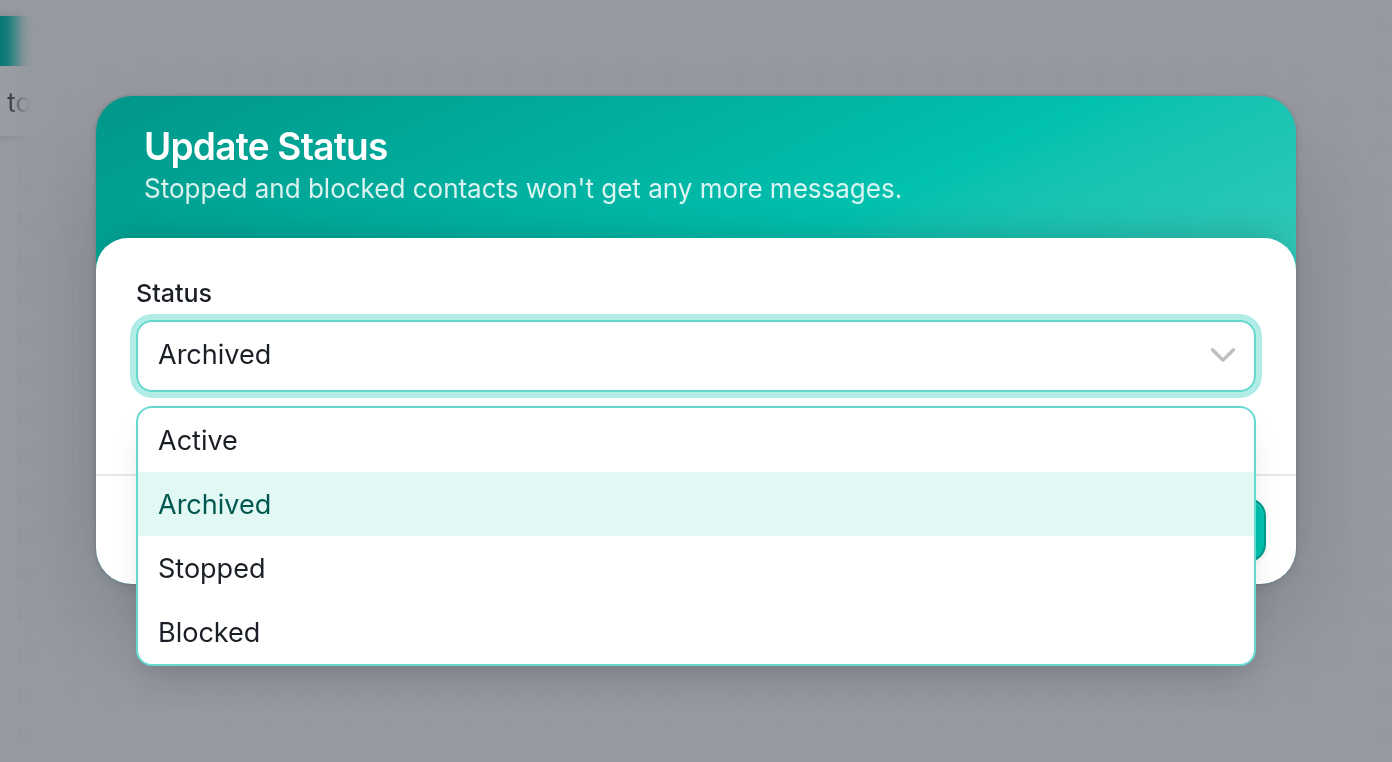
Start the group in a flow that contains an 'Update the Contact' action that sets their Status to Archived. All contacts started in this flow will be placed in the Archived folder automatically and can then be deleted.
Contact Status
Besides archiving, you can also place a contact in the Stopped or Blocked folder.
Stopped contacts have opted out of receiving your messages and are removed from all groups. You can't send them any messages, but they can opt back in by messaging you.
Blocked contacts don't receive outgoing messages, and all of their incoming messages are archived automatically. They are removed from all groups.
To find dormant contacts to delete, see our guide.
If you have questions, send us a message using the support widget in the bottom right-hand corner of the screen.