Archiving Contacts in a Flow for Easy Deletion
To delete contacts, you first need to move them to the Archived folder on the Contacts page.
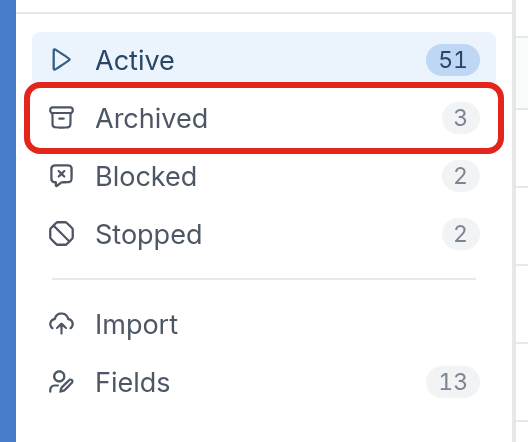
You can move contacts to the Archived folder by hand, but to archive many at once, use a flow.
-
Add the contacts you no longer want to a group. For dormant contacts, you can use the Last Seen On contact field to find contacts you haven't interacted with lately, then add them to a smart group with a contact search.
-
When your group is ready, start it in a flow that uses the Update Status action to change the contacts' status from Active to Archived.
In the example below, we've created a group of contacts called 'Dormant' and a flow called Graduate Cleanup. The flow has an Update Status action with the Status set to Archived:
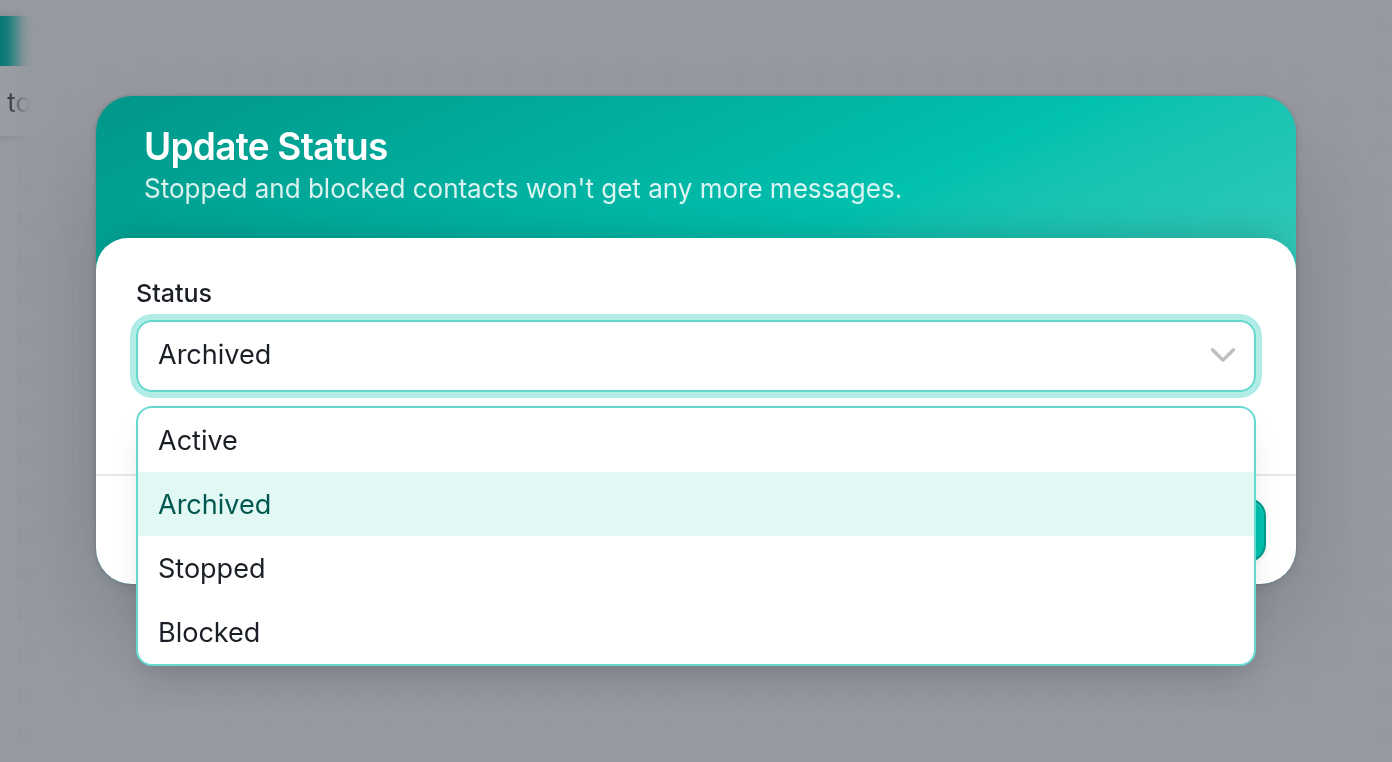
The action is at the start of the flow, so every contact who passes through the flow is moved to the Archived folder:
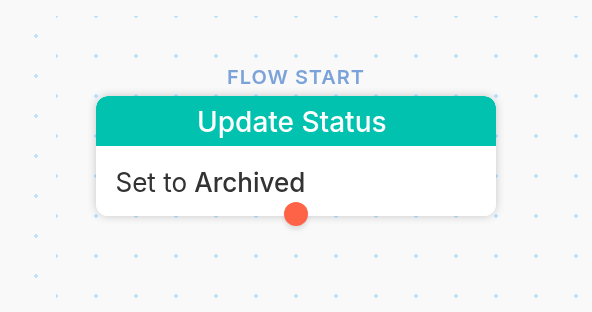
We then start the flow and select the 'Dormant' group.
All contacts started in this flow are now in the Archived folder and ready for deletion. To delete all contacts in the Archived folder, click the menu icon (☰) at the top right of the list and select Delete All:

If you have questions, send us a message via the support widget in the bottom right-hand corner.