Starting a Flow after a Ticket is Closed
After an Agent has resolved an open ticket, you can create a trigger that automatically starts the contact in a flow. This is useful when you'd like to follow up with the contact, take further actions on them, or remove them from a group.
In our example below, we had previously added the contact to a group called 'Needs Support' so that their messages to our human Agent wouldn't unintentionally start any keyword or uncaught message triggers. After the contact's ticket is closed, we want keywords and uncaught messages to be handled normally again, so we'll remove the contact from the 'Needs Support' group and send them a short follow-up message.
Here's how
| First, set up a Background flow that includes the Remove the contact from a group action. In our example, the 'Ticket Follow-Up' flow removes the contact from 'Needs Support' and then sends them a message thanking them. We want the flow to be a Background rather than a Messaging flow so that it won't interrupt any other active flows. | 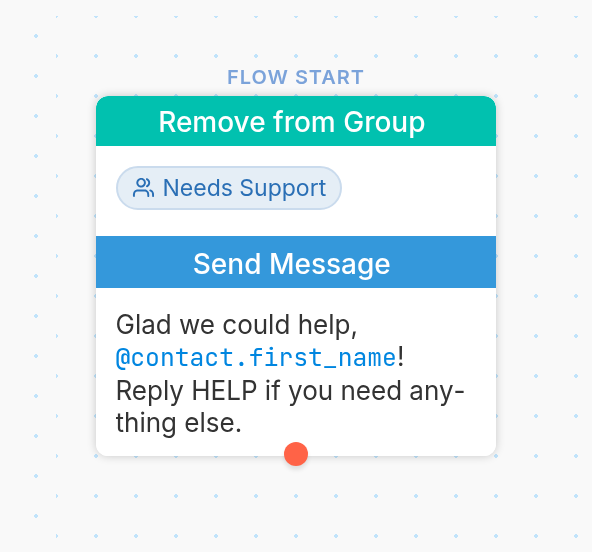 |
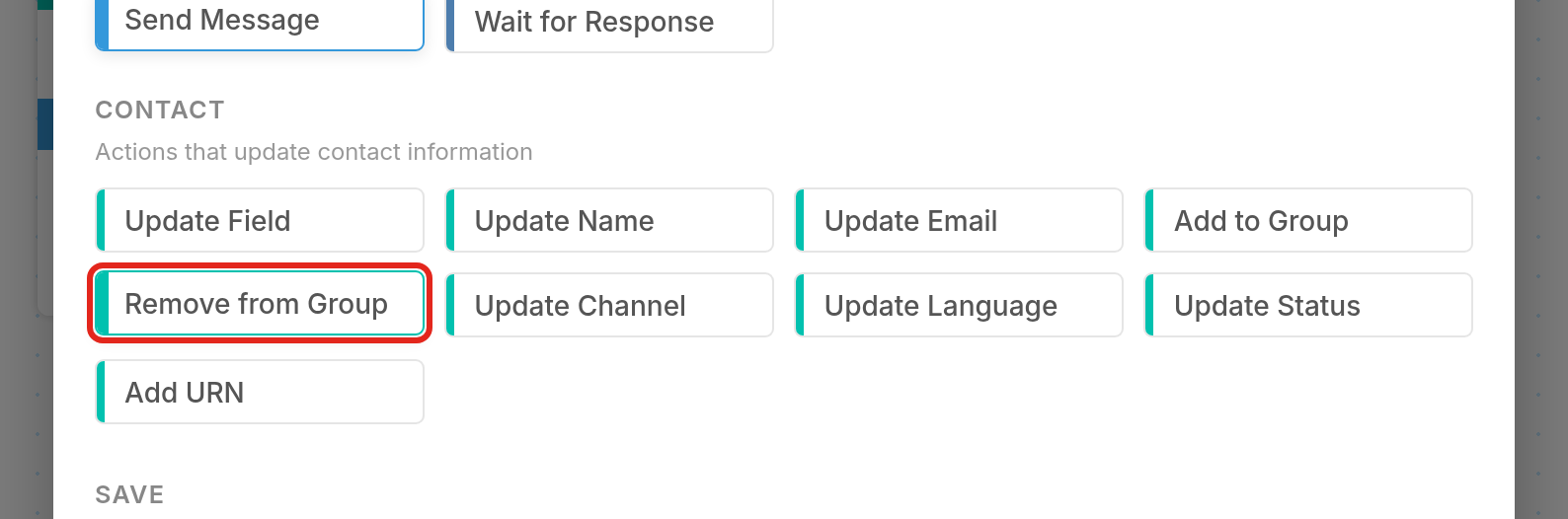
When creating a new node, choose the Remove from Group action:
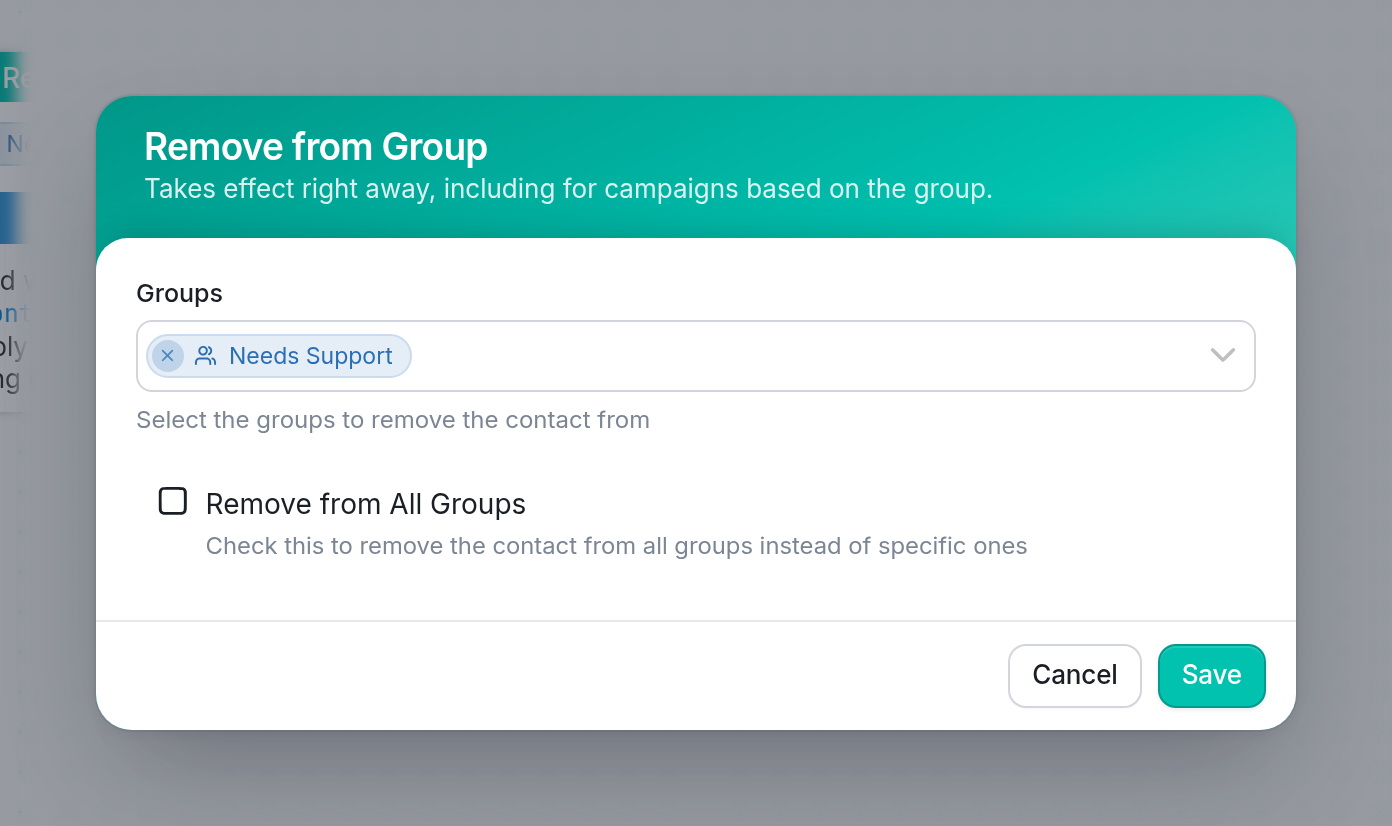
Select the group from the Groups dropdown menu:
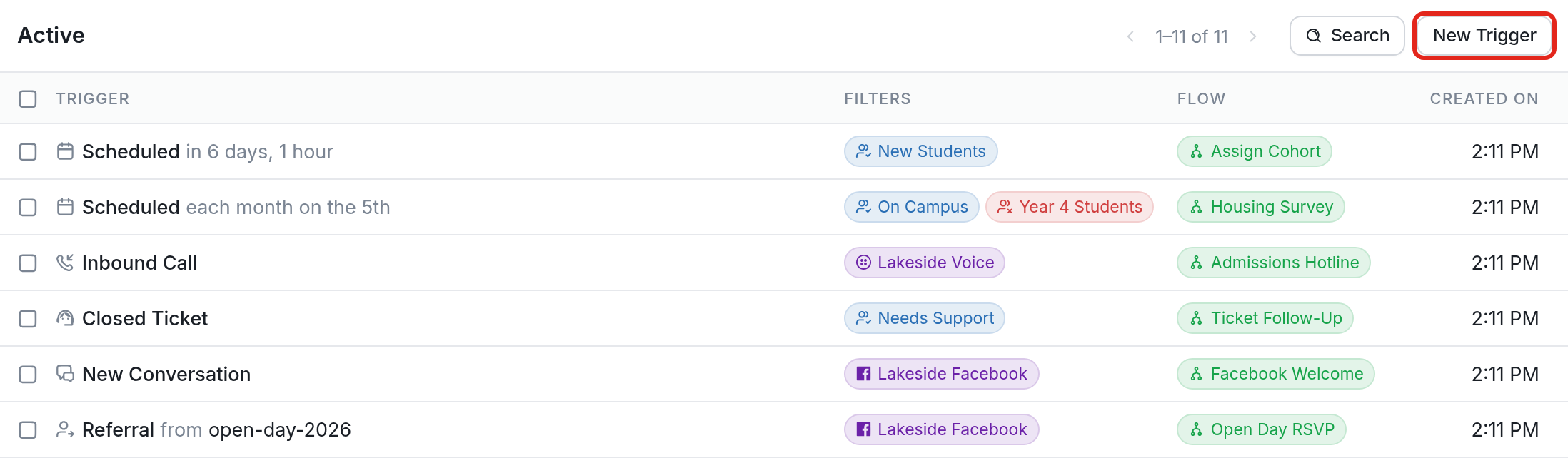
Once the flow is set up, you can create the trigger. Go to the Triggers tab and click New Trigger:
Scroll down to find Start a flow after a ticket is closed:

Select the flow to be started and, optionally, any groups to be included or excluded, then click Create. In our example, we start the 'Ticket Follow-Up' flow for contacts in the 'Needs Support' group:
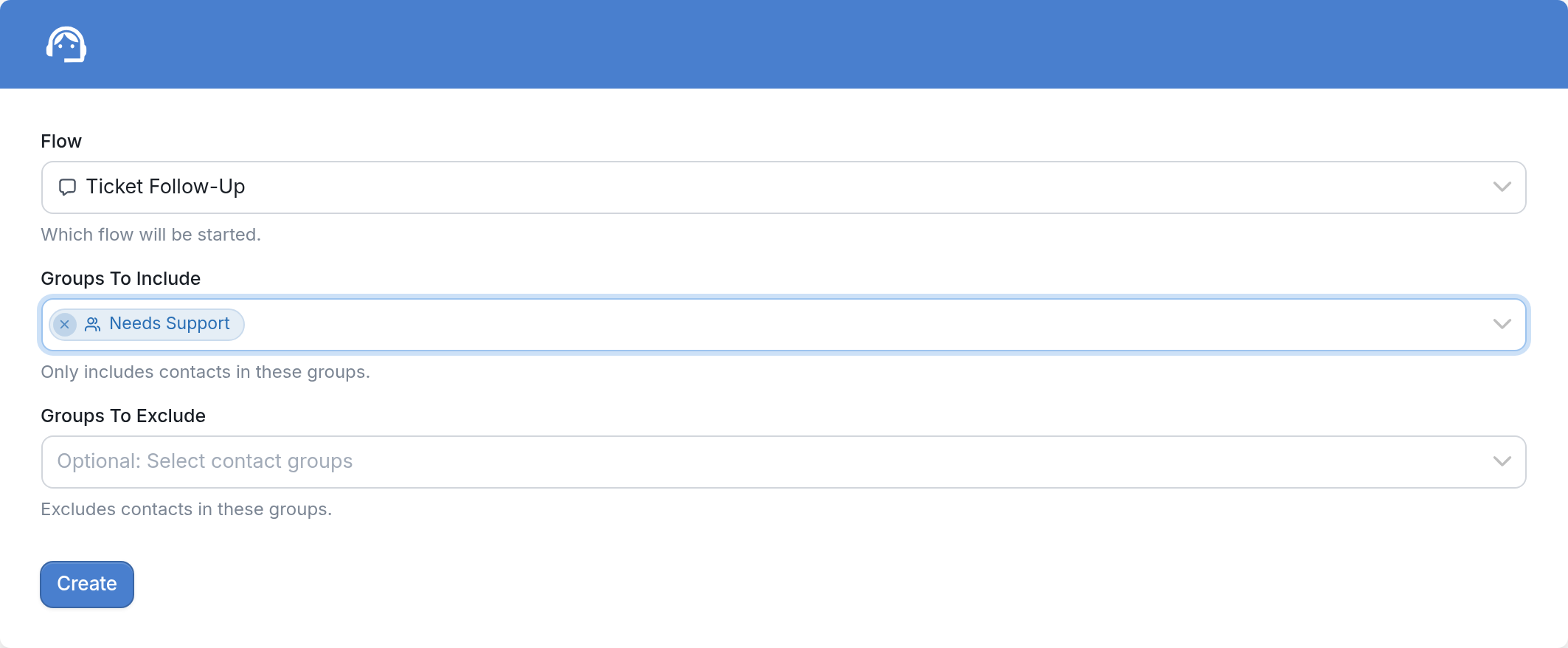
Now, when a ticket is closed, contacts will automatically be removed from the 'Needs Support' group and sent the follow-up message. Their future messages will then be handled by the other triggers you've set.
Open Tickets Smart Group
To see which contacts still have unresolved tickets, use the smart group named 'Open Tickets' in your Contacts tab.
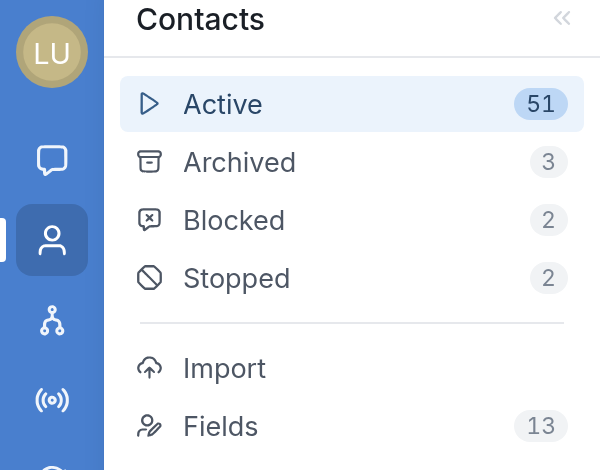
Learn more about this feature and how you can use the Open Tickets group for inclusion or exclusion on triggers here.
Questions? Send us a message via the support widget in the bottom right corner.