Configuring your Reply-to Email
TextIt sends emails from flows from a default address, TextIt no-reply@textit.email. You can change this to an address of your own so that you receive replies from your contacts directly.
First, go to your workspace settings page and scroll down to "Emails sent from flows will be sent from...":
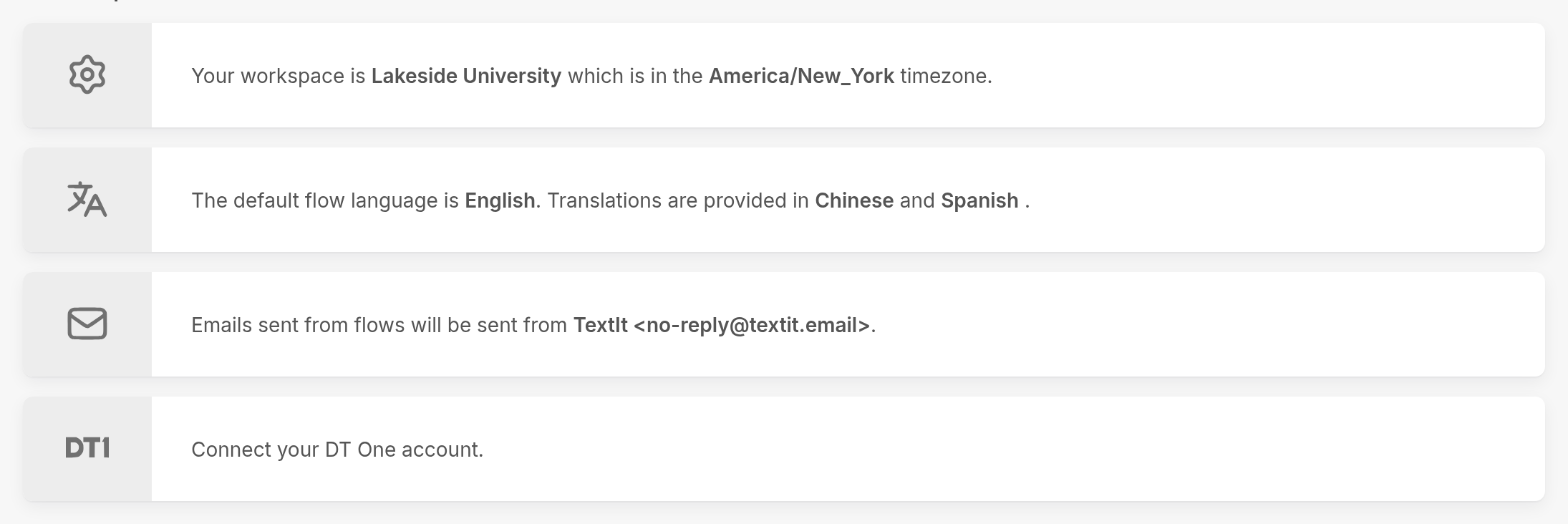
Click the section, and you'll be prompted to enter the details of your email account:
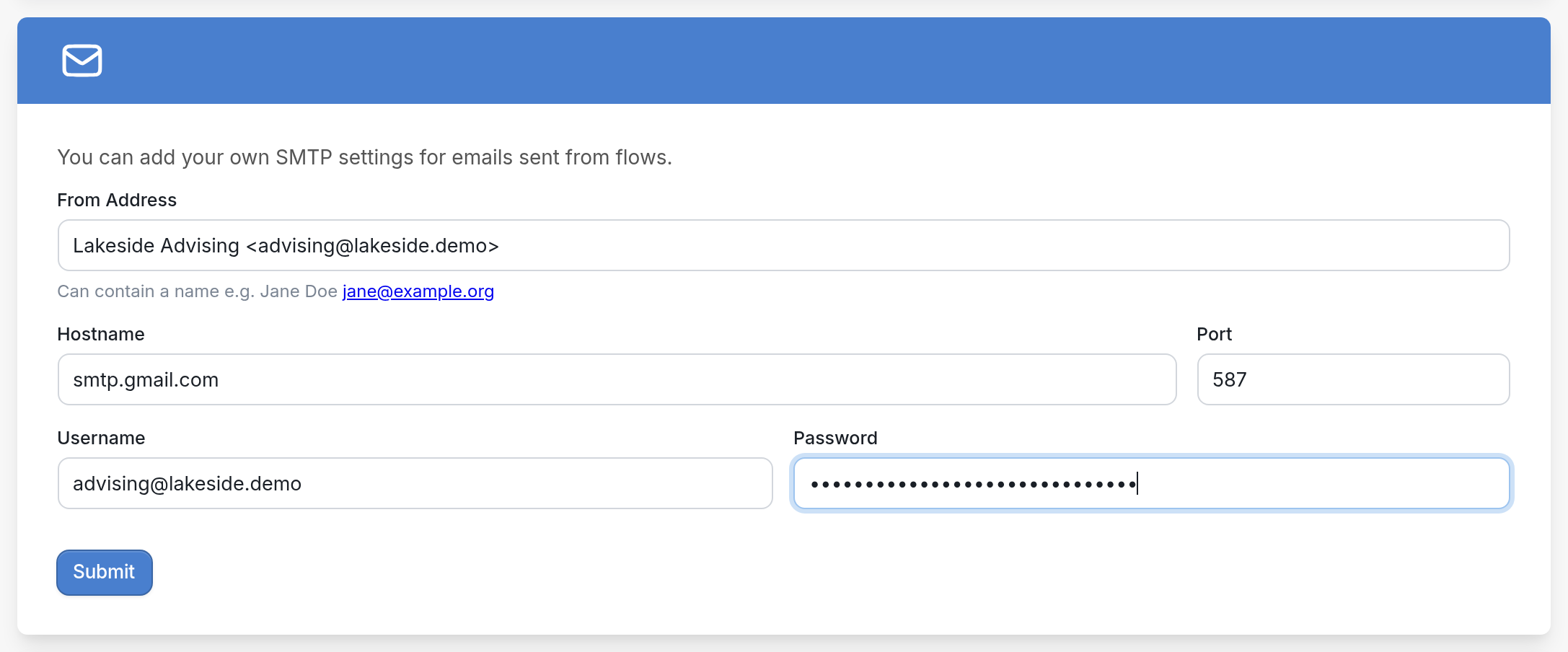
Fill in each of the fields and click Submit.
From Address
You can use any email address you like. It can include a name, as in the example above: Lakeside Advising advising@lakeside.demo.
Hostname
This depends on which server hosts your email. Search online for your provider's SMTP server to find it.
Username
This is usually your full email address, such as youremail@server.com.
Password
This is the password you use to log in to your email account.
Port
When you look up the SMTP hostname for your provider, you'll also find its port numbers. Use the one for the TLS option.
The example above uses an advising office account hosted by Google, so the hostname is smtp.gmail.com and the port is 587.
Once you click Submit, the section shows the address your flow emails will be sent from:

To learn how to send emails from flows, see our article on how to send emails.
Password not working?
If your email account uses two-factor verification to log in, you must give third-party apps permission to access it. In that case, you need to create a separate App Password.
After you create the App Password in your email account, enter it in the Password field in TextIt. Your regular email password won't work.
For Gmail, see Google's instructions here.
If you have questions, send us a message through the support widget in the bottom right-hand corner.