Updating Workspace Information
You can update your workspace information from your workspace settings page.
First, click the gear icon at the bottom left to open your Settings page.
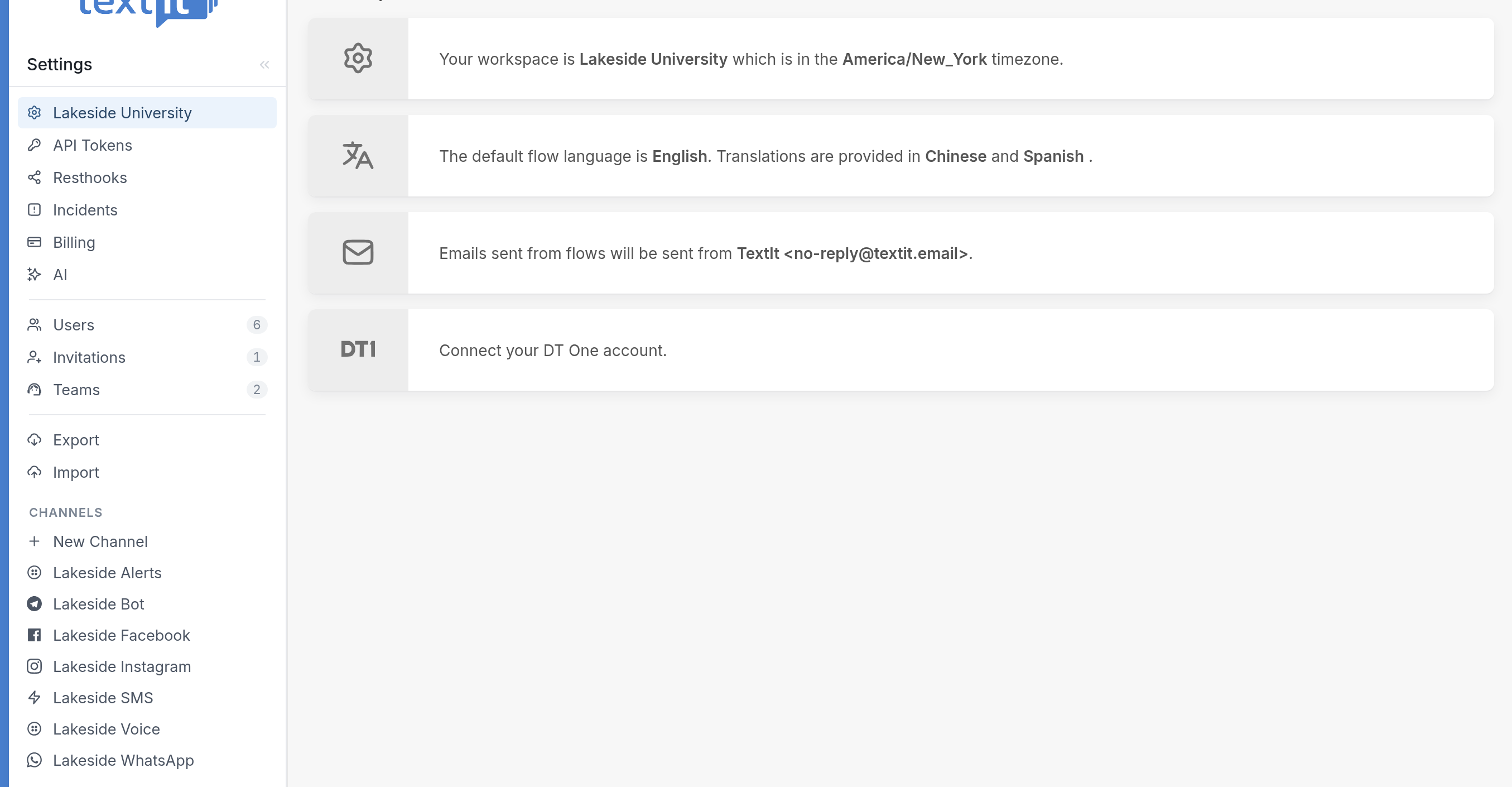
Change your Name, Timezone & Date format
Click "Your workspace is...". Here you can update the workspace name and timezone, as well as the date and time format used across the workspace.
Click Save to update your changes.
Configuring Flow languages
Next, in the "The default flow language is..." section, set your flow's default language (the one you will build in) and your additional languages (the languages you may translate your flows into). See more on how to set a preferred language for a contact.
Click Save to update your changes.
Configuring Your Reply-To Email
You can do this from your settings page, in the "Emails sent from flows will be sent from..." section. For a detailed guide, see here.
Click Save to update your changes.
Connect your DT One account
See this guide to understand how DT One works within TextIt.
Questions? Send us a message via the support widget in the bottom right corner.