User Account
As the logged-in user, regardless of your permissions on the workspace, you can edit your user information, such as your name, email or password. You can also make your login more secure by enabling two-factor authentication.
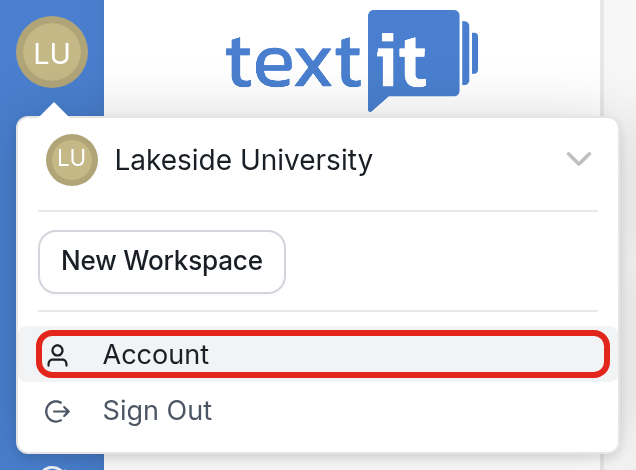
To do this, click the icon with your account initials, then select Account.
You will land on the Edit User page:
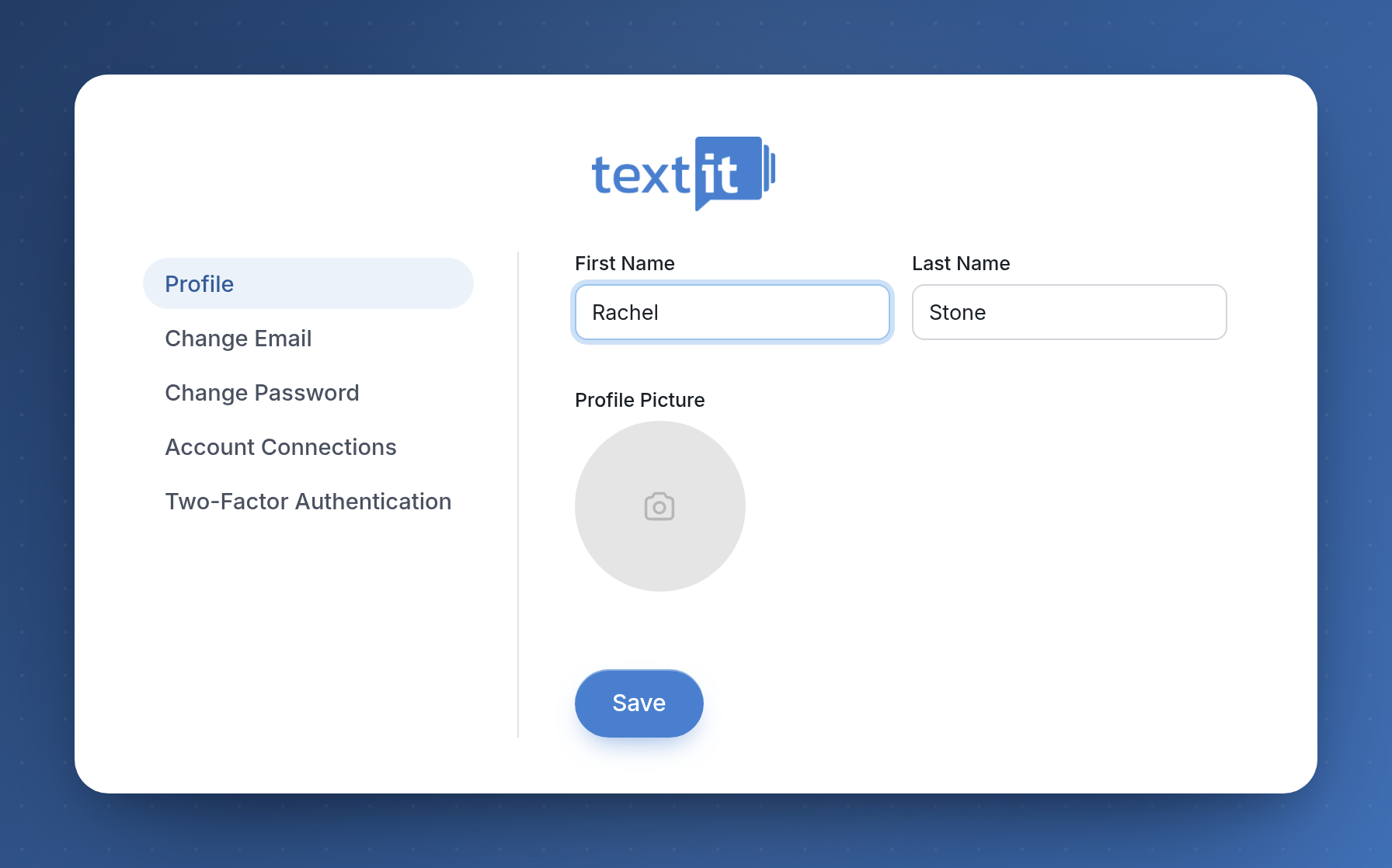
- Profile: Use the first option to update your first and/or last name, then click Save. You can also add a profile picture here: upload the photo and click Save.
- Change Email: The second option lets you change your email. Make sure it's a valid email address that you have access to. A confirmation email will be sent to the new inbox; click the link in it to confirm. Warning: If you don't see the email in your inbox, check your Spam or Trash folder, as it may have been filtered there.
- Change Password: Use the third option to change your password. You will need to enter your current password before creating a new one. If you've forgotten it, click Forgot password? and confirm your email. A password reset link will be sent to your inbox; click it to set a new password. Again, if you don't see the email, check your Spam or Trash folder.
- Account Connections: Here you will see any third-party accounts that are connected to your TextIt account. You can use these accounts to log in to TextIt more quickly.
- Two-Factor Authentication: Secure your login with two-factor authentication (2FA). For more details, see here.