Sending an Email
Use the Send Email action to send an email from within a flow. The email can include values referenced with the following variables:
-
@contact
-
@urns
-
@results
-
@fields
-
@channel
-
@run.results.[results name].extra
-
@parent
-
@input
-
expressions, e.g. @(today()) or @(now())
In the example below, a university uses this action to email the registrar's office each time a student registers.
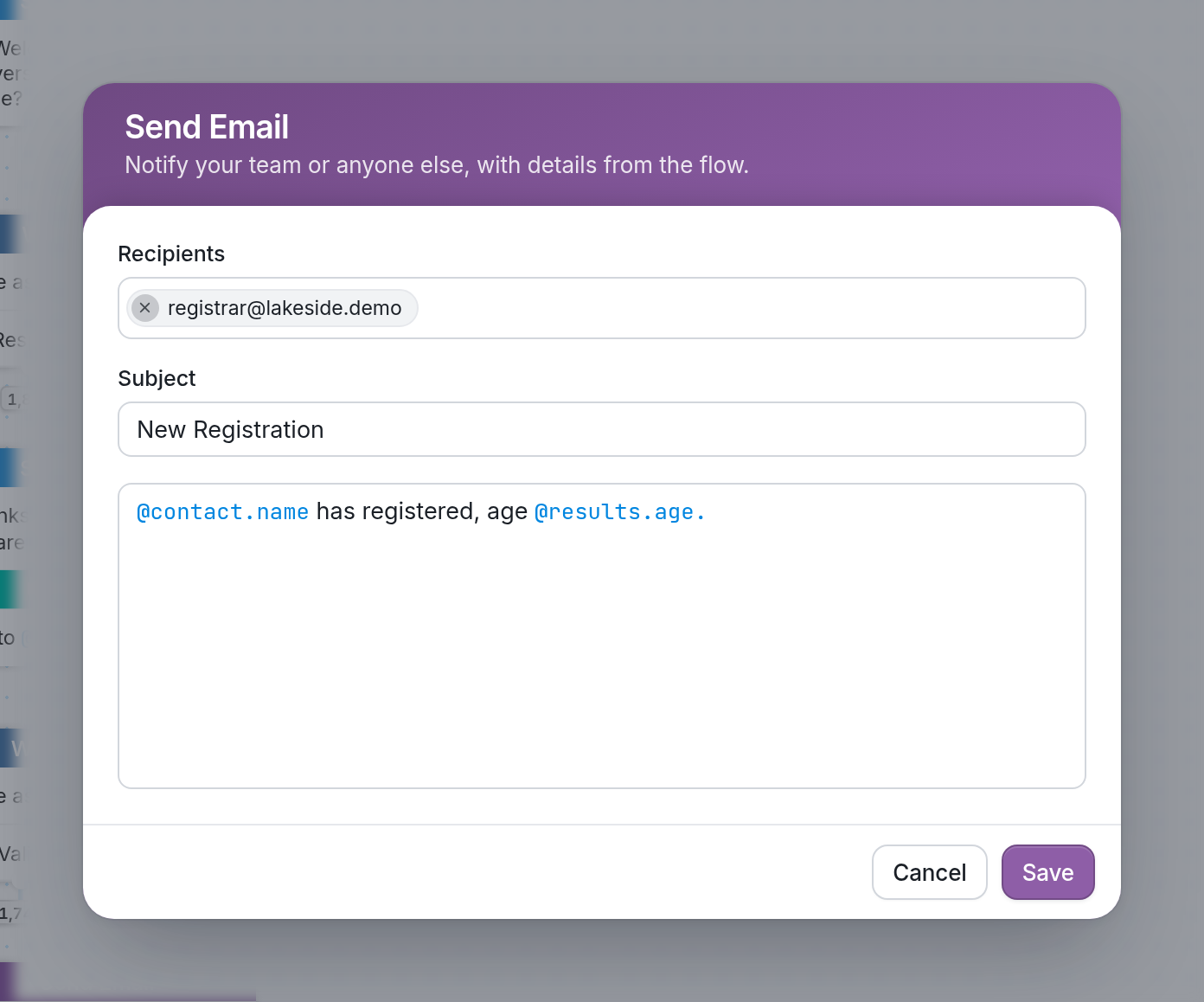
@contact.name inserts the student's name, and @results.age references the age collected at a previous step in the flow.
Create an Email Pipeline
This action is also an easy way to pass what a contact tells you on to a team member. Create a flow that asks contacts for the information you need, then have it email their answers to the right person, or to your support feed or Slack channel. Team members can then see the response in your CRM or Slack feed and follow up.
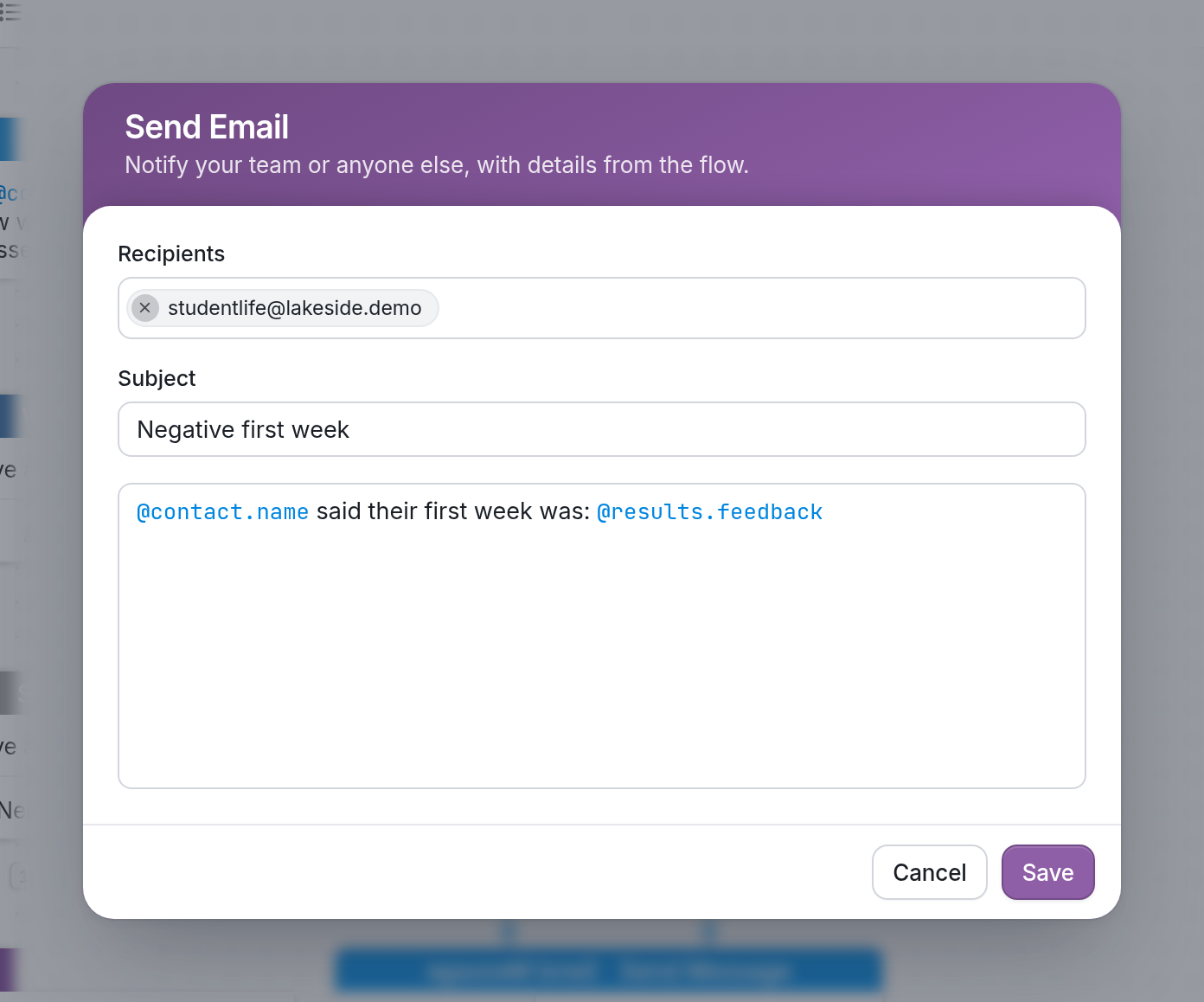
Here, a course feedback flow emails the student life team when a student reports a negative first week. @contact.name references the contact's name, and @results.feedback references the feedback the student gave at a previous step. You can use @contact.first_name instead if you only want the contact's first name.
Using your Own Address
By default, we send emails from a Nyaruka support address. To add your own address, go to your workspace page and find the email settings.
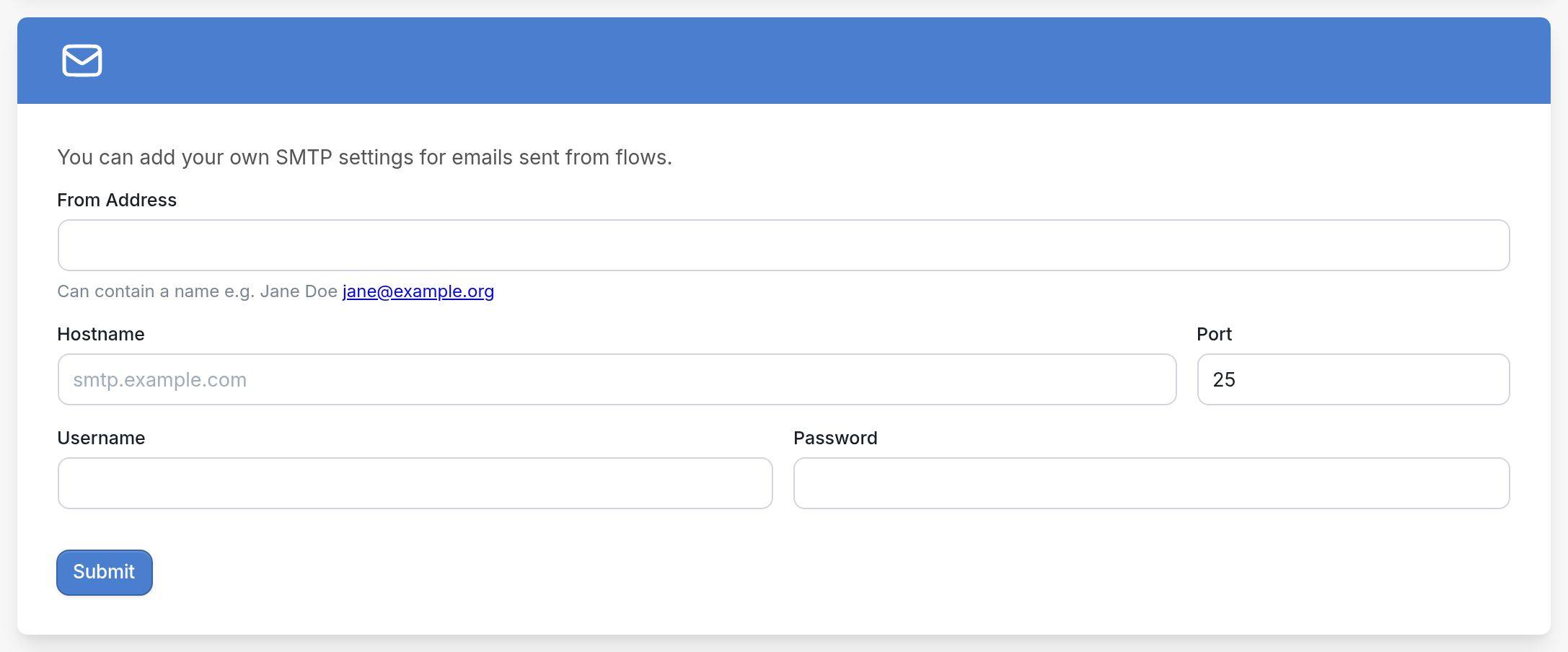
Enter the From Address, which can include a name (e.g. Jane Doe jane@example.org), along with your SMTP server's Hostname and Port and your Username and Password. Then click Submit.
Gmail-Specific Considerations
To link a Gmail address to your TextIt account, turn on the Allow less secure apps setting on your Gmail account's Connected apps & sites page:
https://myaccount.google.com/security#connectedapps
| Note that a standard Gmail account is limited to 500 emails per day. Learn more about Gmail's limits here: |
https://support.google.com/mail/answer/22839?hl=en
If you have questions, send us a message via the support widget in the bottom-right corner.