Labeling Messages
We let you add labels to classify responses. This makes it easier to organize your messages and sort through them when they're exported from the platform. You can also label messages within a workflow.
To create a label:
-
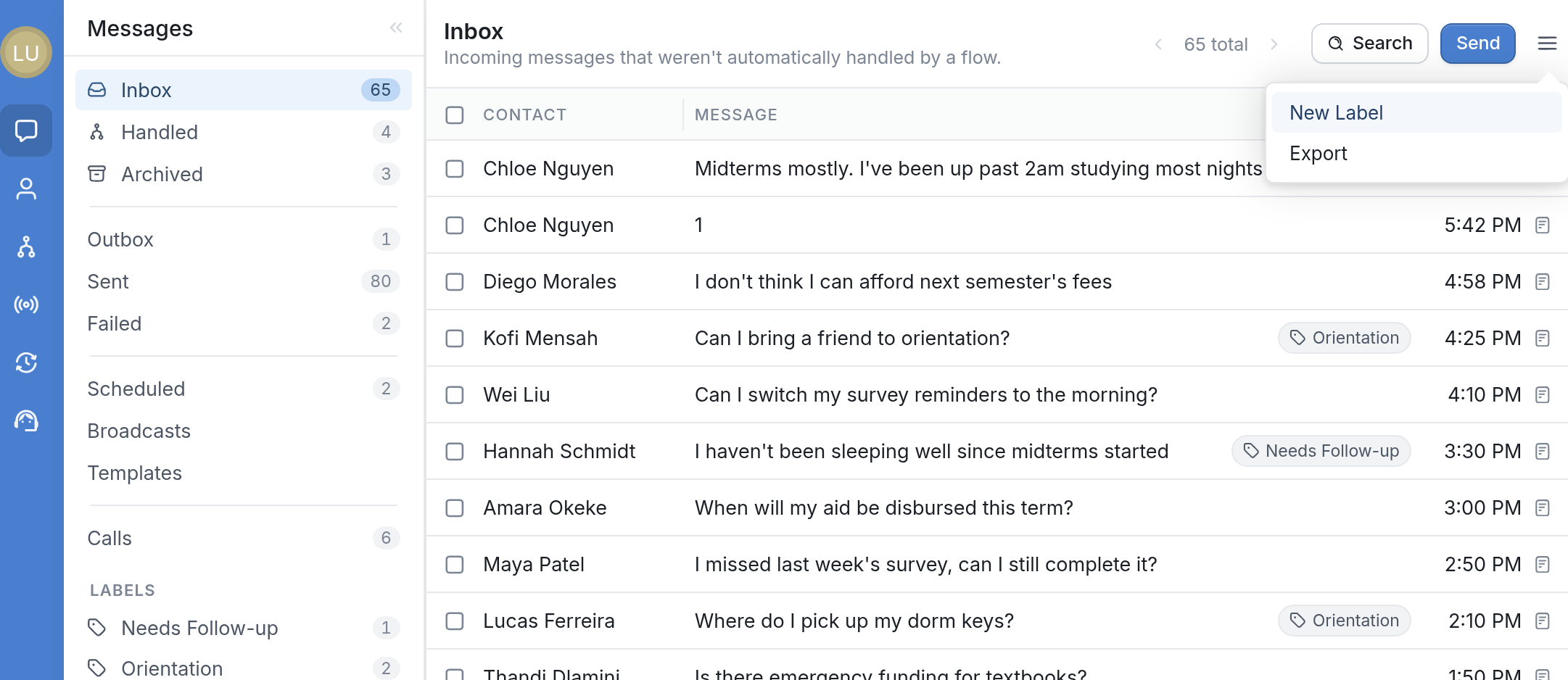
Click the Messages tab.
-
Click the menu icon ☰ on the right-hand side.
-
Click New Label in the drop-down.
-
Give the label a name.
-
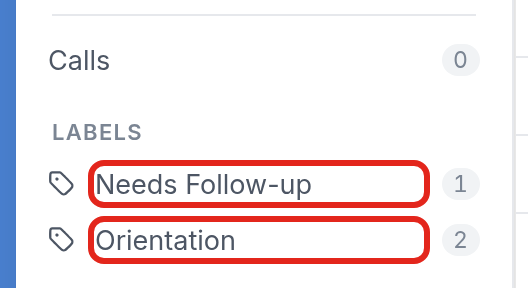
Once it's created, the label's folder appears under Labels in the left-hand menu.
When a message is labeled, the label appears on the right side of the message, next to the time it was received. For example, the message below from Hannah Schmidt carries the Needs Follow-up label.
