Exporting Messages
Messages can be exported to a spreadsheet for review outside the platform.
To export incoming and outgoing messages:
-
Click the Messages tab.
-
Click the menu icon ☰ on the right-hand side.
-
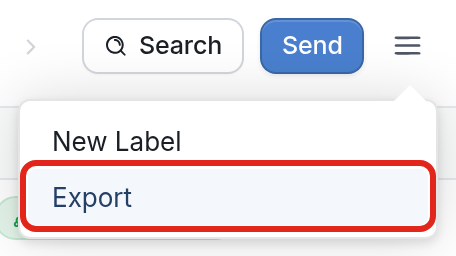
Select Export from the drop-down.
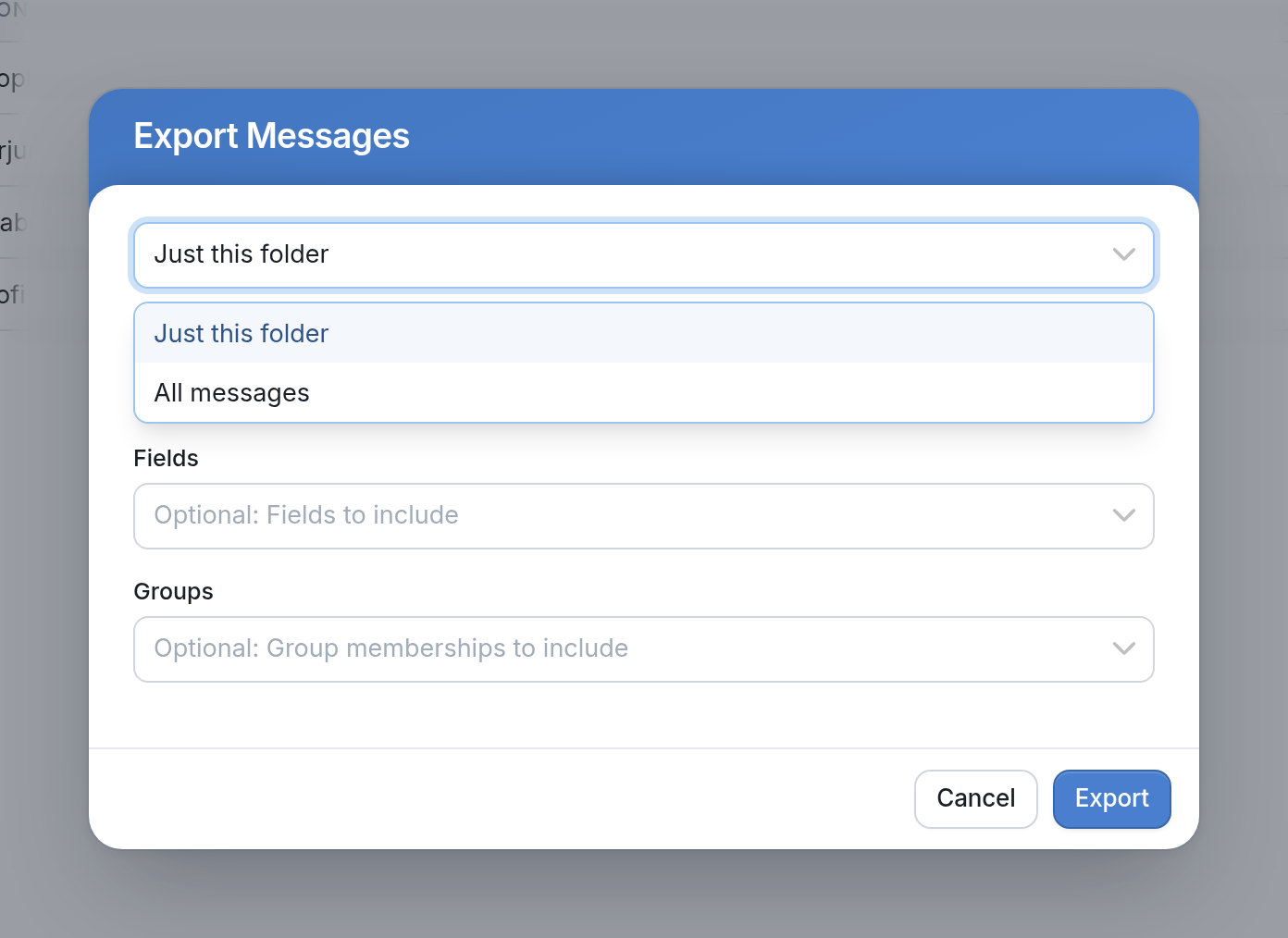
- In the Export Messages dialog, use the first drop-down to choose which messages to export. Select All messages to export messages from every folder (Inbox, Handled, Sent and so on). Select Just this folder to export only the messages in the folder you opened the menu from. For example, if you're in the Handled folder, only messages handled by a flow will be exported.
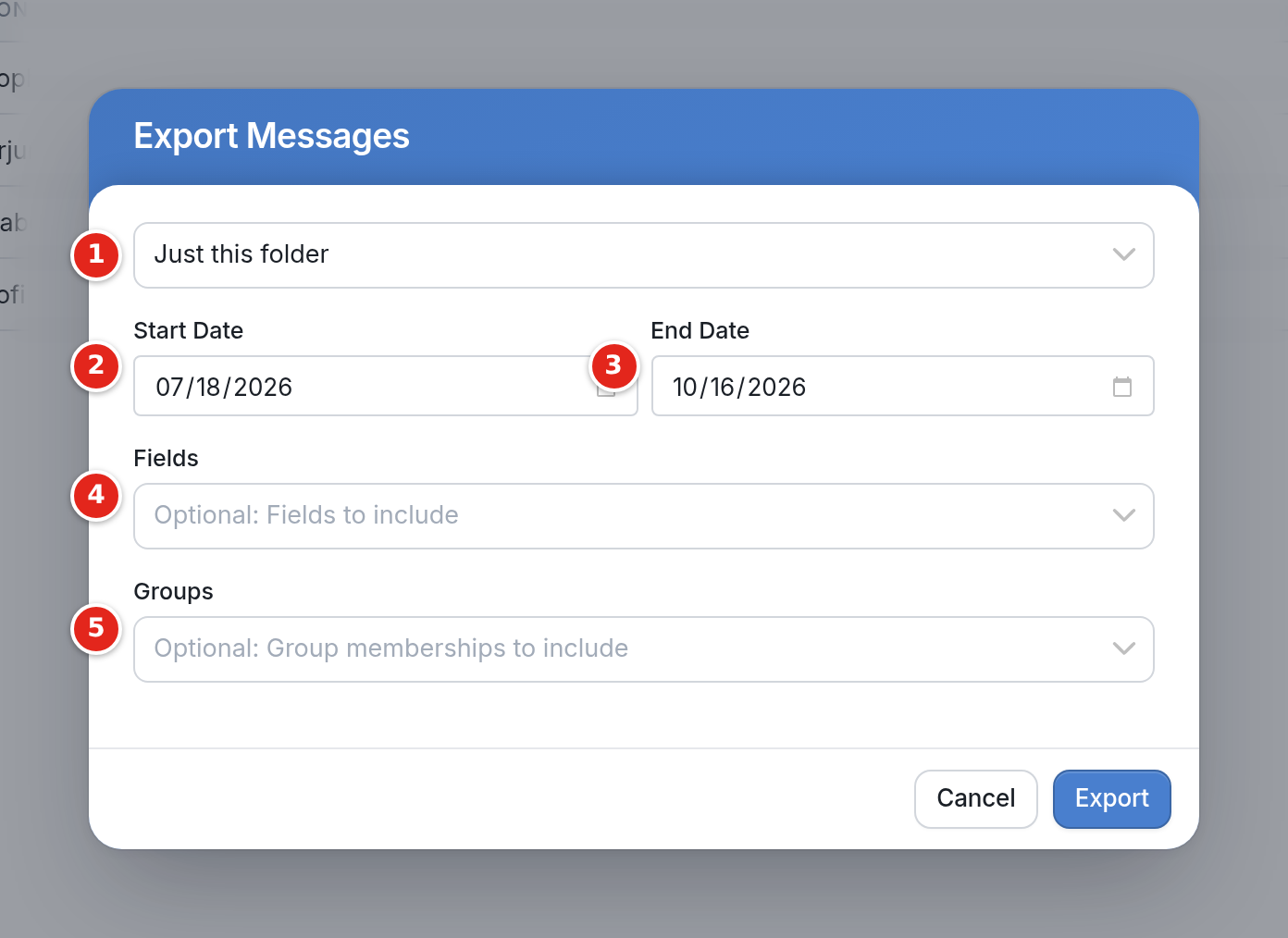
- Set the rest of the export: (1) choose all messages or just the current folder, then choose a (2) start and (3) end date to set the time frame in which the messages were sent or received. (4) and (5) are optional: choose any fields or groups you want included in the export.
- You'll receive a download link for the file in your Notifications at the bottom left of your workspace. Click it to download the file to your browser. The exported file contains the date, contact UUID, contact name, URN scheme and value, flow, message direction, text, attachments, status, channel and labels (if applicable).
