Using Quick Replies from Broadcasts
Quick replies let you give contacts on IP messaging channels such as WhatsApp, Facebook Messenger, Viber and Telegram a predefined set of responses. These appear as buttons on the contact's end.
You can use quick replies within a flow by adding them to a Send Message node and adding the response options there. To send a one-off message or schedule a message for the future, use Broadcasts instead.
Broadcasts support quick replies and attachments too. To use quick replies, follow these steps:
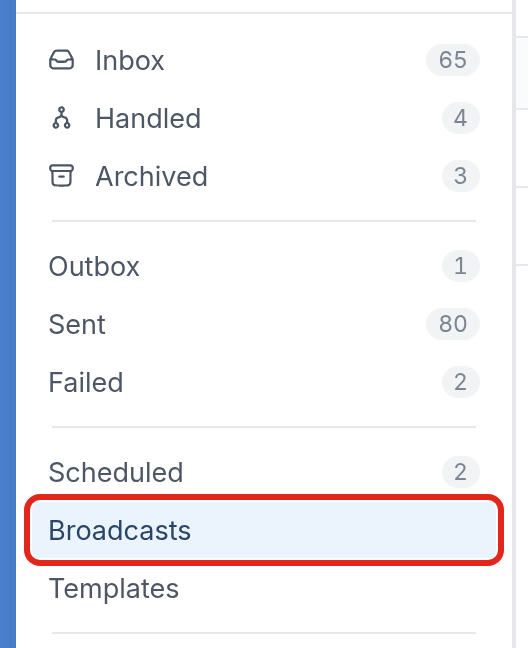
- Go to the Messages tab and click Broadcasts in the list on the left.
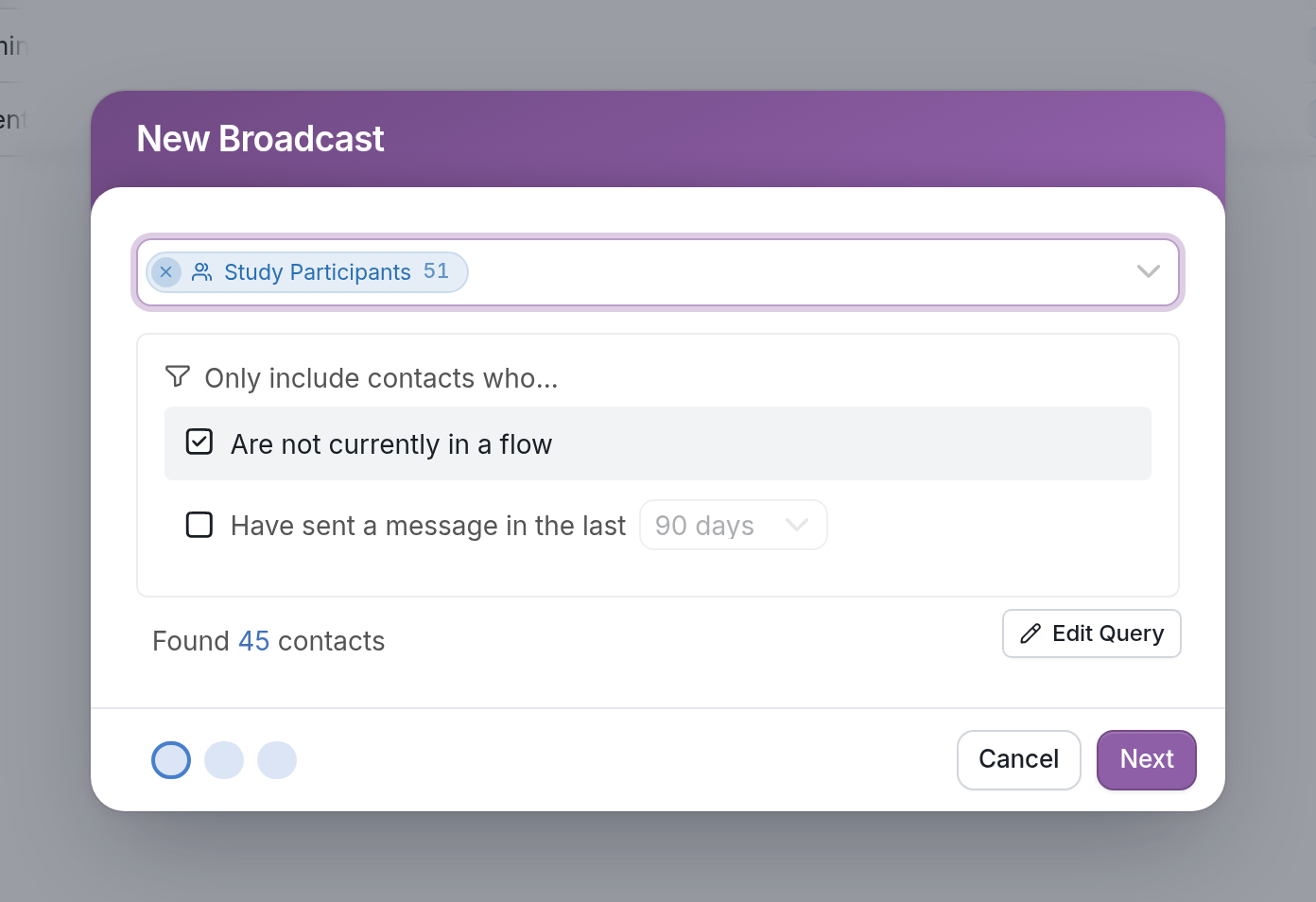
- Click the New Broadcast button at the top right to create your Broadcast. First, select the recipients of your message.
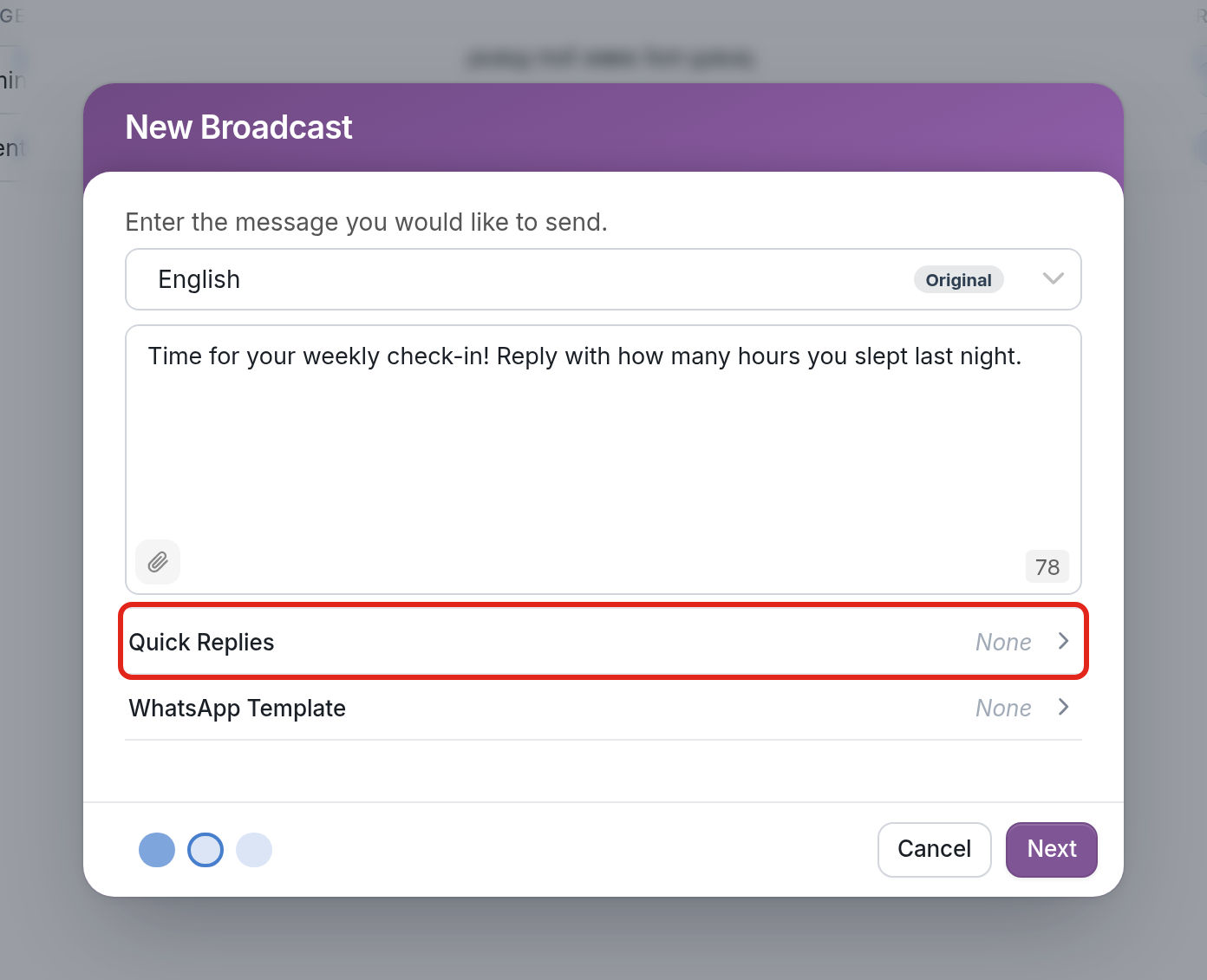
- Click Next, then select a language and compose your message. Click Quick Replies to open that section and set up your buttons.
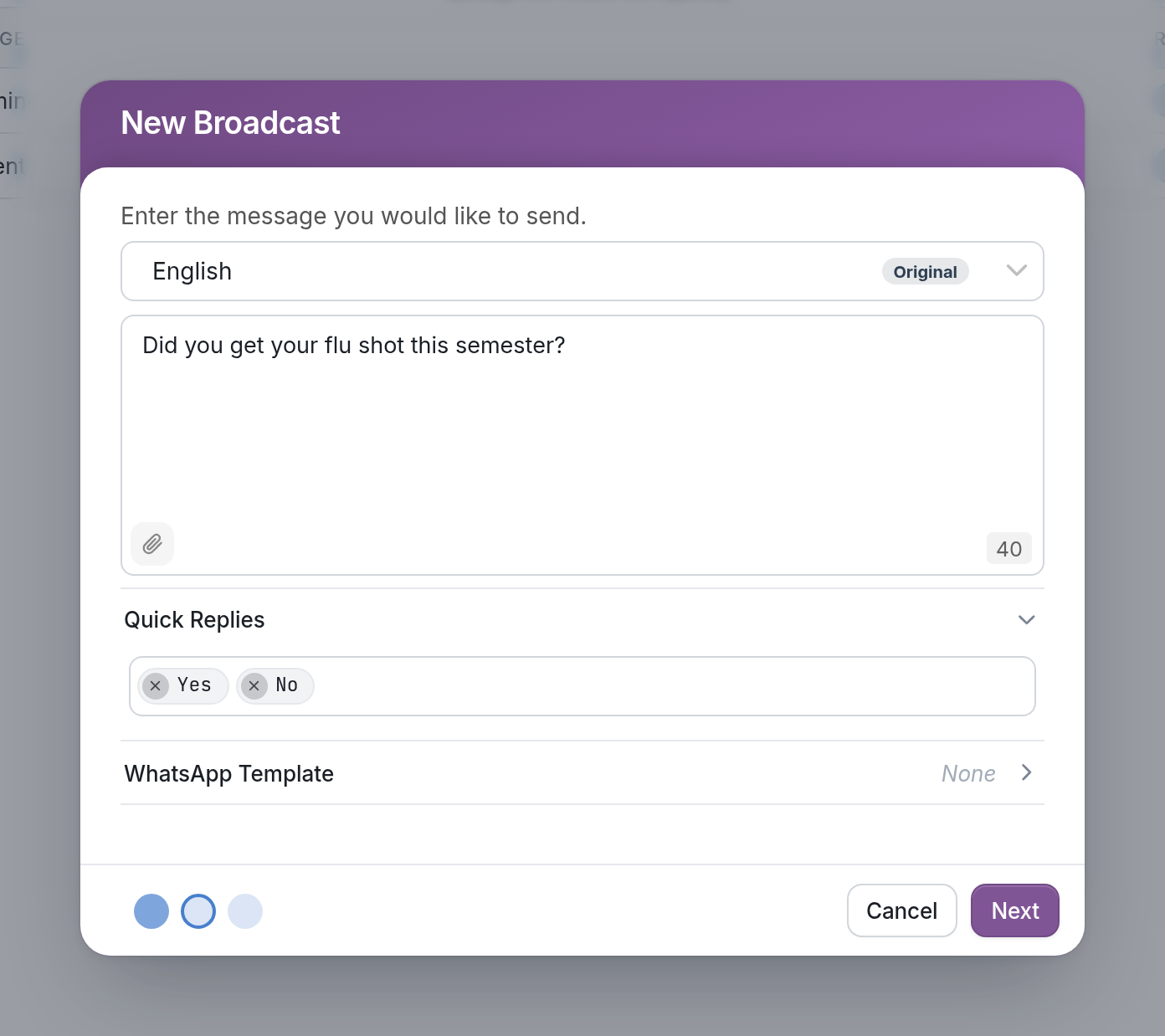
- Add your quick replies.
- Click Next and choose when to send your Broadcast: Send right now or Schedule for later. If you schedule it, set a Start Time and choose whether it should Repeat.
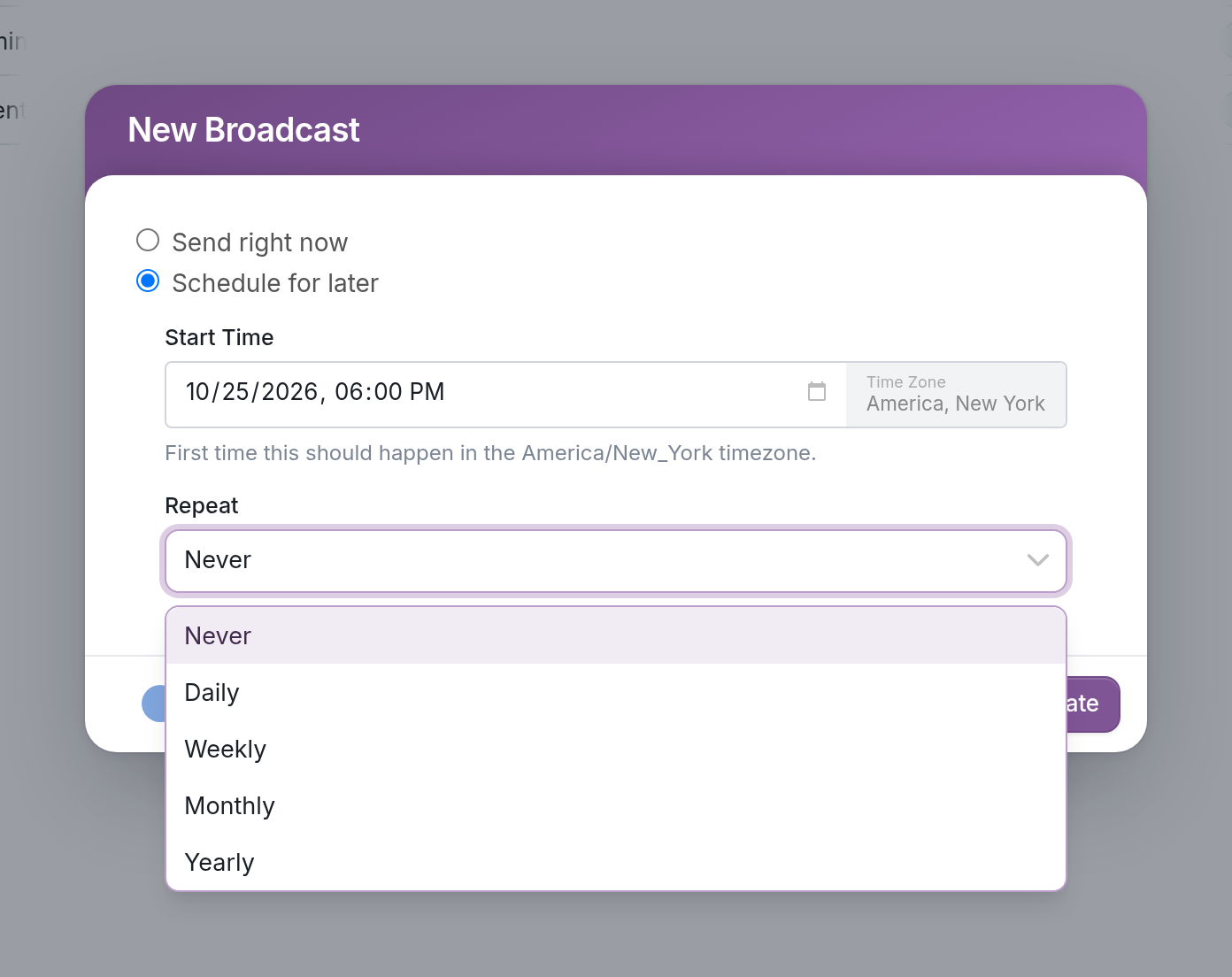
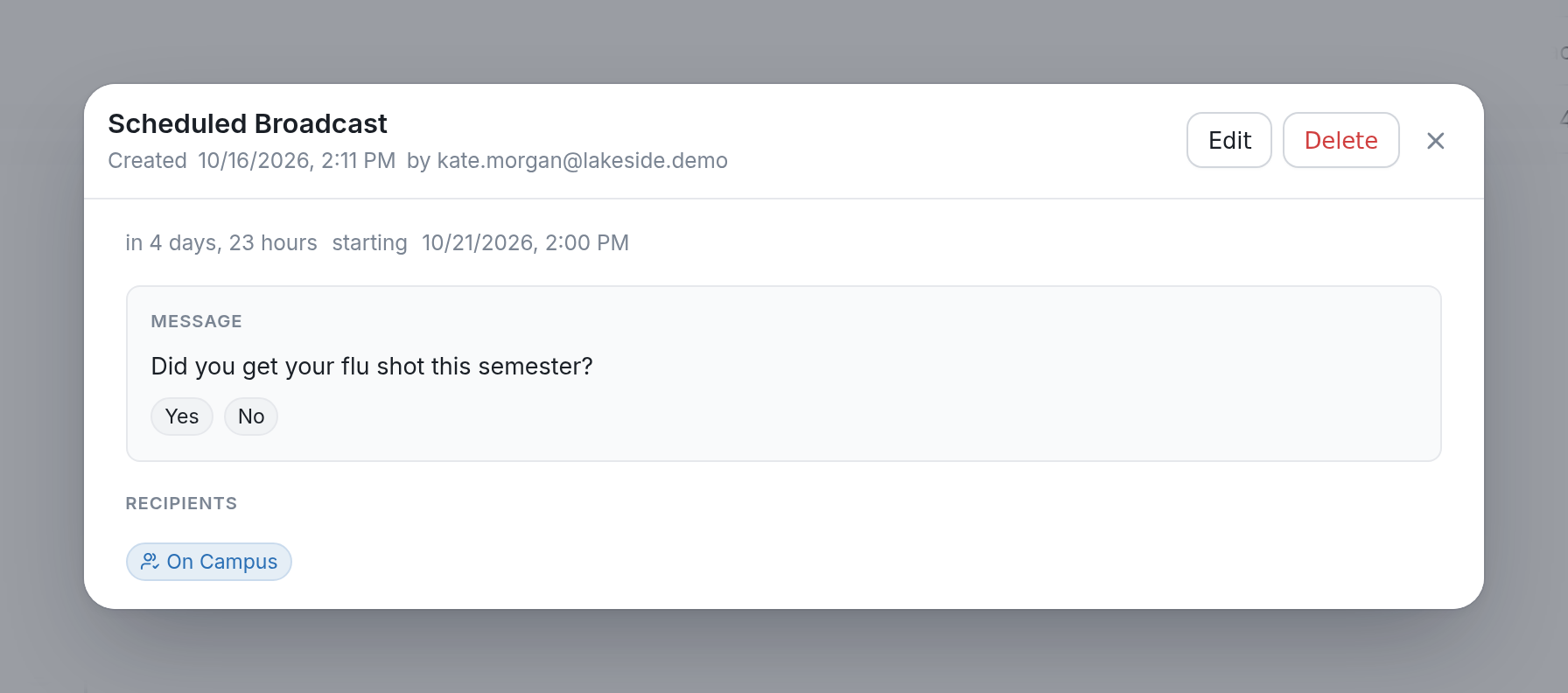
Your Broadcast will be sent with quick reply buttons. A scheduled Broadcast appears under Scheduled in the Messages list, where you can click it to see its details.
Channel-Specific Quick Reply Types
Some channel types only support simple text values as quick replies, but others support menus with descriptions, location buttons, rich forms and URL links with custom text. To use these channel-specific features, add markup to the quick reply value.
Menus with Descriptions
[TEXT]<extra>[DESCRIPTION]
OK<extra>I agree to the terms and conditions
URL Buttons
<url>[TEXT]<extra>[URL]
<url>Visit Website<extra>https://example.com
Location Choosers
<location>[TEXT]
<location>Send Location
Rich Forms
Use these to open a WhatsApp Flow or Telegram Webapp. The data collected is then available in the flow as @input.payload.
<form>[TEXT]<extra>[WHATSAPP_FLOW_ID]
<form>Register Now!<extra>123456789
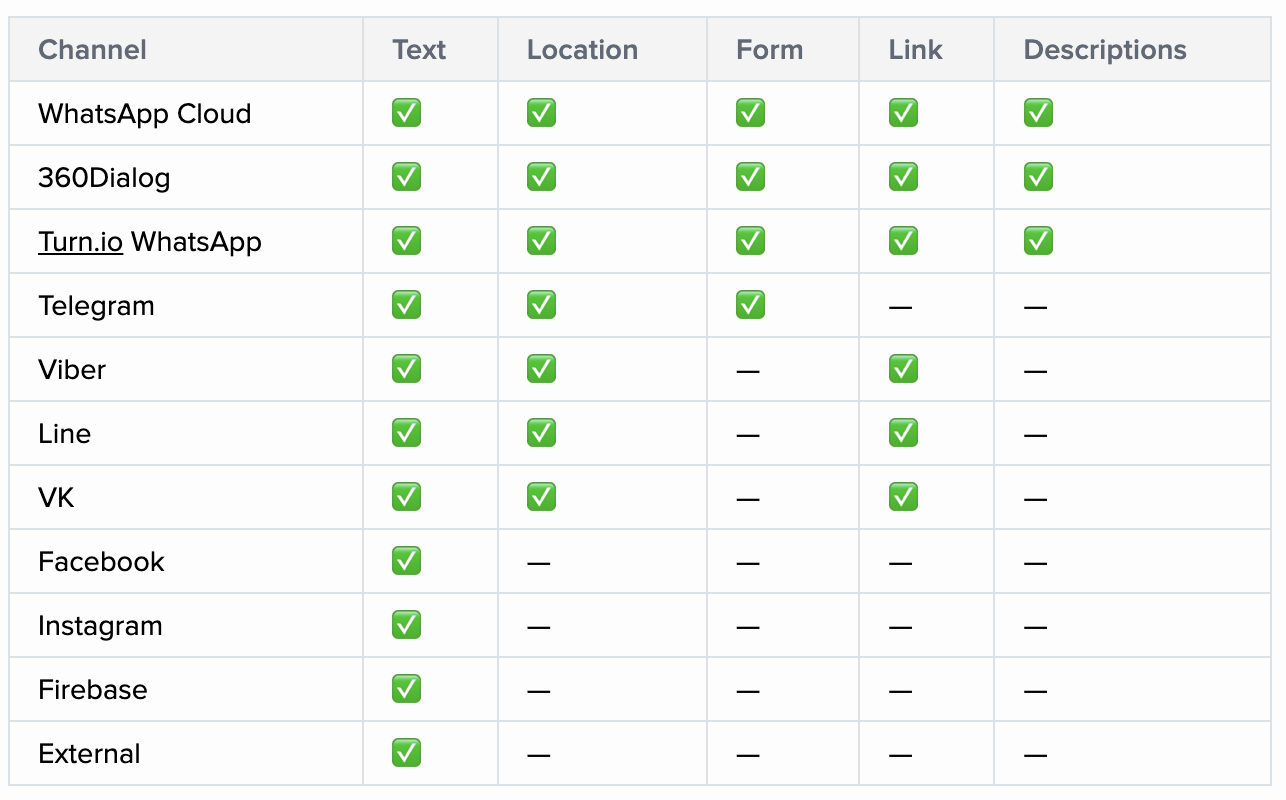
The table below shows which quick reply types each channel type supports, so you can see which options to use when configuring messages in your flow.
If you have questions, send us a message using the widget in the bottom right corner of your browser.