Mastering Shortcuts Messages
Creating and Using Shortcuts
Shortcuts let you insert pre-written responses for common scenarios, so you can reply faster and keep your answers consistent.
Getting Started with Shortcuts
-
Open Tickets: Click Tickets in the menu.
-
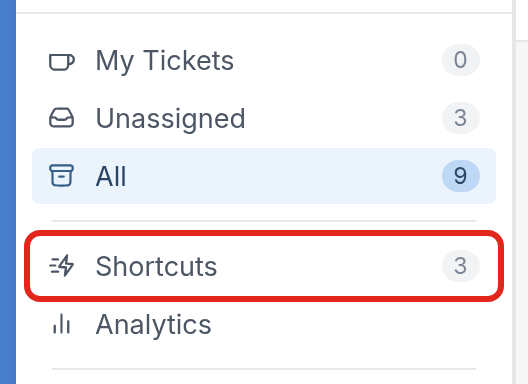
Go to Shortcuts: Click Shortcuts to open the shortcuts page.
- Create a new shortcut:
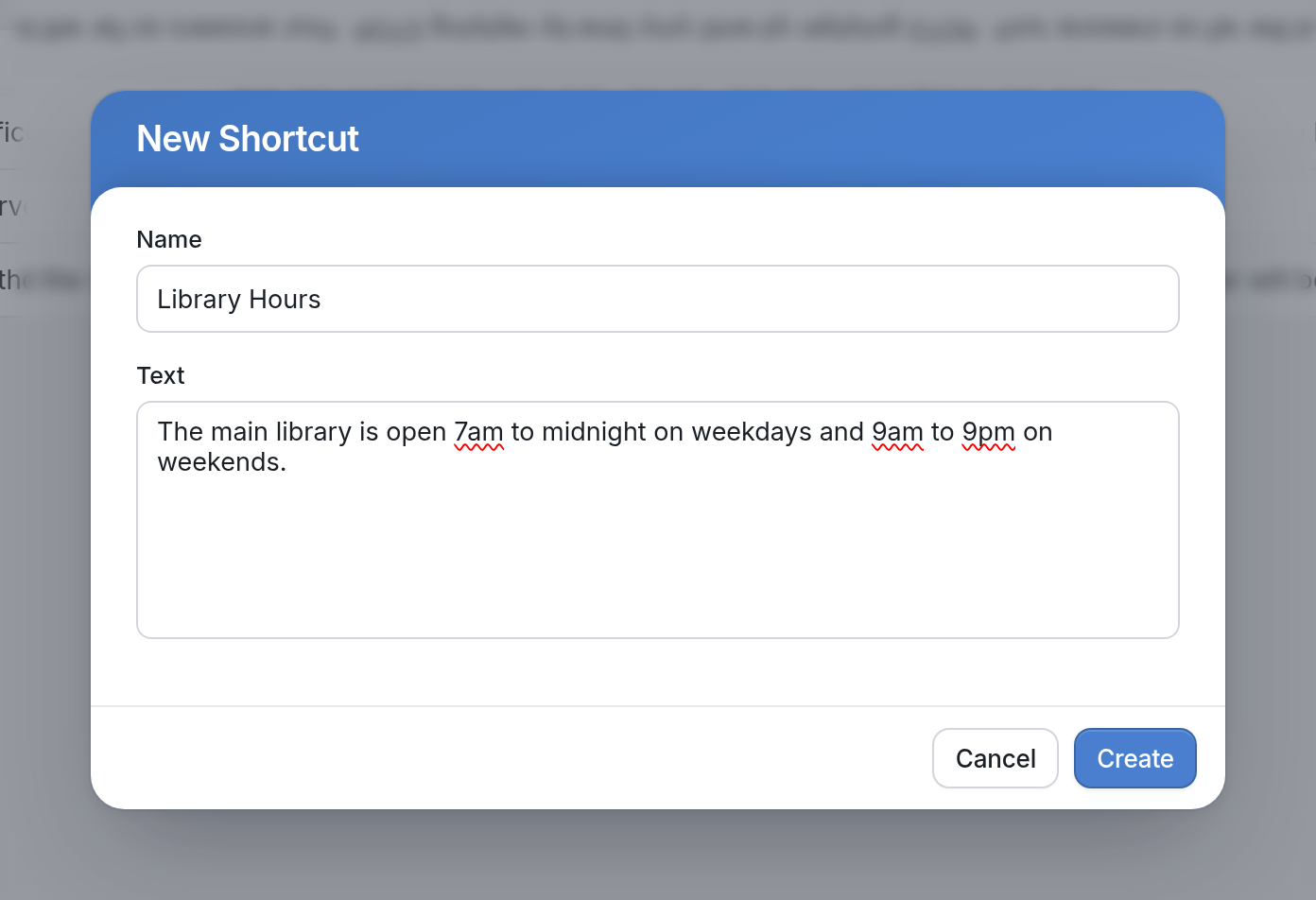
- In the top right corner, click New.
- Give your shortcut a name and enter your response in the Text box.
- Click Create.
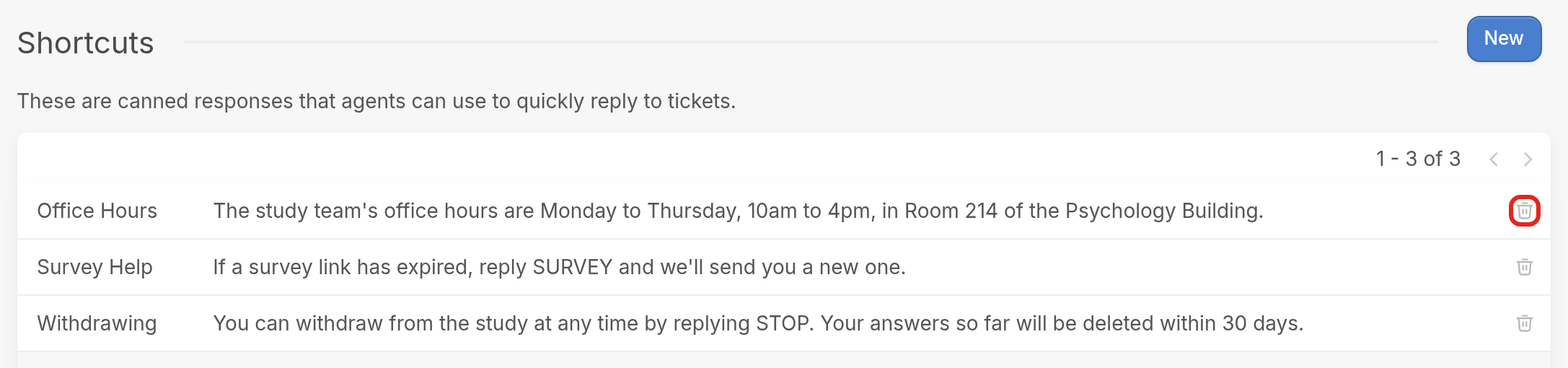
- Manage your shortcuts: Your new shortcut will appear in the Shortcuts list. To delete a shortcut, click the trash icon on the far right of its row.
| Note: Only users with the Administrator or Editor role can create shortcuts. |
Where can shortcuts be used?
You can use shortcuts anywhere you send a direct message to a contact:
- In the chat window on a contact's page.
- When agents reply to tickets.
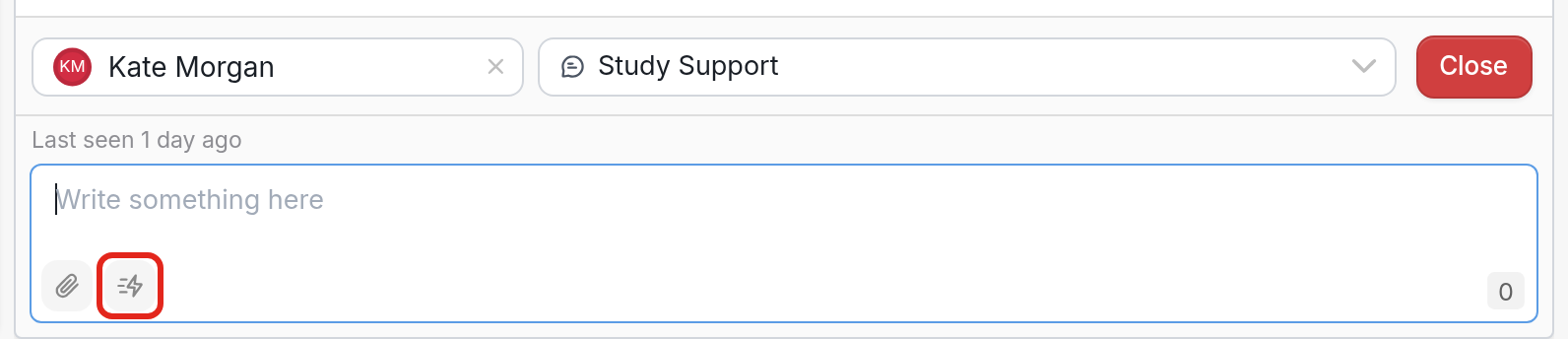
How to access shortcuts
You can open your shortcuts from any text box that has the shortcut icon at the bottom. You can also type "/" in the text box to see all your shortcuts. Then start typing a shortcut's name and press Enter to insert it. This way you never need to take your hands off the keyboard.