Efficient Flow Building: Tips & Tools
Creating New Nodes
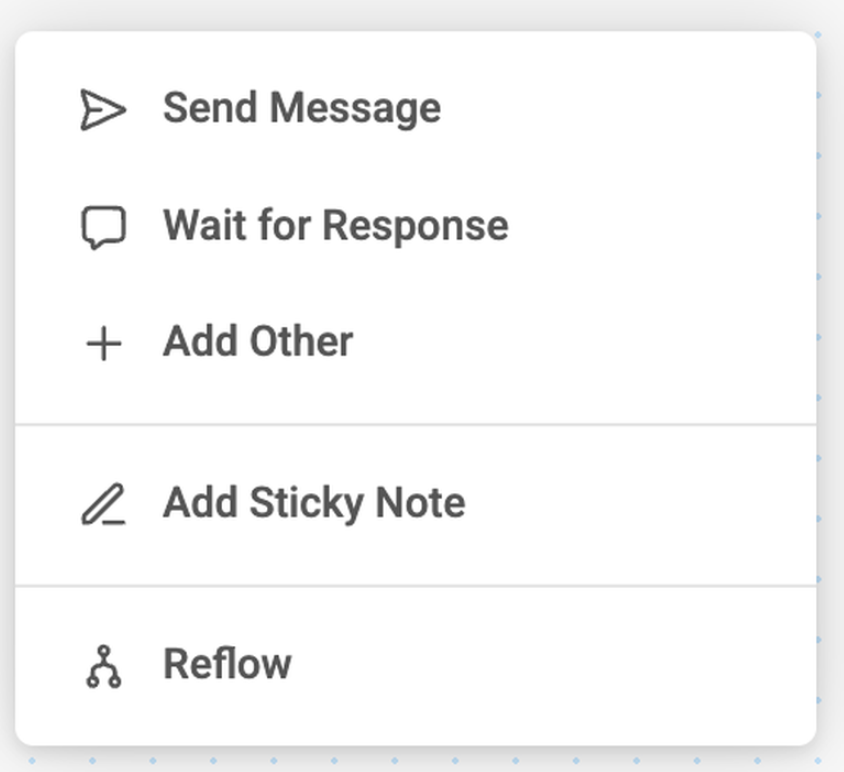
Creating new nodes is simple. Just right-click anywhere on the canvas to create a new node. You can also drag from the red dot to create new nodes if that’s your preferred workflow.
Drag, Drop, and Organize
Rearranging your flow is simple. * Reorder actions easily inside a node — simply drag from the arrows to rearrange action order. * Drag actions between nodes — rearranging your flow is effortless. * Create new nodes from actions — just drag an action from a stack onto the canvas and a new node will appear. * Merge actions across nodes — easily pick up a single action and combine it with others to create a stack. Building flows on your iPad is easy too, thanks to our smooth and intuitive UI design.
Editing Your Flow
You can select parts of your flow to quickly delete or copy them — making it easy to reorganize and reuse sections of your workflow.
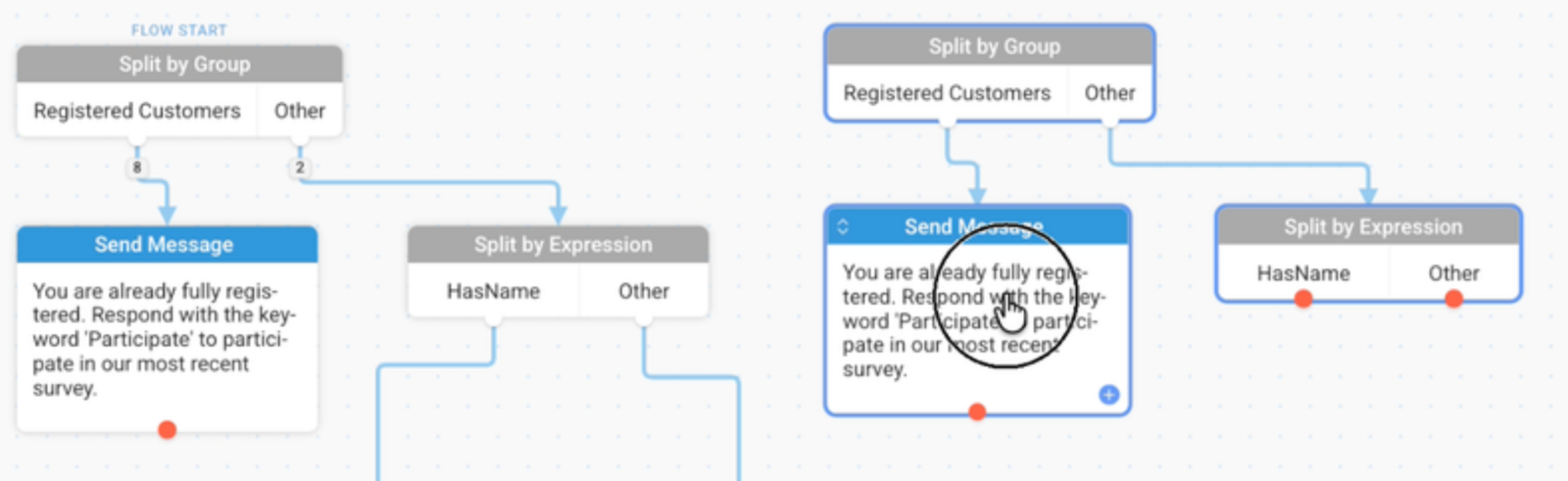
Delete Nodes Highlight the nodes you want to remove until they turn blue, then press Delete. A confirmation message will appear before anything is removed. If you delete something by accident, you can always restore it from your revision history.
Copy Nodes To make a copy of a single node, simply hold Shift and drag the node to the canvas. To copy multiple nodes, highlight the nodes you want to duplicate until they turn blue. Then hold Shift and drag the selection onto the editor to create a copy.
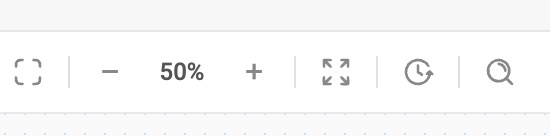
Zoom Controls:
- Zoom-to-Fit: View your entire flow at once to understand the overall structure.
- Zoom In/Out: Adjust your view between 30% and 100% using handy shortcuts.
- Full Zoom: Quickly snap back to a 100% view.
You can continue to edit blocks even while zoomed out or in "fit" mode.
Automatic Reflow:
Refine a messy, complicated flow into a neat, organized layout with one click, using automatic reflow. Just: * Zoom out * Right click and choose Reflow * Review your new organized flow
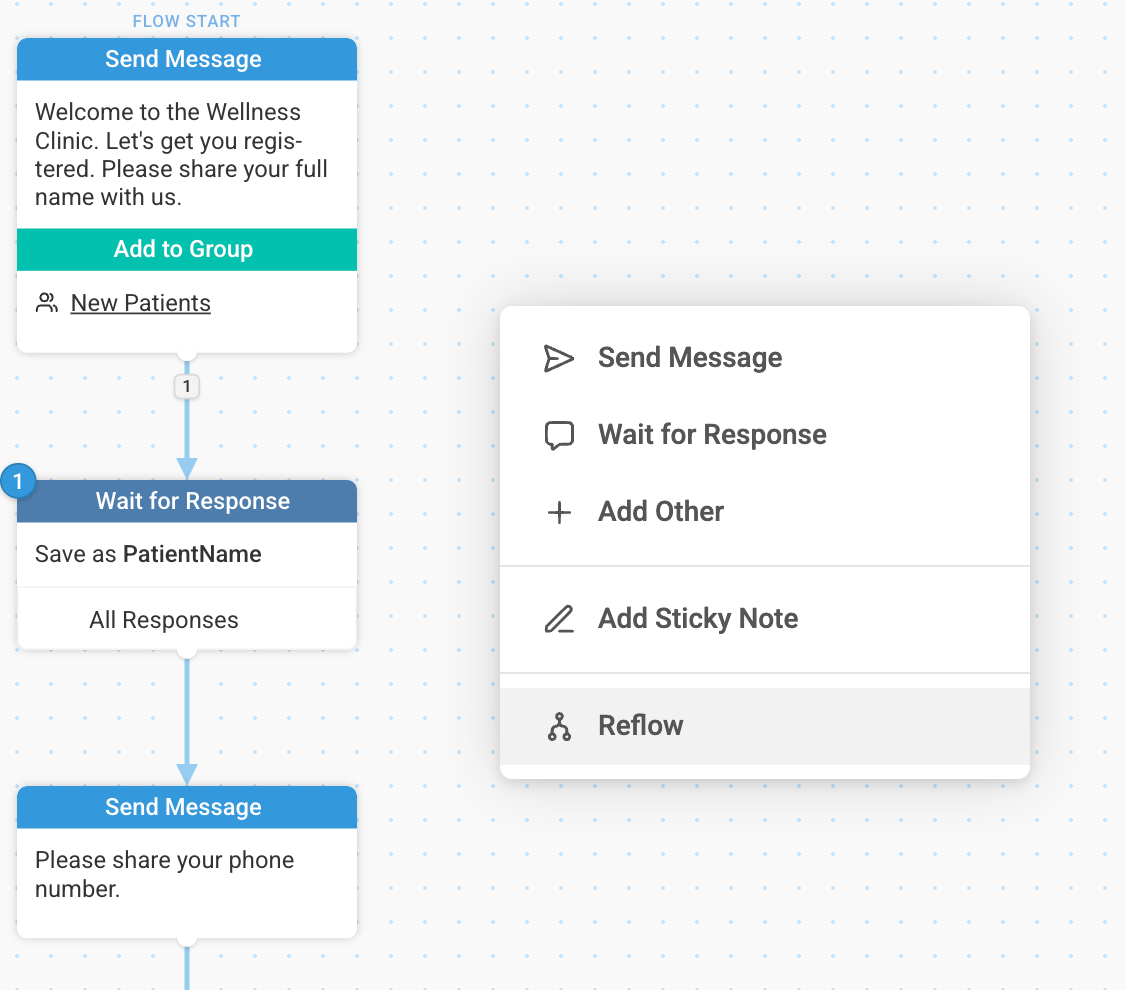
If you don’t like how your flow was reorganized, you can easily revert it by quickly clicking 'Discard' or by reverting to your previous flow using the revision history.
Search Flow Function:
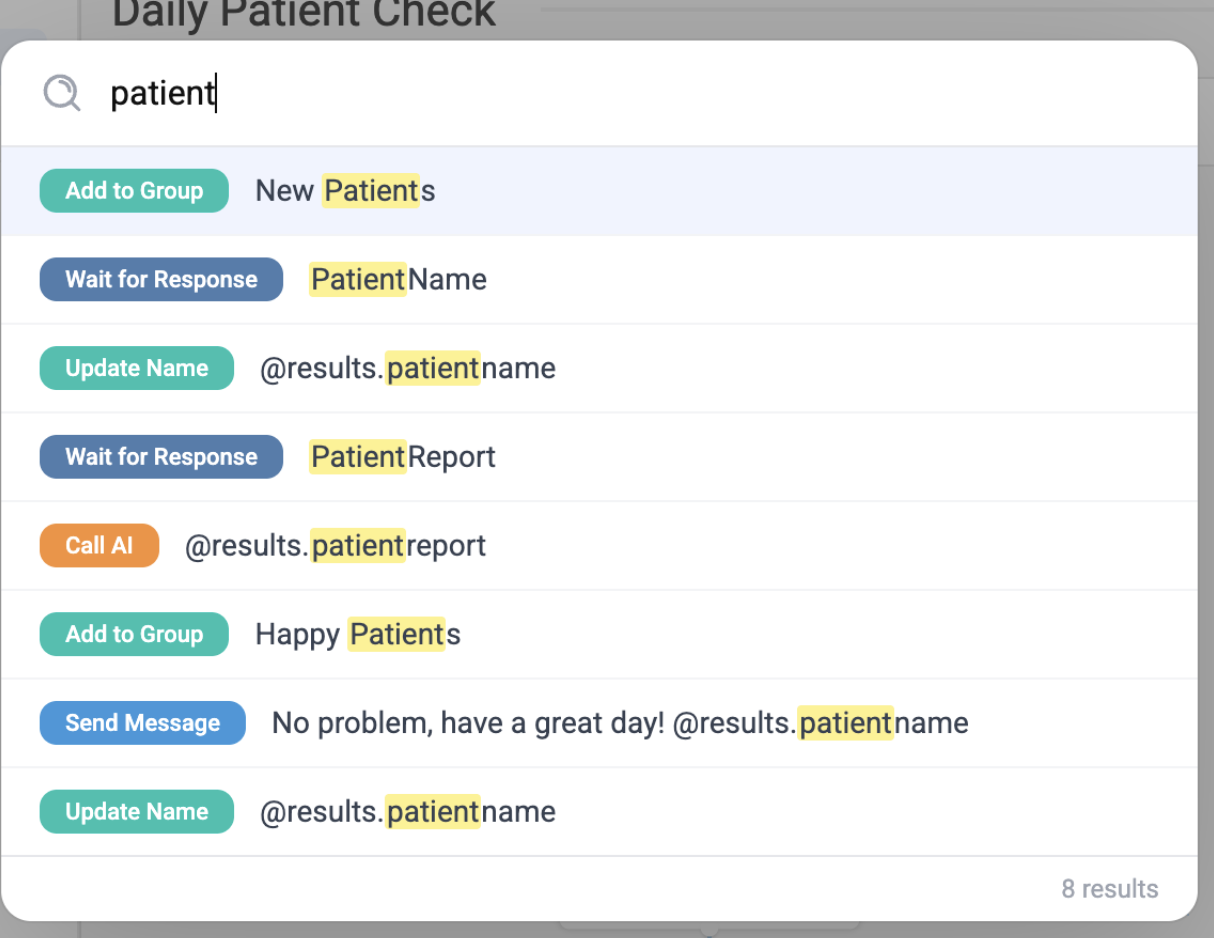
To quickly find specific content within your flow, use the search tool. Use the search icon or the CONTROL + F shortcut to find specific terms or actions.** **This is ideal for finding all instances of a specific action—such as "Call Webhook"—or specific phrases across long, complex flows.
Sticky Notes
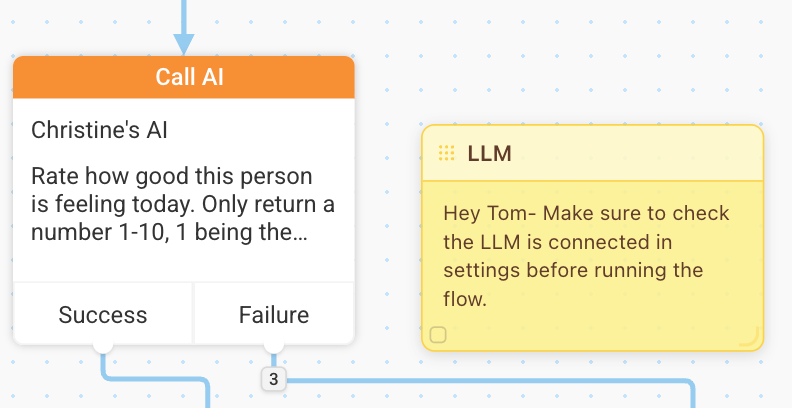
Sticky notes can be created with a simple right-click. They’re fully resizable and can be positioned anywhere on the canvas, so they stay out of your way while you work. Sticky notes are especially useful for managing long or complex flows, and are a great way to keep your team aligned during collaboration.
Of course, be sure to test your flows as you build using the Flow Simulator.