Flow Editor Table View
You can switch between two different views depending on how you prefer to work with your content. Use the toggle in the upper-left corner of the toolbar to change views:
Flow View
Displays your content on a visual canvas, making it easy to understand the logic and connections between nodes. Click on the Flow icon in the upper-left side of the tool bar to toggle back to this view.
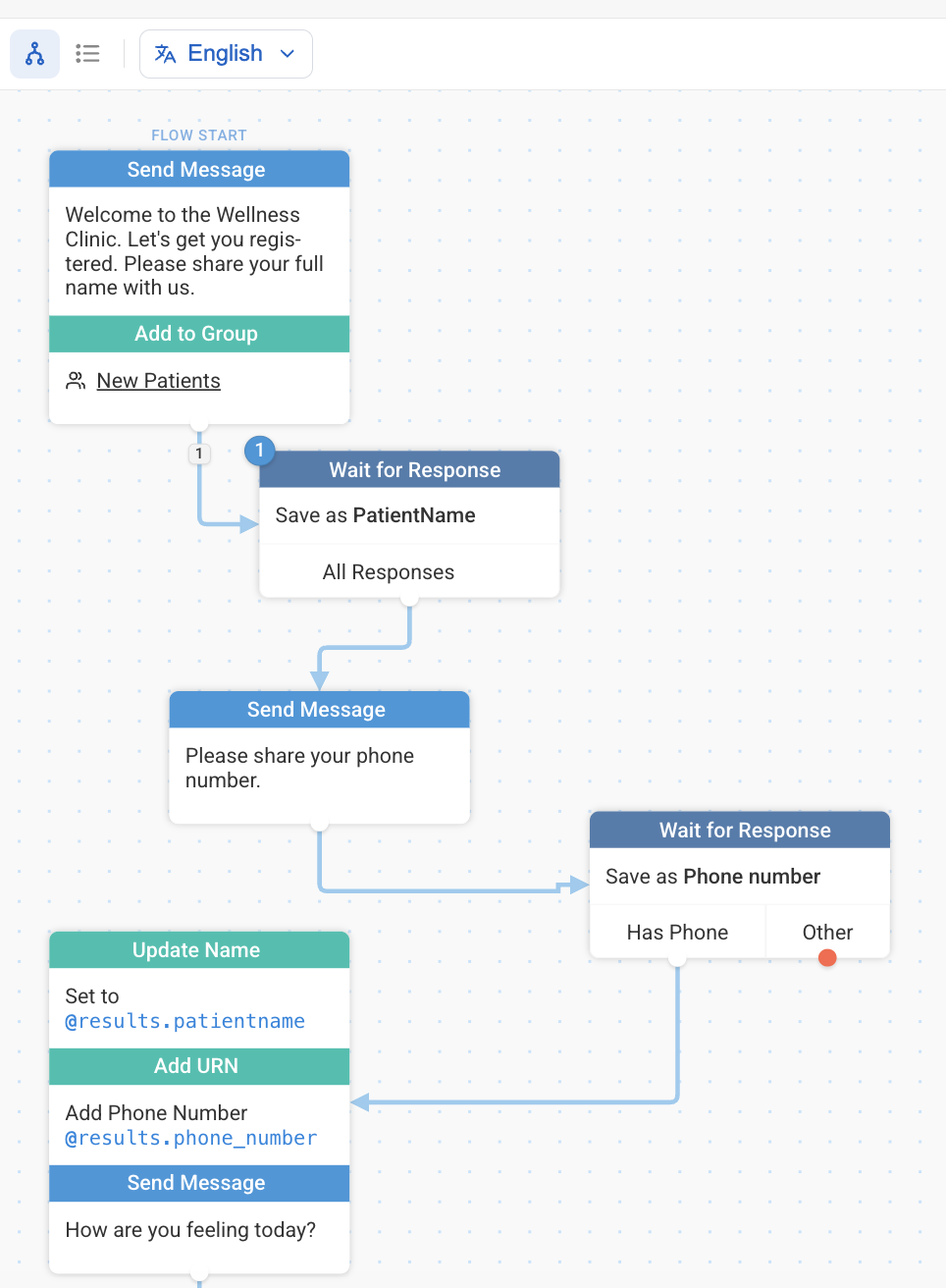
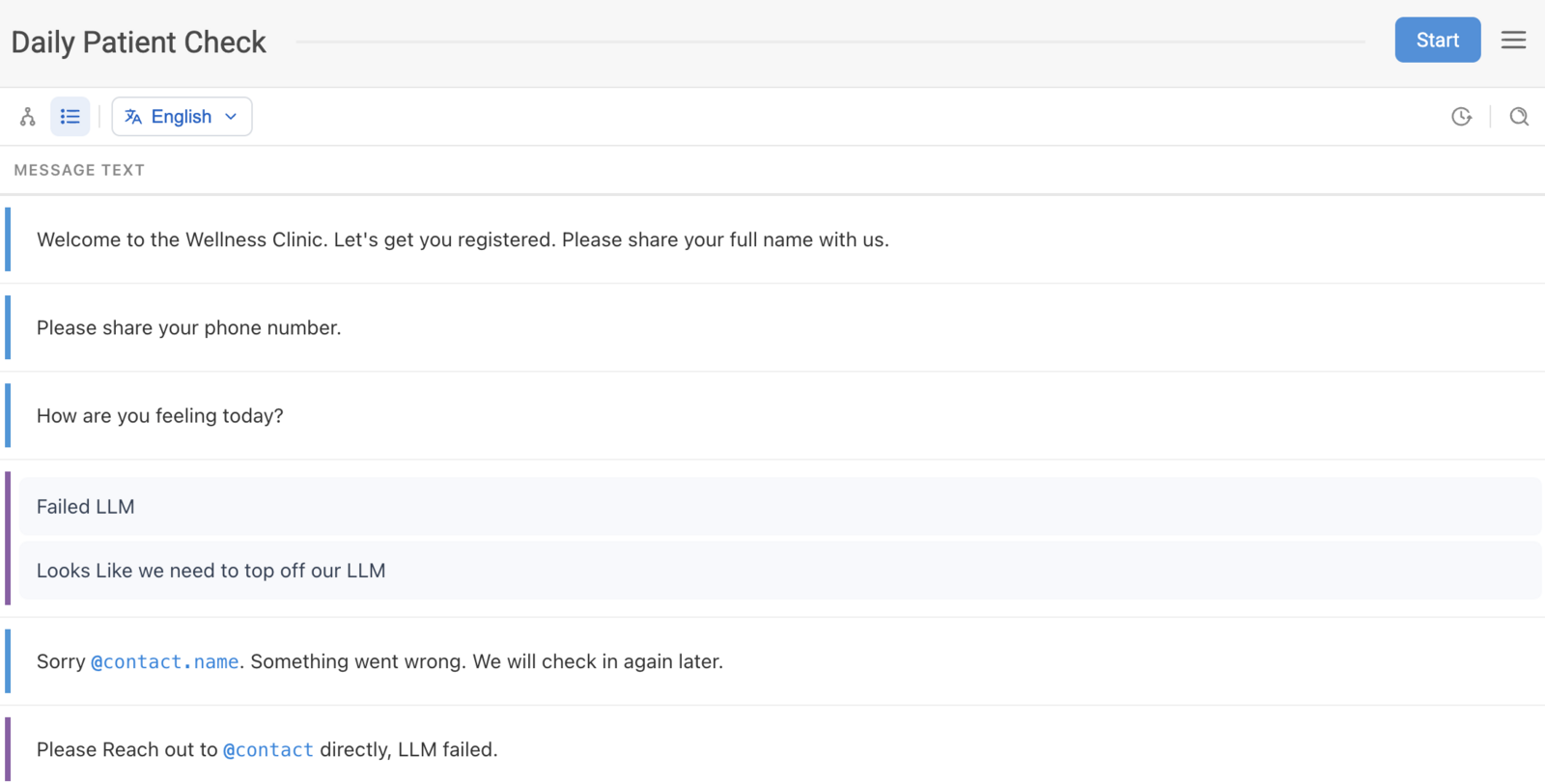
Table View
Shows all complete messages (non-condensed) in a structured, spreadsheet-style list based on their layout order. This view allows you to quickly scan and directly edit message content in a more compact format. Click on the List icon on the upper-left side of the tool bar to access Table View.
Language Translations in Table View
When you are in Table View and select a language, the editor now provides a side-by-side comparison. This allows you to: * Direct Editing: Create translations directly within the table cells. * Node Editing: Continue working within individual nodes if preferred. * Progress Tracking: View the percentage of completed translations directly from the language toggle.
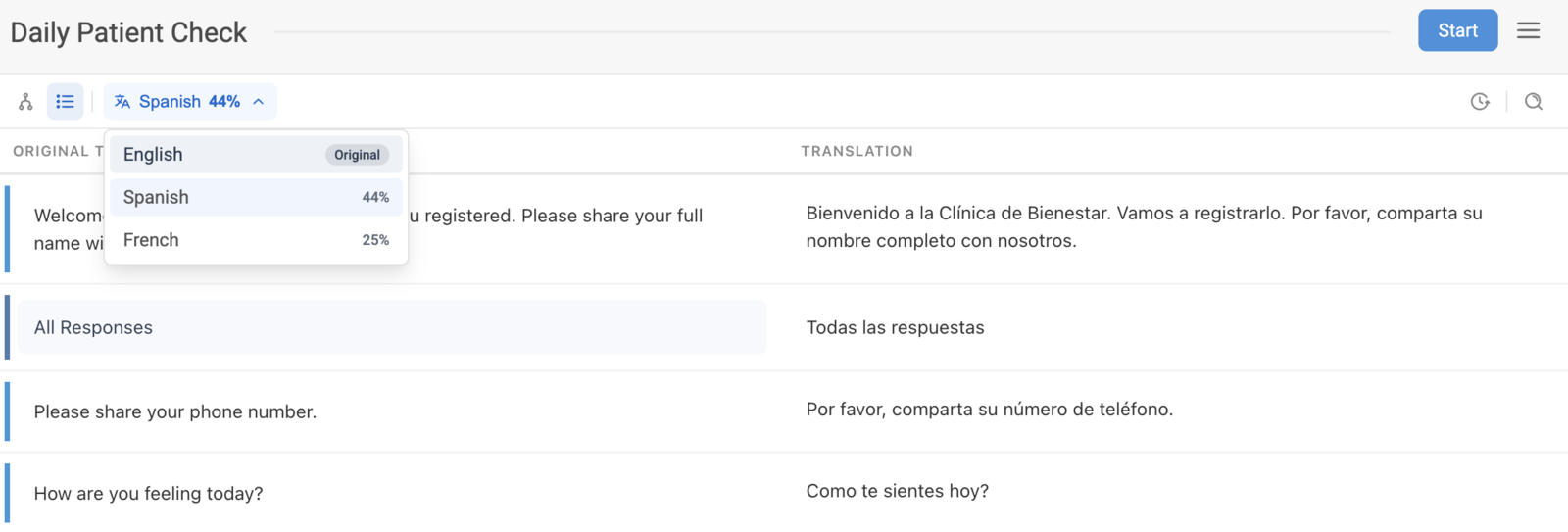
Using Table View when you have a high volume of text to translate; the side-by-side layout can significantly reduce the time spent clicking between different sections.